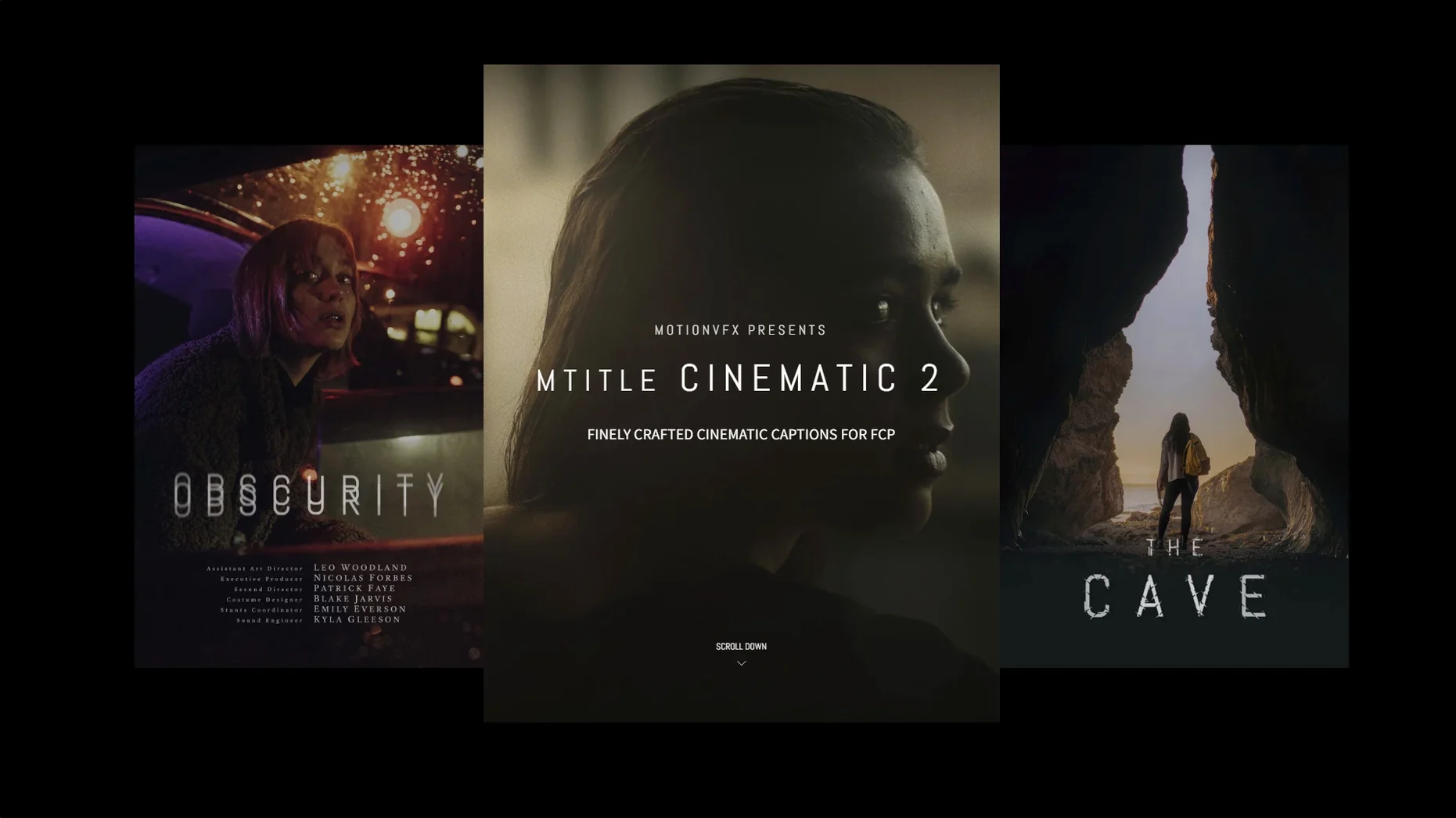
This collection lands with the same fifty titles it has carried for a while — no new templates in the current version, but the set already covers the ground most editors need. The pack is built inside Final Cut Pro's title architecture, so everything lives in the Titles browser and inherits whatever resolution and frame rate your project is running. The animations lean into big-screen motion: slow parallax pushes, lens-flare sweeps, elegant drift rather than bounce. They suit a trailer cut, a title sequence, or a brand film where the type needs weight without busyness.
A single cinematic language across fifty title templates
- Editors who want a coherent look across a project — the fifty titles share a consistent cinematic language
- Timelines that need to shift from a cold open to a credit roll without breaking visual tone
- Workflows where leaving Final Cut Pro for a round-trip to Motion would break momentum — these titles are editable in the FCP inspector
- Shorts, festival submissions, and pitch reels that need to feel bigger than their budget
Templates live inside Final Cut Pro, not cross-platform
- The templates run inside Final Cut Pro; if your edit lives in DaVinci Resolve or Premiere, these won't cross over
- Heavily layered titles can tax older Intel machines during live playback — a quick render of the title clip settles it
- Customizing beyond the published parameters still requires opening the template in Motion
Beginners often drag a title onto the timeline, squint at the preview, and decide it looks wrong — then delete it without touching a single parameter. The first mistake is treating these templates as finished shots rather than starting points. Every title in the pack exposes text, colour, scale and position controls directly in the Final Cut Pro inspector. If the animation feels too slow for a thirty-second social cut, pulling the duration handles speeds it up and the keyframes follow. The second mistake is stacking a complex parallax title over unrendered 4K footage on an older machine and blaming the plugin for stuttering playback. A quick render of just the title clip — select it and press Control-R — almost always fixes the frame drops. The third is harder to notice: using a lens-flare-heavy opener for a quiet interview sequence. The titles share a cinematic vocabulary, but they sit on a spectrum from bombastic to restrained. Browsing the full fifty before committing, rather than grabbing the first one that catches the eye, saves a tonal mismatch you will feel before you can name it.
A session with mTitle Cinematic
You open a short film project — a twelve-minute drama that needs a cold open with the title card and a credit block at the tail. Final Cut Pro already has the locked picture on the primary storyline. You switch to the Titles browser, scroll through the mTitle Cinematic folder, and scrub across the thumbnails. The previews play in place, no dragging required. One of the slow-drift templates, with a subtle light-leak crossing behind the text, feels right for the opening. You drag it above the first clip on the timeline and lengthen the title clip to six seconds to match the incoming audio swell.
With the title selected, the inspector shows the familiar Final Cut Pro text controls plus a few extra motionVFX parameters — glow intensity, flare colour, background opacity. You type the film's title, switch the font to the one the poster uses, and pull the glow back to about thirty percent so it reads against the dark woodland footage without looking like a sci-fi trailer. The flare colour you shift toward a warm amber to pick up the practical lamps in the scene. A playback confirms the drift timing works with the actors' blocking; the title settles just as the first character steps into the light. You render the clip, drop a marker on it, and move to the credits.
For the end crawl you pick a cleaner template — minimal movement, no flares, just a slow vertical rise that mimics a traditional film credit roll. The inspector lets you switch the animation direction and tweak the speed. You paste in the cast list, set the font size smaller, and let it run over the final sunset shot. Twenty minutes from first browse to both titles in place, and nothing left the timeline.
Dial back the default glow before it blows out your shot
The default glow on several templates ships at full brightness, which works on a dark background but blows out against sky or practical light sources. Bringing it down to forty or fifty percent in the inspector often makes the difference between a title that sits in the scene and one that hovers awkwardly above it. The flare colour defaults to a cool blue-white; shifting it toward a warm tone — something in the 4000K to 5000K range, roughly — ties it to indoor practicals and golden-hour exteriors more naturally than the default. If your project uses a non-standard aspect ratio, check the scale and position parameters before anything else. The templates assume a standard horizontal frame, and a slight repositioning prevents text from drifting off the safe area when the matte bars are on. Finally, the animation speed parameter, where available, responds more musically than simply shortening the clip. A slower drift over a longer clip reads as deliberate and weighty; speeding it up creates urgency without making the motion feel truncated.
What editors ask before installing
Does this work without Motion installed? The titles run entirely inside Final Cut Pro — you need version 10.4.6 or later. Opening a template in Motion is optional, only if you want to change the underlying animation rig beyond what the inspector parameters offer. For most edits, you never leave FCP.
Will these titles work on an Intel Mac? Yes, though complex templates with multiple light layers can tax integrated graphics during live playback. Rendering the title clip, or working in Better Performance mode, keeps the timeline responsive. On Apple Silicon machines, the same templates play back smoothly without pre-rendering.
Where do the files actually go? Into the standard Motion Templates folder at /Users/username/Movies/Motion Templates/Titles. Final Cut Pro picks them up automatically on the next launch. No installer, no activation dialogue, no internet check.
Can I use these in a project that will screen in cinemas? The templates inherit the project's resolution and colour space, so a timeline set to DCI 4K and Rec. 709 or HDR will carry the titles at that spec. The motion remains smooth at 24 fps, which is where the animation curves feel most natural — they were clearly timed with film frame rates in mind.
- macOS 10.14.4 or later
- Motion 5.4.3 or Final Cut Pro 10.4.6