
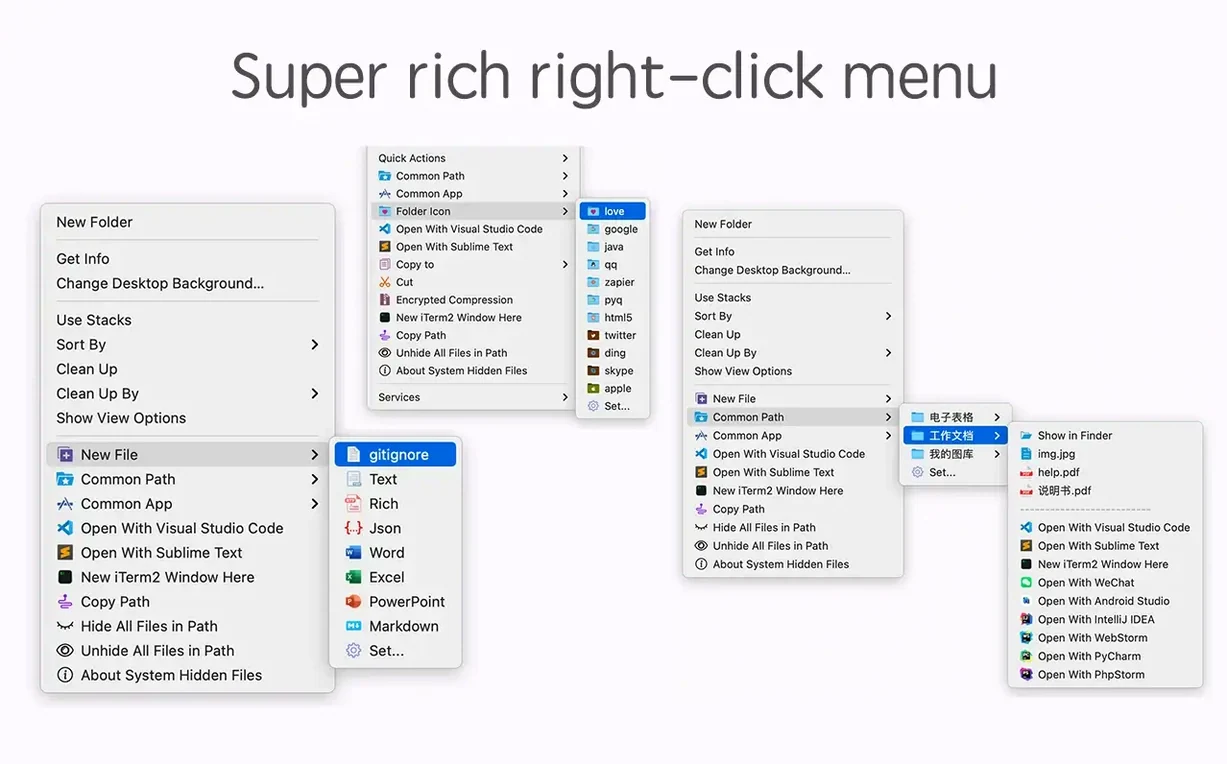
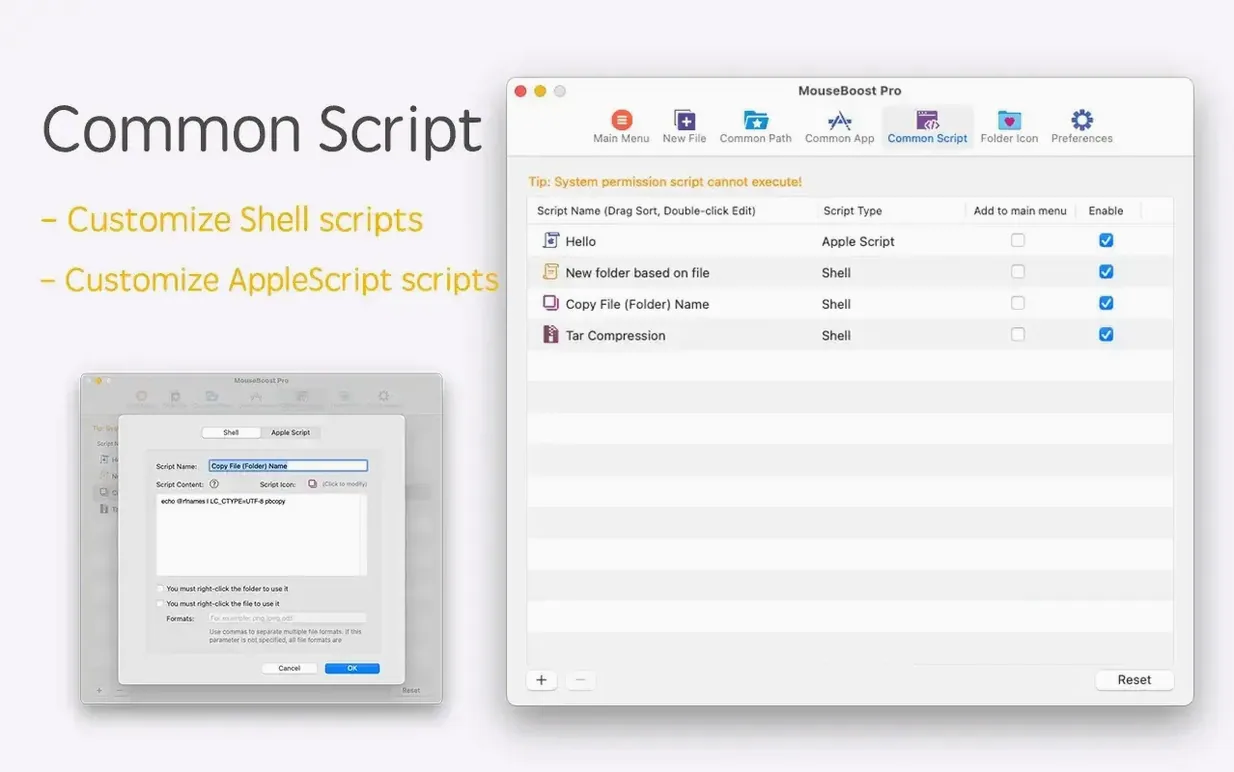
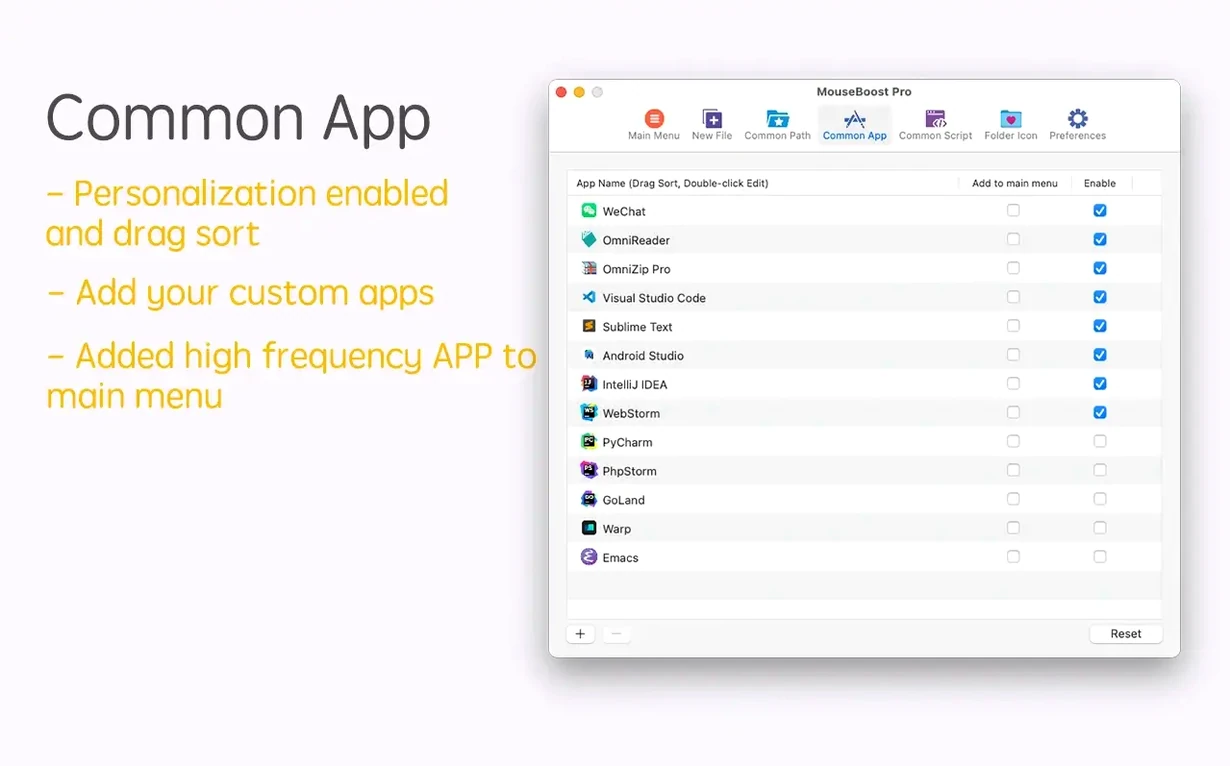
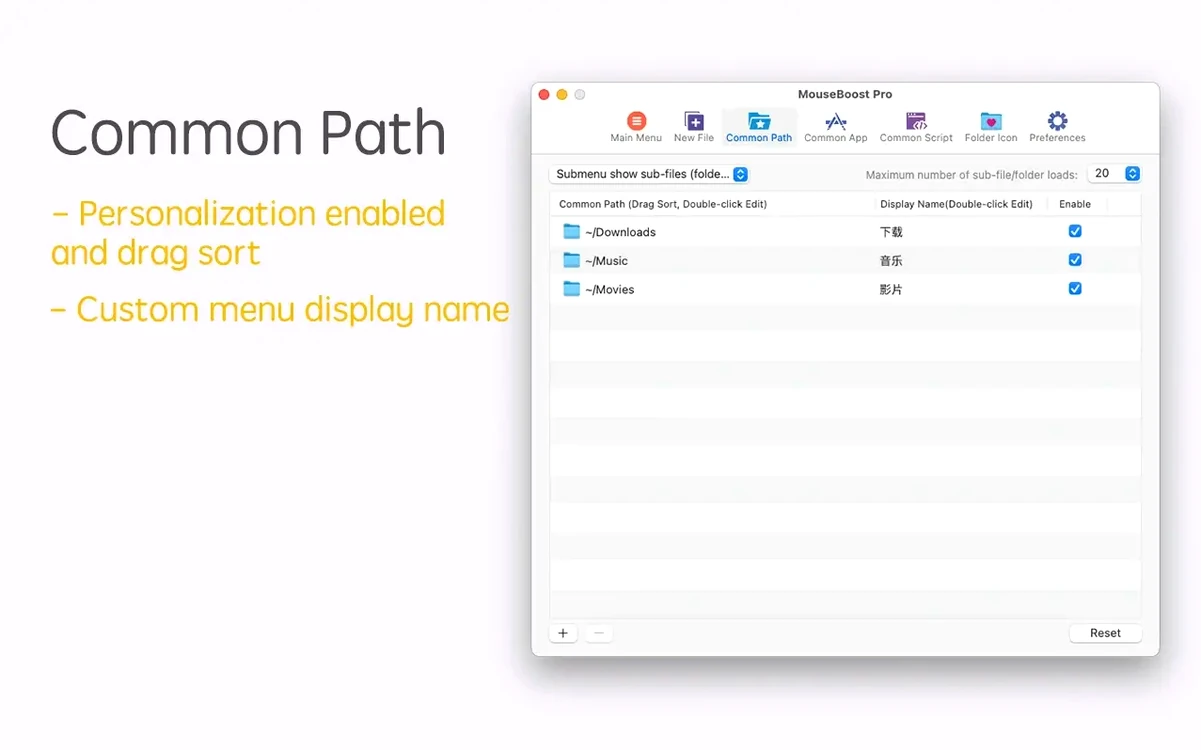
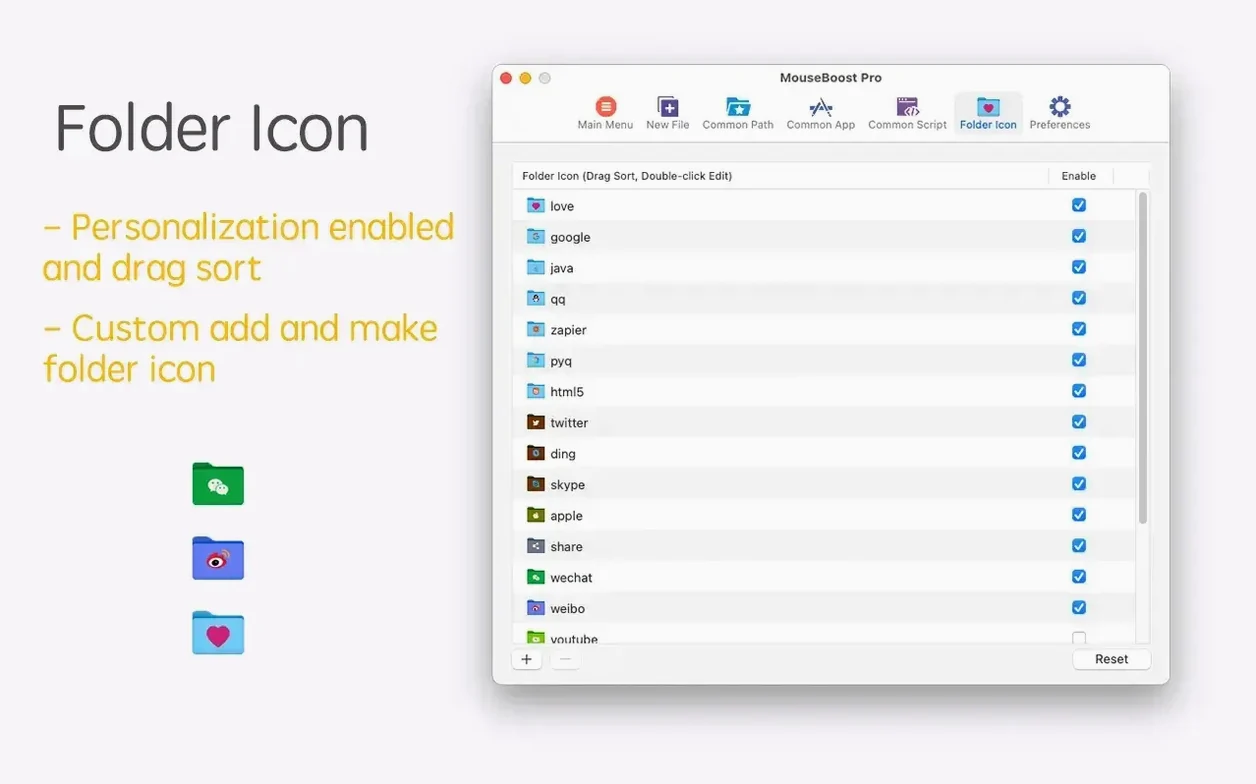
MouseBoost Pro runs on any Mac with macOS 10.11 or later, on both Intel and Apple Silicon machines. It works as a Finder extension, so once it is installed, you access almost everything through a right-click or Control-click inside your folders and on your files. The idea is straightforward: take the actions you perform over and over — moving files, creating new documents, changing a folder icon, opening a terminal in the current directory — and put them in a single, customizable menu. More than thirty small tools sit behind that menu, ranging from encrypted file compression to batch renaming with position-based text insertion and list-based name swaps.
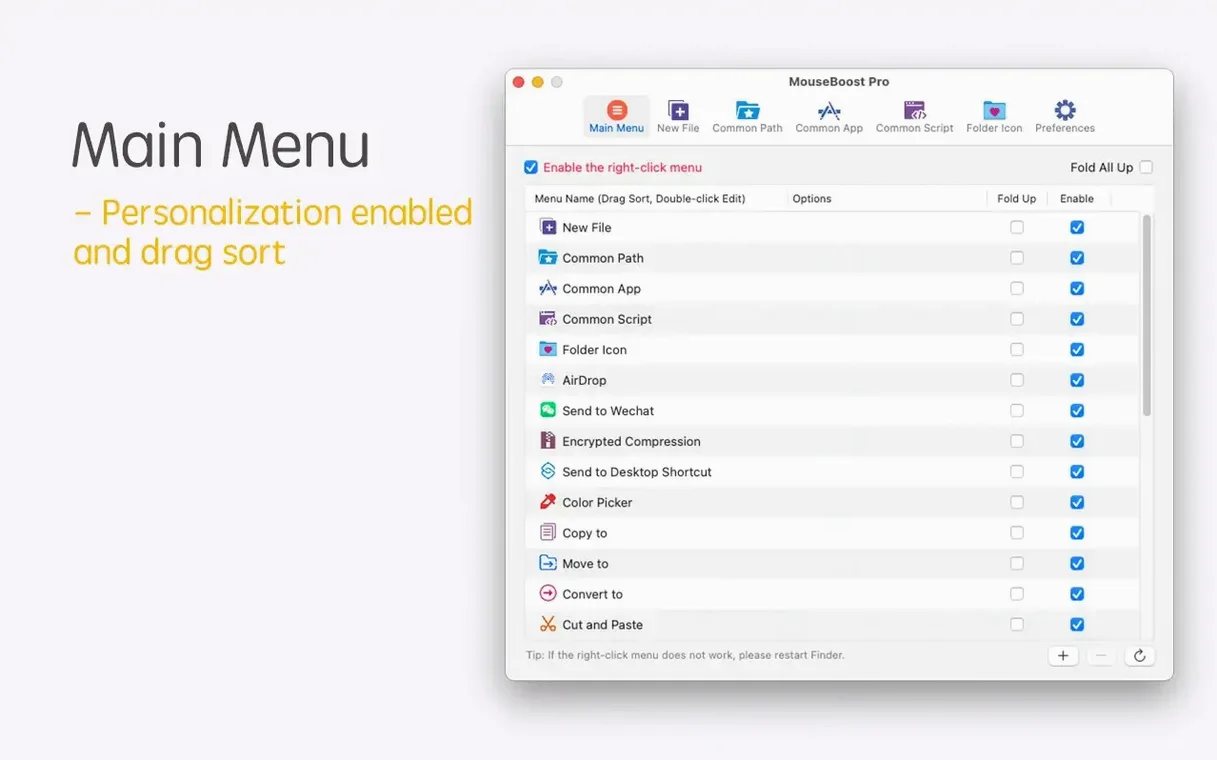
The menu itself can be sorted however you like, and you decide which items appear. If you deal with files that should stay out of sight, MouseBoost Pro lets you hide and show specified files without digging into flags or Terminal commands. There is also quick new-file creation for common formats, so you can drop a blank spreadsheet or text file into a folder without leaving Finder. For anyone who moves between Finder and iTerm2, the app can open iTerm2 and switch straight to the chosen directory.
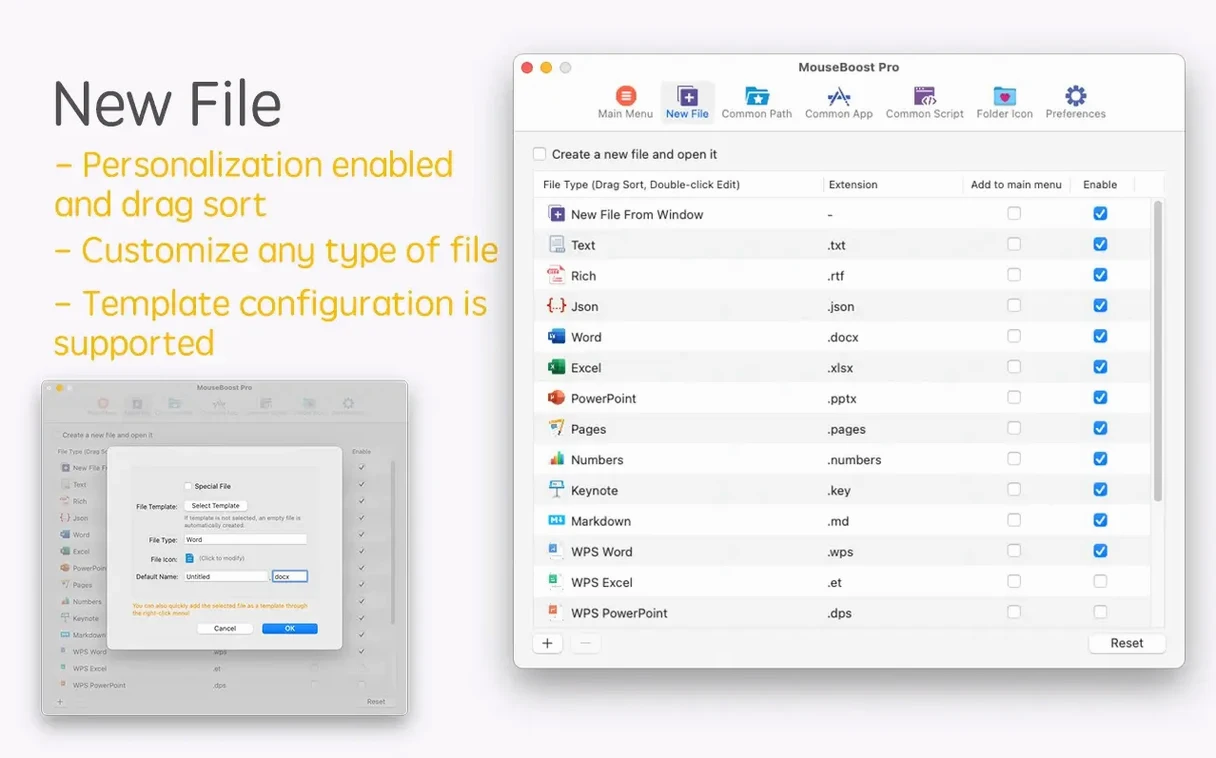
Skip the Save dialog with one-click new file templates
- People who spend hours in Finder and want common file actions closer to hand.
- Anyone who regularly creates the same file types and would rather skip the Save dialog dance.
- Users who need a quick way to show or hide sensitive or clutter files without altering system settings.
- Developers and writers who jump between Finder and a terminal like iTerm2.
Right-click convenience trades depth for breadth
- It lives in the right-click menu, so the workflow suits mouse and trackpad users more than keyboard-only navigation.
- The feature set is broad rather than deep — it covers many small utilities instead of a few power tools.
- Customizing the menu takes a few minutes up front to make it feel like your own.
From messy folder to renamed set, step by step
Say you have a folder of screenshots with names like Screen Shot 2025-03-11 at 14.32.17.png and you need them renamed, resized, and dropped into a project directory. Right-click the folder and choose the batch rename tool. In the current version you can insert text at a specific character position — add a project prefix after position zero — and pull a list of names from a plain text file if you already have a naming convention written down. The depth setting for file trees also means you can decide whether subfolders get included or left alone. Once the names land, select the files, right-click to copy, navigate to the project folder, right-click again and choose move or copy. The whole sequence lives inside two Finder windows and a single menu, no Terminal, no separate renamer app.
Small things that add up
A few touches in MouseBoost Pro are easy to overlook because the right-click menu hides them until you need them. The encrypted file compression option uses a password prompt right there in the Finder, so a quick zip with AES-256 does not require opening a dedicated archiver. If you work with code repos, the "open in VSCode" or Sublime Text action switches to the editor with the folder already loaded — one less drag-and-drop. The folder icon changer is another quiet one: drop a PNG or ICNS onto a folder through the menu and the icon updates without pasting through the Get Info panel. And the automatic OCR copy added in a recent update means you can right-click an image with text, copy the recognized content, and paste it elsewhere, no extra window.
Users who keep a mouseboost pro muscle memory going often forget that the entire menu order is user-sortable. Dragging items in the preferences pane reorders them everywhere, so the five tools you actually use sit at the top and the rest stay tucked away. The "new file" presets are similarly flexible: you can add custom file types beyond the defaults, which is useful for things like empty YAML or .env files that Finder never offers on its own. And the favourite-folder shortcut deserves a mention — one click opens a pre-set directory, which works well as a quick-jump for a downloads folder or a shared asset library.
Folder tree preview shows structure without expanding
Version 5.2.8 brought a handful of quality-of-life shifts rather than a single headline feature. The quick preview for folder trees means you can see a directory structure without expanding it in the Finder sidebar — a lightweight tree view that helps when you are documenting a project layout or checking what is inside a zipped backup before extracting it. The aspect ratio selection and automatic OCR copy turn image right-clicks into something closer to a lightweight asset inspector: grab text from a screenshot or lock a crop ratio without opening Preview. Improved scrolling capture fixes edge cases where long webpages or tall folder lists would cut off during screen grabs. On the renaming front, position-based text insertion and the rename-from-list support turn the batch tool into something that can handle sequential naming schemes and one-off bulk renames with the same menu entry. A maximum depth control for file and directory trees keeps the output readable when you are dealing with deeply nested node_modules or similar structures. None of these change the shape of the app, but together they make the right-click menu feel more like a Swiss-army knife that keeps getting the small blades sharpened.
Version 5.3.0 [MAS] brings a handful of additions that feel built for the way a filmmaker collects and arranges visual fragments. Image stitching now supports grid layouts, with a control for how many images sit in each row and the ability to add or remove shots as the composition takes shape. Pinned screenshots gain mouse-wheel zoom, so you can pull closer to a detail without unpinning anything. The update also introduces AVIF image support and fixes the aspect-ratio distortion that could appear when converting SVG files. Rounding things out are improved compatibility with macOS 27 and a round of interface rendering polish.
- OS X 10.11 or later, macOS 12.3 or later
- Apple Silicon and Intel 64-bit