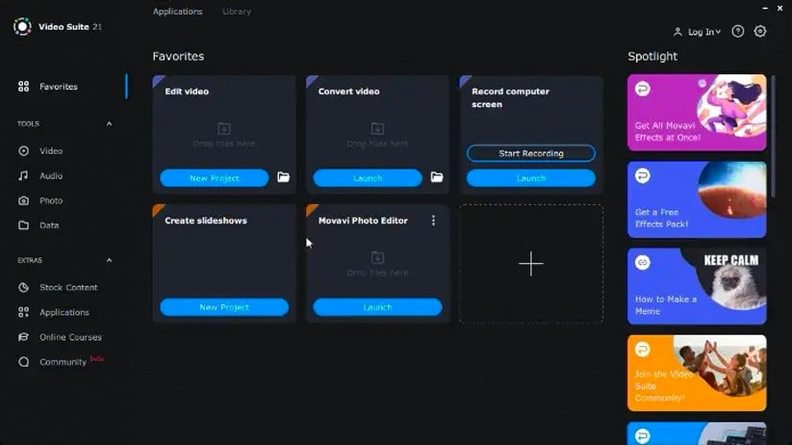
The problem is the digital sprawl—clips from a camera, a phone, a screen grab sitting in separate apps, waiting to become something watchable. Movavi Video Suite pulls those threads together into one workspace, and the best way to get comfortable is to follow a project from raw material to export.
Where to begin: a new project, soup to nuts
- Bring in everything at once. Drag clips from a folder on your Mac, or pull files over Wi-Fi from your phone using the network transfer tool. The media bin handles all of it side by side, so you are not hunting through Finder tabs mid-edit.
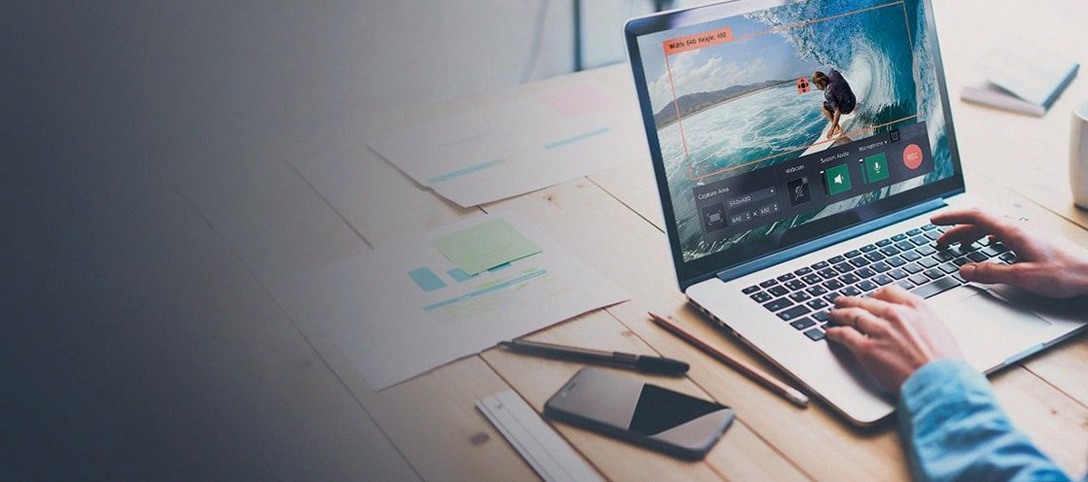
- Grab a screen recording with sound. If your project needs a walkthrough or a reaction clip, switch to the screen recorder panel. Set the capture area, toggle system audio on, and enable mouse cursor effects to highlight clicks or gestures—small touches that make a tutorial feel deliberate.
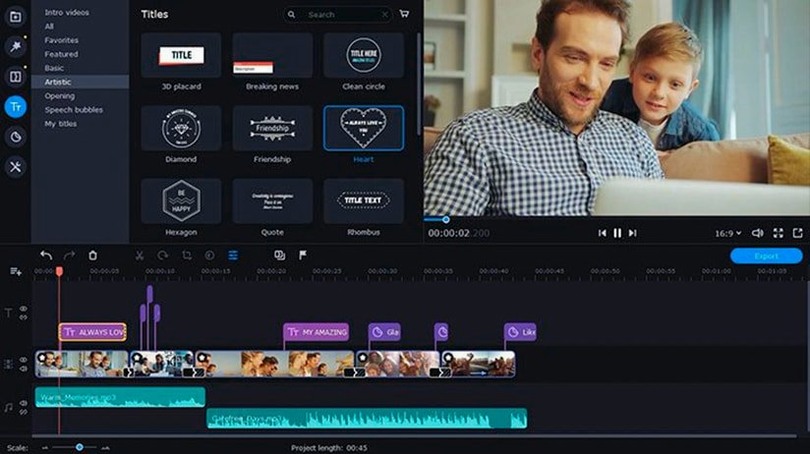
- Assemble a rough cut fast. On the timeline, split and trim using keyboard shortcuts. The editing tools are straightforward: clip, reorder, adjust volume. Drop one of the newly added music tracks underneath to set a pace before you refine anything.
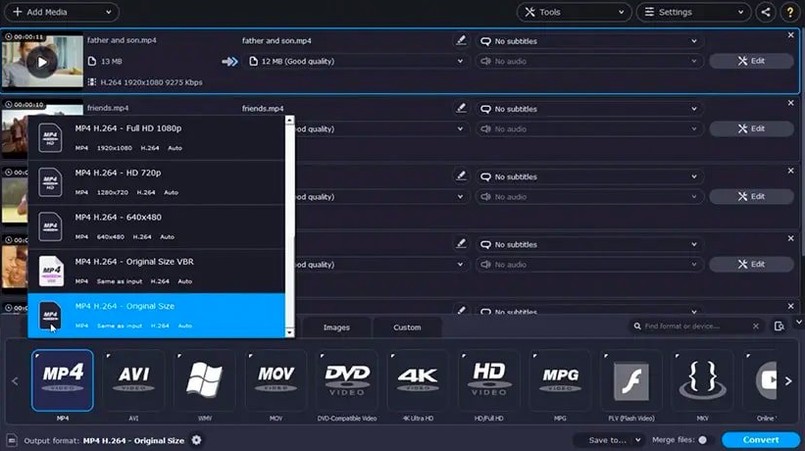
- Convert what does not play nicely. If a phone clip arrives in a format that stutters on the timeline, batch-convert it alongside other stubborn files without leaving the app. The conversion queue runs multiple files at once, so you can keep cutting while it works.
Once the structure holds, apply a few effects—the icon for applied effects was just refreshed in version 22.4.1, making it easier to spot at a glance which clips have colour or motion treatments. From there, export a master file and you have seen the full loop the software was built for.
A small channel, a weekly deadline
Picture someone running a modest cooking channel. Every Thursday, a new recipe goes up: an overhead phone clip of the prep, a screen recording of the ingredient list being assembled in a browser, and a short voiceover walkthrough captured through the laptop mic. Before Movavi Video Suite, Thursday mornings meant three separate apps and at least one file that refused to open without a transcode. Now the workflow collapses into a single evening. The phone clip arrives over Wi‑Fi while the screen recording rolls in the next tab. The conversion queue quietly handles the phone’s awkward variable‑framerate file in the background, and by the time the rough cut is on the timeline, the converted clip is ready to drop in without a stutter. That one less thing to troubleshoot is the difference between publishing at 10 p.m. and publishing with a clear head.
Switch the recording audio source to match your voiceover setup
A few defaults are worth adjusting once you know the shape of your own work. First, the screen recording audio source—the app defaults to system audio, but if you regularly add live commentary, switch it to microphone or a mix before you start recording. There is no re‑recording a spontaneous reaction. Second, in the conversion panel, enable the subtitle pass‑through early. Movavi can embed or extract subtitles during conversion, and toggling it on means you are not re‑exporting later when someone asks for captions. Third, mouse cursor effects in the screen recorder deserve a moment of restraint: the glow is generous by default, so dial the size back to subtle and set it to appear only on clicks—viewers follow a highlight, but they ignore a constant beacon. Finally, the timeline’s snapping behaviour is on by default, which is useful until you are nudging audio by a few frames under a voiceover; hold the modifier key to disable it temporarily rather than fighting the magnet.
Who settles into this suite the fastest
Three groups get more from the all‑in‑one design than most. Remote educators and trainers live in the overlap between screen recording and quick editing—they need to capture a slide deck, trim the preamble, and output a clean file without format gymnastics. The suite’s converter means they can hand off a video that plays on a student’s older tablet without a separate tool. Indie filmmakers who move between cameras—a DSLR, a drone, a phone—benefit from batch conversion that respects the timeline they are already cutting on, especially when a Movavi torrent of footage lands from a collaborator in a codec their NLE bristles at. And people archiving family media find the Wi‑Fi phone transfer quietly indispensable: it sidesteps the cable shuffle and lets them pull clips from a relative’s device across the room, convert decades‑old format mismatches in one queue, and stitch everything together with the same music library that just grew in the 22.4.1 update. The common thread is a user who values one fewer export step and one fewer reason to open a separate piece of software—because every time you switch tools, you risk losing the rhythm of the edit.
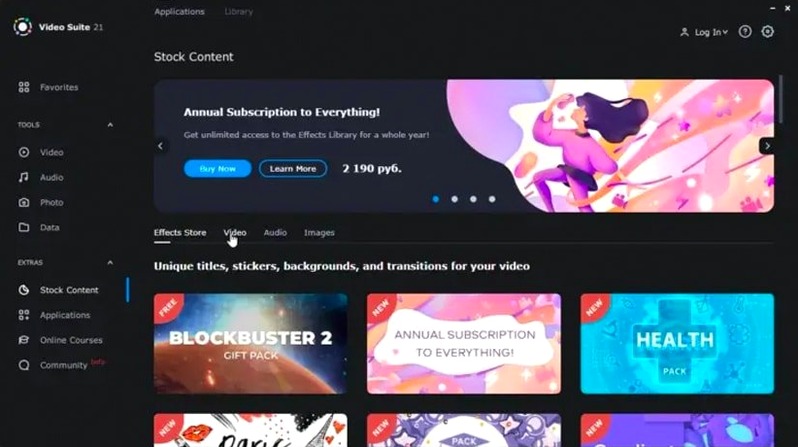
The title tool is more stable now—the program no longer shuts down unexpectedly while you are working with text overlays. A batch of new music tracks arrived, giving you more beds to cut against, and the symbol that marks clips with applied effects was updated so it is clearer in the timeline.
- macOS 10.13 or later
- Intel processor (x86 64-bit architecture)
Questions from the booth
Yes, the built-in screen recorder can capture your computer screen along with system audio, and it includes mouse cursor effects to highlight important moments.