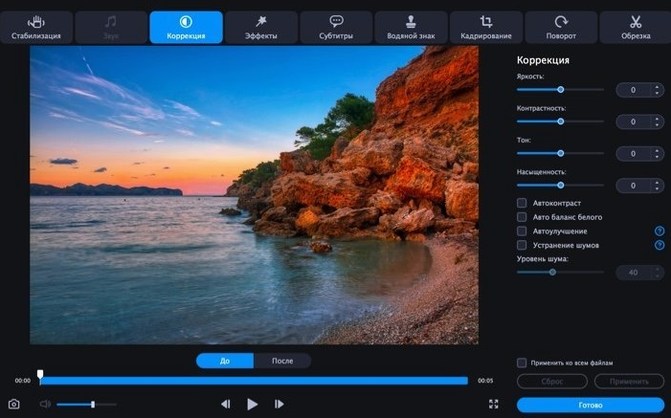
Indie filmmakers often end up with a drive full of mismatched clips — festival screeners in MKV, archival footage in AVI, phone grabs in WebM. Movavi Video Converter is the kind of tool you reach for when the timeline won't swallow what the camera handed you. It's a desktop converter for video, audio and still images, built around the idea that most people just want to pick a format and get on with the edit.
Convert between formats or pull still frames without touching an encoder setting
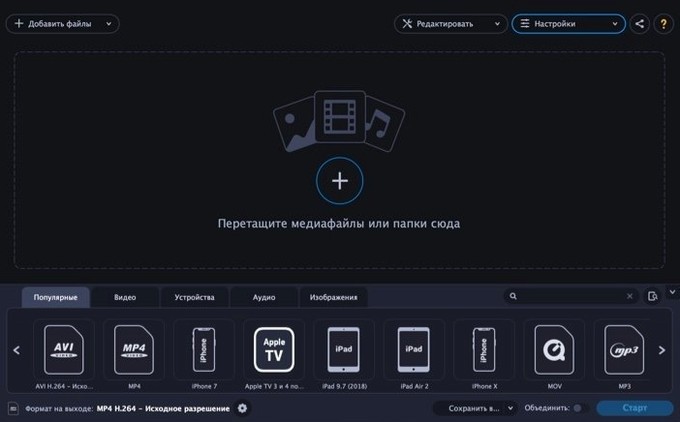
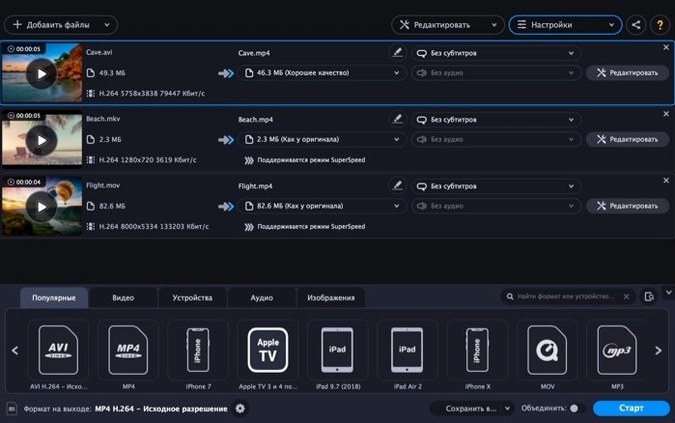
- Batch-converting video between AVI, MKV, MOV, MP4, MPEG, WebM and WMV without diving into encoder settings.
- Extracting still frames to BMP, GIF, JPEG, PNG or TIFF when you need a quick thumbnail or storyboard reference.
- Transcoding audio files — AAC, FLAC, M4A, MP3, OGG, Opus, WAV and WMA all supported.
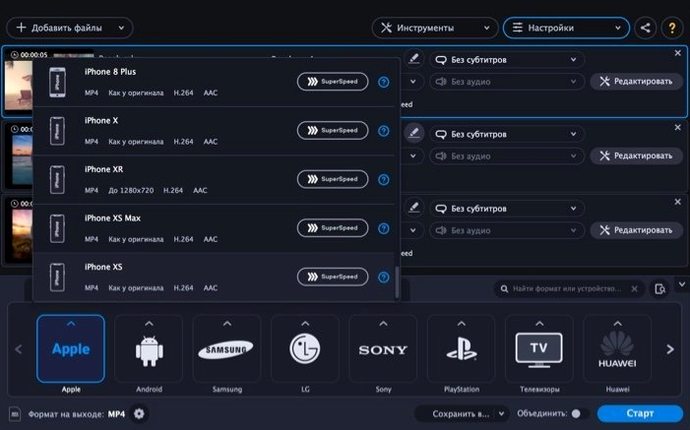
- Prepping footage for specific devices with ready-made profiles for Apple, Samsung, Nokia and Sony hardware.
- Applying light fixes during conversion: trim, crop, rotation, volume, noise reduction, stabilization, colour correction, subtitles, text and watermarks.
Runs on Intel Macs only, with a fourteen-language interface
- Requires an Intel Mac running macOS 10.13 or later — Apple Silicon machines aren't supported natively.
- The interface covers fourteen languages including English, French, German, Japanese and both Traditional and Simplified Chinese.
- SuperSpeed conversion mode is available, though real-world throughput depends on your hardware and source codec.
- Editing tools are functional for quick corrections, not a replacement for a dedicated NLE or colour suite.
Dragging in a folder flattens every file into one output directory
One of the most common errors is dragging an entire folder into the window and assuming the app will mirror the folder structure in the output. It won't — all converted files land flat in a single destination directory, and if you had subfolders named by scene or camera, that organization vanishes. Set aside a few minutes to plan your output folders first, or you'll be sorting clips by hand afterward.
New users also tend to ignore the preset resolution behaviour. By default, the converter often proposes an output resolution that matches a common device profile rather than the source file's native dimensions. You run a 4K clip through an Apple preset and suddenly you're staring at a 1080p render with no warning. Always check the resolution field in the conversion settings panel before you hit start, especially when mixing device profiles with original-quality archival work.
The noise reduction and stabilization toggles are easy to miss because they sit under a generic "Edit" button that doesn't suggest motion or audio processing. A filmmaker I know ran an entire short film through the queue with stabilization enabled on every clip, only to find that handheld tracking shots had been smoothed into a weird, floating-drift look that cost an afternoon to redo. These filters work best applied selectively — a single locked-off interview clip with a hum, not a full reel of vérité footage.
Quiet shortcuts that reward the observant
The image-to-GIF pipeline is tucked away where you might overlook it entirely. Drop a short video clip in, switch the output format to GIF from the image section of the format list, and you can set a frame rate cap and maximum dimensions before export. It's a fast way to pull reaction loops or storyboard moments out of dailies without opening a motion-graphics app.
When you're extracting audio from video, the format dropdown defaults to MP3, but holding the Option key while selecting a preset sometimes reveals additional container choices depending on the source file — AAC in an MP4 wrapper, for instance, which preserves more of the original recording's dynamics if you're pulling dialogue for transcription or subtitling later.
Batch renaming doesn't exist as a dedicated feature, but the output filename pattern is predictable if you keep "Original names" checked. Combine that with a watched folder workflow and some AppleScript or a Hazel rule, and you can automate tidy naming conventions without touching the mouse between sessions.
A 2019 Intel iMac chewed through thirty 4K ProRes clips in under twelve minutes
On a 2019 Intel iMac with a six-core i5, a folder of thirty 4K ProRes clips converted to H.264 MP4 took just under twelve minutes in SuperSpeed mode — respectable, though the fan spun up audibly around the four-minute mark and stayed there. The application remained responsive throughout; I could queue another batch or tweak an individual file's trim points while the current job churned. Memory usage hovered around 600 MB during conversion, which leaves room for a browser and a lightweight editing tool without the system leaning on swap.
Stability has been uneventful, which is what you want from a converter. Over a week of daily use — pulling audio from screeners, compressing archival footage for offline edits, generating JPEG sequences from interview clips — the app crashed once, and that was while rapidly switching between the stabilization preview and the trim handles on a heavily compressed WebM file. The auto-saved queue meant nothing was lost. Smaller utilities sometimes stutter on MKV files with embedded subtitles or variable frame rates; here, those same files ingested without protest and passed through to MOV containers cleanly, subtitle tracks stripped or preserved depending on a single checkbox.
The Intel-only requirement is the one friction point you feel. Under Rosetta 2 on an M1 MacBook Air, conversions complete roughly thirty percent slower than on native x86 hardware, and the SuperSpeed mode's advantage shrinks noticeably. If you're working primarily on Apple Silicon, you'll want to keep a well-cooled Intel machine around for bulk jobs or simply budget more time for the queue. For a tool that often gets found through a Movavi Video Converter torrent search by editors on tight budgets, it holds up better than most utilities in its weight class — no mysterious background processes, no sudden CPU spikes when the app is idle, and a preference pane that respects the settings you actually change instead of reverting on relaunch.
- macOS 10.13 or later
- Intel 64-bit processor
Questions from the booth
The current 22.5.0 release requires an Intel 64-bit processor and macOS 10.13 or higher — Apple Silicon Macs are not officially supported.
Yes, it handles input formats including AAC, FLAC, M4A, MP3, OGG, Opus, WAV and WMA, so you can transcode audio alongside video.