
Movist Pro is a macOS video player built on QuickTime and FFmpeg, designed for people who spend as much time adjusting subtitles as they do watching the frame itself. It doesn't try to be a media centre or a library manager — it's a playback engine tuned for control, clarity, and the kind of fine-grained tweaking that makes a difference on a long viewing session.
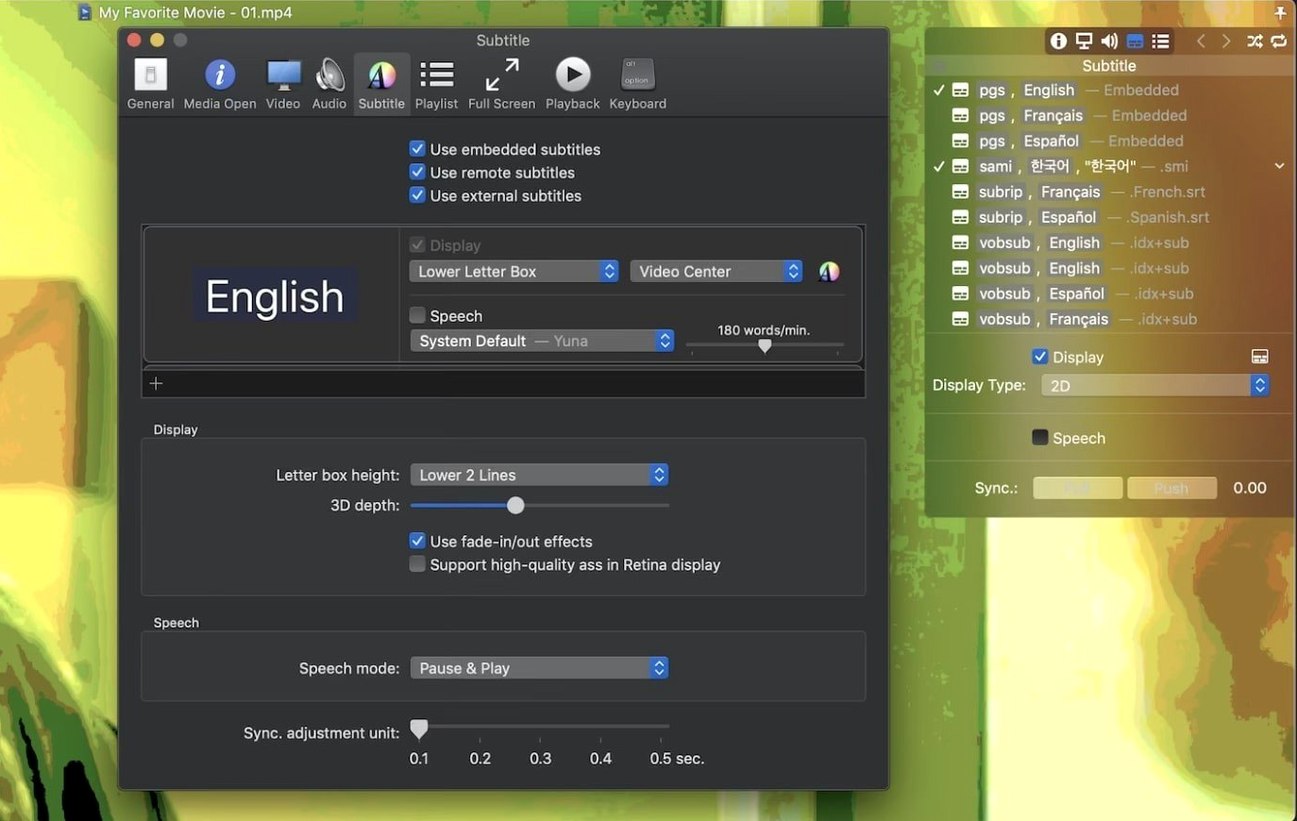
- Unlimited simultaneous subtitles — stack multiple languages on screen at once, each independently adjustable, for comparative viewing or translation work.
- HDR tone mapping — plays HDR content on standard displays without the washed-out look, preserving shadow detail and colour intent.
- Hardware-accelerated decoding — offloads H.264 and H.265/HEVC playback to the GPU, keeping frame rates steady and fan noise low on long encodes or high-bitrate files.
- Playlist autocompletion — searches for missing episodes and matching subtitle files, so a season folder loads in sequence with everything synced from the start.
- Subtitle sync adjustment — slide timing forward or back in real time, with high-quality rendering that keeps text crisp on Retina displays and embedded subs intact.
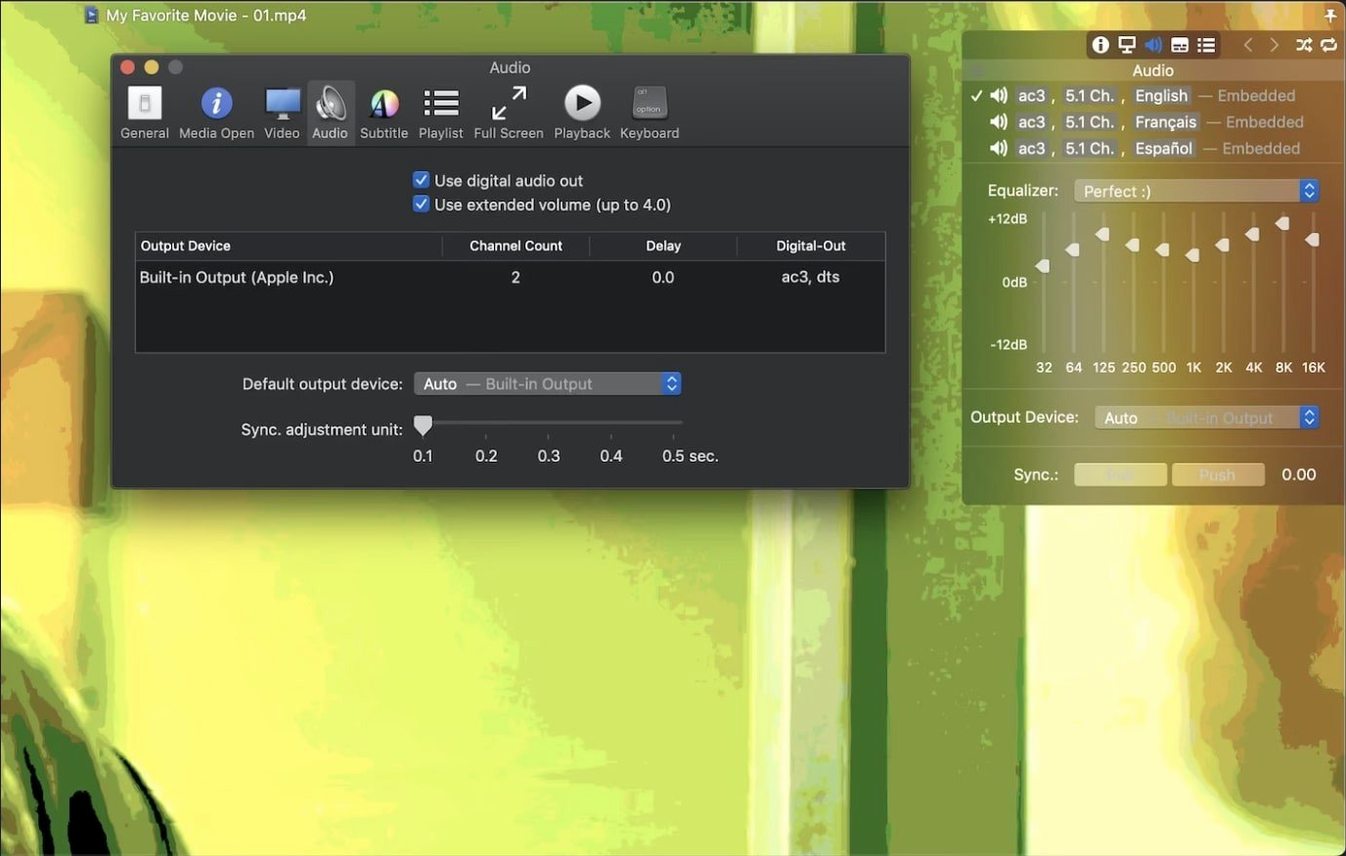
- S/PDIF digital audio output — routes a clean bitstream to an external DAC or receiver, preserving multi-channel mixes without software downmixing.
The sandboxed app mode keeps the player contained within macOS security boundaries, while shuffle and repeat modes let a playlist run on its own terms. It's the quiet, capable tool you reach for when the subtitles need to be perfect and the image needs to be honest.
Practical setup for the first few days
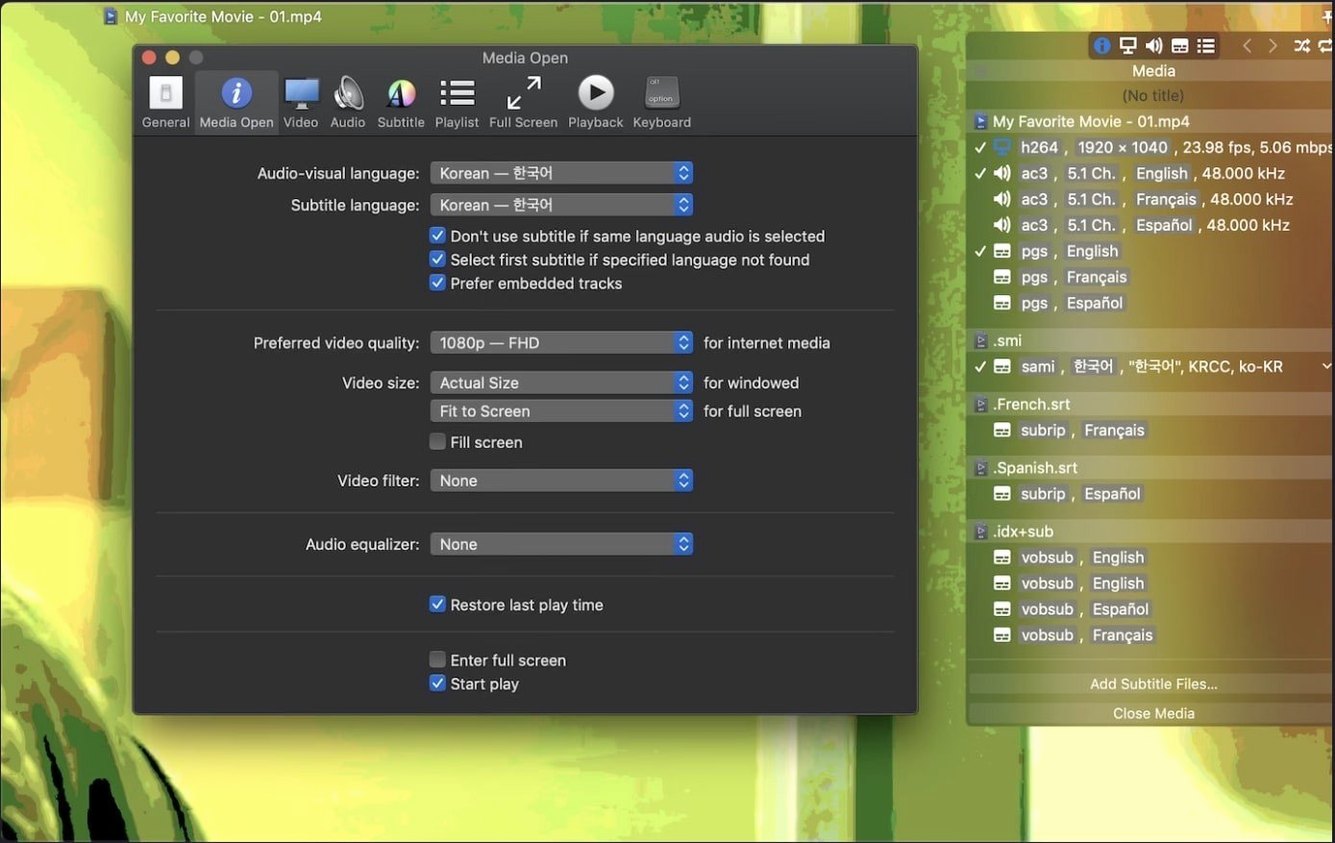
After dragging Movist Pro to Applications and launching it for the first time, spend ten minutes on the subtitle preferences before you watch anything serious. The default rendering is clean, but the real strength is in how far you can push it. Open a video with embedded subtitles — something with both dialogue and forced narrative captions works well — then pull up the subtitle inspector. Set one track to display in the letter box area below the frame, another at the bottom of the image itself, and watch how the two sit together without overlapping. The letter box subtitle display option becomes second nature once you realise it keeps text off the picture entirely on widescreen films, leaving the composition untouched.
Next, point Movist Pro at a season folder with mixed subtitle formats. Drop in a few .srt files, an .ass with styling, and a compressed .zip of commentary subs. The playlist autocompletion will stitch episodes in order, but the subtitles need a moment of attention — open the subtitle menu, enable the ones you want, and nudge the sync by a quarter-second if the timing feels slightly off on a particular encode. The automatic text encoding detection handles most East Asian and Cyrillic files without the garbled characters that plague other players, so you rarely need to dig into encoding menus manually.
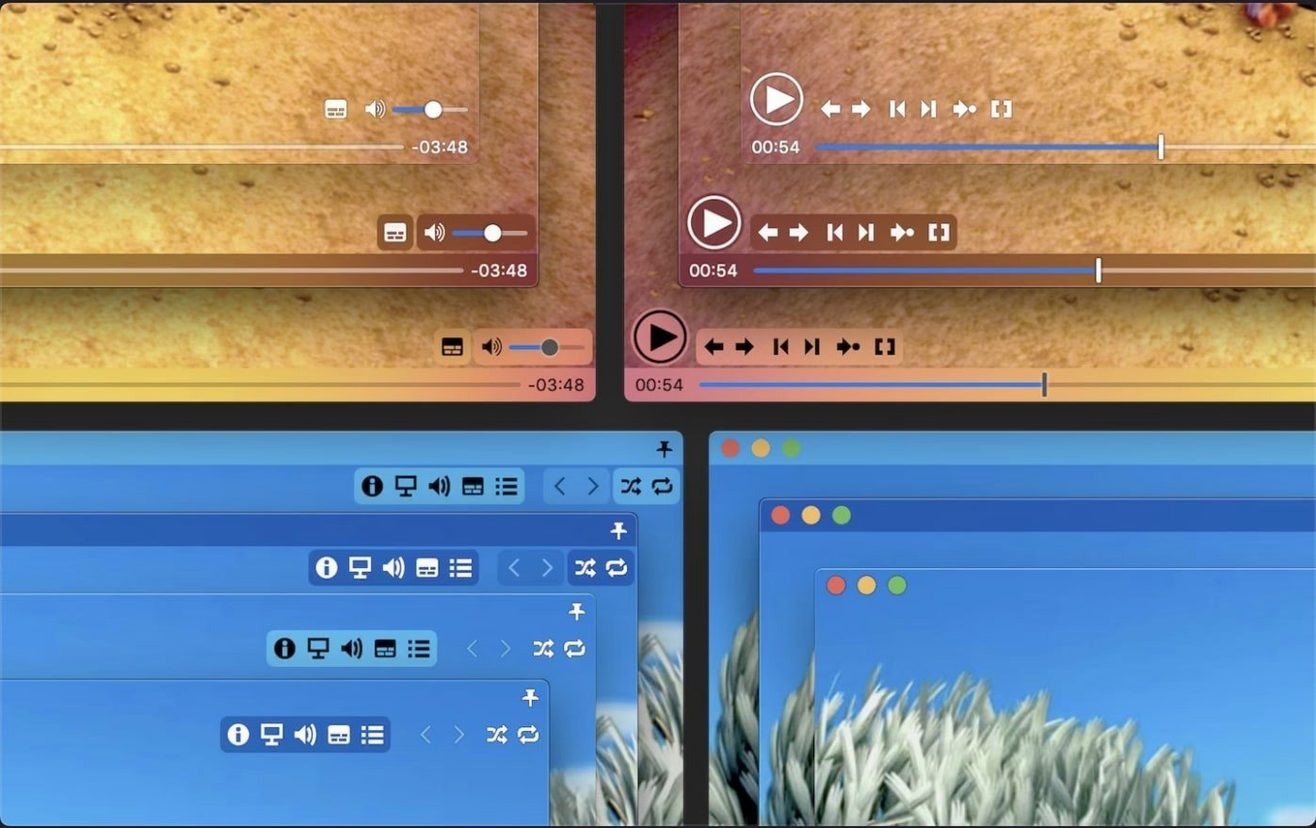
If you work across multiple monitors, try the single-window mode first, then switch to multi-document mode when you need a reference video open alongside your main viewing window. The two modes feel like different applications, and knowing which one fits your setup prevents the clutter of floating windows you didn't ask for.
Where Movist Pro sits in a Mac workflow
Movist Pro doesn't replace anything — it fills the gap between QuickTime's limited codec support and the bulk of a full media server. I keep it as the default for .mkv and .ts files, which means Finder opens it automatically when I double-click a video downloaded with a tool like yt-dlp or pulled from a camera card. The sandboxed app mode means macOS treats it like any other contained application, so file access dialogs behave predictably and the system doesn't flag it during routine security checks.
On the audio side, the S/PDIF output works alongside Audio MIDI Setup without conflict — set your interface to the correct sample rate in macOS, and Movist Pro passes the bitstream straight through. I've used it to check multi-channel mixes on a receiver before exporting a short film's final audio, playing the same ProRes file I'd just rendered from DaVinci Resolve. The hardware-accelerated H.265 decoding keeps 10-bit 4K footage smooth on an Apple Silicon Mac, which means scrubbing through a timeline export feels responsive rather than like waiting for frames to catch up.
Subtitle work flows naturally between Movist Pro and a text editor. Extract an .srt, tweak timing in a plain-text window, save, and the player picks up the changes on the next reload — no import step, no library to rebuild. For colour grading reference, the HDR tone mapping lets you preview how an HDR render will look on a standard-gamut display, which is useful when you're checking deliverables without switching to a reference monitor.
A late-night editing session, step by step
The render finishes around eleven. I drag the ProRes file from the project folder into Movist Pro's playlist area, then add the reference video from the client and a subtitle file I've been editing all afternoon. Multi-document mode gives me two windows side by side on the ultrawide — the graded export on the left, the reference on the right. I set the reference to 50% playback speed and scrub through a scene where skin tones need to match, tapping the screenshot shortcut whenever I spot a frame worth comparing later.
With both videos paused, I enable the subtitle track on the export window, slide the sync forward by 200 milliseconds, and step through the dialogue-heavy section frame by frame. The high-quality subtitle rendering keeps the thin sans-serif font legible even on a dimmed display, which matters when you've been staring at screens for six hours. I load a commentary subtitle from a .rar archive — Movist Pro unpacks it without a separate extraction step — and stack it above the dialogue track with a smaller point size and 60% opacity, just to catch any notes about the scene's intent.
By midnight, I've saved a playlist of the export, the reference, and two subtitle configurations. I switch to single-window mode, set the playlist to repeat, and let the full sequence run while I take notes on paper. The GPU decode keeps the machine quiet, the subtitles sit exactly where I placed them in the letter box area, and the HDR tone mapping gives me a flat preview that matches what the client will see on their office monitor. When I'm done, the playlist saves with everything — episode order, subtitle selections, sync offsets — so tomorrow's session starts where this one ended.
Version 2.21.0 fix arrives with the developer's latest round of refinements and stability improvements.
- macOS 11 or later
- Apple Silicon or Intel 64-bit Mac