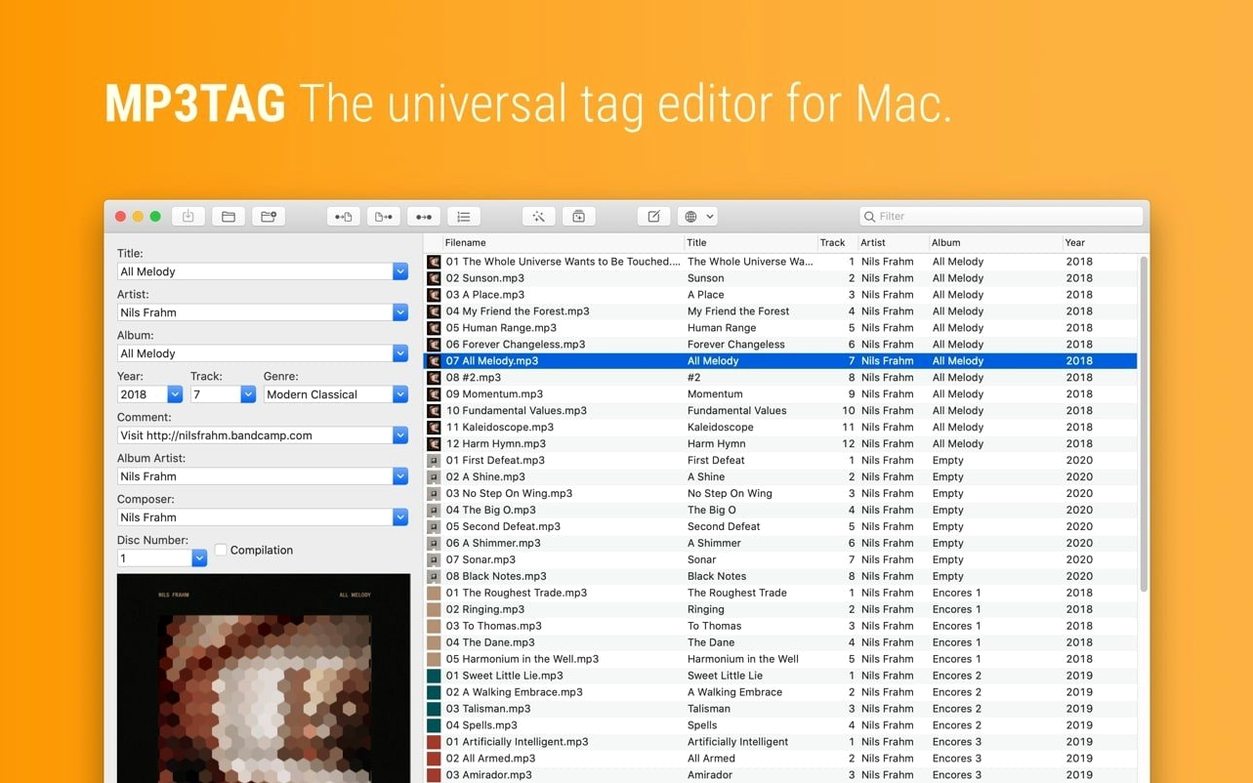
Mp3tag is a dedicated metadata editor that treats your audio library not as a playlist, but as a collection of stories waiting to be told properly. It is the Mac version of the long-standing Windows companion, rebuilt with native Apple Silicon support so it feels at home on a modern machine. The app reads and writes tags across a wide spectrum of formats—MP3, MP4, FLAC, OGG, WAV, AIF, and several others—which means you can likely stop switching between three different utilities just to fix a compilation album’s credits.
It fits neatly into the gap between a player’s lightweight tag panel and a full digital audio workstation. You might rip a stack of CDs with XLD, then open Mp3tag to pull in high-resolution cover art, standardize genre spellings, or embed the sort of liner-note details that streaming services strip away.
Batch-fix artist names and pull in missing album data on Apple Silicon
- Batch-correcting inconsistent artist names across hundreds of files
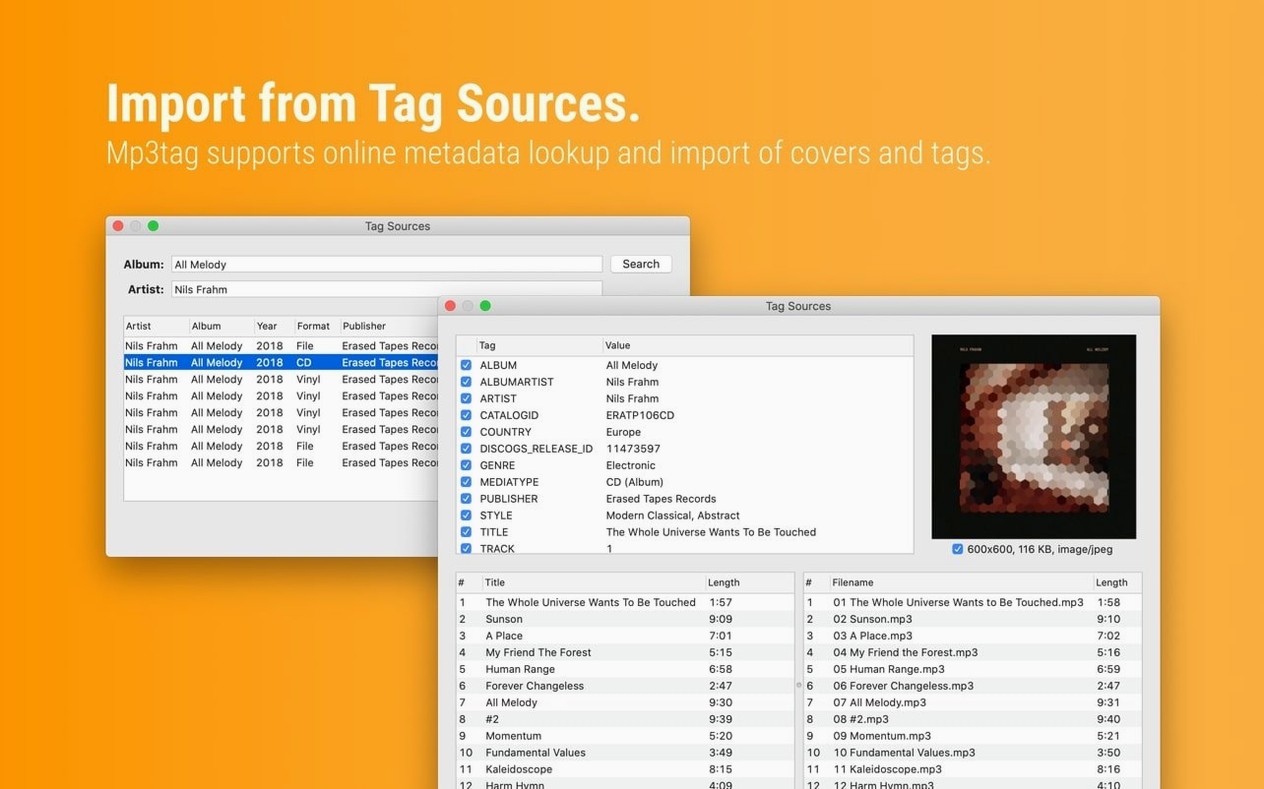
- Importing tag data from online sources to fill in missing album information
- Working natively on Apple Silicon without Rosetta overhead
- Handling less common formats like DSF and OPUS alongside the usual suspects
No player or library inside, and it wants macOS 10.14 or newer
- It targets a single, focused task—there is no built-in player, library manager, or converter
- Requires macOS 10.14 or later, so older machines are left out
- The interface, while functional, feels more utilitarian than macOS-native in places
Drags thousands of FLAC files without the rest of the system flinching
After dragging a few thousand FLAC files into the main window, the first thing I notice is how little the rest of the system cares. Mp3tag stays responsive even while it chews through a batch rename that touches every track in a festival recording archive. Memory use hovers around 180 MB with a substantial library loaded, and CPU spikes are brief—they happen when you invoke a Discogs lookup or run a large action group, then settle back to near zero. On an Apple Silicon Mac, the native binary feels genuinely light. No Rosetta translation layer, no subtle lag when scrolling a long file list, and no mysterious beachball pauses that some cross-platform tag editors seem to carry as part of their DNA.
Stability has been uneventful in the best way. I have thrown malformed ID3v2.4 frames at it, files with embedded cover art pushing past 10 MB, and OGG containers tagged by software that apparently gave up halfway through. Mp3tag reads what it can and flags what it cannot, instead of crashing or quietly corrupting the rest of the file. The 1.14.1 update specifically addressed a crash when editing action groups, and before that the developer patched a subtle bug where unsaved Tag Panel changes could be silently discarded if you launched a cover search before committing them. Those are exactly the kind of edge-case fixes that suggest someone is paying attention to real-world workflows, not just running unit tests.
Batch operations are where resource use matters most. Replacing a misspelled label name across 800 AIF files, converting embedded artwork from PNG to JPEG at 600 px, and appending the year to every album title—all in one action group—completes in seconds. The progress bar is honest, the undo command works as you would hope, and the app never once beachballed during the process. If you work on a laptop, the energy impact is low enough that you can process a large library on battery without watching the percentage drop precipitously.
Turn on preserve file timestamps so your tool feels like your own
Out of the box, Mp3tag is functional but a little bare. A few adjustments in the preferences panel make it feel like your own tool rather than a generic utility.
First, head to the Tags section and enable preserve file modification time. Unless you want your file browser to think every track was just created, this saves you from a timeline meltdown when you batch-tag a decade-old library. While you are there, check the remove ID3v1 tags option if you work exclusively with modern players—those legacy tags can cause confusing duplication in some DJ software.
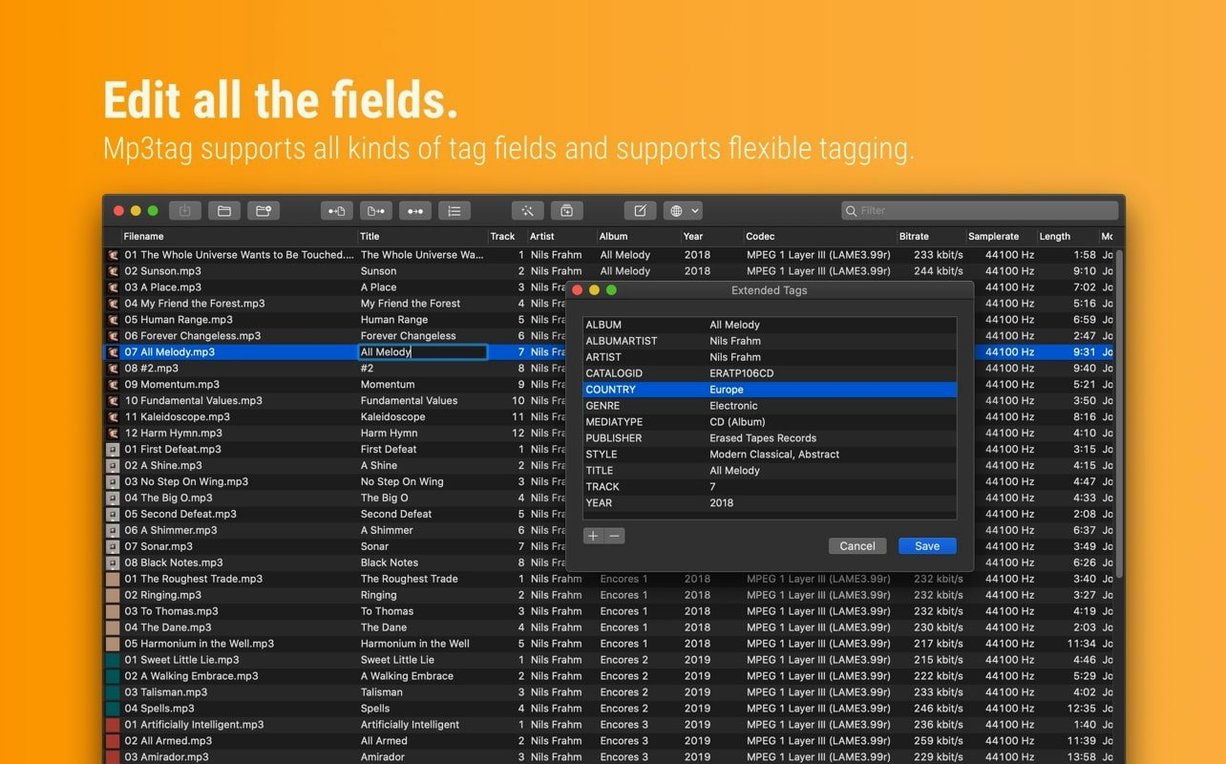
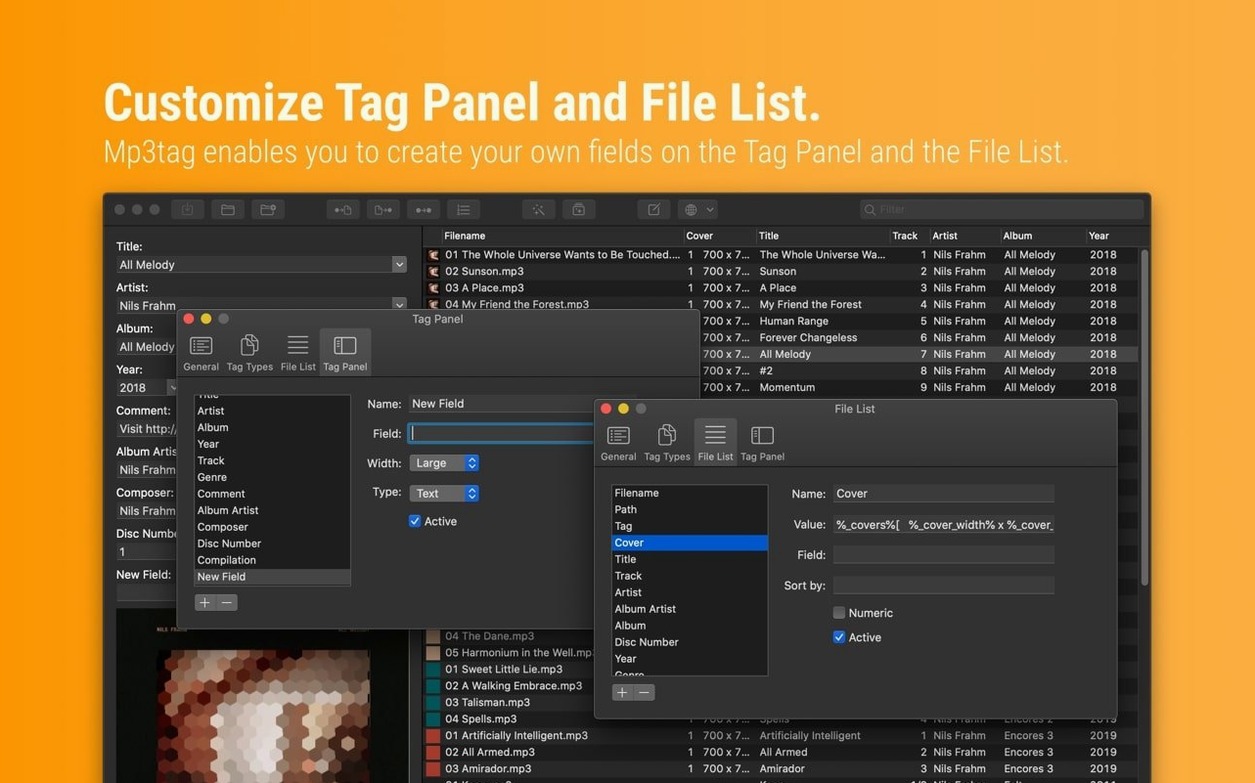
Next, visit Tag Panel and customize which fields appear. The default set includes the obvious ones like artist, album, and title, but if you routinely log ISRC codes, catalog numbers, or the names of recording engineers, you can add those fields and they will stay visible every time you select a track. This turns the panel from a basic label into a workspace shaped around your collection.
Under Tools > Options > Cover, set your preferred maximum resolution and file format for embedded artwork. I keep mine at 800 px JPEG, which is sharp enough for any player interface and small enough that I do not bloat a 24-bit FLAC with a 5 MB PNG scan. Finally, if you use MusicBrainz more than Discogs, swap the default tag source order in the Tag Sources tab so the app starts with the database you trust more. Small changes, but they remove friction from the first ten minutes of every tagging session.
For the listener who spots split spellings and stray year fields in a fresh rip
Mp3tag rewards the kind of user who looks at a freshly ripped album and sees a collection of small narrative problems: an artist name split across two slightly different spellings, a year field that migrated into the comment tag, cover art that is 2400 px on one track and missing on the next. That user might be a DJ who needs consistent metadata so rekordbox or Serato does not fragment a release into three phantom albums during a gig. Or a podcaster who archives raw WAV recordings and wants to embed episode numbers and guest names before the files land in a shared drive. The app does exactly what they need and almost nothing else, which is a feature, not a limitation.
Classical music collectors are another group that will find it indispensable. The standard pop-music tag schema collapses under a symphonic work—composer, conductor, orchestra, soloist, work title, movement number, and opus all fight for space in fields never designed for them. Mp3tag lets you define custom tags and map them consistently across an entire box set, so a file carries the information that matters without being crammed into the album-artist field as a workaround. The same flexibility helps soundtrack archivists who need to track cue numbers, film titles, and recording dates side by side.
Users who will likely find the app frustrating are those who want a single piece of software to manage, play, sync, and transcode their library. Mp3tag does not stream, does not sync to devices, and does not convert between formats. It sits upstream of all that—it gets the metadata right so the other tools have clean material to work with. If that upstream role makes sense in your workflow, the app slides in neatly. If you expect an all-in-one media hub, you will keep looking.
More immediate than Yate when you just need to fix one compilation album
Placed alongside Yate, Mp3tag feels more immediate. Yate is powerful and deeply scriptable, but its interface presents a dense grid of fields and panels that can overwhelm a first-time user trying to fix a single compilation album. Mp3tag prioritizes the batch view and the action-group concept, which makes repetitive tasks faster to set up without learning a scripting syntax. Yate rewards power users who want conditional logic and complex automation; Mp3tag rewards people who want to select a hundred files, press a few buttons, and move on.
Kid3 shares Mp3tag's cross-platform roots and supports a similar range of formats, but its interface feels less at home on macOS. Menus are nested differently, keyboard shortcuts follow Qt conventions rather than Mac ones, and the window layout can feel cluttered when you enable all its panels. Mp3tag's Mac version, while still carrying some of its Windows lineage, integrates more naturally with the system—AppleScript support, native file dialogs, and a column-based main view that behaves like a Finder window. Kid3's advantage is its deeper ID3v2 frame-level editing, which Mp3tag does not expose as granularly. For forensic tag repair, Kid3 wins. For daily library work, Mp3tag is faster and more pleasant.
Compared to Meta, a dedicated Mac tag editor with a strong focus on audiophile formats, Mp3tag covers more ground in batch operations. Meta excels at DSF tagging and pristine metadata preservation for high-resolution files, but its batch tools are less fluid and its action system is more manual. Mp3tag's action groups let you chain renames, tag replacements, and cover adjustments into a single repeatable workflow, which Meta handles more awkwardly. If your library is entirely DSD-based, Meta makes a strong case. If it spans MP3, FLAC, OGG, and the occasional AIF, Mp3tag handles the variety with less friction.
Version 1.14.1 arrived on September 23, 2026, with a handful of fixes that clean up edge cases in the tagging workflow. A crash on macOS 27 when adding action groups has been resolved, and cover art changes made in the Tag Panel are no longer discarded when you dip into Extended Tags before saving. The update also ensures that unsaved Tag Panel edits stick around when using Cover Search, Tag Sources, or Actions, and decimal BPM values now write correctly to MP4 tags instead of being truncated to integers.
- macOS 10.14 or later
- Intel (64-bit) or Apple Silicon Mac
Questions from the booth
It supports MP3, MP4, M4V, FLAC, OGG, OPUS, AIF, DSF, MPC, and WAV files, covering the majority of common and several high-resolution audio formats.