
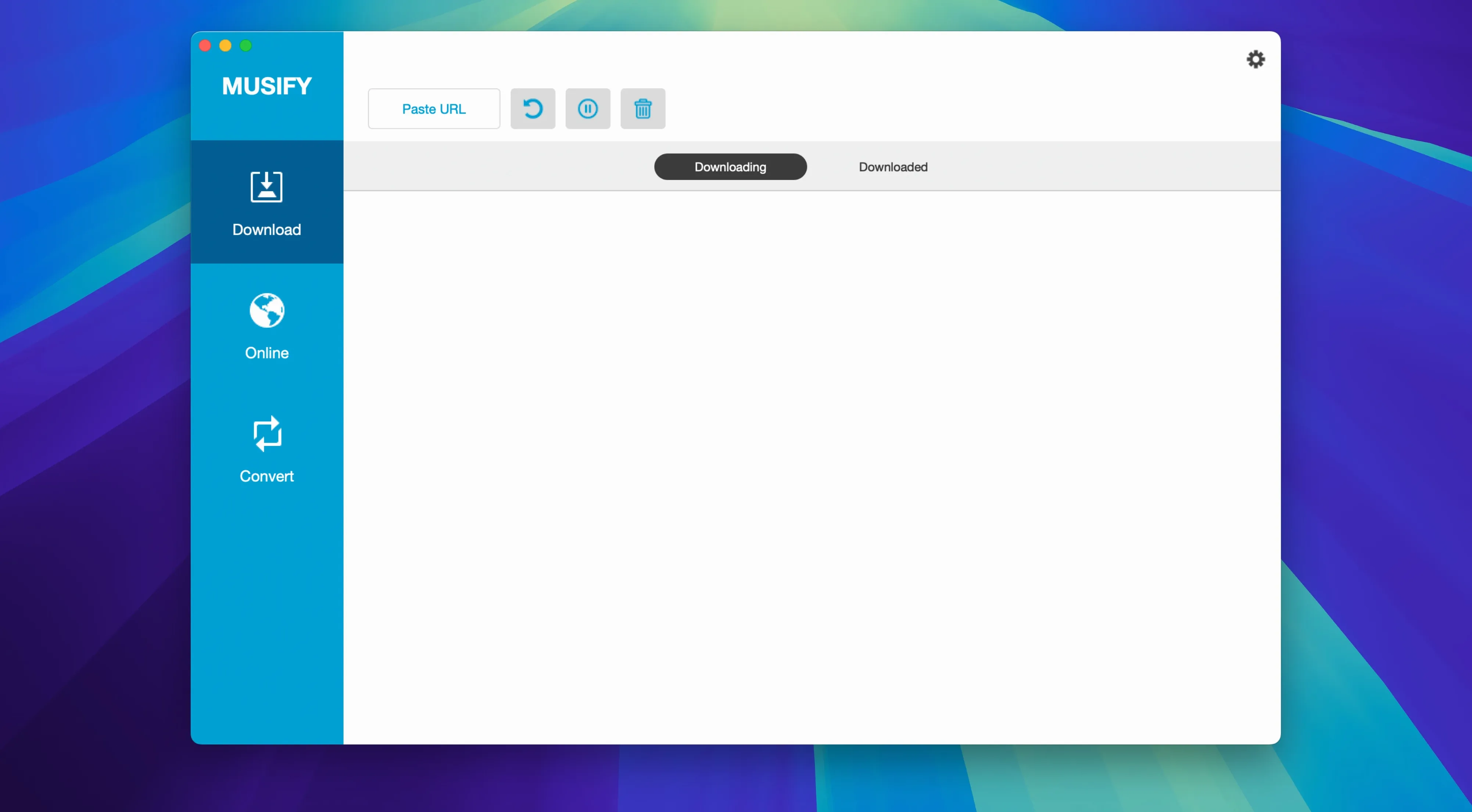
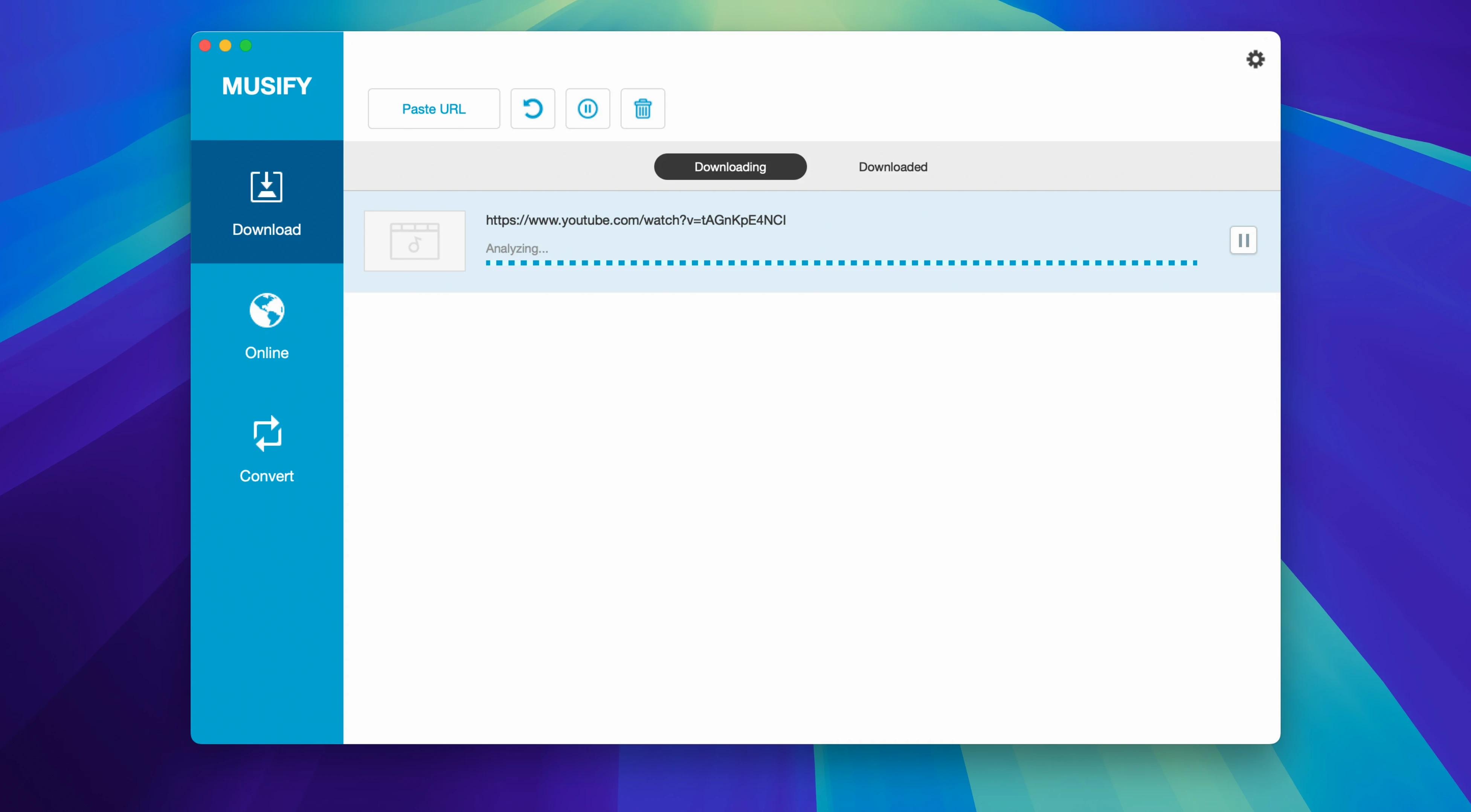
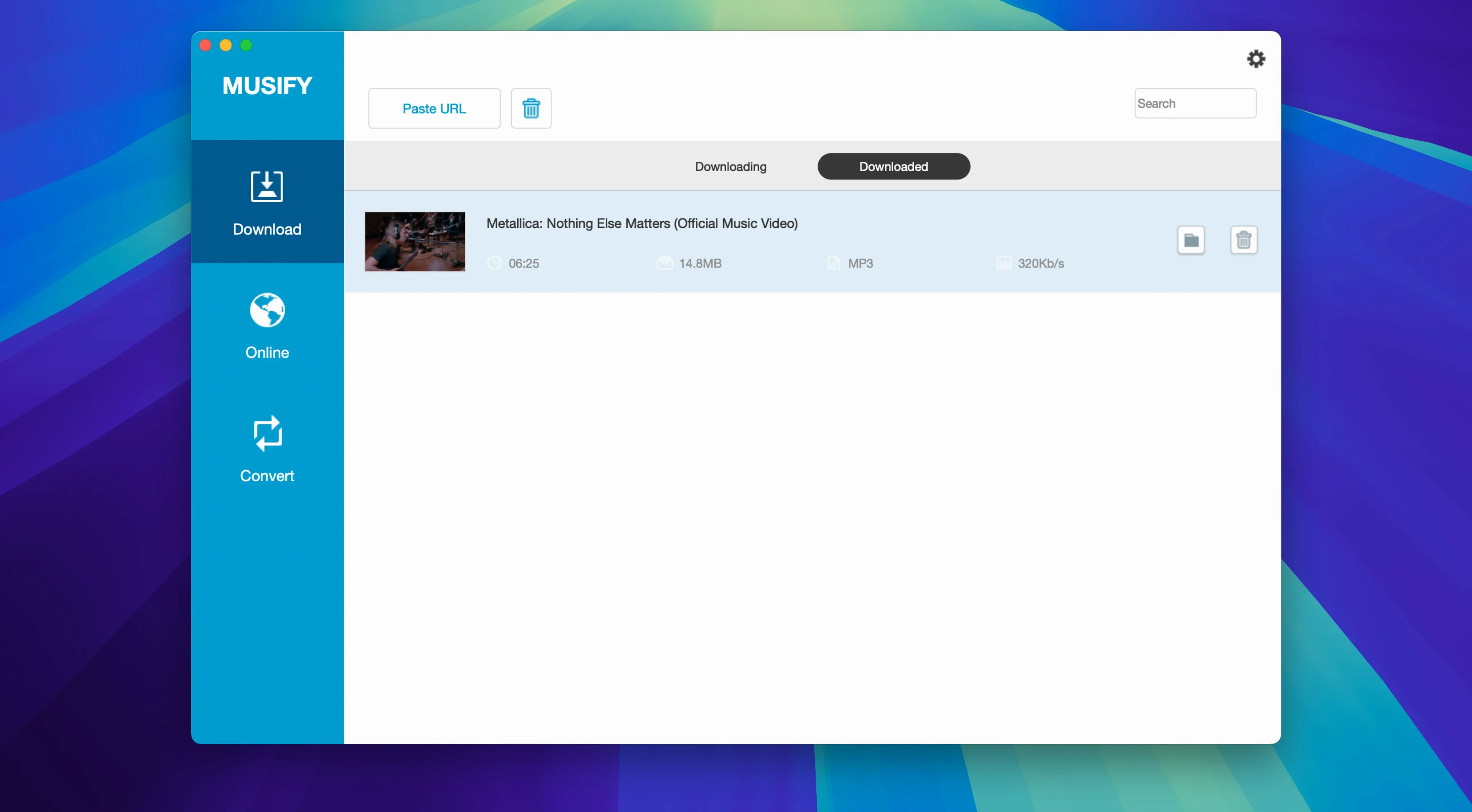
Musify 5.3 runs on any Intel Mac still holding on to macOS 10.12 Sierra or newer — a reach that covers machines from the better part of a decade. Apple Silicon Macs run it through Rosetta without complaint, though there is no native ARM build yet. If your setup includes a DAW, a sample manager like ADSR Sample Manager, or a media player such as IINA, Musify slots in as the acquisition layer: it pulls audio from places those tools cannot reach on their own.
Dropping a Bandcamp playlist into your sampler with no workarounds
- Sample hunters and beatmakers. Grabbing a playlist off Bandcamp or SoundCloud and dropping the results straight into a sampler or a Logic project saves a chain of workarounds.
- Offline listening for long sessions. A full Spotify playlist downloaded before a flight means your noise-cancelling headphones have something to do while the Mac stays in airplane mode.
- Metadata sticklers. Musify preserves the artist, album and track info that most screen-recording workflows strip away, so your library does not become a wasteland of untitled WAVs.
Rosetta-only for now and Terminal trip on first launch
- Intel-only for now. Performance under Rosetta is fine, but anyone hoping for a native Apple Silicon slice will have to wait.
- Terminal handshake required. Gatekeeper does not recognise the app, so first run demands a quick trip to the command line — nothing unusual for a tool in this category, but worth knowing before you double-click.
A playlist-to-phone workflow, end to end
Start with a Bandcamp playlist you bought during a late-night Bandcamp Friday spree — thirty-two tracks across four EPs, sitting in a browser tab. Open Musify, paste the playlist URL into the field at the top, and wait the two seconds it takes for the app to parse the tracklist. Check the boxes beside the tracks you actually want; leave the ambient interludes unchecked if they were never going to make it onto a phone anyway. Set the output format to M4A — smaller files, solid tagging — and pick a folder on the desktop so the results are easy to find. Hit download. The progress bar ticks through each track in sequence, and within a few minutes the folder fills with properly named, album-art-embedded files. Plug in an iPhone via USB, open a Finder window, and drag the folder straight onto the device. No extra conversion, no renaming marathon. The whole thing from browser to pocket is under ten minutes.
A 50-track Spotify playlist lands in about 12 minutes on a 2019 Mac
Single-track downloads from YouTube finish in roughly the time it takes to play the song through once — sometimes faster, depending on the source server. A fifty-track Spotify playlist clocks in closer to twelve or fifteen minutes on a 2019 iMac, with the fan staying quiet throughout. The app does not spawn background processes that linger after you quit, and memory usage hovers around 200 to 300 MB even when chewing through a large queue. I did see one crash when pasting a malformed URL from a clipboard manager that had truncated the string — Musify did not handle the garbled input gracefully, and the window blinked away. Restarting and pasting the full link worked without issue. In daily use across a week of intermittent downloading, the app stayed up. Rosetta overhead is negligible for what is essentially a network-bound task; the bottleneck is your connection speed, not the translation layer.
Change the buried download folder before your first track finishes
Open Preferences on first launch. The default output format is MP3 at 320 kbps — a sensible starting point, but check the destination folder immediately. Musify defaults to a buried directory inside ~/Music/Musify, and unless you want to dig through Finder every time, pointing it to a top-level folder you actually use saves repeated navigation. Next, toggle on the option to preserve the original file date; without it, everything gets stamped with the download timestamp, which makes sorting a chronological library pointless. If you download a lot of classical or podcast material where track numbers matter, enable the setting that prepends the track number to the filename — it is off by default, and waking up to an alphabetically sorted album is a small tragedy. Finally, switch the concurrent download limit from 3 to 5 if your connection can handle it. On fibre, the jump from three to five parallel downloads cuts a large playlist’s total time by a noticeable margin without introducing errors.
A sample curator’s Saturday morning
Consider someone who builds drum kits from obscure records — the kind of person who trawls Freesound for tabla one-shots and Bandcamp for forgotten 1970s percussion LPs. They start the morning with ten SoundCloud links sent by a collaborator overnight. Each link is a private track of raw studio outtakes. They paste the URLs into Musify one by one, outputting 48 kHz WAVs to a folder named March_kit_sources. While the downloads run, they open ADSR Sample Manager and point it at the same folder so the files appear in the browser the moment they land. By the time coffee is ready, twenty-seven samples are downloaded, named, and auditionable. One file — a shaker loop — downloaded with its original SoundCloud title intact, which means the curator can credit the source properly six months later when the track gets signed. That metadata preservation is the quiet difference between a usable archive and a folder of mystery audio with names like track_04_final_mixdown_v2.wav. Musify 5.3 does not get in the way of that workflow; it simply hands over the files and steps aside.
- macOS 10.12 or later
- 64-bit Intel processor (Apple Silicon via Rosetta)