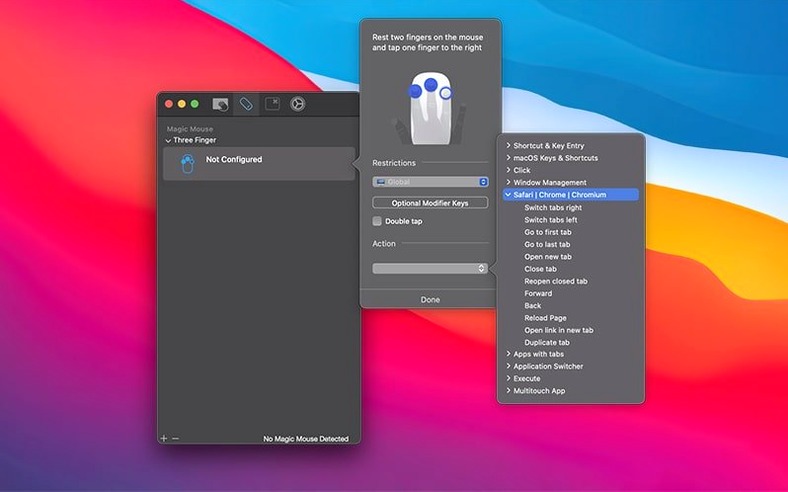
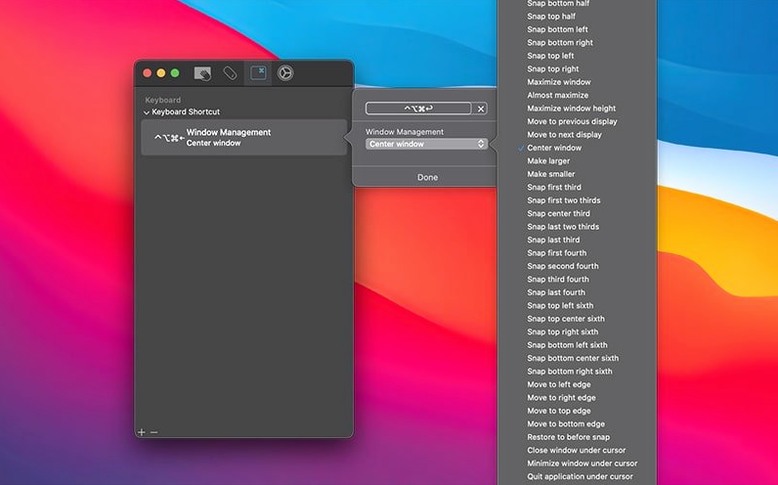
Multitouch runs on any Mac with macOS 10.15 Catalina or later, on both Intel and Apple Silicon hardware. It was created by Ryan Hanson and previously went by the name TouchOven before settling into its current identity as a straightforward utility that extends what your trackpad and Magic Mouse can do. It adds gesture-based actions that macOS doesn't offer by default, linking custom triggers—taps, clicks, and swipes—to practical system commands.
Paste with a three-finger click and skip the keyboard
- Assigning a three-finger click to perform paste, speeding up repetitive editing tasks.
- Adding a middle mouse click action without a physical button.
- Remapping buttons to keyboard shortcuts you use constantly.
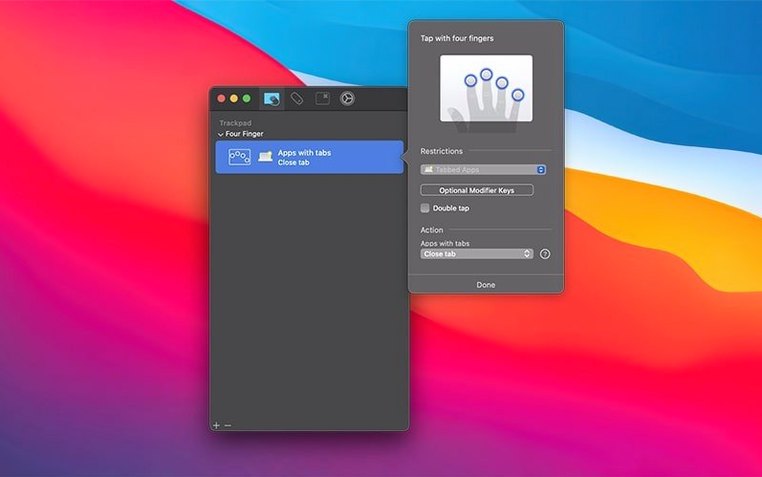
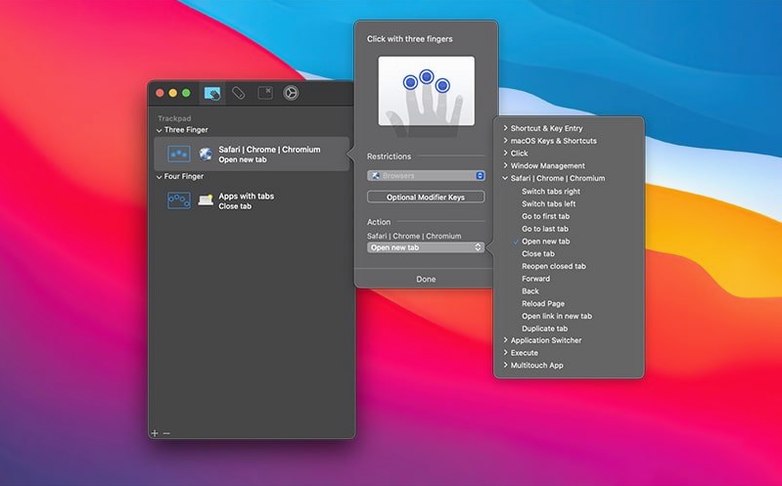
- Controlling browser tabs with gestures instead of keyboard combos.
- Converting a key into a hyper key for triggering complex shortcuts.
Your Magic Trackpad or Mouse is required for custom actions
- It requires a Magic Trackpad or Magic Mouse; the custom actions don't apply to third-party pointing devices.
- Keystroke recording captures every press exactly, including Return, so you'll want to plan sequences before recording.
- Interface is in English only.
The menu bar icon no longer looks slightly off
Version 1.48 is a maintenance release, but the two fixes it brings affect moments you encounter more often than the changelog suggests. The menu bar icon size was adjusted—a small visual correction that matters when you keep the icon visible to toggle gestures on and off throughout the day. Before the fix, the icon could look slightly off on certain display densities, and now it sits cleanly alongside other menu bar items without drawing attention to itself.
The more practical fix addresses a case where "unminimize all minimized windows" didn't work properly. If you had assigned that action to a gesture—a four-finger spread, for example—you might have noticed it stalling after certain window combinations were minimized. The bug was selective rather than constant, which made it harder to diagnose. With 1.48, the action fires reliably, and the gesture you set for bringing everything back onto the desktop behaves as expected regardless of what's minimized.
A workflow: controlling browser tabs without leaving the keyboard
Here's a setup that takes about ten minutes and pays back in every browsing session. The goal is to manage tabs with a Magic Trackpad so your left hand never has to leave the home row for Cmd+W or Cmd+T.
Start by opening Multitouch and selecting the Trackpad tab. Create a new gesture group named "Browser." Add a three-finger swipe left and set its action to keystroke recording. With recording armed, press Cmd+Shift+[ to cycle to the previous tab, then stop the recording. The sequence is stored exactly as you played it, including the modifier flags. Add a three-finger swipe right and record Cmd+Shift+] for the next tab. For closing a tab, assign a three-finger click and record Cmd+W. To reopen a closed tab, use a four-finger click with Cmd+Shift+T.
Now open the application filter at the bottom of the gesture group and add your browser—Safari, Firefox, or whatever you use—so these gestures only apply when a browser window is active. Switch to the browser and test each swipe and click. If a gesture fires too easily, increase the swipe distance threshold slightly in the numeric field next to the assigned action. Once it feels right, you have a tab workflow that works without touching the keyboard or reaching for the menu bar.
First days: small gestures, quick wins
After installing, pick two gestures you already use in macOS and give them an extra function. A three-finger tap set to middle click is a good starting point because it fills a gap on the Magic Trackpad without interfering with anything else—link opening in new tabs becomes a single motion. Another early win is mapping a four-finger click to the text insertion action and pasting an email address you type often. The insertion field accepts plain text with line breaks, so you can store a short signature or a canned reply fragment.
Keep the number of active gesture groups low for the first few days. One group for system-wide gestures and one for a specific app—a code editor, a browser, a Finder setup—is enough to build muscle memory without triggering the wrong action. If you notice a gesture clashing with a built-in macOS gesture, Multitouch overrides it while the app is running, so you can disable the system equivalent in System Settings or just let the override take over.
Finally, flip through the button remapping section once. Converting a key to a hyper key—a single modifier that combines Shift, Control, Option, and Command—sounds like a power-user move, but it's practical as soon as you have a few global shortcuts you want to trigger without chord collisions. Assign it, pick one shortcut to try, and see if the idea sticks.
Version 1.48 adjusted the menu bar icon size and fixed a case where unminimizing all minimized windows didn't work as intended.
- macOS 10.15 or later
- Compatible with Intel and Apple Silicon Macs
- Requires a Magic Trackpad or Magic Mouse
Questions from the booth
It is a macOS utility by Ryan Hanson that links custom actions—like keyboard shortcuts, paste, or tab controls—to Magic Trackpad and Magic Mouse gestures.
Yes, it can remap buttons and supports middle mouse click actions, expanding on the default macOS gesture set.
It requires macOS 10.15 Catalina or later and runs natively on both Intel and Apple Silicon Macs.