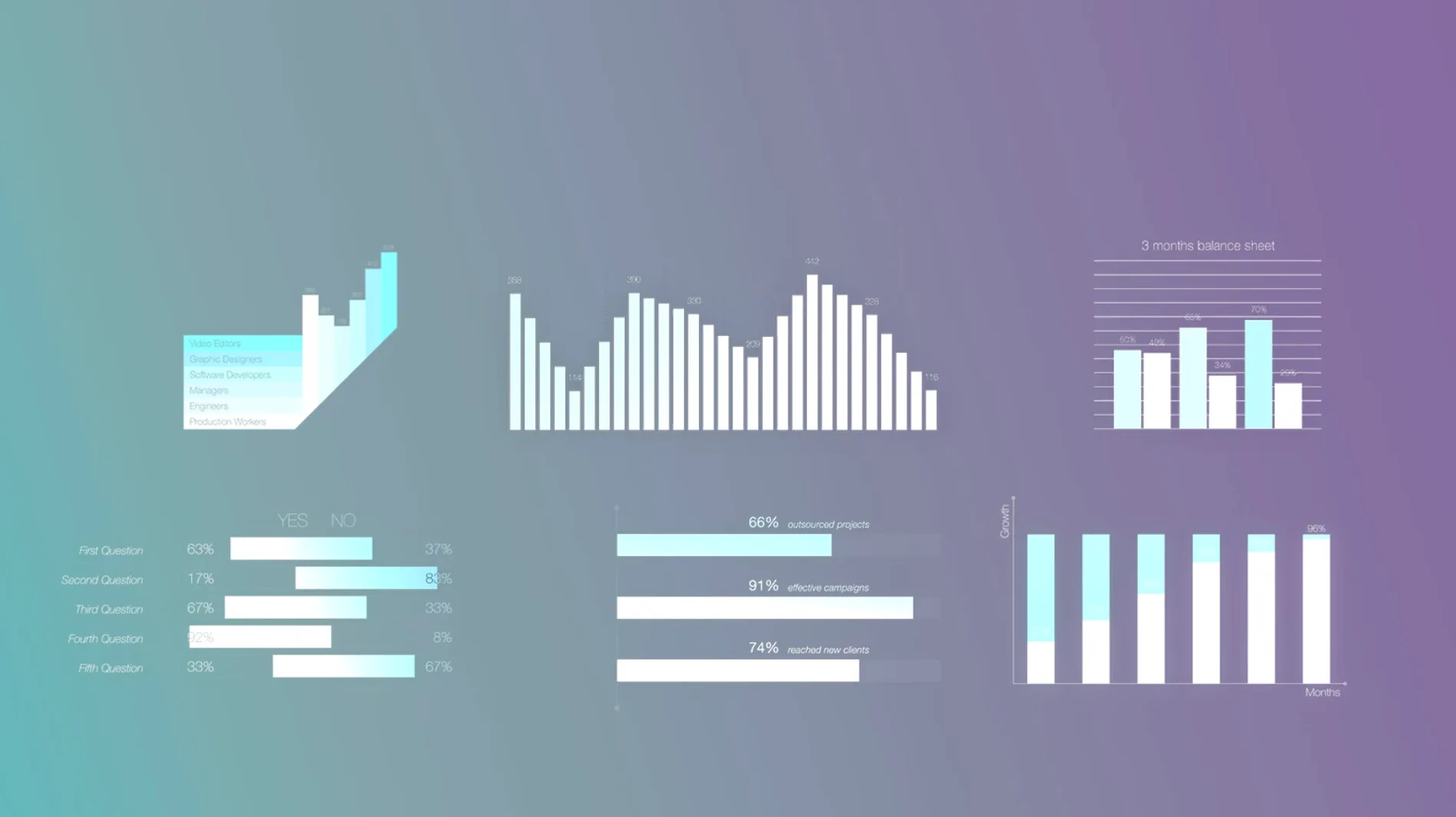
mInfographics lands in the toolkit of an editor who needs to turn quarterly figures or survey results into something watchable, not just a spreadsheet squint. It is a set of typographic templates for Final Cut Pro that treat statistics as a visual language—animated bar fills, percentage counters, labelled callouts—all dropped straight onto the timeline without leaving the cutting room.
Where does the first element go?
You drag a lower-third counter onto a clip where the voiceover mentions a key metric. The placeholder numbers read like a broken odometer until you type your own figure into the inspector, and the animation snaps to your data with a soft decimal roll.
How do the on-screen controls change the pace?
A thin widget hovers over the viewer, letting you drag the bar length or number value while the playhead moves. This turns a static stat into a reveal timed to a sentence, no keyframe hunting required.
What ties the look to the rest of the film?
Colour wells and typeface dropdowns inside the generator panel pull the infographic into the grade and font palette you already set for the project, so the chart feels like part of the documentary, not a slide deck dropped in from another machine.
When you first start dropping mInfographics elements onto a timeline, the temptation is to treat every stat like it deserves its own animated reveal. Six bars, four percentage counters and a pie chart later, the sequence feels more like a quarterly earnings dashboard than a film. The plugin gives you sixty elements, but the real skill is choosing three and letting them breathe. I learned this the hard way on a short doc about neighbourhood air quality—by the third draft, I had stripped out half the graphics and the remaining ones actually landed.
Another early misstep is ignoring the type hierarchy that the templates already set up. Each element ships with a headline, a sub-label and a data field positioned in a deliberate visual order. Beginners often overwrite the headline with the number and the sub-label with the source, collapsing that structure into a single crowded line. Leaving the hierarchy intact—or adjusting it subtly rather than bulldozing it—keeps the legibility the motionVFX designers baked in from the start.
The counters carry a peculiar quirk worth knowing on day one. If you type a target number and then scrub the playhead backward, the digits do not reverse smoothly by default; they jump to their final state. There is a small checkbox in the inspector labelled Animate Out that tells the counter to wind back down when the clip reverses, and missing it leads to some jarring cuts during revisions. Tucked below it, the Decimal Places slider defaults to zero, so numbers like 3.7 simply display as 4 until you slide it to one or two places—a tiny setting that quietly undermines a precise data point.
One convenience I did not expect to rely on is the way the on-screen control widget remembers its last position per element type. If you drag the bar-length handle to the right side of the viewer for a horizontal bar chart, every subsequent horizontal bar chart you drop in will place that same handle in the same spot. It sounds minor, but across forty timeline edits in an afternoon, it saves you from chasing a floating control around the canvas every single time.
There is also a quiet keyboard shortcut that the documentation mentions only in passing: holding Option while dragging any on-screen control overrides the snap-to-grid behaviour that the templates default to. The grid is helpful for aligning elements across scenes, but when you need a bar to extend just past a speaker's shoulder rather than to the nearest twenty-pixel increment, that modifier key makes the difference between a graphic that feels stitched in and one that feels measured.
Speed and stability have been uneventful in the best sense. The templates are built inside Final Cut Pro's title generator framework, so they behave like native titles rather than third-party effects that need to render on every frame. On a MacBook Pro with an M1 Pro chip, I can stack five or six infographic layers over 4K ProRes footage and the timeline scrubs without dropping into proxy mode. The one exception is the radial chart element, which redraws its arcs whenever you adjust the percentage values and introduces a brief half-second stutter—noticeable only when the playhead is moving, never in the final export.
Memory usage barely registers. Final Cut Pro's activity monitor shows a modest bump of roughly 120 MB when a project contains a dozen active mInfographics titles, and that number drops the moment you disable a clip in the timeline. For editors who keep a browser and a notes app open alongside their NLE, the headroom is generous.
Something that caught me off guard during the first week was the typographic styling panel. Each caption element ships with a default sans-serif that looks clean at 1920 pixels wide but loses its descenders on smaller screens. The fix is not in the font menu but in the Tracking and Leading sliders inside the generator tab—tightening the tracking by a few points and opening the leading by two clicks restores readability on compressed social cuts without touching the typeface itself. I now save a preset with those tweaks and apply it to every infographic before I even look at the numbers.
A practical rhythm for the first few days: drop one counter, one bar chart and one full-screen stat card into a scratch project and run through the inspector parameters methodically. Not to memorise them, but to see which ones actually shift the visual tone. The Background Dim slider on the stat card, for instance, is easy to overlook because it defaults to zero, but pulling it to 30% gives a matte that separates white numbers from bright skies without feeling like a studio overlay. Those are the small dials that turn a template into something that belongs to your film.
- Intel or Apple Silicon Mac
- Final Cut Pro
Questions from the booth
Yes, the plugin runs natively on both Intel and Apple Silicon, provided you are using a compatible version of Final Cut Pro.
They live inside your user Movies folder, under Motion Templates/Titles, where Final Cut Pro expects them.