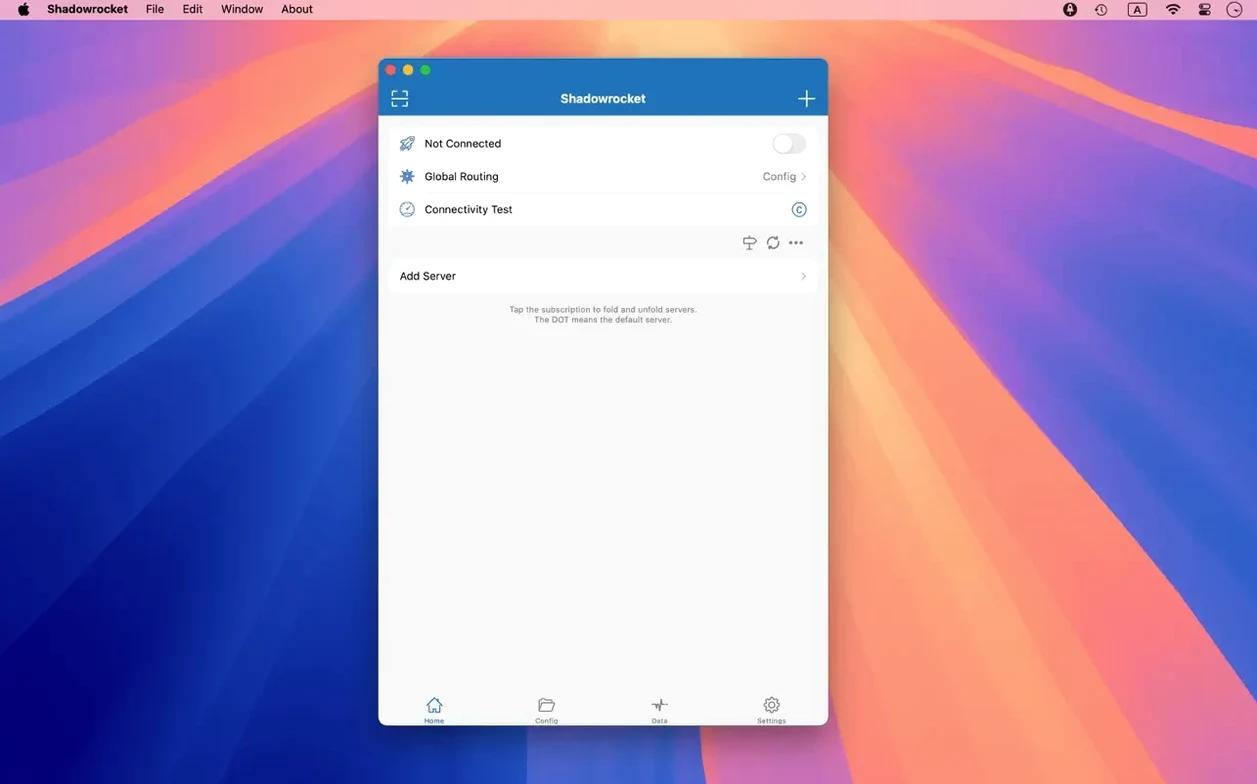
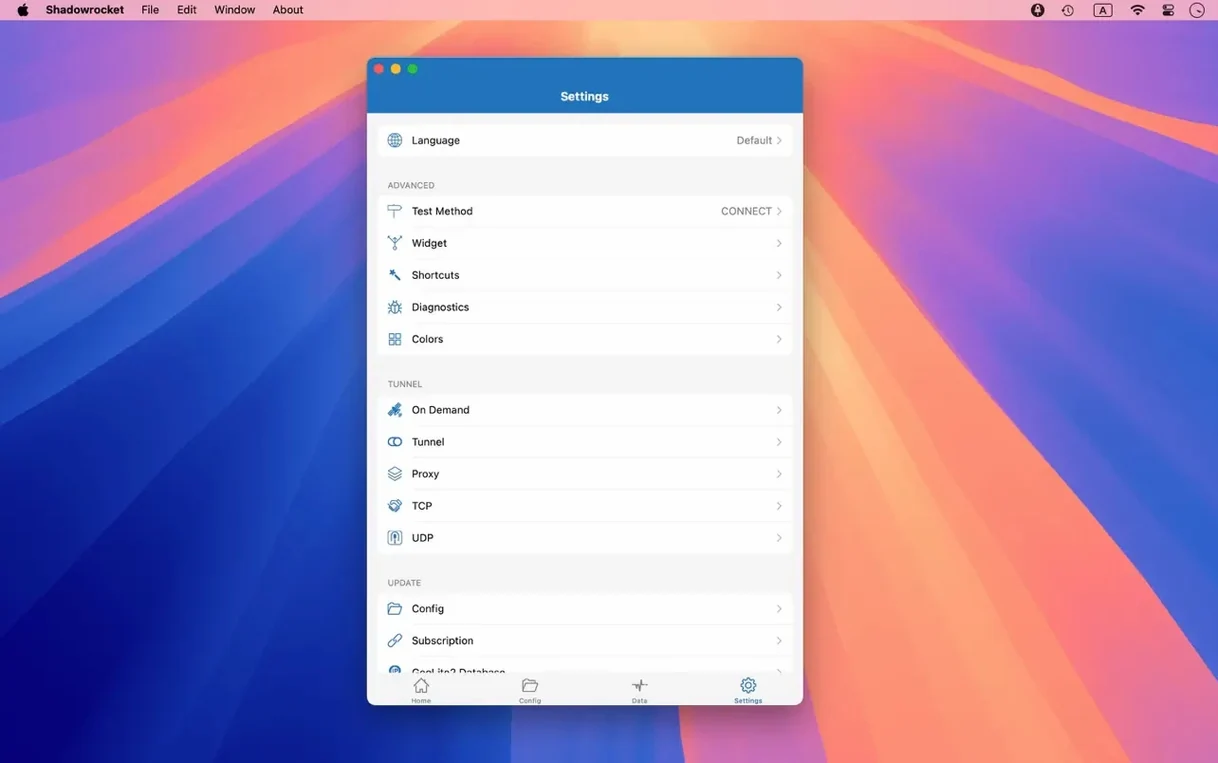
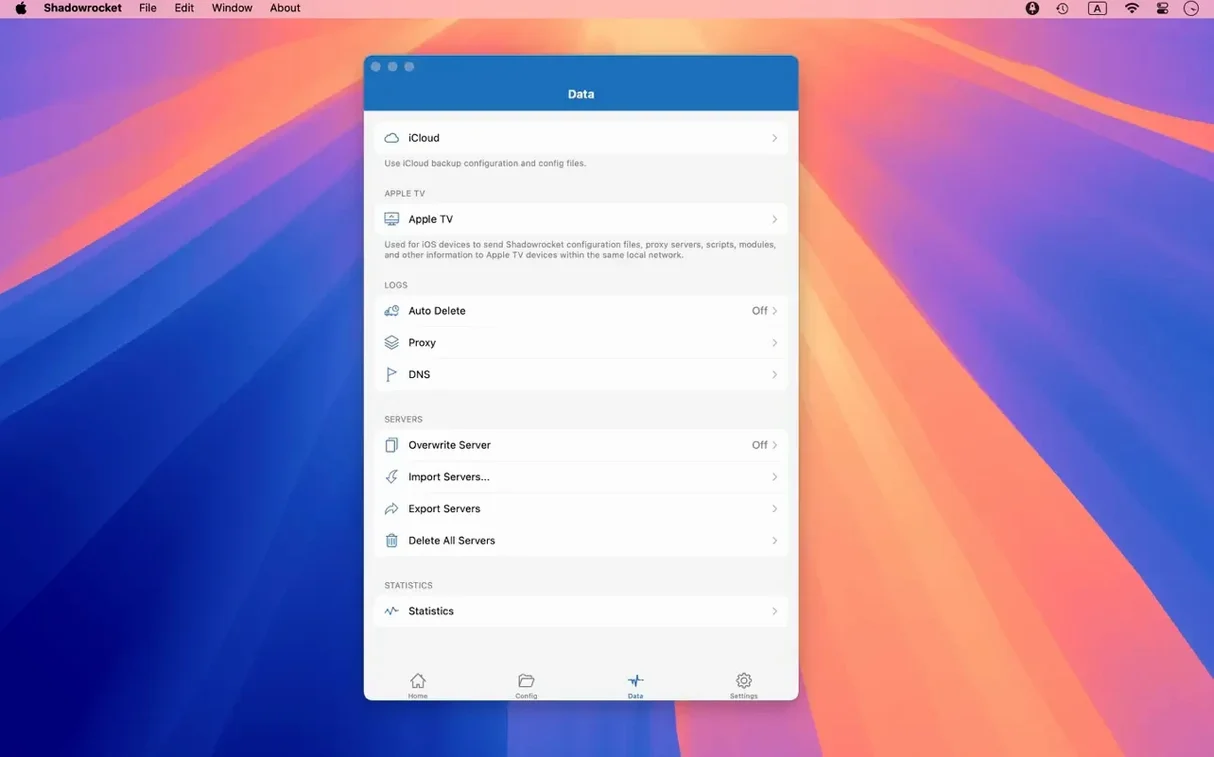
Shadowrocket for Mac runs on any system with macOS 10.15 or later, on both Intel and Apple Silicon machines. It is a proxy client, not a VPN in the traditional sense — it sits between your apps and the network, capturing requests and forwarding them according to the rules you set. Once installed, it lives quietly in the menu bar, ready to be toggled on when you need it.
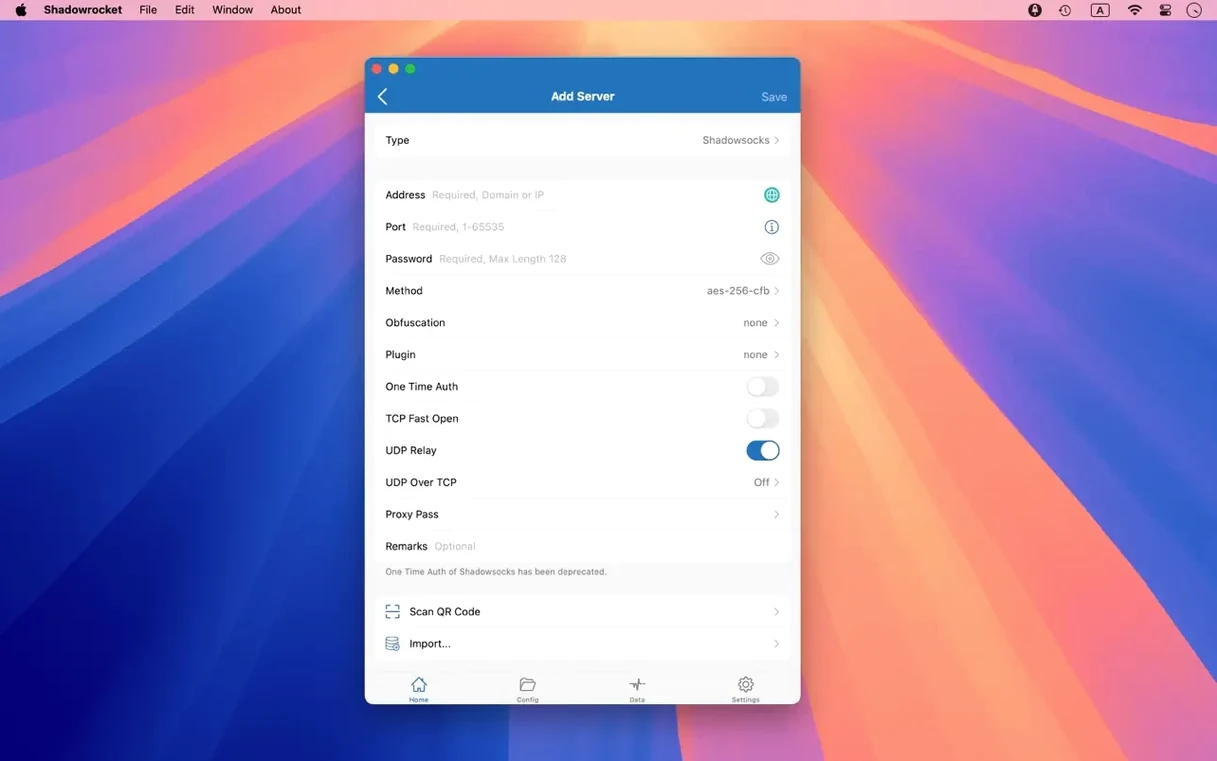
A common task for anyone testing a website across regions is to see what a visitor in another country actually loads. With Shadowrocket, you start by adding a proxy server that exits in the target region — or a chain of them, since it supports multi-level proxies. Then you build a rule set. You might create a domain-suffix rule for the site you are checking, telling Shadowrocket to route just that traffic through the proxy. Everything else hits the internet directly. That granularity is what sets a rule-based client apart from a system-wide tunnel.
While you browse, Shadowrocket records the HTTP, HTTPS and DNS requests in a scrolling log. You can watch the rewritten URLs, inspect headers, and confirm that your proxy scripts and filter rules are firing in the right order. For encrypted traffic, the app can decrypt HTTPS so you can see the full request and response bodies — useful when you are debugging an API that behaves differently depending on where the request originates. The rules engine accepts domain keywords, CIDR IP ranges and GeoIP lookups, so you can craft conditions that go well beyond a simple domain match.
When the session is done, you switch the proxy off from the menu bar. The logs stay available for review, and the rule set you built remains saved for the next time you need to step through a different digital border.
Enable on-demand so the proxy connects without babysitting the toggle
Out of the box, Shadowrocket works, but a few defaults are worth adjusting immediately. Open the preferences and head to the General tab first. Enable On Demand — without it, the proxy only activates when you toggle it manually, which is fine for short tests but easy to forget. Tying it to a specific Wi‑Fi network or Ethernet interface means the ruleset kicks in the moment you join a café hotspot or plug in at a co‑working space, without a second thought.
Next, look at DNS. The app ships with system DNS as the default, but switching to DNS over HTTPS or DNS over QUIC keeps your lookups encrypted even on networks where the local resolver is untrustworthy. Shadowrocket supports both, and you can specify a provider like Cloudflare or a custom server. While you are there, check the Local DNS Mapping section — if you maintain a staging server that has no public DNS record, mapping a fake domain to its internal IP saves you from editing /etc/hosts on every machine you use.
In the Rules preferences, turn on Ad Blocking by domain and user-agent. It is not enabled by default, and it is one of those things you only notice when you compare a session with it off versus on. The blocklist catches most tracking scripts and mobile-ad SDK calls, which also lightens the request log when you are trying to debug your own traffic.
Finally, set a measurement unit that makes sense for your connection. The traffic-usage monitor shows data in real time on both direct and proxied connections, but the default unit might be too granular or too coarse for how you think about bandwidth. A filmmaker uploading rushes to a remote server will read gigabytes more naturally than megabytes.
Server-table selection fixes that smooth out everyday list editing
Version 2.2.92 does not add splashy features. The release notes mention macOS UI fixes for multiple selection in server tables, the menu bar, and the Dock icon. Those are the kind of changes that disappear into muscle memory but make a real difference in daily use. Selecting several servers at once in the table — to move them between folders, to batch-change ports, or to delete a group you imported while experimenting — used to be flaky. Now it behaves the way a standard macOS table should, with Shift-click and Command-click working reliably. The menu bar icon also received attention: the proxy status indicator no longer lags behind the actual connection state, a bug that could leave you thinking you were tunnelled when you were not. For an app that lives in the menu bar, that accuracy is everything.
The Dock icon fix is subtler. Some users keep Shadowrocket in the Dock alongside the menu bar, and with the earlier build the icon occasionally failed to reflect the running state after waking from sleep. That is now resolved. None of this changes what the app does, but it sharpens the sense that the tool is paying attention to the platform it runs on.
Skipping the rule-based routing and accidentally tunneling everything
The most common beginner mistake is assuming Shadowrocket works like a VPN app, where you click one button and everything routes through a single server. It can do that — set a global routing policy — but if you do not configure any rules, traffic behaviour depends on the Default Route setting. Leave it on Direct and nothing goes through the proxy at all. People install a shadowrocket mac dmg, add a server, toggle the switch, and then wonder why their IP still shows their real location. The fix is either to change the default route to Proxy or, better, to build at least one rule that catches the traffic you care about.
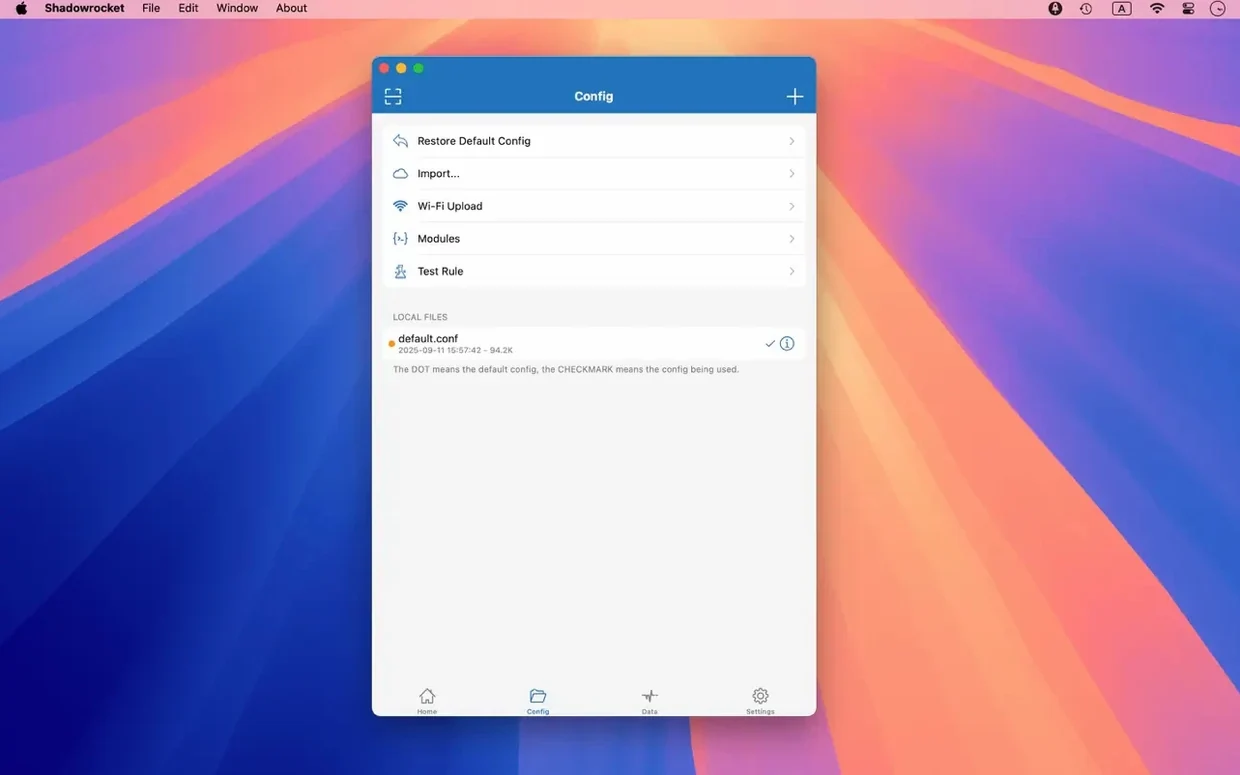
Another trap is importing a rule set from a URL and assuming it is active. Shadowrocket loads remote rule files as a reference, but you still need to assign them to a configuration and ensure the configuration is selected. A grey dot next to the rule set name means it is present but not applied. Similarly, forgetting to enable HTTPS Decryption before inspecting encrypted traffic leads to a log full of opaque CONNECT tunnels with no visible request bodies. The decryption feature requires installing Shadowrocket's certificate in your system keychain and trusting it — a step the app prompts for, but one that is easy to skip during a rushed setup.
A subtler misstep involves DNS. If you configure a custom encrypted DNS server inside Shadowrocket but leave your system DNS untouched, apps that bypass the proxy — or moments when the proxy is off — will still leak queries to the local resolver. Think of the app's DNS settings as a layer that only applies to traffic it handles.
Where Shadowrocket fits among other tools
Shadowrocket is not a firewall like Little Snitch, nor a general-purpose network debugger like Charles or Proxyman. It occupies a narrower slot: a rule-based proxy client that excels at selective routing. In practice, it often runs alongside those other tools rather than replacing them. A common setup on a filmmaker's Mac is to have Little Snitch monitoring outgoing connections at the system level, while Shadowrocket handles region-specific traffic for research or testing — the two do not conflict because they operate at different layers of the network stack.
The app also pairs well with macOS location profiles. You can set up a Network Location in System Settings that uses a specific Wi‑Fi interface, then configure Shadowrocket's On Demand to trigger only on that location. Switch locations when you sit down at an edit suite with a proxy server on the local network, and the ruleset activates without touching the menu bar. Combined with iCloud Drive, rule files stay in sync across machines — write a set of domain-suffix rules on a desktop Mac, import them from iCloud on a MacBook, and both installations route the same way.
For anyone who grabbed a shadowrocket mac build to test geo‑specific streaming or API behaviour, the script-filter support opens another door. A short JavaScript snippet can decide routing on the fly based on request parameters, time of day, or even the SSID of the current network. That kind of logic sits somewhere between a static rule set and a full custom proxy, and it is where Shadowrocket stops being just a configuration tool and starts feeling like a small programmable router on your Mac.
- macOS 10.15 or later
- Intel or Apple Silicon Mac
Questions from the booth
Yes, it can decrypt HTTPS traffic, which lets you inspect the full request and response bodies for debugging or analysis.
It supports DNS over HTTPS, DNS over TLS, and DNS over QUIC, giving you encrypted DNS resolution alongside the proxy routing.