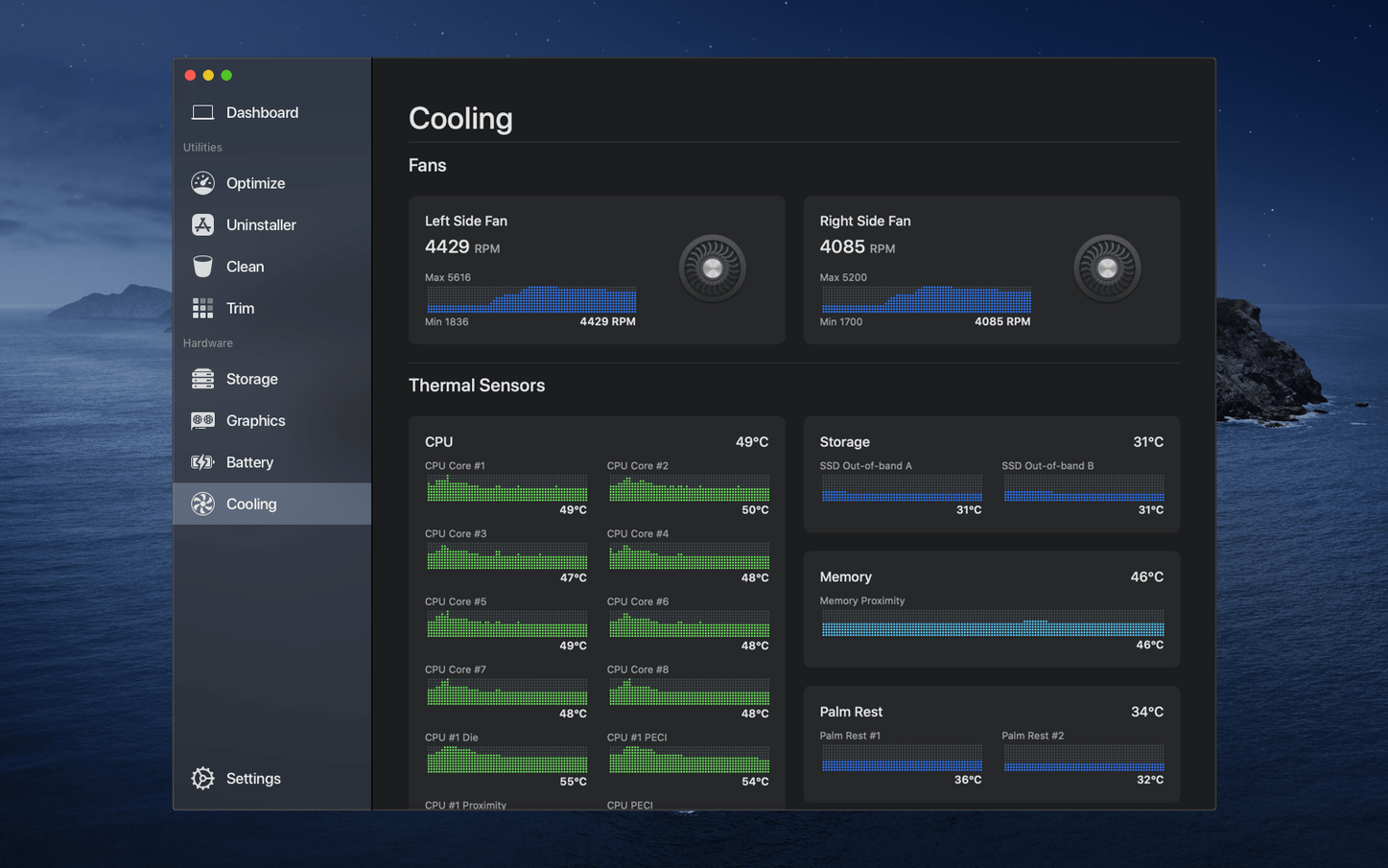
You notice the fans spin up while DaVinci Resolve is rendering a timeline, and you'd rather know exactly what's happening before the thermal throttling kicks in. That's the moment Sensei slides into a workflow. It's not a single-purpose monitor or a separate disk cleaner — it's both, sharing the same quiet window on the desktop.
Checking what's using your hardware right now
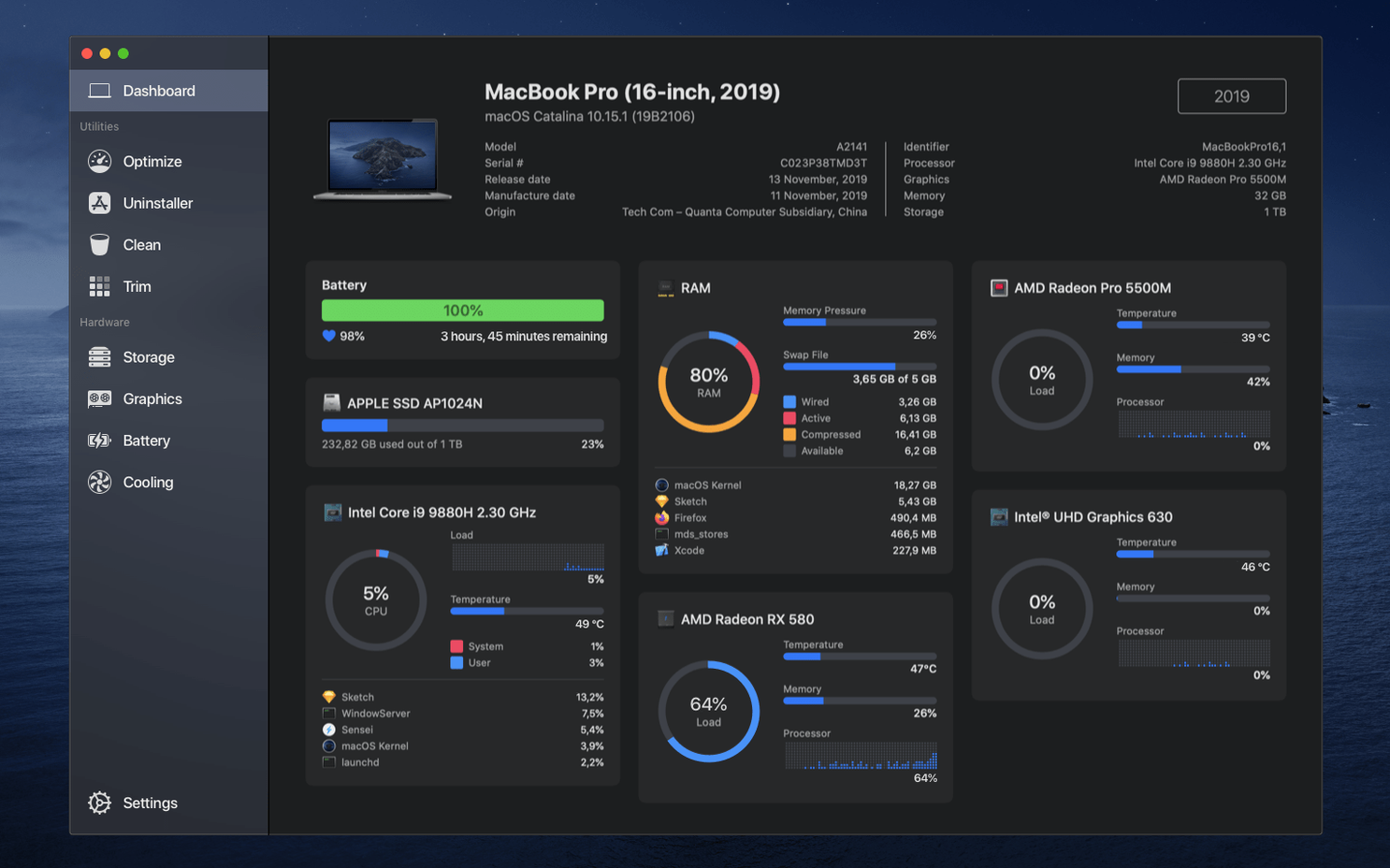
The Dashboard lays out CPU, GPU and RAM activity alongside temperature readouts for key components. Battery health and cycle count sit in the same view, so you can decide whether it's time to stay plugged in during a session.
Trimming the things you no longer need
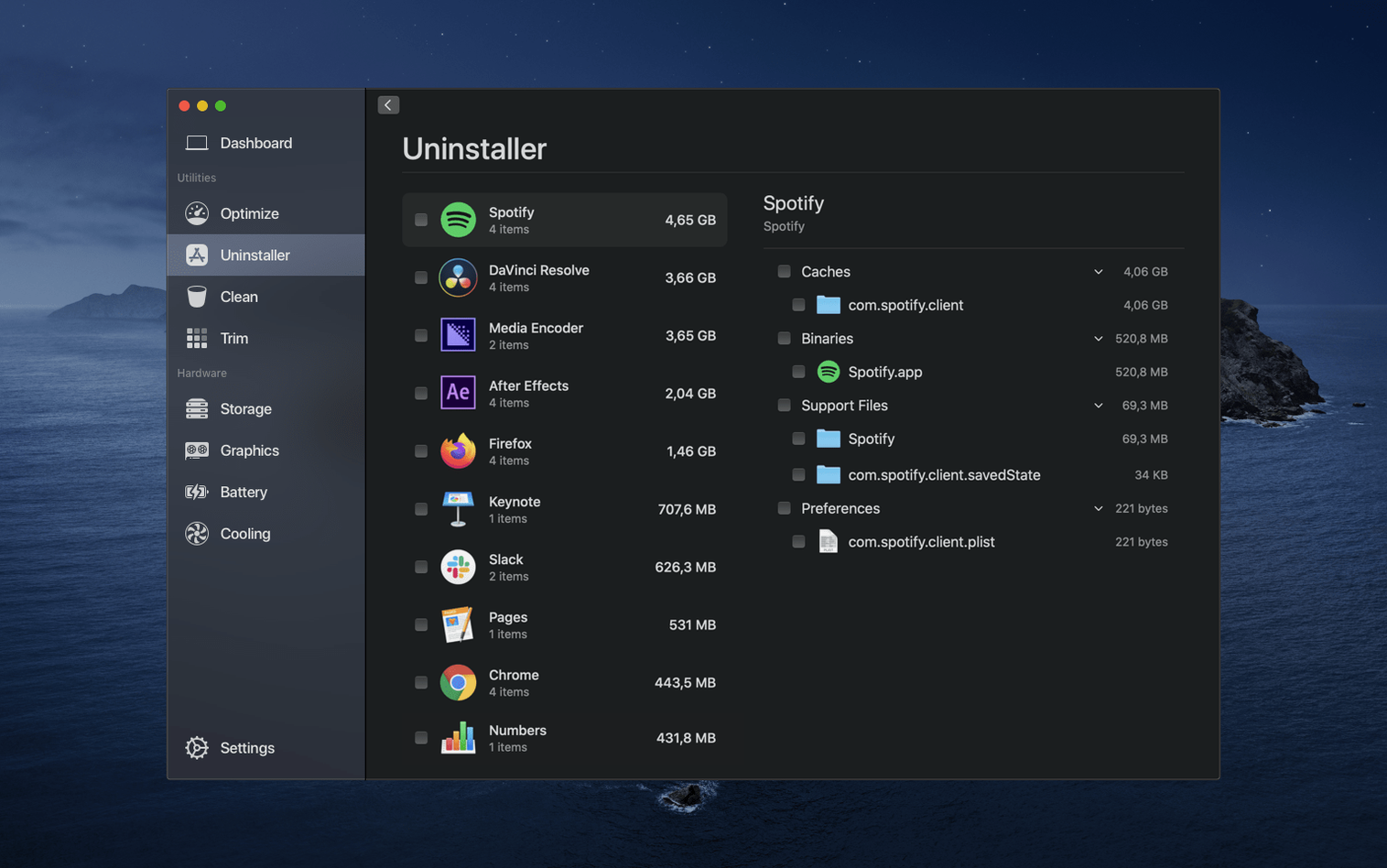
An uninstaller digs deeper than dragging an app to the Trash, catching support files that would otherwise sit in the Library folders. The cleanup tools extend that logic to caches and large forgotten files.
Quietening the machine on a hot day
Fan control lets you set a custom curve or a fixed RPM — useful when the ambient temperature in an editing suite climbs and the default profile feels too conservative.
What to know before you install
People often wonder whether Sensei overlaps with macOS's own tools. It does, but in the way a dedicated colour panel complements a camera's built-in display — it surfaces the same data with more precision and gives you controls the system keeps tucked away. Another common question is about TRIM. The app can enable it on third-party SSDs, but only on volumes that don't use FileVault, and the toggle is deliberately buried under a confirmation step so you don't trip over it. If you're running an Apple Silicon Mac, the temperature sensors read fewer individual cores than on Intel machines — that's a hardware limitation, not a missing feature. And yes, the menu bar monitor draws negligible power when it's polling sensors every few seconds; you can set the refresh interval or pause it entirely from the Monitor's gear menu.
Your first forty-eight hours with Sensei
Resist the urge to run every cleanup scanner on day one. Start with the Dashboard open while you do normal work — a grading session, a compile, whatever you actually use the machine for. Watch which temperatures climb first and when the fans respond. That baseline makes the fan curve editor far more useful than guessing at a profile. After a day or two, run the storage overview and note what the large-file scanner flags. Surprises often hide in iOS backup remnants and old Final Cut render files that survived a manual tidy-up. Leave the uninstaller for later in the week, once you've built a list of apps you genuinely haven't launched in months.
An editor knee-deep in proxies
Imagine someone cutting a documentary in Premiere, transcoding a mountain of proxy media overnight. By morning the internal drive is down to forty gigabytes and the machine feels sluggish even after quitting the NLE. Opening Sensei's storage pane reveals that the media cache alone consumed a hundred and twenty gigs — scattered across the system drive and an external enclosure the editor forgot was selected. The large-file scanner groups them by path, so they're all deletable in two clicks. While the cleanup runs, the temperature readout confirms the CPU is finally dropping back toward idle. Ten minutes later, the drive has breathing room and the timeline playback is smooth again. No Terminal commands, no reboot.
Small touches that earn their keep
The menu bar widget shows more than a CPU graph. Click it once and you get a compact hardware summary — GPU temperature, fan speeds, memory pressure — without opening the main window. Holding Option while clicking the fan control panel reveals the raw sensor IDs Cindori uses internally, which can help when you're matching curves to a specific component you know runs hot. In the uninstaller, selecting an app and pressing Space triggers a Quick Look preview of the files it'll remove, so you can spot a rogue preference pane before committing. And if you've ever searched for a specific version of Sensei — a sensei 1.7.1 installer or an older sensei 1.6.0 release — the current build auto-detects leftover preference files from those earlier versions and offers to clean them during the first launch. The theme switcher respects macOS appearance settings but lets you force dark mode on the monitoring charts independently, which is kinder on the eyes during a late-night render watch. None of these are billboard features, but they're the kind of detail you stumble across a month in and wonder how you missed.
- macOS 14 or later
- Apple Silicon and Intel Macs
- Interface languages: English, Dutch, French, Japanese, Russian, Simplified Chinese, Spanish, Swedish
Questions from the booth
It covers much of the same ground for CPU, GPU and RAM, then adds temperature sensors, battery health and fan control in one unified Dashboard.
Yes. The uninstaller removes the main app and searches common Library locations for leftover preferences, caches and support files.
It monitors temperature across multiple components, tracks battery health and charge cycles, and gives you manual control over fan speed when needed.