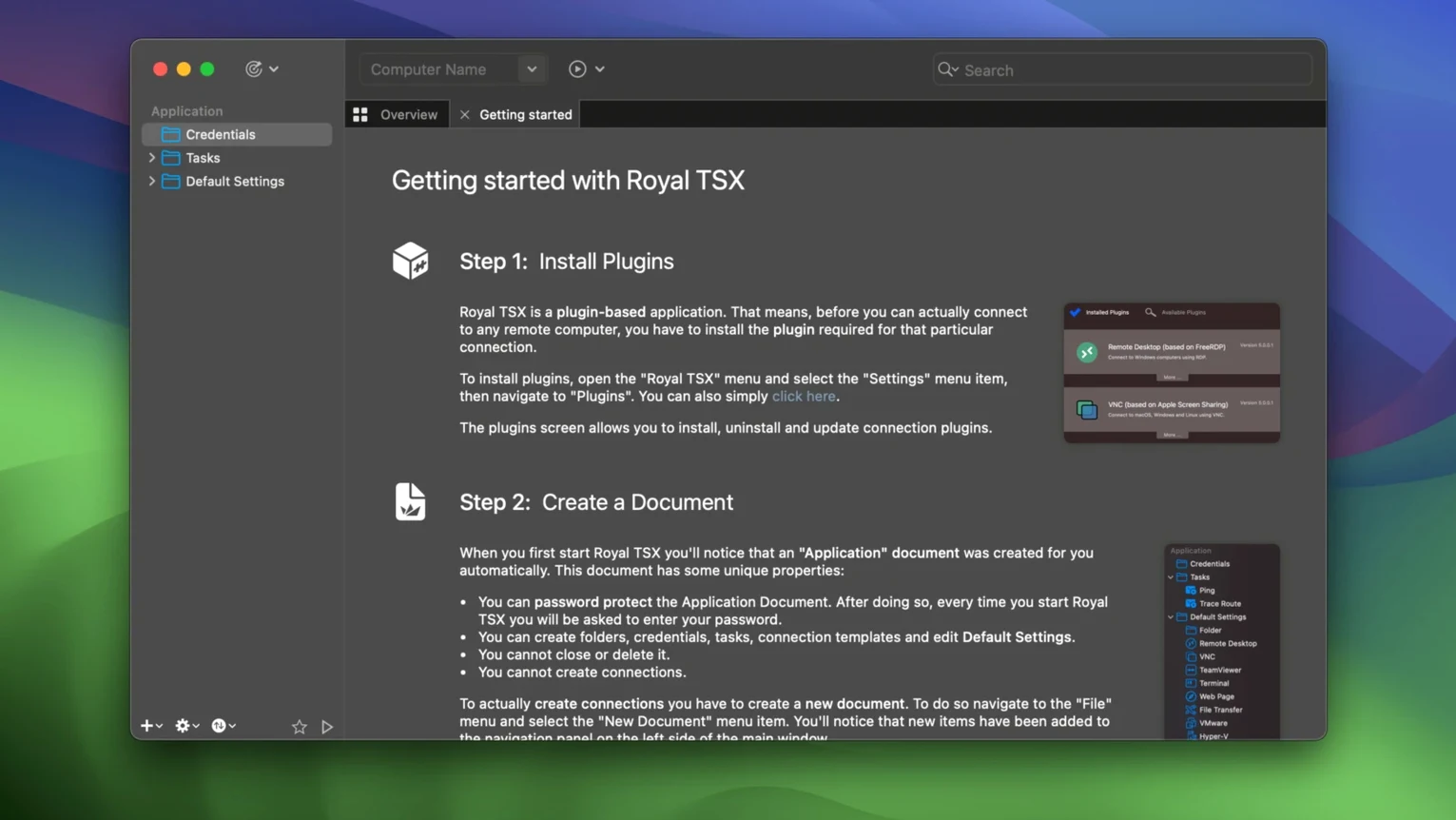
You arrive at the office, coffee in hand, and open a single application. Inside it, three Windows servers are lined up as RDP tabs, a Debian box waits on an SSH connection, and a headless Mac mini sits ready for VNC. No juggling separate clients, no re-typing credentials you memorized six months ago. That is the quiet promise Royal TSX makes — and, for the most part, keeps.
Built by Royal Apps as a universal binary that runs natively on both Apple Silicon and Intel Macs, the application speaks RDP, SSH, VNC, and several other remote protocols from one window. It stores your connections in documents that travel between Mac, Windows, and iOS versions of Royal TS without conversion. If you manage a mixed fleet — a few cloud instances, a dusty server closet, a client’s desktop you remote into every Thursday — that portability matters.
Templates let you stamp out new connections with preset credentials, gateway settings, and display options, while batch operations mean a single command can touch a dozen machines at once. For the scripters, Royal TSX runs user scripts directly against connections, turning repetitive maintenance into something closer to automation. The interface is available in English and German, and it asks only for macOS 10.13 or later.
A freelance web developer managing a handful of client sites keeps Royal TSX open on the second display throughout the workday. One tab holds an SSH session to a DigitalOcean droplet where the staging environment lives; another opens RDP to a client's in-office Windows machine that runs legacy accounting software. When a third client messages about a broken form on their live site, she right-clicks the bookmark folder labelled that client's name, chooses Connect All, and within seconds has the production server, the database host, and the backup VPS lined up as tabs in a single window. The credential store means she never pauses to hunt for a password — not for the MySQL root account, not for the sudo user on the web server, not for the RDP login on that Windows box she accesses twice a month. Everything lives in one encrypted document she backs up alongside her dotfiles.
A patch-Tuesday workflow in seven steps
When updates drop for a cluster of Windows Server VMs, the process unfolds inside Royal TSX without leaving the keyboard. The workflow below assumes you have already organized your connections into folders and set up a shared credential entry for the domain admin account.
- Select the folder containing the target servers in the navigation tree.
- Press Cmd-B or choose Connect All in Folder — every machine opens in its own tab using the stored RDP settings.
- Run a quick health script against the whole batch: Actions > Execute Script, chosen from the folder context menu, triggers a PowerShell snippet that dumps pending update counts and uptime to the script output panel.
- For machines that need the updates, right-click the tab group and open a Command Task configured to run
wuauclt /detectnow /updatenowacross each selected connection simultaneously. - As the updates install, use the Secure Gateway tunnel defined in the connection template to reach an internal monitoring dashboard over RDP without punching extra holes in the firewall.
- Once the VMs start rebooting, let the auto-reconnect setting in each connection's Advanced properties bring the tabs back online as each machine finishes its restart cycle.
- Run the health script a second time to confirm patch levels and close the tabs that are done.
What makes this flow click is that the gateway configuration, credential assignment, and reconnect behaviour all live inside the connection template — you set them once and every server you stamp out from that template inherits them. No per-machine fiddling.
Where Royal TSX sits among other tools
Royal TSX does not try to replace your terminal emulator or your file manager, and it is better for it. Most users keep iTerm2 or Terminal.app nearby for heavy shell work, then let Royal TSX handle the remote connections where a saved host list, stored credentials, and quick tab switching save real friction. The application integrates with macOS in small but deliberate ways: it respects Dark Mode, supports native full-screen spaces so each remote machine can occupy its own desktop, and registers itself as a handler for rtsx:// URL schemes, which means you can launch specific connections from Alfred workflows, shell scripts, or a note in Obsidian.
Documents sync naturally through iCloud Drive or any file-syncing service — a connection file is just a document on disk — so the set of servers you organize on an iMac at the office appears identically on a MacBook Air when you download Royal TSX again elsewhere. The same documents open on Royal TS for Windows or Royal TSi on an iPad, and the credential encryption travels with them. For teams that run Royal Server alongside their clients, common management tasks like PowerShell remoting or event log access get centralized through a single secure endpoint, though Royal TSX works perfectly well in a standalone setup too.
Outside the Royal ecosystem, the app coexists with tools like Termius or Microsoft Remote Desktop without conflict. Some admins use Royal TSX as the master connection hub — the place where every machine is catalogued and reachable — and then jump into dedicated clients only for niche protocols or heavy session recording. The script engine supports PowerShell, bash, Python, and anything else you can invoke from the command line, so a connection folder can double as a lightweight runbook: right-click, execute a script, and watch the output panel for results across multiple servers at once.
- macOS 10.13 or later
- Apple Silicon or Intel 64-bit
Questions from the booth
Yes. Royal TSX documents are fully compatible with Royal TS, Royal TSi, and Royal TSD, so you can move connection files between Mac, Windows, and iOS without conversion.
It does. The app is a universal build with native support for both ARM-based Apple Silicon and x86 64-bit Intel Macs.