Compatibility reaches back to macOS 10.13, and the app runs natively on both Apple Silicon and 64‑bit Intel machines. If your Mac has been updated anytime in the last several years, Scrivener will feel at home on it.
What kind of software is it, exactly?
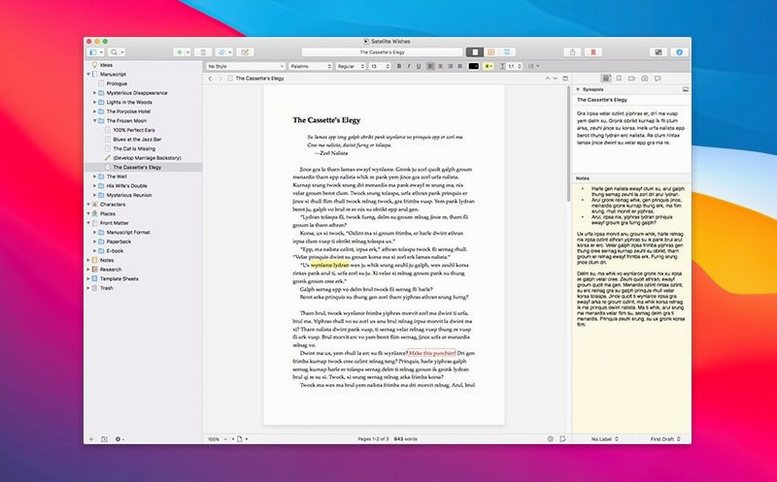
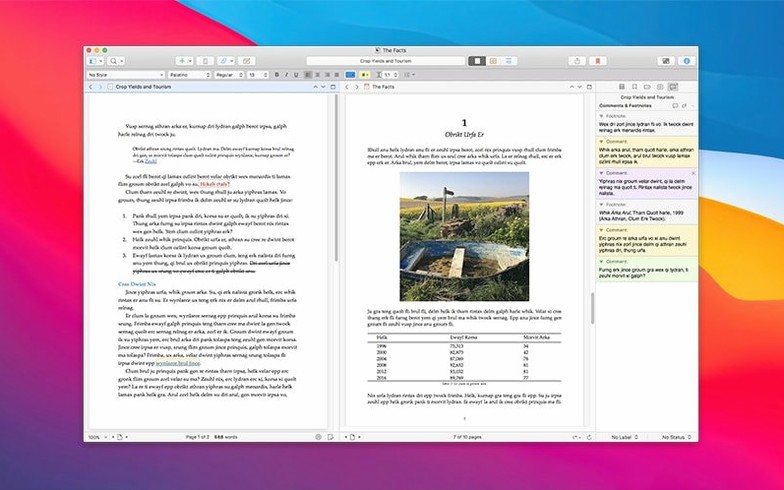
It’s a word processor built around a project binder — a single window that holds your manuscript, scene notes, research images, PDFs, web links, and audio recordings. The writing engine and the organizational spine are the same thing, so you don’t bounce between separate apps while a draft grows unwieldy.
For long-form projects where research piles up faster than prose
Anyone wrestling a long or research-heavy text: novelists juggling character sketches and timeline threads, screenwriters storing location photos beside script pages, academics weaving citations and chapter drafts, or journalists corralling interview recordings and article outlines. It suits the kind of project where the structure matters as much as the sentences.
Does it protect against lost work?
Automatic saving runs in the background, and you can take snapshots of a full document or a selected fragment before a risky rewrite. Rolling back to an earlier version is a few clicks away without cluttering your drive with manual backups.
Switch off typewriter scrolling so the page stays put while you write
Out of the box, Scrivener ships with a typewriter-scrolling mode that centres the current line vertically. Some writers love it; many find it subtly disorienting. Head to Preferences > Editor and switch scrolling to Normal if the text keeps drifting away from you. While you’re there, the default project template includes a Research folder, a Trash, and a Draft folder with pre-made labels — sensible for a novel, less so for a thesis or a documentary script. Creating a blank project and saving it as your own template saves a few minutes of folder-renaming every time you start something new.
The binder font size is another quiet friction point. It’s tied to the system sidebar setting, not Scrivener itself, so it can look cramped on a retina display. Bumping it up under Preferences > Appearance > Binder makes the sidebar readable at a glance, especially when a project holds dozens of documents. And if you work across a MacBook and an external monitor, enable full-screen mode early — Scrivener respects it properly, and the distraction-free writing mode inside it hides the binder, inspector, and toolbar with a single keystroke, which turns the app into something closer to a plain-text editor when you just need to move words forward.
One afternoon in a researcher’s workflow
Imagine a doctoral candidate staring at three months of field notes, a dozen PDFs of ethnographic studies, and a messy outline that hasn’t been touched since the proposal defence. She imports the PDFs directly into the Research folder — no filing system to maintain, no Finder windows layered behind the editor. Each interview transcript gets its own subfolder with a synopsis card visible in the corkboard view. She colour-codes by theme: red for methodology questions, blue for participant quotes worth quoting at length.
With the binder open on the left and a chapter draft in the centre, she can drag a quote from a transcript straight into the manuscript without switching windows. The inspector pane on the right holds document notes where she jots questions to her supervisor as they occur, rather than letting them evaporate. By the end of the afternoon, the chapter draft has grown by twelve hundred words, three of the imported PDFs are annotated with highlights that appear in the binder as synopses, and nothing got lost in a desktop folder with a cryptic name. The project file — a single package she can back up to an external drive in seconds — now holds the entire dissertation-in-progress.
When your timeline twists and your cast no longer fits in your head
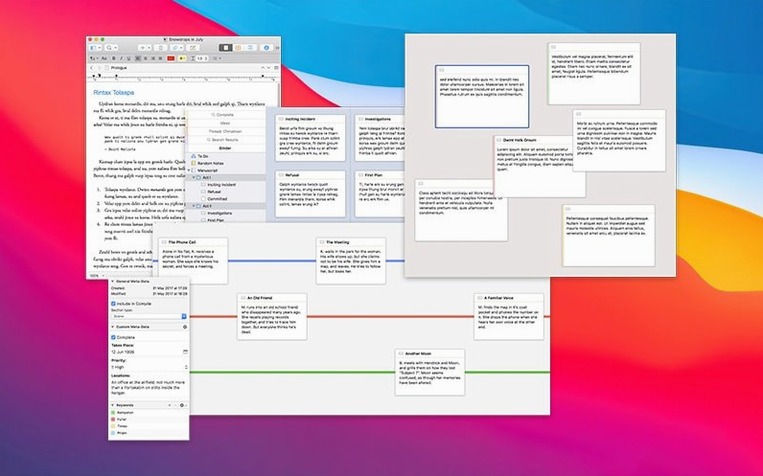
Writers who thrive inside Scrivener tend to share a particular relationship with their material: the structure isn’t fully known at the start, and the research is too abundant to hold in memory. Novelists with sprawling casts and non-linear timelines lean on the corkboard to shuffle scenes without cutting and pasting across a single document. Screenwriters use the scriptwriting mode to keep formatting correct while storing location photos and character mood boards in the same project file — no separate mood-board app, no stray images cluttering the desktop.
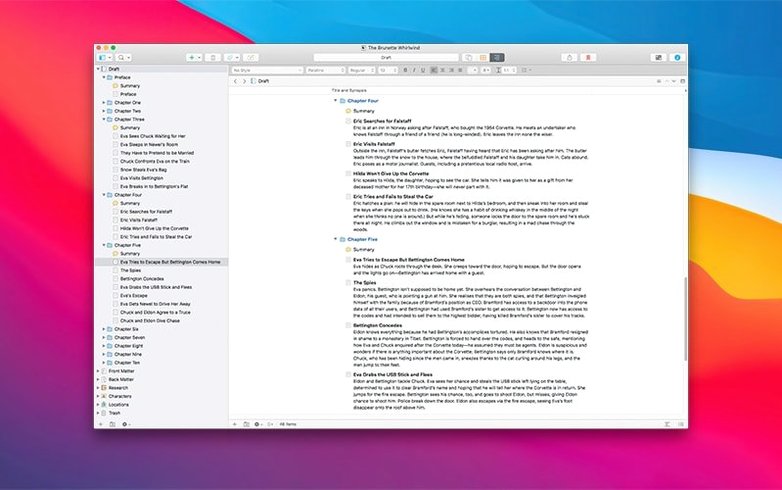
Non-fiction authors and journalists benefit from the split-pane editor, which lets you keep interview notes or a source PDF open in the lower half while drafting above. Academics writing a thesis with dozens of citations can store each reference as a separate document with its own notes and synopsis, then compile the whole thing into a formatted paper later. Students writing a long essay discover the usefulness of the outliner view early — it shows titles, synopses, labels, and word counts in columns, turning the binder into a project dashboard rather than a passive list of files. The common thread is volume: if your project fits comfortably in a single Pages or Word document, Scrivener’s architecture is overkill. If it would drown there, the binder becomes the thing you miss whenever you’re forced to work without it.
Stitch your scenes into a seamless chapter with scrivenings mode
The scrivenings mode — triggered by selecting multiple documents in the binder and clicking into the editor — stitches them together into one continuous scroll. It’s a fast way to read a chapter as a reader would, without compiling or exporting anything. Tapping Cmd-Opt-R opens the project’s Research folder instantly; Cmd-8 brings up the outliner, Cmd-3 the corkboard. Holding Option while clicking a binder document opens it in the other editor pane, so you can cross-reference without dragging.
The project statistics panel (under the Project menu) shows word and character counts for the current selection, the draft, or the entire project — useful when a supervisor asks how much you’ve actually written, not just how much you’ve outlined. And the name generator, tucked under Edit > Writing Tools, pulls from several cultural name sets; trivial for a novelist, but a quiet time-saver when you need a placeholder name for a source and don’t want to name every interviewee “Subject A.” None of these features announce themselves loudly, but after a week they become muscle memory — the difference between driving the app and fighting it.
Version 3.5.2 is a bug‑fix release, smoothing out a handful of rough edges without changing the feature set.
- macOS 10.13 or later
- Apple Silicon or 64‑bit Intel processor
- Interface and content presented in English
Questions from the booth
Yes. Beyond written notes you can import and organize photos, PDF documents, web links, and audio files right alongside your manuscript sections, keeping all the raw material of a piece in one place.
It does. The app supports both ARM-based Macs and 64‑bit Intel machines, as long as the system runs macOS 10.13 or later.