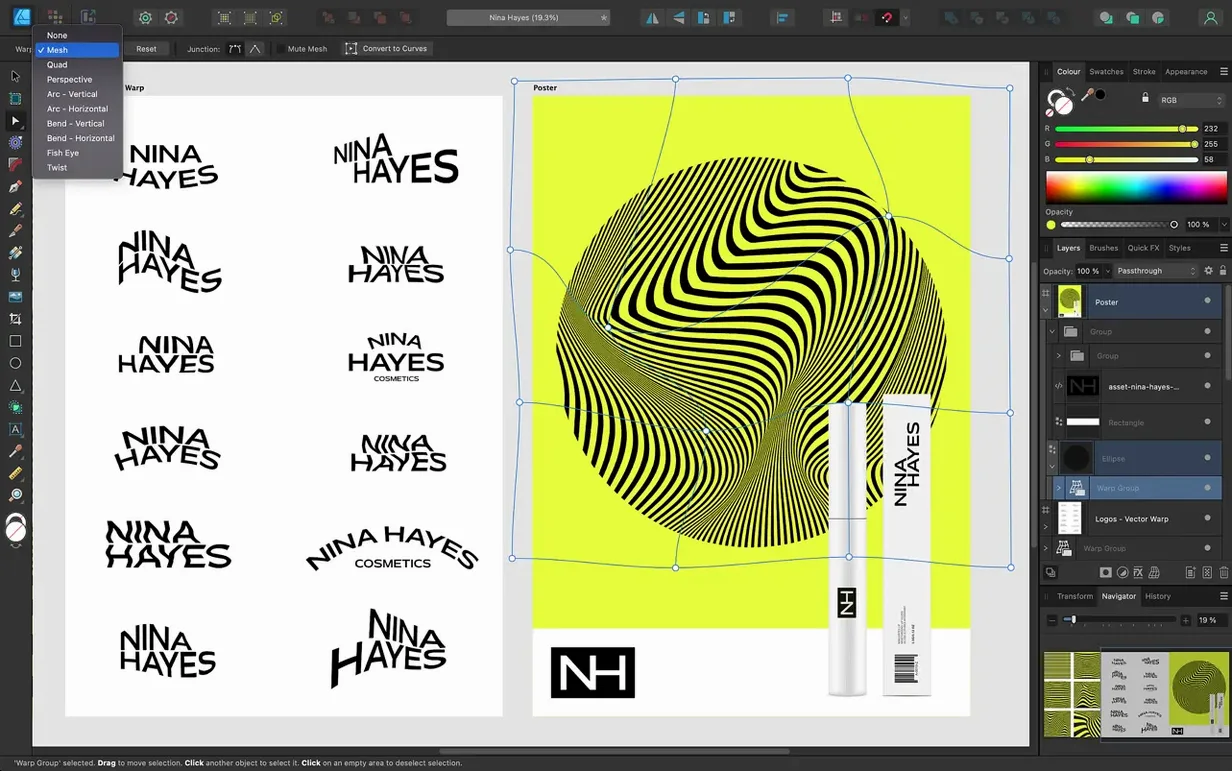
Affinity Designer runs on any Mac with macOS 10.15 Catalina or later, on both Intel and Apple Silicon machines. It’s a quiet workhorse that draws vectors, builds layouts, and slips between raster and vector workspaces without closing a file.
Tools built for a specific task
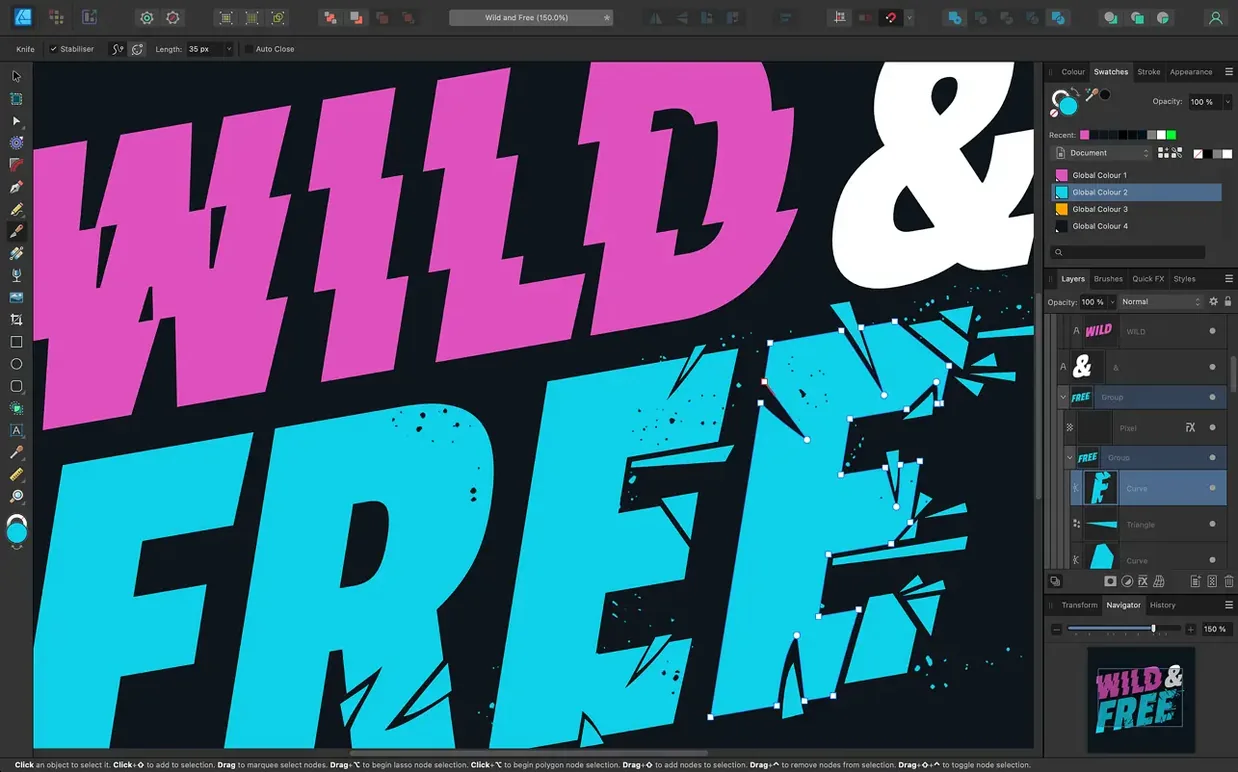
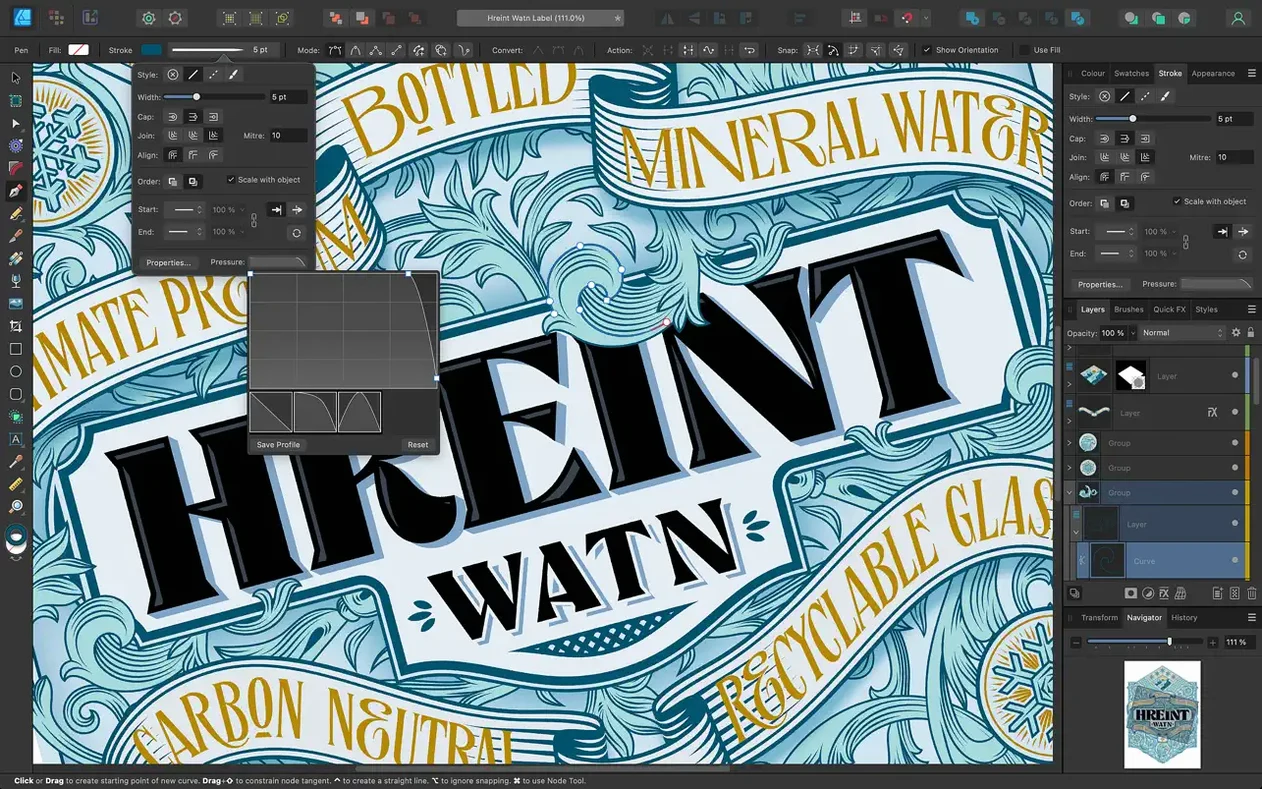
- Pen and Node tools — lay down precise curves, then adjust every anchor and handle. The Stroke Width Tool lets you vary line weight along a path, and version 2.6 added profiling improvements plus a Reset Profile command when an experiment goes sideways.
- Brush and Pencil stabilization — a rope-and-rope-mode smoothing engine turns a shaky freehand line into a clean stroke. The Pencil tool got a round of refinements in the 2.6 release.
- Text along a path — set type to run along any drawn curve, then tweak it with OpenType features inside artistic text or text frames.
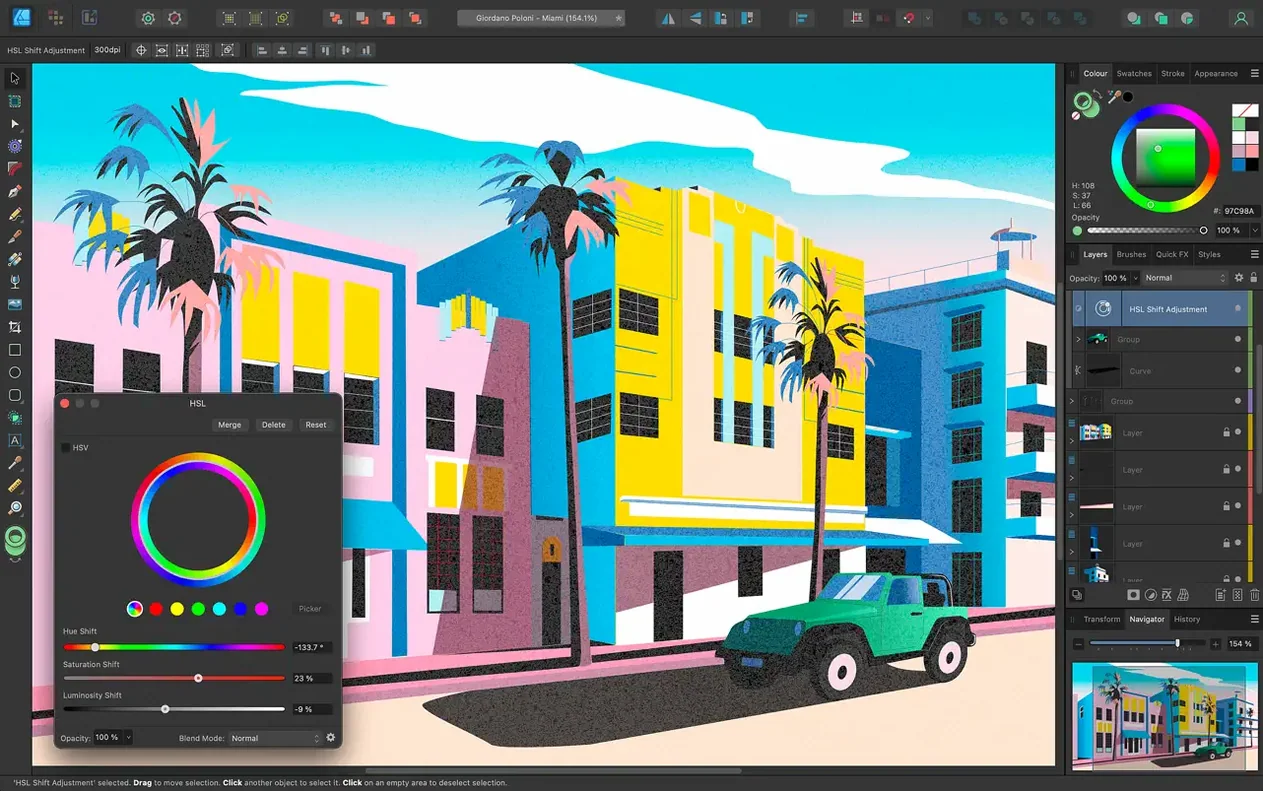
- Colour models — work in CMYK, LAB, RGB, or grayscale without converting your brain to a different colour space every time the output changes.
File formats that fit a real pipeline
Opening a client’s Illustrator file, placing a PSD mockup, or exporting an SVG for a web project — the app reads and writes PSD, AI, PDF, EPS, SVG, JPG, TIFF, and EXR. That list covers the formats most projects actually move through, from layout feedback to final asset delivery.
Pushing vectors into Publisher without exporting a file
Affinity Designer rarely works in isolation. Most projects bounce between it, Affinity Publisher, and Affinity Photo through the StudioLink feature—tap a button inside Publisher and switch to Designer's vector tools or Photo's raster brushes without exporting a single file. A layout that started as a multi-page brochure in Publisher can open its illustrations for quick curve edits right there on the spread, and the changes ripple back instantly. On macOS, the app hooks into Core Graphics and Metal, so zooming and panning stay fluid at 60 fps even when an artboard carries dozens of layered vector objects with live gradients and adjustments applied.
The app also plays well with system-level colour management. If you calibrate a display through macOS's ColorSync utility and assign an ICC profile, Designer respects it across CMYK, LAB, and RGB documents. Drag a vector from the desktop into Final Cut Pro as a motion graphic element, or copy a shape and paste it into Keynote as a fully editable path—macOS keeps the vector data intact, and Designer doesn't flatten it prematurely. For UI designers, the retina canvas preview shows exactly what an icon or button will look like at 2x and 3x resolutions, mirroring how Xcode presents assets.
A few days in: what a logo designer notices
An independent brand designer sitting down with a coffee shop rebrand will probably spend the first hour building a grid of artboards—one per touchpoint. A circular logo mark starts with the Ellipse tool and a few Boolean operations; the shape builder approach in Designer handles union, divide, and intersect without leaving stray nodes behind. The real moment of relief often comes when the client sends an old Illustrator file with a note asking for a colour tweak. Opening the AI file directly, the designer finds the original layers and editable text intact, adjusts the palette from a Pantone swatch to a CMYK mix that the print shop requested, and exports a press-ready PDF with bleed and crop marks all from the same window.
Later that day, a hand-lettered wordmark takes shape. The pencil tool's smoothing—tightened to a short rope length in the context toolbar—turns quick gestural strokes into consistent letterforms that still feel organic. When one descender looks too thin, the Stroke Width Tool profiles the curve, thickening the swell without adding new anchor points. A set of OpenType stylistic alternates applied through the Typography panel finishes the logotype, and the whole suite of assets—primary mark, wordmark, icon, colour variations—sits across a single canvas, exportable in one pass through the Export Persona.
Reinstalling a font to fix reflow in Illustrator files
A few friction points surface predictably. The first: opening a complex Adobe Illustrator file can trigger a missing-font warning. Designer doesn't bundle Adobe's font library, so text may reflow. The fix is straightforward—install the same font on your Mac or use the Font Manager to substitute a close match before the layout shifts. The second: PSD files with smart filters open as flattened raster layers. If you need the original editable layers, ask the client for a layered TIFF instead; Designer reads those with full layer preservation.
The marquee selection behaviour can also surprise users coming from other tools. By default, dragging a selection rectangle picks up any object it touches. In version 2.6, holding the Command or Ctrl key while dragging toggles to intersection mode—only objects fully enclosed by the marquee get selected. It's a small toggle, but it solves the frustration of accidentally grabbing background elements when you're trying to select a tight cluster of shapes. If the Pencil tool feels unresponsive at first, check the stabilization settings. A rope length set too long can make the stroke lag behind the cursor; dial it down to 15-20 pixels for tighter control, then lengthen it for long, sweeping curves.
Another head-scratcher: exported SVG files that look different in a browser than they do on the artboard. The culprit is usually unsupported blend modes or layer effects that SVG can't replicate. Flattening those effects before export—or using the SVG export preset that rasterizes unsupported features—produces a faithful output. For print designers, a common moment of confusion is the colour profile assignment. If a document looks muted on screen but prints fine, check that the proof colours view is turned on in the View menu; it simulates the output intent so the screen matches the press sheet.
First-day moves worth making
Before you draw anything serious, open the Preferences window and spend ten minutes in the Performance tab. If your Mac has a discrete GPU, set the Display dropdown to Metal and enable "Hardware acceleration for screen rendering." The canvas redraws faster, and zooming becomes truly immediate. Switch the Colour panel from the default wheel to the sliders view if you spend more time inputting exact CMYK values than picking hues visually—it saves a lot of back-and-forth later.
Create a template file with your usual artboard sizes, a set of global colour swatches pulled from your most-used brand palettes, and a few paragraph styles for headline and body text. Save it as a .aftemplate file and set it as your default document in the General preferences. Every new project starts with the grid, colours, and type styles already in place. Pin the Stroke panel and the Appearance panel to the right studio by dragging their tabs; they disappear when you don't need them and reappear with a single click. If you work with a tablet, turn on "Force Touch" pressure sensitivity in the Tools preferences so the Wacom or iPad stylus controls stroke width naturally.
A smaller but satisfying adjustment: in the User Interface preferences, set the background grey level to a darker shade if you work late into the night. The default mid-grey is neutral but can feel harsh under low light. The UI brightness slider dims the entire workspace without touching your document colours, so a late-night illustration session doesn't end with a headache.
Version 2.6.5 brings bug fixes and stability improvements. The earlier 2.6 release added Stroke Width Tool profiling refinements, a Reset Profile option, Pencil tool improvements, and a Command or Ctrl toggle for marquee select intersection behaviour.
- macOS 10.15 Catalina or later
- Intel or Apple Silicon Mac
Questions from the booth
Yes, it supports AI files along with PSD, PDF, EPS, SVG, JPG, TIFF, and EXR formats.
It supports CMYK, LAB, RGB, and grayscale colour models, letting you switch based on the output medium.
It requires macOS 10.15 Catalina or later, and runs natively on both Intel and Apple Silicon Macs.