A journalist back from a long interview, a researcher working through field recordings, a filmmaker pulling selects from a day’s rushes—anyone who needs words from recorded sound, quickly and privately, will find a use for AI Transcription. The Mac app runs entirely offline, so the audio never leaves the machine, which matters when the material is sensitive or simply not yours to upload.
Transcribing an interview, start to finish
What a single pass looks like:
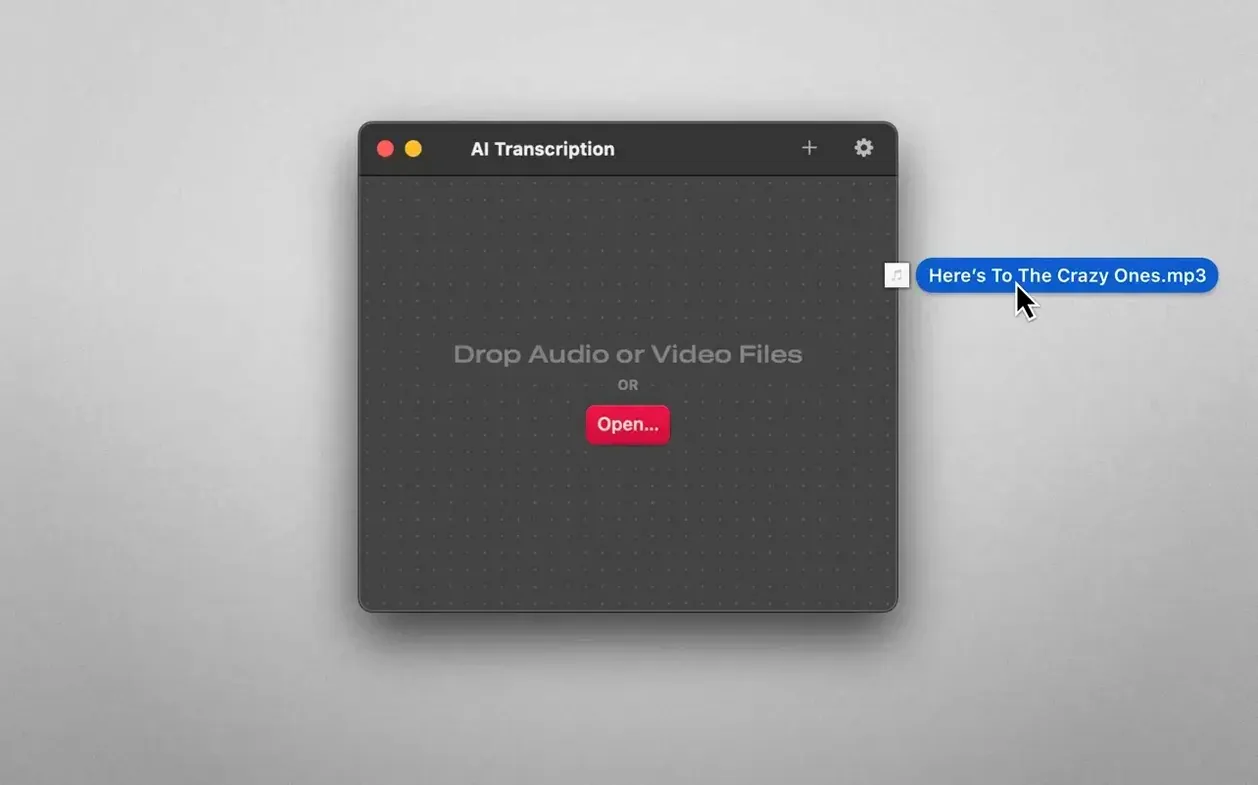
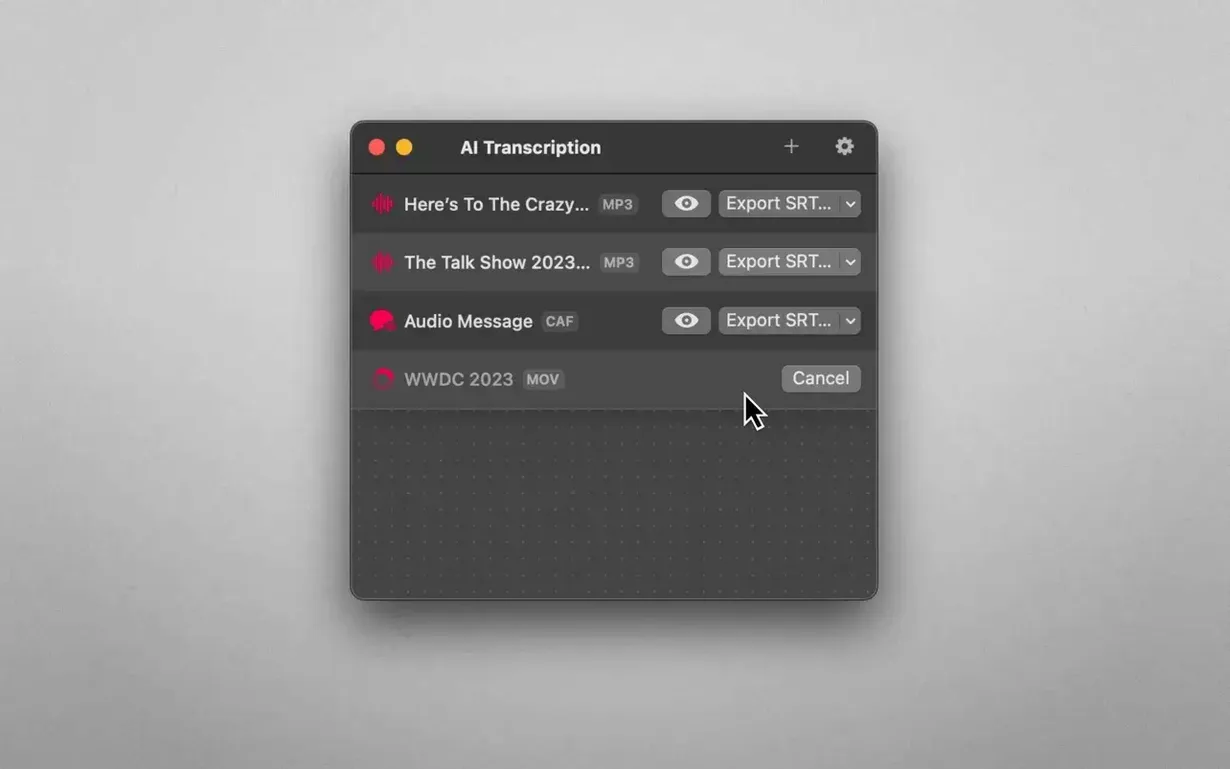
- Drag the file in. Audio or video, the app takes both without fuss. A long WAV from a handheld recorder or a ProRes clip—it doesn’t discriminate.
- Let Apple Speech Recognition do its work. Because everything stays on the Mac, a 45-minute interview processes in a fraction of its running time, and the fan barely spins up.
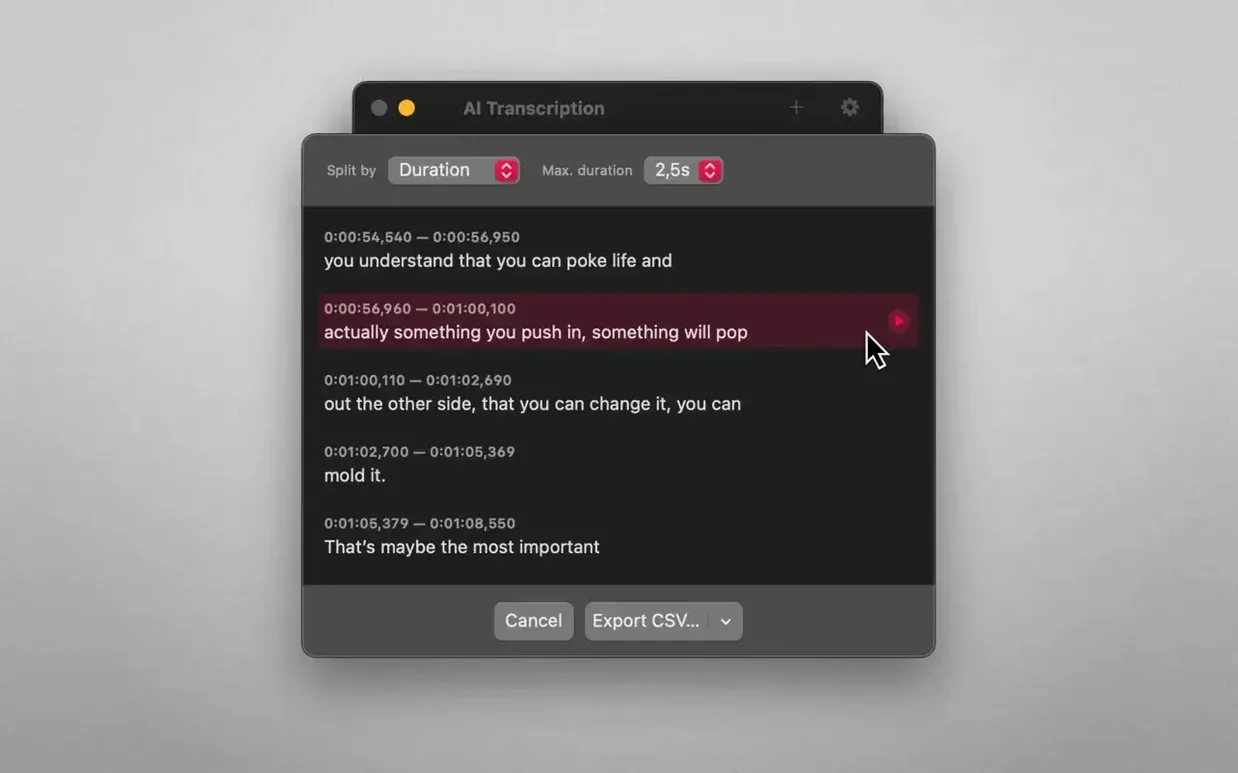
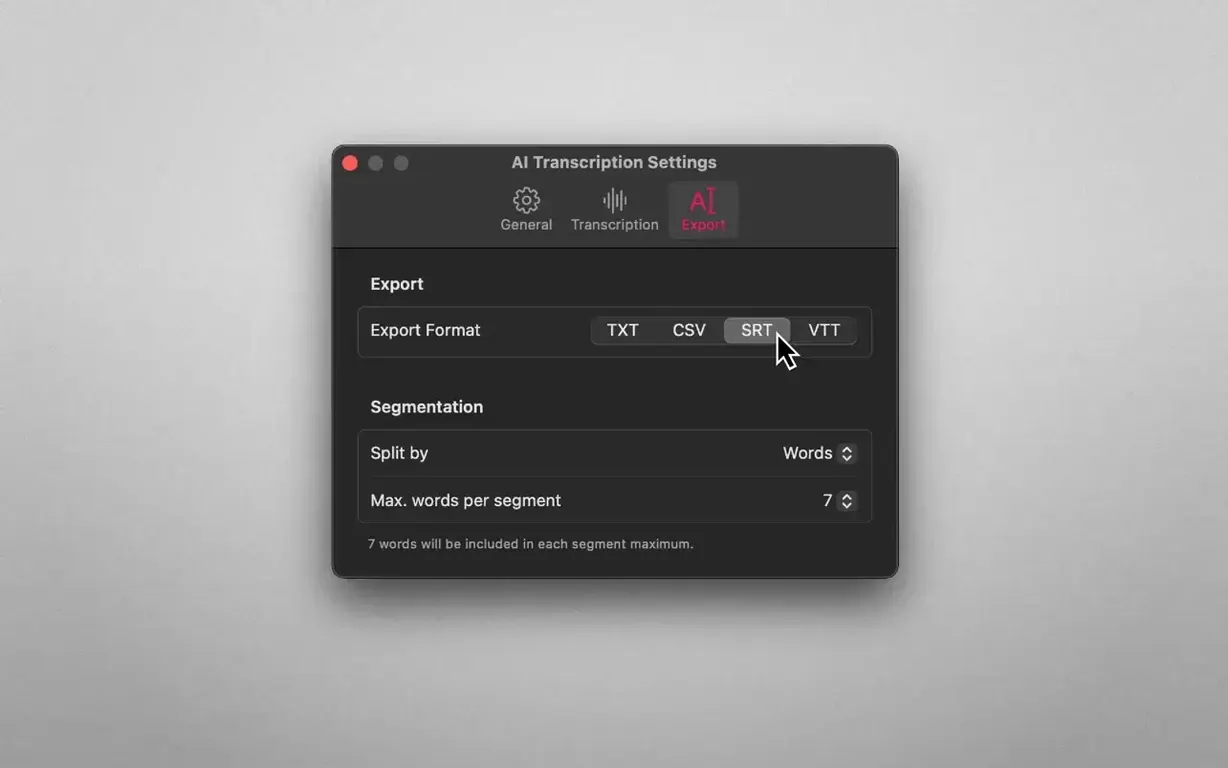
- Choose how the text falls. The transcript can split by words, sentences, or duration. For an edit timeline, sentence breaks are the most useful; for subtitling, duration segments make more sense.
- Refine in place. No export dance. You read through, correct a name the engine misheard, and copy the clean text straight into a script or a notebook.
Why the offline approach changes things
Most transcription tools send your recordings to a server. AI Transcription doesn’t. That choice shapes the whole experience—no network latency, no account, no concern about where the raw audio ends up. The trade-off is that accuracy depends on Apple’s on-device models rather than a cloud supercomputer, but for clear speech in any of the nine interface languages, the results are solid enough to cut a rough assembly or pull quotes without retyping everything.
Building an export routine that matches your film workflow
Install it, launch it, drop a file in—that part is straightforward. What makes the first week smoother is building a small routine around the export formats you actually need. If you are cutting a short film, set the split mode to duration early, because SRT and WEBVTT both rely on time segments, and switching later means re-processing the same file. If you are gathering quotes for a written piece, sentence mode is the one to reach for; it gives you blocks that are already paragraph-ready.
Another habit worth forming: run the same recording through both engines once. Apple Speech Recognition is fast and surprisingly good on a quiet interview, but OpenAI Whisper handles accented speech and room tone differently. You might prefer Whisper for the documentary rushes and Apple’s model for the voice memo from your phone. The app lets you switch between them without ceremony, so treat the first day as a comparison session with material you know well.
Why music and café noise still wreck your transcript
The most common misstep is feeding the app a file with music or heavy background noise and expecting clean text. Neither engine is a magic wand—both are trained on speech, and a café recording with clattering cups will produce messy output. If you have a noisy track, try running a gentle noise reduction pass in another tool first, then bring the cleaned file into AI Transcription.
Another recurring frustration: people forget to check the interface language before processing. The app defaults to the system language, which is fine until you are working with a Spanish-language interview on an English Mac. Switching the language in preferences takes two seconds, but forgetting means re-transcribing the whole file. It is not a disaster—the app is fast—but it is the kind of thing that eats ten minutes you did not plan to lose.
And then there is timestamp confusion. SRT and WEBVTT exports include timecodes, but plain text and CSV do not. If you need subtitles, choosing plain text by accident means you will be back at the export dialog a second time. The split-mode setting is not just a cosmetic choice; it governs what the export actually contains.
Copy any text chunk straight from the window
Drag-and-drop is the obvious way in, but the app also responds to a quick Cmd-O if you prefer the keyboard. And once a transcript is sitting in the window, you can select any chunk of text and copy it without exporting anything—useful when all you want is a single quote for an email.
The preview area lets you click on a word and jump the playback to that exact moment. For a filmmaker pulling selects from an hour-long interview, this is where the app earns its keep: no scrubbing, no guesswork, just click the sentence you remember and hear it again instantly.
Another quiet detail: the app remembers your last export format between sessions. If you always output SRT for a subtitle workflow, you set it once and forget it. The same goes for the split mode—it persists, so your next session starts exactly where you left off.
Dual-engine processing versus MacWhisper’s single-model approach
Compared to MacWhisper, AI Transcription occupies a similar lane—both run Whisper locally, both produce SRT and plain text, and both keep the audio on the Mac. The difference is in the dual-engine approach. MacWhisper leans entirely on Whisper models, whereas AI Transcription gives you Apple’s on-device recognition as a lighter, faster alternative. If you transcribe a lot of short, clean voice memos, Apple’s engine is the quicker path; for anything with challenging audio, Whisper is the common ground.
Otter.ai exists in a different category because it requires an internet connection and an account. Its collaborative features—shared folders, speaker identification, live transcription during meetings—are genuinely useful for a distributed team. But for a journalist working with off-the-record interviews or a filmmaker syncing rushes late at night on a remote connection, the offline guarantee of AI Transcription matters more than those cloud conveniences.
Then there is Audapolis, an open-source desktop transcriber that also stays offline. It offers a more granular editing experience: you can cut, merge, and redact transcript segments while linked to the waveform. AI Transcription takes a simpler route—it transcribes and exports, leaving the detailed editing to whatever tool you already use. The trade is speed versus control. Audapolis rewards patient, forensic work; AI Transcription gets you to a clean export with fewer clicks.
- macOS 14.6 or later
- Apple Silicon or Intel 64-bit
Questions from the booth
No, it runs entirely offline using Apple Speech Recognition, so audio and video files never leave your Mac.
The app's interface is available in English, German, Spanish, Italian, Simplified Chinese, Korean, Portuguese, French, and Japanese.
Yes, you can drag and drop both audio and video files into the app for transcription.