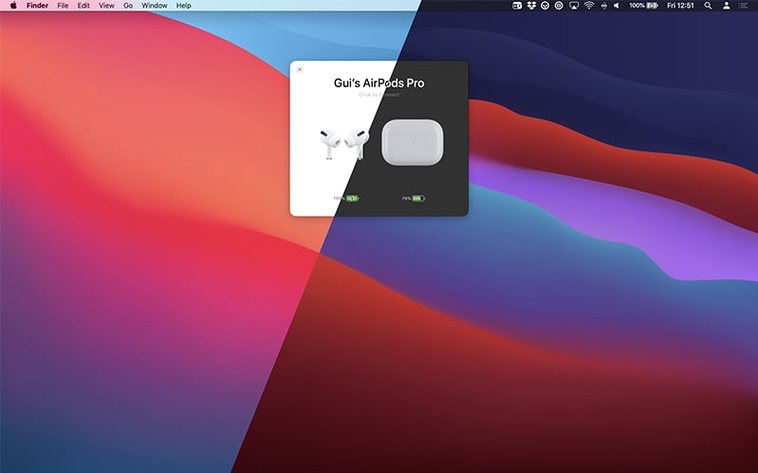
If you split your day between a Mac Studio, a MacBook Pro, and an iPhone that drifts between pockets and desk, AirBuddy is the kind of quiet utility that quickly becomes muscle memory. It lives in the menu bar, surfacing battery and status information for AirPods, Beats headphones, and nearby Apple gear — your iPad, other Macs, everything within radio reach. For anyone who has ever opened a case lid just to guess at a charge level, it removes that small friction.
Once you install it, a few first steps shape how it fits into your day:
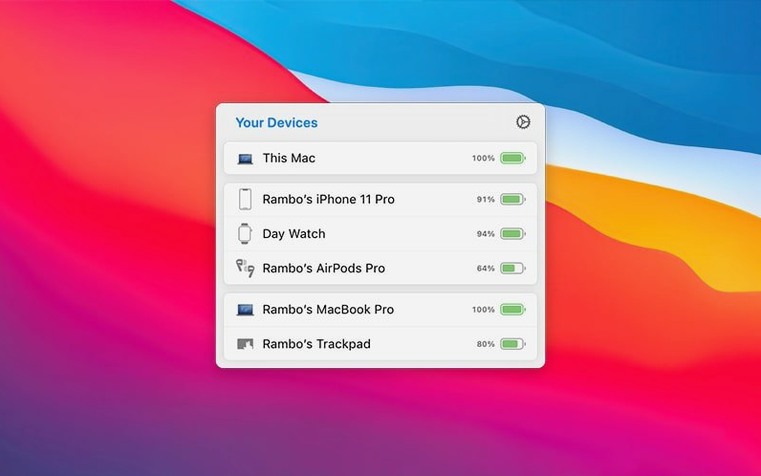
- Take in the device map. Open the menu bar panel and look at how AirBuddy groups your devices by relationship. Your AirPods appear with your iPhone, your Beats with the Mac they last connected to. It is a fast read of what is near and what is ready, including total listening time and talk time for headphones that report it.
- Try a one-click connection. Click a device in the panel to connect it to your current Mac. The handoff feels immediate, and it is the simplest way to pull audio from your phone to the big screen without opening Bluetooth preferences or Control Center.
- Set up a custom connection mode. For AirPods Pro, AirBuddy 3 lets you define what happens automatically when they connect — noise control mode, volume level, microphone input. Spend a minute building a mode for focused editing work and another for calls. After that, connecting the AirPods applies the whole preset without extra clicks.
- Use the trackpad gesture. With AirPods Pro connected, a trackpad gesture switches listening modes directly from the Mac. It is a small thing that keeps your hand off the stem and your attention on the timeline.
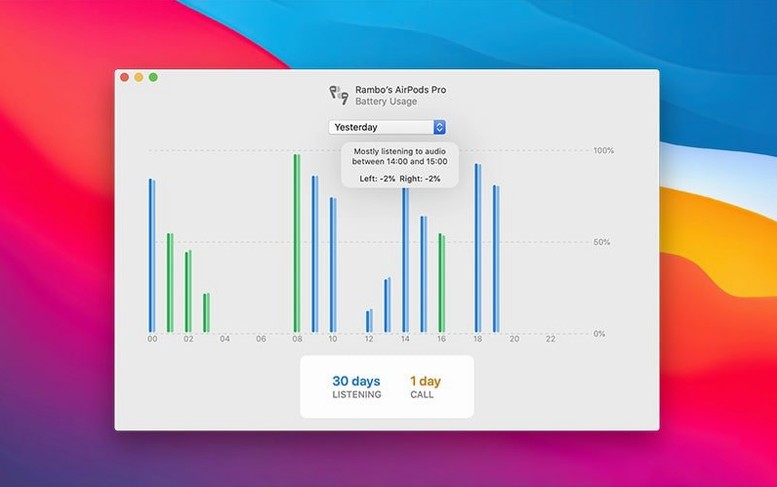
Total listening time and talk time data accumulate quietly in the background, giving you a long-view sense of battery health rather than a single percentage point.
Moving between machines in a shared studio
A sound designer I know works across two Macs in the same room — a Mac Studio for Pro Tools sessions and a MacBook Pro for field recordings and administrative work. Their Magic Keyboard and Magic Trackpad sit on a desk between the two screens. Before AirBuddy, switching peripherals meant opening Bluetooth settings on one machine, disconnecting, walking to the other, and hoping the reconnection handshake landed cleanly. Now they use Magic Handoff. A single click in the AirBuddy panel moves the keyboard and trackpad from the Studio to the MacBook, and the transition is fast enough that it feels like switching inputs on a monitor rather than pairing Bluetooth from scratch. Their AirPods Pro follow the same rhythm — connected to whichever Mac is active, with the listening mode preset they built for critical listening kicking in automatically on the Studio side. The iPhone and iPad sit in the device map as quiet reminders of charge levels, nothing more, until they grab the phone for a call and AirBuddy hands the AirPods back without ceremony.
Filling the gaps Apple leaves in Bluetooth and charge details
AirBuddy does not replace Control Center or the Bluetooth menu — it sits alongside them and fills the gaps Apple leaves open. The macOS Bluetooth menu shows connection state but not charge details for Beats or AirPods with the case closed. Control Center can connect and disconnect, but it does not remember a full preset of noise control, volume, and mic state. Where AirBuddy earns its menu bar space is in reading device relationships and acting on them with one action.
For anyone who also uses Shortcuts, AirBuddy plays well indirectly. You can build a Shortcut that sets a Focus mode for editing, and AirBuddy's connection mode for the same context activates when you pull the AirPods in. The two do not talk directly, but the result is a coherent workspace shift. If you run affinity beta builds or adobe beta generative fill experiments, the small mental reset of hearing your headphones switch to transparency mode as you move from layout work to a video call is more useful than it sounds on paper. AirBuddy also respects macOS Focus filters, so it does not throw up status windows during a presentation or a screen recording — the information stays in the menu bar where it belongs.
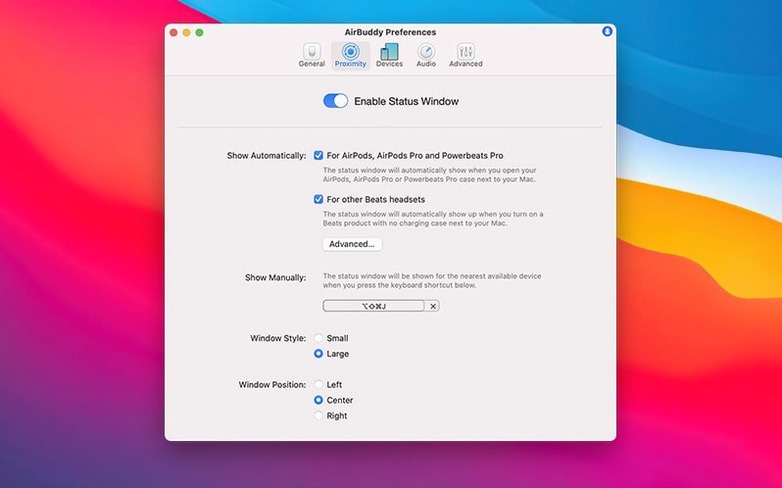
The status window designs, small and large, feel like a cousin to the Now Playing widget. The large window gives you battery rings, listening time, and device groupings at a glance; the small one is a compact strip suited to tucking into a corner of a secondary display while you work. Neither demands attention the way a notification would.
Missteps worth avoiding early on
The most common beginner mistake is treating AirBuddy as a simple battery widget and never opening its preferences. The real utility is in connection modes, and skipping them leaves half the app unused. Without a custom mode, connecting AirPods Pro does nothing beyond what the stock macOS connection does — you still have to open Control Center to change listening mode or adjust volume. Building even one mode, named something obvious like "Edit" or "Call," changes the rhythm of switching devices.
Another habit worth catching early: some users leave the large status window open on screen and wonder why the app feels visually heavy. The large window is meant for a quick glance, not a permanent overlay. Closing it returns AirBuddy to the menu bar, where its resource footprint is negligible. The menu bar icon options added in the airbuddy beta releases — app icon, battery indicator, or nothing — let you tune how much presence the app has. If you prefer a clean bar, the battery-only icon still gives you the percentage readout without extra branding.
Device grouping also trips people up when they first install. AirBuddy groups devices by relationship, not by proximity. Seeing an iPhone listed separately from AirPods that are in your ears can feel like a bug, but the logic is that the AirPods are currently linked to the Mac, not the phone. Once you understand the grouping as a connection map rather than a spatial map, the layout makes sense.
Memory use stays around 80–120 MB during a normal workday
I have run AirBuddy 3.0-890 on an M1 Max MacBook Pro and an older Intel iMac, and the performance profile is consistently light. Memory use hovers around 80–120 MB in typical use, spiking briefly when the status window animates open. CPU draw is near zero at idle. The Bluetooth polling that keeps device status current does not cause the periodic stutter that some third-party radio utilities introduce — audio playback over AirPods Pro stays clean, and the connection to a Magic Trackpad never dropped during a two-week stretch of daily handoffs.
Connection speed is where the app justifies its existence. A one-click connection from the menu bar panel lands in under two seconds on Apple silicon, and only slightly longer on Intel. The trackpad gesture for switching listening modes on AirPods Pro is responsive enough that I use it mid-conversation without a pause. Magic Handoff adds a second or two when moving a keyboard and trackpad together, but the handoff succeeds reliably, which is more than I can say for manual Bluetooth reconnection between Macs on different macOS point releases.
Stability has been unremarkable in the best sense. Across the current build, I have not seen a crash or a hung process. The only quirk worth noting is that after waking from deep sleep, the device list can take about five seconds to refresh — a minor pause that does not block interaction. If you are the kind of user who keeps an airbuddy mac setup running alongside beta system software or creative builds, that reliability matters. AirBuddy 3 feels settled into its role, not like a utility still finding its footing.
The current AirBuddy 3 beta lets you choose a menu bar icon that shows the app icon, a compact battery indicator, or nothing at all — a small but welcome nod to people who keep a minimal menu bar.
- macOS 14 or later
- Intel or Apple silicon Mac
Questions from the booth
AirBuddy 3 requires macOS 14 or later and runs on both Intel and Apple silicon Macs.