
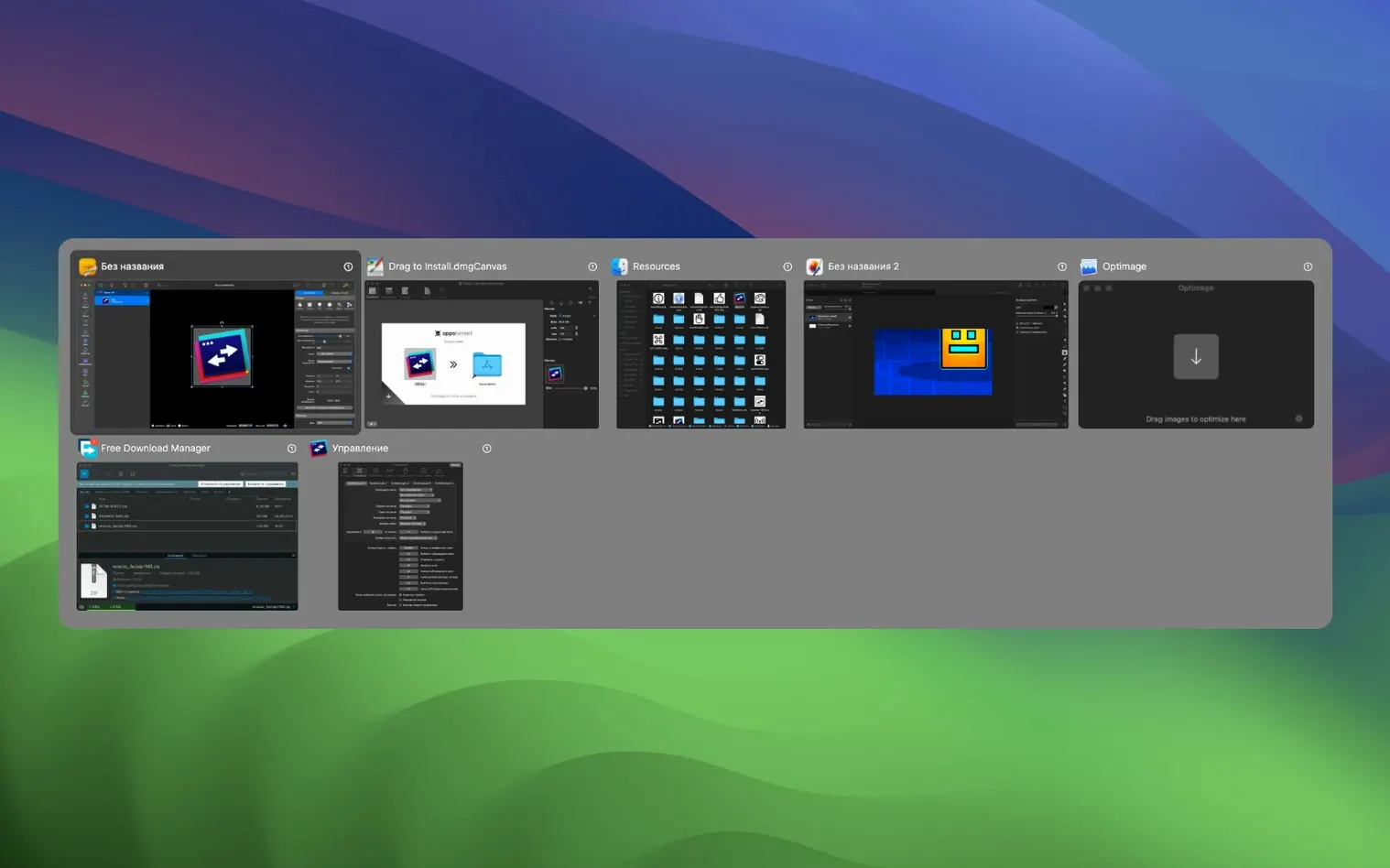
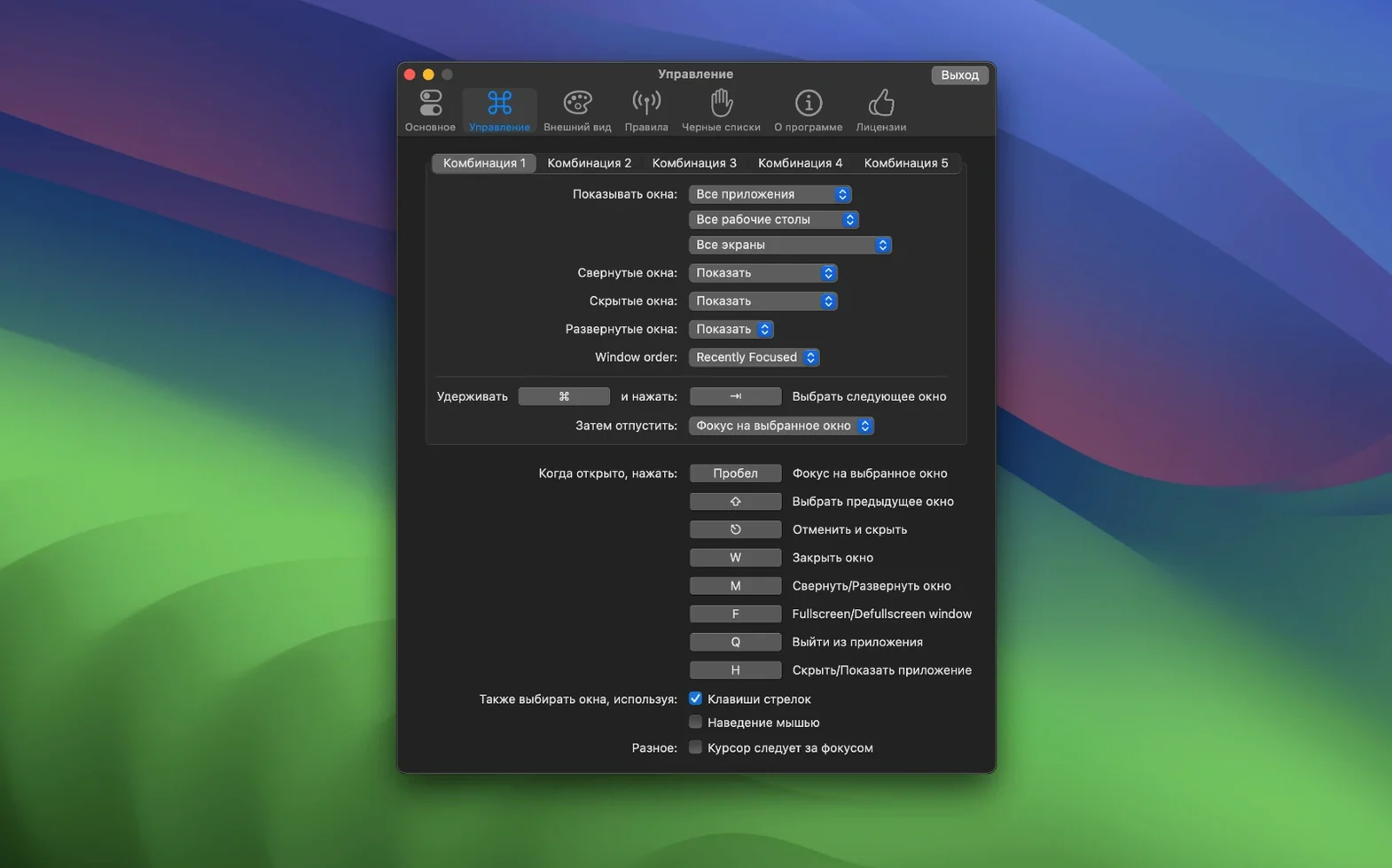
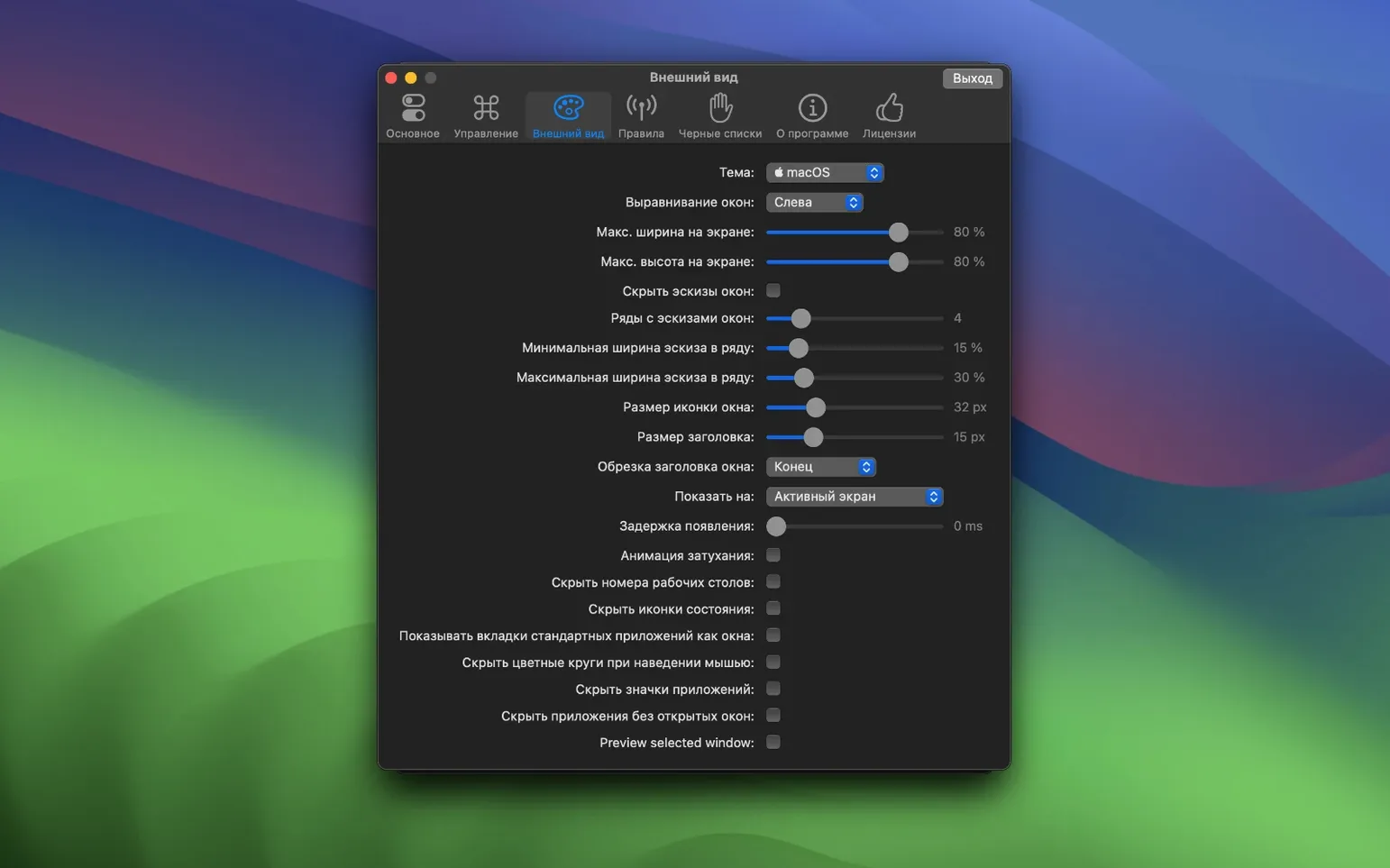
Made for anyone who lives in many windows at once
People reach for AltTab Pro when the native macOS switcher starts feeling like a bottleneck—video editors juggling a timeline, browser, and file browser; writers cross-referencing notes; developers hopping between an IDE, terminal, and documentation. It replaces the stock overlay with a spacious, thumbnail-driven view where every open window gets a clear preview, and switching becomes a single keystroke decision instead of a hunt.
Can I tailor the shortcuts to match muscle memory?
Yes. Almost any key can become a trigger, so you can keep the familiar Command-Tab reflex or bind switching to a side mouse button. The app also lets you assign dedicated shortcuts for hiding or closing applications directly from the switcher, which saves a trip back to the Dock.
How do I keep certain apps out of the list?
Use the built-in blacklist. Background utilities, menu-bar-only apps, or anything you never want to see in the overlay can be excluded there, and you can also prevent blacklisted apps from launching through AltTab Pro entirely.
Kill any window without touching your mouse
While the switcher is open, you can close or hide any application without leaving the keyboard. It is a small thing that changes how you tidy up a cluttered desktop—no clicking, no hunting for the yellow or red traffic-light buttons.
Live thumbnails unfurl the moment you hit Option-Tab
The overlay appears with a press of whatever key you have assigned—for many, it is still Option-Tab, a quiet echo of the muscle memory that brought them here. Thumbnails fan out across the screen, each one a live snapshot of an open window. You tap the shortcut once, quickly, and the focus jumps to the last-used window. Hold the modifier a little longer, and the grid stays open, waiting for you to arrow through the options or type the first few letters of a window title to narrow things down immediately.
Say you are cutting a short film. DaVinci Resolve fills one space, Finder sits behind it with a folder of sound effects, and Safari holds a reference shot you keep glancing at. You tap the shortcut, spot the Safari thumbnail by its pale background, release the keys, and you are there. Another tap, a glance at the Finder preview showing the waveform of a rain loop, and release. The rhythm becomes unconscious. When you need to close the browser without lifting your hands, you hold the shortcut a beat longer, press Q, and the window disappears from the grid and from your desktop in one motion.
Dragging files into the switcher works, too. If you grab an audio clip from Finder and hover it over the Resolve thumbnail in the overlay, AltTab Pro brings that window forward so you can drop the file directly into the timeline—no spring-loaded folders, no jostling windows aside to make room.
Dial in the exact thumbnail size and title text from preferences
A few touches in AltTab Pro are easy to overlook because they sit quietly in the preferences rather than announcing themselves during use. The appearance pane lets you dial up or down the thumbnail size, the title text, and whether the app icon appears beside each preview. On a smaller laptop screen, shrinking the thumbnails a notch and hiding the zoom icon can make the grid feel less cluttered without losing legibility. On a large display, enlarging the previews turns the switcher into something closer to Mission Control, but faster.
Another overlooked setting is the ability to switch between windows of the same application with a separate shortcut. If you keep multiple browser windows open for different research threads, binding a secondary key to cycle only through Safari windows means you never have to scan past unrelated apps. The same trick works for Finder windows, terminal sessions, or any app where you tend to spawn many instances.
For anyone using mac alttab pro alongside accessibility tools, the VoiceOver support is genuinely considered: the switcher speaks window titles aloud, respects reduced transparency settings, and works with Sticky Keys enabled. These are not marketing bullet points—they are the kind of detail that makes the difference between an app that fits into a workflow and one that quietly drops out of it after a week.
The drag-over-thumbnail behaviour mentioned earlier also works between applications. Hovering a selected file over a Mail thumbnail, for instance, opens a new message with the file already attached. It is a small bridge between the keyboard-driven switcher and the occasional mouse gesture, and once you have used it a few times, the old method of positioning windows side-by-side feels needlessly slow.
Releasing keys too late keeps you locked in the wrong app
The most common stumble is treating the app like the native switcher and releasing the modifier key too late. In the default macOS overlay, the last highlighted window is selected the moment you let go of Command. AltTab Pro works the same way, but because the thumbnail grid invites a slower, more deliberate scan, newcomers often linger—arrowing around, weighing options—and then release the key only to land on a window they had already passed. The fix is to decide before you lift your finger, or to use the type-to-filter shortcut so there is less browsing to do in the first place.
Another early mistake is ignoring the blacklist until it becomes an annoyance. Every background utility—clipboard managers, menu-bar weather apps, Bluetooth monitors—will appear in the switcher by default. Within the first hour, the grid can feel noisy. Visiting the preferences and quietly excluding those apps turns the overlay from a crowded attic into a tidy workspace. It takes thirty seconds and drastically changes the feel of every subsequent invocation.
Some users also miss that the switcher can hide applications, not just close them. Hiding an app with H while the overlay is open clears it from view but keeps it running, which is often what you want for something like Music or Slack. The habit of reaching for Command-H separately fades once you realize the switcher handles it inline, and the key is right there next to Q.
Finally, a subtle one: people sometimes bind the trigger to a key that already serves another global shortcut elsewhere, then wonder why the overlay behaves intermittently. Checking for conflicts across macOS, your terminal emulator, and any launcher utility usually surfaces the culprit. Once the shortcut has clean air, the switcher appears with a reliability that makes it feel native.
Version 11.10.0 has landed. The developer has posted a fresh set of release notes over on the AltTab site, so if you want the full breakdown of what shifted under the hood, that's where the details live.
- macOS 10.12 or later
- Apple Silicon or Intel 64-bit
Questions from the booth
It does. VoiceOver, Sticky Keys, and reduced transparency are all supported so the switcher remains usable across macOS assistive technologies.