Leaving a MacBook on the charger for days feels convenient, but it quietly ages the battery. AlDente steps into that gap—a utility that holds your charge level where you set it and watches the thermals while it does.
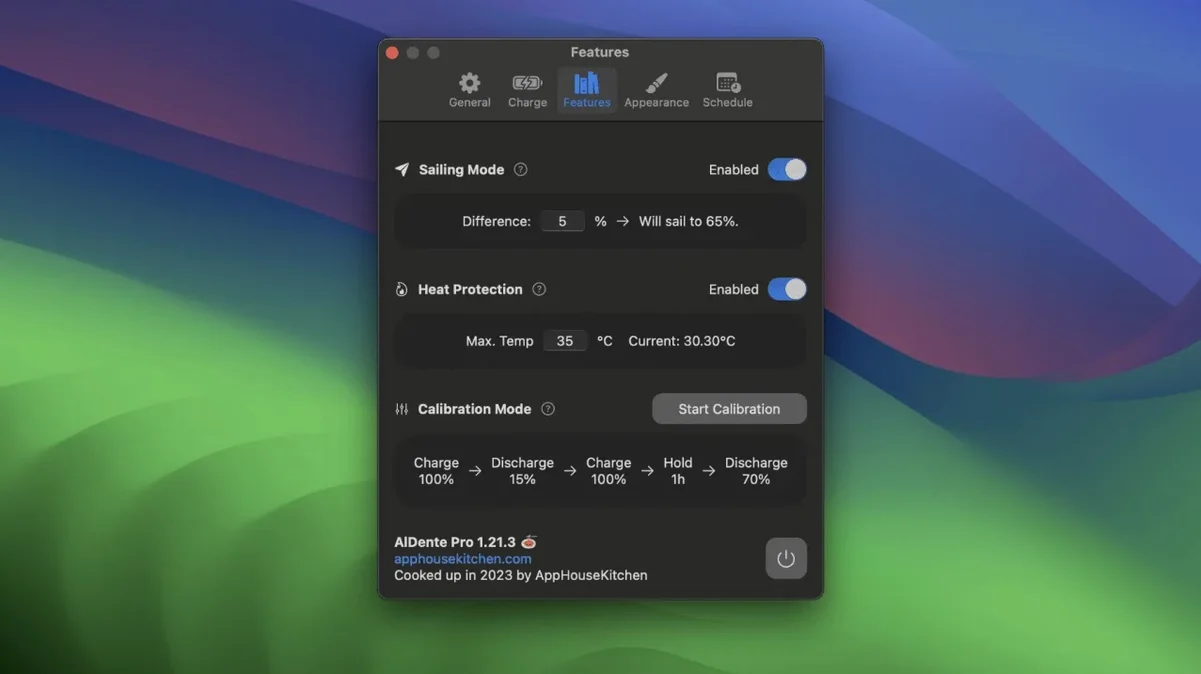
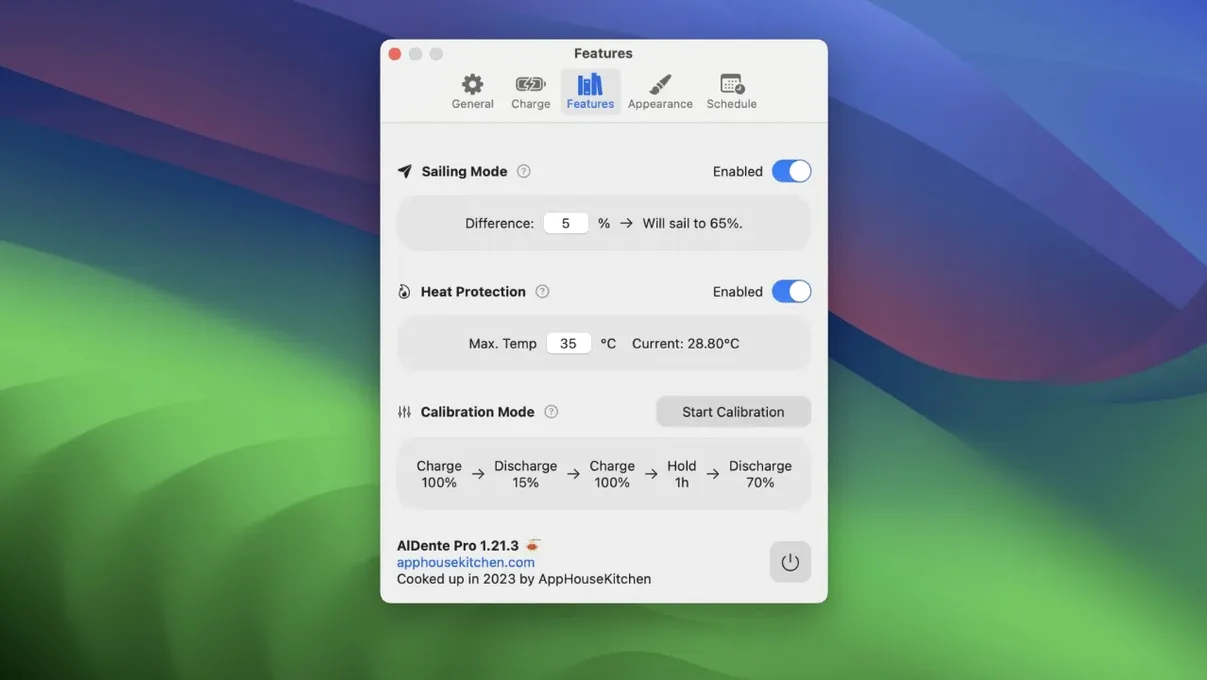
Charge limiting — The core idea. You pick a percentage, and AlDente stops the power draw there, so the battery isn't sitting at 100% around the clock.
Heat protection — Temperature is the other half of battery wear. The app can pause charging if the MacBook gets too warm, then resume once things cool down.
Calibration Mode — Lithium-ion cells need a full cycle now and then to keep their internal readings accurate. This mode handles the discharge-and-full-recharge routine without you having to babysit it.
It runs natively on Apple silicon and 64-bit Intel machines, requiring macOS 12 Monterey or newer. The current build, version 1.39.4, tidies up a visual glitch in the popover that appeared in early macOS 27.2 betas.
A full calibration, hands-off
Calibration Mode works best when you can leave the machine alone for several hours—overnight, ideally. Start by plugging the MacBook in and opening AlDente. Set the charge limit to 100% manually, because calibration needs to begin from a genuinely full battery. Let it top up completely and sit on the charger for another thirty minutes so the cells settle.
Now open the AlDente menu and switch on Calibration Mode. The app immediately lets the battery drain. You’ll see the percentage ticking downward without the usual power-saving nudges the system gives—no dimming, no low-power warnings from macOS itself. The discharge continues until the MacBook hits a very low level, at which point AlDente signals that it’s time to plug back in. Reconnect the charger. The app then oversees a full, uninterrupted charge back to 100%, and the internal fuel gauge recalibrates against the actual cell voltages. When the menu bar icon stops showing the calibration indicator, the cycle is done. You can set your usual limit again.
A session with Sailing Mode
Mid-afternoon on a grey Vancouver day, the MacBook Air sits at 78%, plugged in because I’m cutting a short film and Final Cut Pro is pulling steady power. I set AlDente’s charge limit to 80% this morning, but Sailing Mode is on, so the number isn’t rigid. The battery drifts down to 74% while the charger stays physically connected—the app lets the Mac run off the battery in a slow, controlled bleed, mimicking what a sailboat does when it tacks away from the wind for a while. Around 73%, AlDente lets the charger back in, nudging the level up toward 80% again.
The menu bar icon shows the current percentage and a small sail emblem. I click it once to check the temperature: 34°C, well within the heat protection threshold I set at 37°C. The timeline takes another hour of rendering, and the charge level bobs between 73% and 80% the whole time. When I unplug for a coffee shop run, the battery has real headroom—no artificial full charge, no wasted cycle.
MacOS battery optimization falls apart with an irregular schedule
macOS has its own Optimized Battery Charging, which learns your routine and holds the battery at 80% until it predicts you’ll unplug. The limitation is the lack of manual control; if your schedule is irregular, the feature never quite settles into a pattern, and you’ll often find the MacBook sitting at 100% anyway. AlDente gives you a slider and says “stay here.”
BatFi takes a similarly clean approach, with a charge limiter and a menu bar indicator. It keeps the interface minimal and intentionally avoids the thermal monitoring or sailing behaviour that AlDente layers in. If all you want is a hard cap, BatFi feels lighter. If you want the battery to breathe a little while docked, AlDente’s Sailing Mode is the difference.
CoconutBattery isn’t a limiter at all—it’s a reader. It logs charge cycles, design capacity, and age, and it’s excellent for spotting long-term degradation. Many people run it alongside AlDente: AlDente enforces the limit, CoconutBattery keeps the health records. They’re complementary rather than competitors, but the monitoring depth in CoconutBattery is worth mentioning because AlDente’s own stats are deliberately compact.
Common stumbling blocks for newcomers
The most frequent mistake is setting a charge limit too low and then wondering why the battery drains fast when unplugged. A limit of 50% preserves cells very well, but it leaves you with half a tank the moment you step away from the desk. Unless the MacBook rarely leaves the charger, a limit between 75% and 85% is more practical for daily life.
Another misstep is disabling Sailing Mode without understanding it. With Sailing Mode off, AlDente holds the exact percentage and keeps the charger active, which means the battery sees a tiny but constant trickle of current. That’s fine for short stints, but over a full workday the cells stay at a fixed voltage with no movement. Sailing Mode introduces deliberate ebb and flow, which is gentler chemically. Turning it off because “I want the number to stay put” misses the point of the feature.
People also trip over Calibration Mode by interrupting it. If you close the lid or unplug mid-cycle, the process halts and the battery gauge remains uncalibrated. AlDente warns you, but it’s easy to dismiss the popover and forget. Let calibration run to completion at least once every few weeks, or whenever the percentage jumps erratically.
A music producer’s day with a clamped battery
Lena runs a small project studio in Toronto, tracking vocals and mixing in Logic Pro on an M1 MacBook Pro. Her machine spends most sessions on a desk charger, and before AlDente she watched the battery health dip noticeably in the first year—always at 100%, always warm from the audio interface drawing bus power.
She now sets the limit to 80% at 9 a.m. and turns Sailing Mode on. The battery hovers between 76% and 80% through vocal comps and plug-in chains. Around lunch, a client wants to hear a rough mix in the lounge, so she unplugs—80% is plenty for an hour of playback. Back at the desk, she plugs in, and the charge drifts back into its band. At the end of the day she checks CoconutBattery: cycle count barely moved, design capacity still holding. The Mac stayed cool all afternoon because heat protection kicked in once when an iZotope plug-in spiked the CPU and the chassis warmed past her 36°C threshold. She didn’t notice the interruption—AlDente paused charging silently and resumed when the temp dropped.
The battery is no longer a thing she thinks about, which is exactly the point of a tool that sits in the menu bar and minds the chemistry for you. If you’re looking to download AlDente for Mac, the current build runs smoothly on Monterey and later, and the installation is a straightforward disk image drag. Some users who search for an AlDente crack or an AlDente Pro Mac crack will find that the full Calibration and Sailing features make the app more than a simple charge limiter. The free AlDente download for Mac gives you the core charge cap and thermal watch, while the pro layer adds the sailing behaviour and calibration routines that turn a good habit into a genuinely automated one. The visual popover fix in version 1.39.4 keeps the menu bar experience tidy, even on the newest macOS betas.
Version 1.39.4 irons out a visual glitch in the popover that surfaced in the first betas of macOS 27.2.
- macOS 12 Monterey or later
- Apple silicon or 64-bit Intel processor