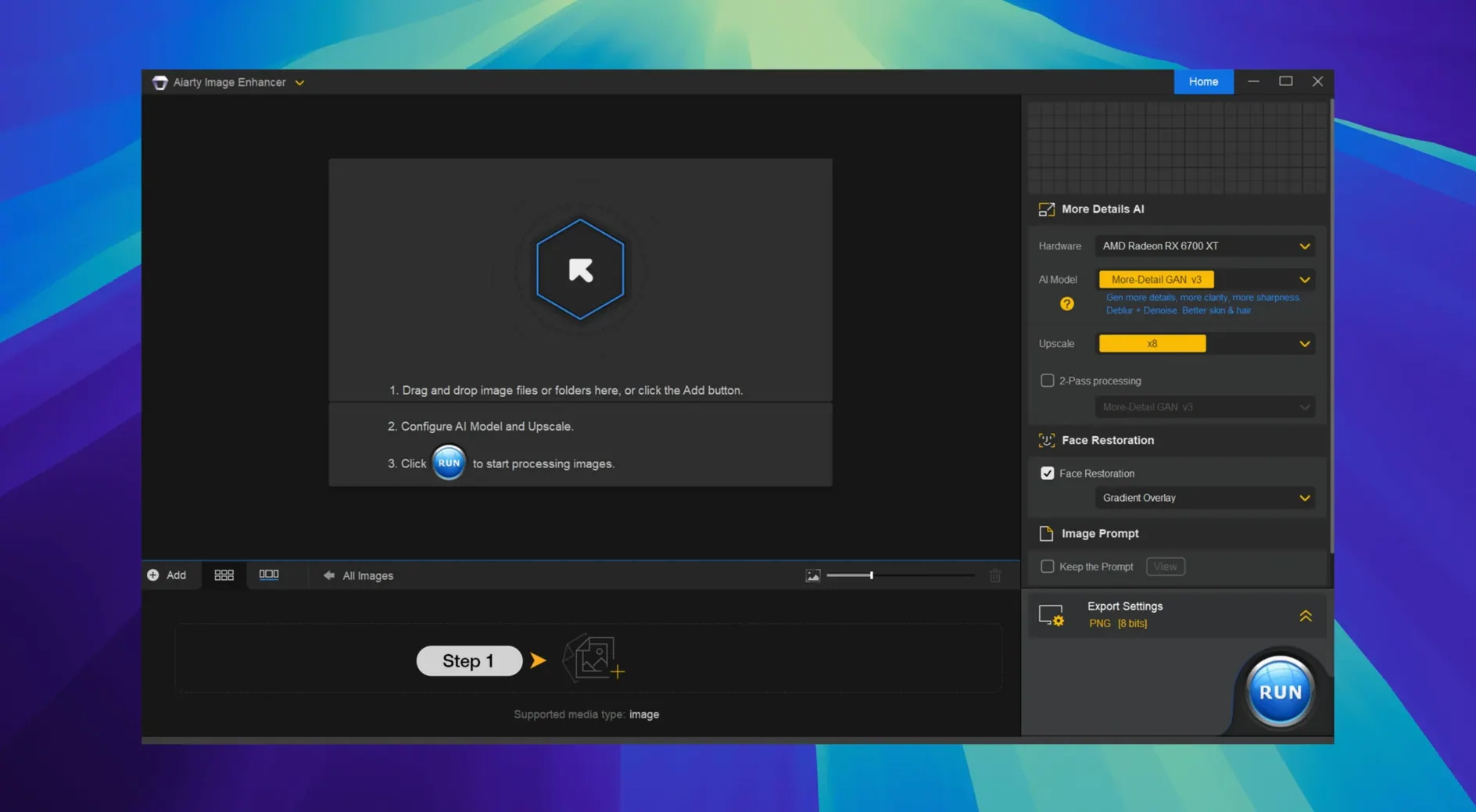
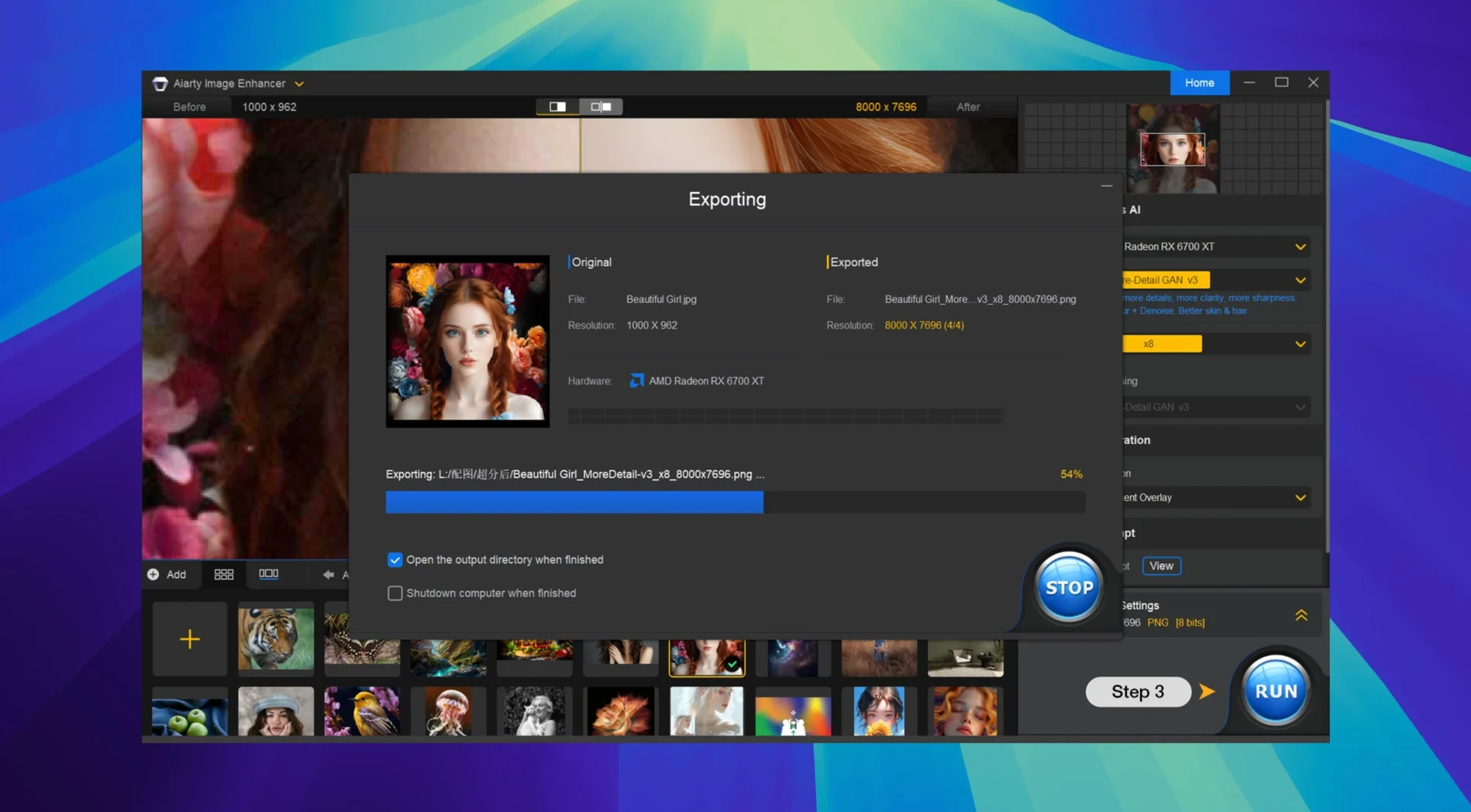
Aiarty Image Enhancer is a desktop application that uses deep learning models to clean up noise, sharpen soft focus, restore damaged details, and upscale photographs well beyond their original resolution.
A few things people tend to ask before installing it:
- What file types does it actually open? It handles standard formats like JPEG, PNG, TIFF, WebP, BMP, and AVIF, plus a range of RAW files from most camera manufacturers.
- Is it ready for Apple Silicon? Yes, it runs natively on both Intel and Apple Silicon Macs, and you can force Rosetta if a particular workflow needs it.
- Does it work with Lightroom? Version 3.14 improved its Lightroom Classic integration, so you can round-trip images without leaving the catalogue.
- What about the interface language? The app ships in English, German, Traditional Chinese, Simplified Chinese, and Japanese.
- Which macOS versions are supported? macOS 11 Big Sur and everything newer.
The core idea is straightforward: feed it a noisy scan, a slightly soft digital shot, or an old compressed JPEG, and the neural networks rebuild what the pixels should look like. It's the kind of tool that earns its place in the middle of a project, after the shoot and before the final grade, when an image just needs more than the usual sliders can give it.
The denoising pass between Lightroom and Photoshop
Aiarty doesn't try to replace a raw developer or a pixel editor. It works best as a pass between them. A typical chain looks like this: rough cull and colour temperature corrections in Lightroom, a round-trip to Aiarty for denoising and upscaling, then back into Lightroom or over to Photoshop for local dodging, burning, and the final crop. Because version 3.14 reads and preserves EXIF metadata through the round-trip, Lightroom doesn't lose track of camera settings or geotags along the way, which used to be a quiet frustration with earlier builds.
On the Mac side, the app plays well with Quick Look once files are written out, so you can tap the spacebar on a finished TIFF without launching anything. It also respects your colour-managed display profile by default—no need to switch to a generic sRGB preset just to get predictable tones. If you use Apple's Screenshot tool to grab reference frames from a video, Aiarty will open those PNGs directly and can upscale them cleanly enough for print layouts or poster work.
Set the output color space before your first batch
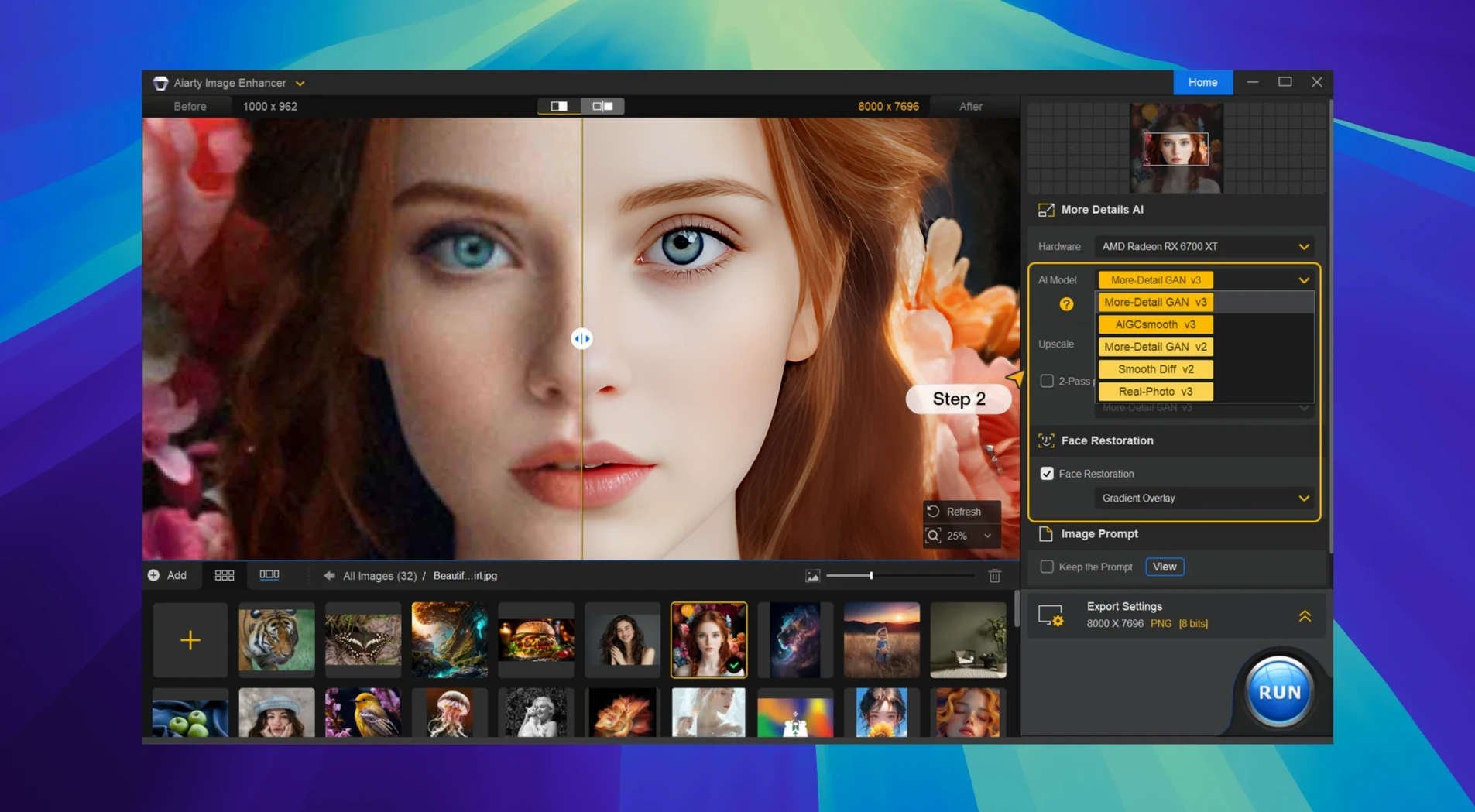
Out of the box, the app defaults to a balanced AI model that splits the difference between noise reduction and detail reconstruction. For most images, that's fine. But two preferences are worth adjusting early.
Output colour space. The installer leaves it on sRGB. If you're printing or handing files to a designer, switch it to Adobe RGB or Display P3 before you process a batch. Changing it after the fact means re-rendering, which feels like wasted time when you're staring at forty frames.
GPU memory allocation. Under the hood, Aiarty lets you cap how much of the Mac's unified memory it can grab. On an Apple Silicon machine with 16 GB or more, bumping this up by a gigabyte or two noticeably shortens processing times on 32K upscales. On an Intel Mac with a discrete GPU, leaving it on the conservative default usually avoids thermal throttling during long sessions.
Rescuing a dimly lit concert at ISO 6400
Say you've come back from a dimly lit concert with a card full of RAW files shot at ISO 6400. The grain is heavy, and a few frames are slightly soft because the autofocus hunted in the dark. You've already pulled the keepers into a Lightroom collection and applied a gentle exposure curve.
You select six images, right-click, and send them to Aiarty through the plug-in. The app opens, thumbnails populate down the left rail, and you click the first one. The default preview splits the frame in half—the left side showing the untouched RAW, the right side showing the AI's interpretation. You zoom to 100% on the drummer's face. The noise pattern has collapsed into something resembling film grain, and the catchlight in the eye gained a tiny specular edge that wasn't visible before. You switch to a model tuned for low-light portraits, and the skin texture tightens further without turning waxy.
You apply the same model to the remaining five frames, queue an upscale to 4K for all of them, and step away to make coffee. When you return, the TIFF exports are sitting in a folder next to the original RAWs, complete with their EXIF data intact. You pull them back into Lightroom, tweak the white balance on two frames, and send low-res proofs to the band before lunch. The whole detour through Aiarty added maybe twenty minutes, and the final frames look like they were shot a stop and a half cleaner.
Lighter batch processing than a Gigapixel heavyweight
Topaz Gigapixel AI covers similar ground and has a longer history on the Mac. Its face recovery is strong, and it offers a wider selection of fine-tuned models for specific subjects. But Gigapixel's interface feels heavier, and its batch processing tends to pin the CPU harder on Apple Silicon. Aiarty's queue moves faster on the same hardware for straightforward denoise-and-upscale jobs, especially when you're processing twenty or thirty frames in one go.
Upscayl, the open-source contender, runs locally and costs nothing. It handles basic upscaling well and supports a handful of community-trained models. Where it falls short is RAW support and colour-space awareness—it works on exported bitmaps, not on camera-original files, and it won't preserve metadata through the pipeline. For a quick 2x on a screenshot or a downloaded JPEG, Upscayl is fine. For a paid job that starts with a RAW file and ends in a print layout, it adds too many manual steps.
HitPaw Video Enhancer overlaps only at the edges, since it's built for video, but people sometimes reach for it when they want to pull a still from footage and enhance it. Aiarty handles that single-frame task with more finesse, partly because its models are tuned for the static detail in photographs rather than the temporal smoothing video enhancers rely on. If you've ever tried to extract a clean still using a video upscaler, you'll know the telltale painterly smudge that creeps into hair and fabric. Aiarty sidesteps that entirely by treating the frame as a photograph from the start.
- macOS 11 Big Sur or later
- Intel or Apple Silicon Mac
Questions from the booth
Yes, it supports RAW files from most cameras alongside standard formats like JPEG and TIFF.
No, it runs on macOS 11 Big Sur and later, on both Intel and Apple Silicon Macs.