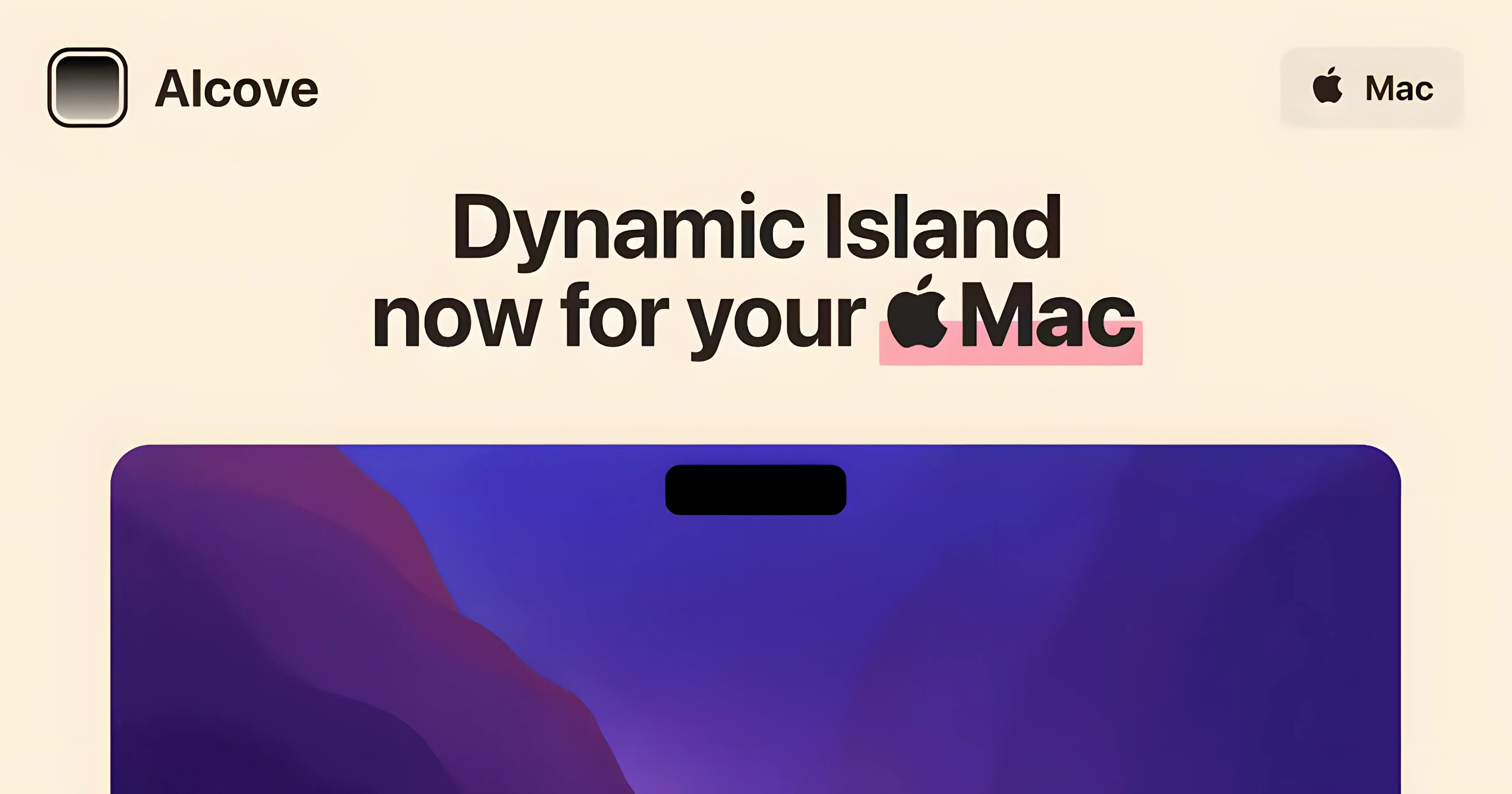
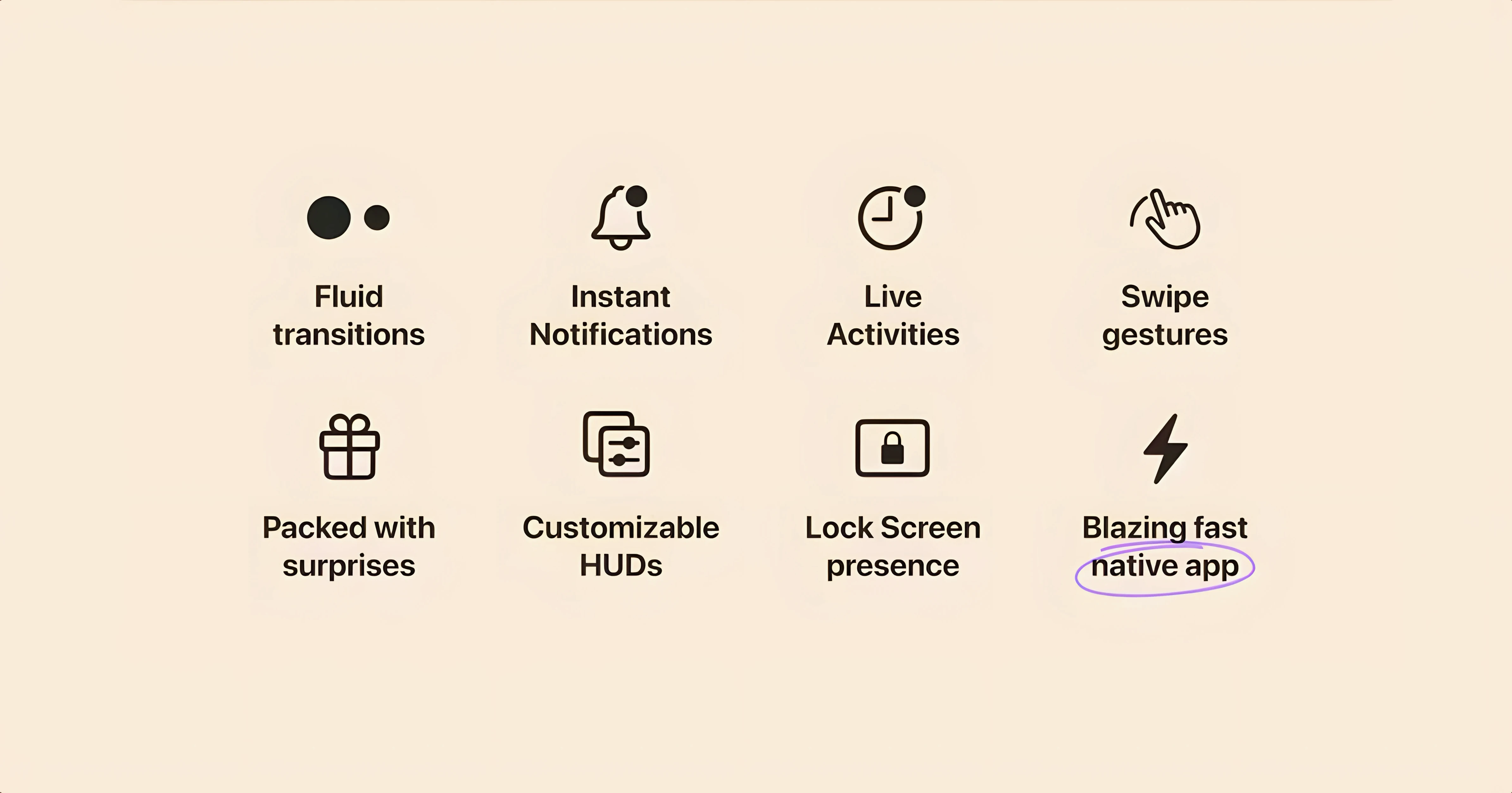
Alcove turns the fixed cutout at the top of a MacBook screen into a small stage where volume, brightness, and playback feedback play out instead of popping up elsewhere.
Dynamic Island for the notch — taps and long-presses in the notch area trigger actions or reveal expanded controls, so a quick press can scrub a track or a hold can show a larger slider, all without opening Control Center.
Custom HUDs — the system’s default volume and brightness overlays get replaced with compact Alcove-native indicators that appear right at the notch, keeping your eyes on the same horizontal line instead of the centre of the display.
Everyday friction reduction — because the notch is always visible but rarely useful, Alcove assigns it a role the hardware never had, making one of the most static parts of the screen respond to your hand on the keyboard or trackpad.
Two nearly identical permission prompts you have to accept
Permission prompts arrive quickly and some of them look nearly identical, so it is easy to grant one and miss another. Alcove needs both Accessibility access and Screen Recording permission — the first lets it intercept keystrokes and trackpad gestures aimed at the notch, the second allows it to draw the HUD overlays on top of other windows. If you approved one but not the other, the capsule will appear but feel unresponsive, or respond to taps without showing the expanded controls. Open System Settings, check both Privacy & Security → Accessibility and Privacy & Security → Screen Recording, and make sure Alcove has a toggle set to on in each.
The other common snag is macOS treating the notch as untouchable dead space by default. When the menu bar is set to hide automatically, Alcove cannot reliably detect where the notch begins, so taps land a few pixels north of where they should. Keeping the menu bar always visible solves this — the app draws its capsule snug against the real cutout geometry.
On machines with an external display attached and the MacBook lid open, the capsule occasionally renders on the wrong screen. The workaround is to drag the menu bar preference to the built-in display in System Settings → Displays → Arrange, then restart Alcove. This forces it to latch onto the correct notch geometry.
It sits around 0.5% CPU on Apple Silicon
The first question is almost always about resource use. Alcove runs a lightweight background agent that listens for media events and keyboard brightness or volume changes — on an M-series MacBook it typically sits between 0.3% and 0.8% CPU during normal use, spiking briefly when an expanded HUD animates in. The app is a native ARM and x86 binary, so there is no Rosetta translation overhead on Apple Silicon, and the memory footprint hovers around 40–50 MB.
Another recurring question is whether it works with third-party media apps. Alcove hooks into the system’s Now Playing framework, which means any app that populates the macOS media controls — Spotify, Apple Music, Vivaldi playing a YouTube tab, IINA — will show track info and scrub controls in the notch capsule. Apps that manage playback entirely outside that framework, like some older Electron-based players, will not surface anything.
People also ask if the notch pill conflicts with the menu bar clock or icons. Alcove’s capsule renders below the menu bar layer, so it never covers text. When you invoke an expanded control, the menu bar dims slightly and the overlay pushes down just enough to avoid overlapping the status icons. The trade-off is that a handful of apps with unusually wide menu bar widgets — like Bartender when it is mid-animation — can briefly clip behind the expanded HUD.
Skipping updates breaks notch fixes after macOS point releases
Turning off automatic updates and then forgetting about the app for months is the most frequent one. The developer pushes small compatibility fixes whenever a macOS point release shifts something in the notch rendering stack, and a stale version can stop drawing the capsule altogether after a system update. Checking the Alcove → About menu every few weeks and grabbing the latest build keeps things from silently breaking.
Another early mistake is trying to use it with a full-screen app that hides the menu bar entirely. When the menu bar is suppressed, Alcove cannot anchor its capsule, and taps on the physical notch area register as clicks on whatever full-screen window sits underneath. The app works best when the desktop is in standard windowed mode or when an app runs in a maximized-but-not-full-screen state — think a Safari window that fills the screen while the menu bar stays visible.
Beginners also tend to swipe too hard or too fast on the notch for scrubbing, expecting the capsule to respond like an iPhone slider. The trackpad gesture is tuned for short, deliberate drags — a quick flick often gets interpreted as a tap instead of a scrub, so a slower drag across the pill yields much finer volume or brightness adjustment.
How Alcove fits alongside other apps and macOS features
The app coexists well with BetterTouchTool and Keyboard Maestro because it listens at the HUD level rather than the input-remapping level. A BetterTouchTool gesture assigned to a three-finger swipe will fire normally, and Alcove will still show the volume capsule when you tap the physical brightness key — the two do not fight for the same event chain.
Live Activities support means timer and delivery-tracking apps that use Apple’s ActivityKit framework can push progress into the notch pill. If you run an app like Timery or a parcel tracker that already surfaces a Live Activity on your iPhone, the same data will appear in the Alcove capsule on the Mac as long as the companion Mac app is installed and signed into the same iCloud account.
For those tweaking a full alcove free download setup from scratch, the app pairs naturally with low-key system theming tools — a dark menu bar and a muted desktop wallpaper make the capsule read more clearly in peripheral vision. It does not interfere with Stage Manager, works across all Spaces, and the HUD follows the active display when you drag the cursor between monitors. The one interaction worth watching is with DisplayLink-based docks: because those adapters trick macOS into seeing a virtual display, the notch capsule can misplace itself, though disconnecting and reconnecting the dock usually resets the anchor correctly.
- macOS 14 or later
- Intel and Apple Silicon Macs
Questions from the booth
Alcove requires macOS 14 or later and works on both Intel and Apple Silicon Macs.
Alcove is developed by Henrik Ruscon.