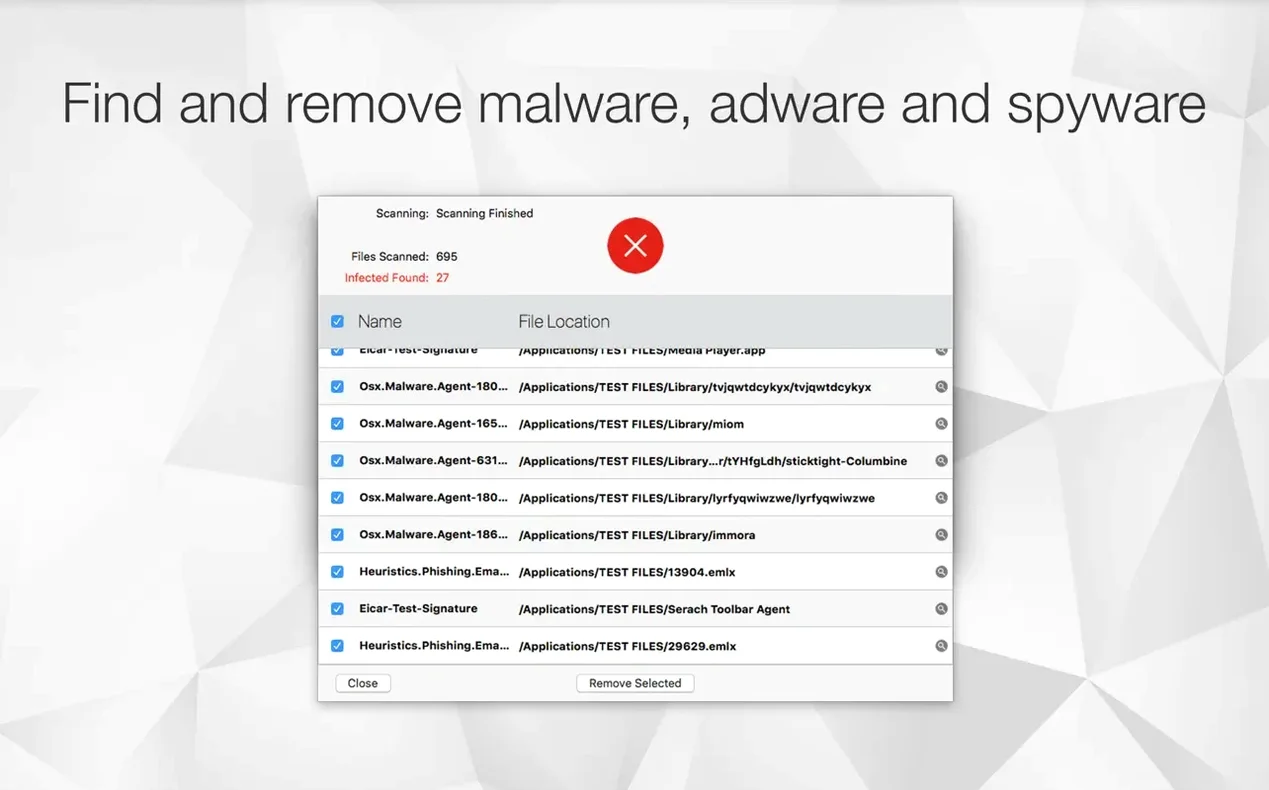
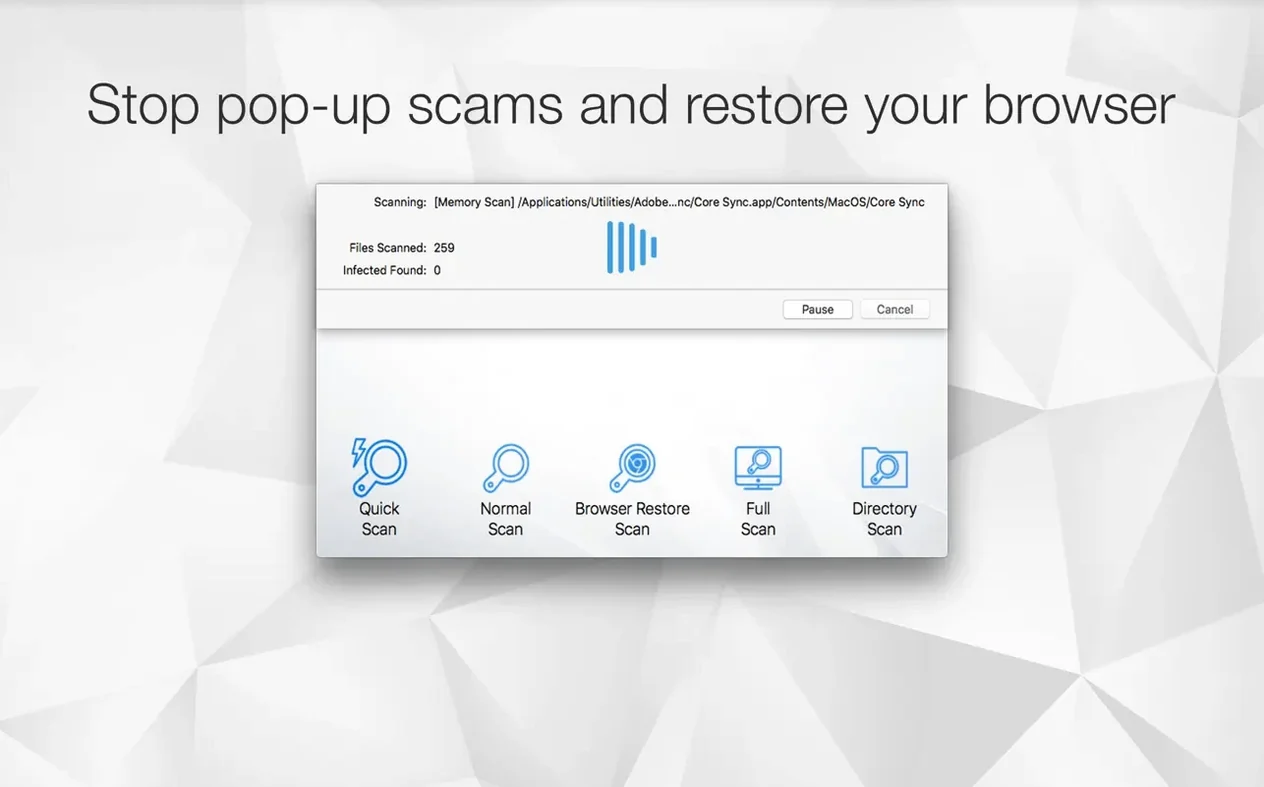
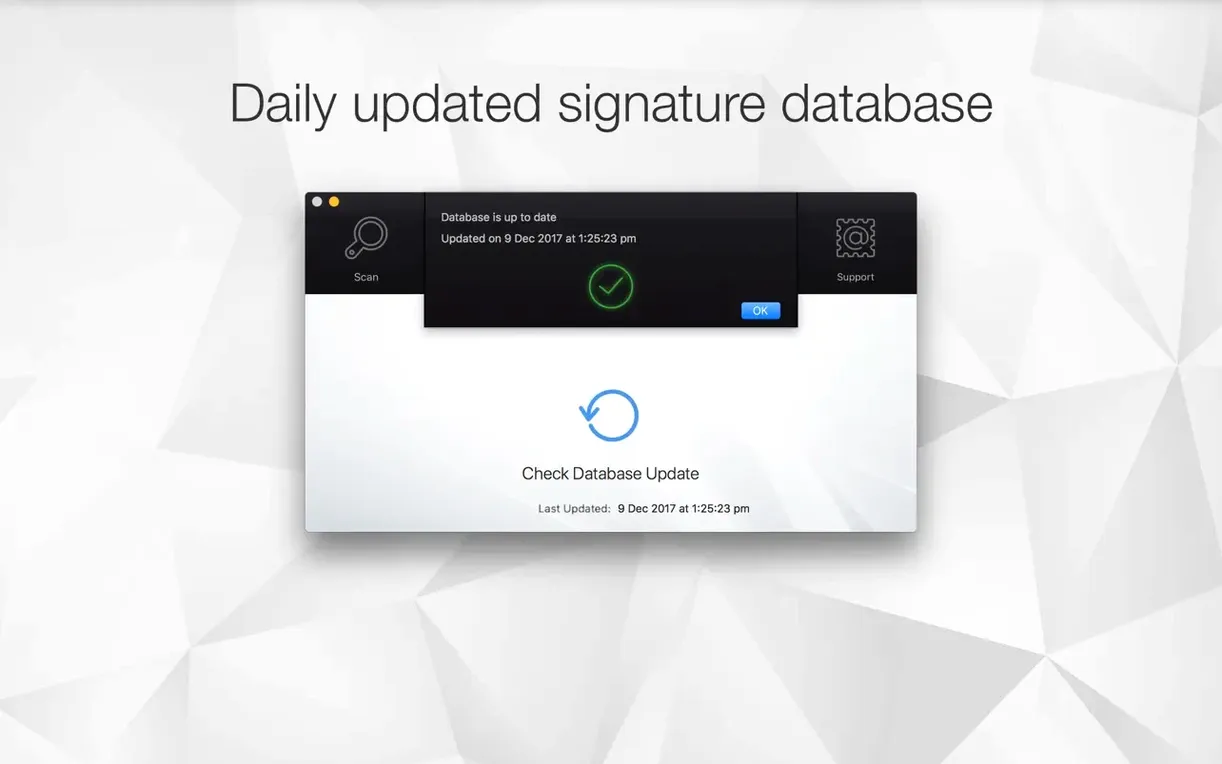
A straightforward scanner for people who want to check for malware without a subscription-shaped cloud hanging over their shoulder. Antivirus Zap 3.3.3 gives you manual control over threat detection, letting you find and remove adware or suspicious files already sitting on your Mac.
Check your system for existing threats
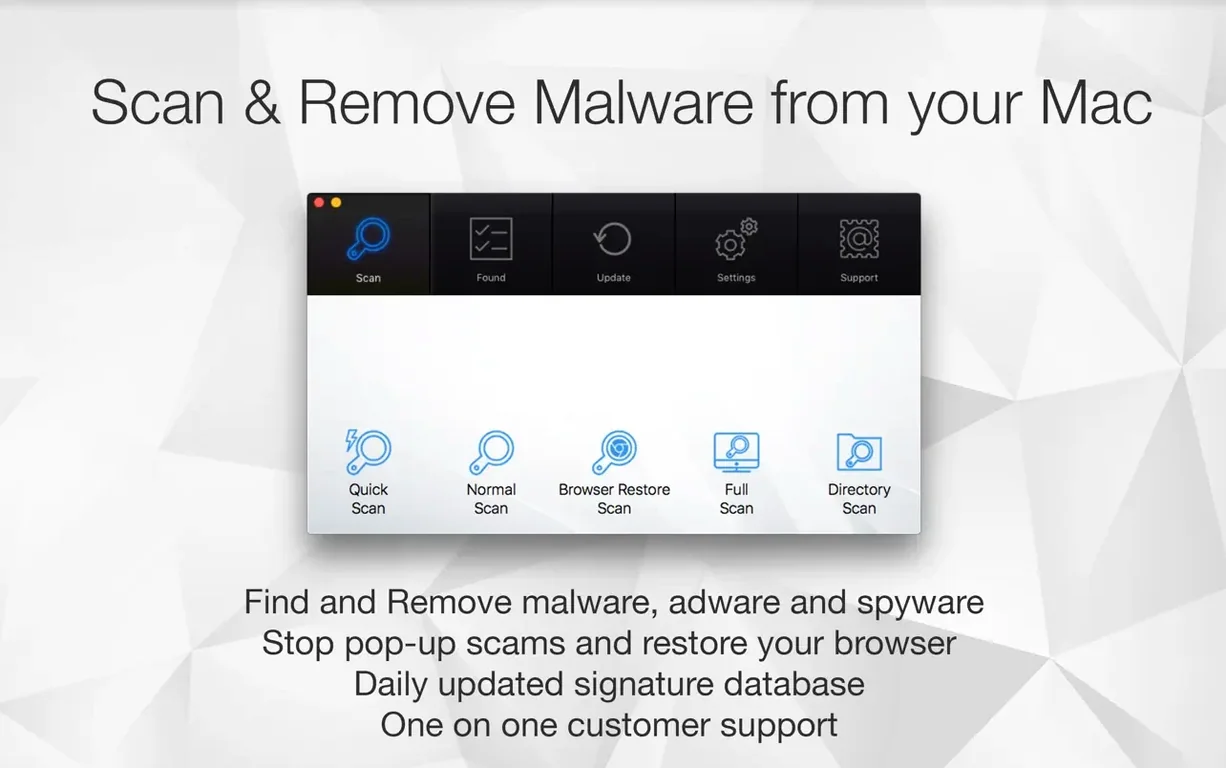
The scanner digs through your files to detect malware and adware that may have slipped onto your drive, and a dedicated Browser Restore Scan clears out lingering cookies, extensions, and caches from your installed browsers.
Make sure the app will actually launch
Antivirus Zap 3.3.3 requires macOS 13 or later and runs natively on both Intel and Apple Silicon Macs — open it from Launchpad once you have dragged it into the Applications folder.
Automate scans on your own schedule
You can schedule a scan to run once or multiple times per day, or trigger one through an Apple Shortcut when a particular workflow calls for a quick spot check.
Quiet the approval prompts before your first deep scan
Out of the box, Antivirus Zap leans cautious — it flags potential threats but leaves the final call to you. That is sensible, but a few adjustments make the daily experience feel less like a dialogue box marathon. Head into preferences and set the default action for low-risk items to quarantine automatically. Genuine threats will still prompt you; cookie trackers and benign adware remnants will stop interrupting your coffee.
Next, turn on Finder integration. This adds a right-click option to scan any file or folder directly from the desktop, which turns out to be the feature you use most when a downloaded disk image feels slightly off. The integration also enables the image optimization and video compression tools — not strictly security features, but useful enough that keeping them buried in preferences is a waste.
If you use Shortcuts, link Antivirus Zap to a shutdown routine. A quick scan that fires every time you close the lid for the night costs nothing and catches drive-by adware before it settles in. The scheduling panel handles multiple daily scans, but Shortcuts gives you conditional triggers — run a Browser Restore Scan when you quit your browser, for instance — that a fixed timetable cannot match.
A cleanup workflow, from suspicion to resolution
Suppose Safari has started redirecting searches through a domain you do not recognize. The machine runs fine otherwise, but something is nudging your traffic sideways. Here is how Antivirus Zap fits into the fix.
Step one: quit the browser completely. A running browser can reload extensions and rewrite cookies mid-scan, undoing the cleanup as it happens. Step two: open Antivirus Zap and run a Browser Restore Scan first, not a full system sweep. Browser hijacks live in extensions, caches and stray cookies; the dedicated scan clears those in under a minute, and often that alone solves the redirect. Step three: if the redirect persists, right-click your Downloads folder in Finder and choose the Scan with Antivirus Zap option. Adware installers tend to sit there, dormant but present. Step four: run a standard scan across the full system. Let it finish — it takes longer than a quick scan, but it checks locations a quick pass skips. Quarantine anything flagged as adware or a potentially unwanted program. Step five: relaunch the browser and test a search. If the redirect is gone, schedule a weekly Browser Restore Scan as a preventative. If not, the problem may be a system-level proxy setting — outside the app's scope, but at least you have ruled out the usual suspects.
The whole sequence takes perhaps fifteen minutes, most of it waiting on the standard scan. The key move is running the Browser Restore Scan before the full sweep; beginners often reverse the order and then wonder why the browser still misbehaves after the system scan came back clean.
A browser left open can resurrect what it just removed
The most common one is scanning with the browser open. An active browser holds files in memory and rewrites preference plists on the fly. Antivirus Zap can remove a malicious extension, and the browser can quietly restore it before you have even closed the results window. Quit everything that connects to the internet before you hit scan.
Another is treating every flag as an emergency. The app marks tracking cookies alongside actual malware. A cookie from a long-deleted social media widget is not a crisis. Learn to read the threat category labels — adware, potentially unwanted program, and tracking cookie are different beasts — and act accordingly. Quarantine, do not panic-delete, so you can restore something if a legitimate tool gets caught in the net.
Beginners also skip the scheduling step entirely. They run one manual scan after installing the app, feel reassured, and forget the app exists. Malware does not arrive on a schedule, but your scans should. Even a quick scan every couple of days catches things before they embed themselves. The scheduling panel is simple enough that setting it up takes longer than the scan itself, so there is no good reason to leave it blank.
A subtler mistake: ignoring the Dropshare integration if you already use Dropshare for file delivery. Antivirus Zap can pass optimized files straight to your upload workflow. People who compress a video for a client and then manually re-upload it are adding steps the app can collapse into one. The integration is not security-related, but it sits right there in the preferences and quietly saves minutes every week.
Apple Silicon runs cooler and finishes faster now
Version 3.3.3 brought native support for Apple Silicon without a Rosetta fallback — a change you feel most during a full system scan. On an M-series machine, the scan now runs cooler and finishes noticeably faster than the Intel-translated builds of earlier releases. For anyone running regular scheduled scans, that lower thermal load matters; the fans stay quiet, and the machine remains usable while the scan ticks along in the background.
Earlier 3.x releases also tightened the Browser Restore Scan to cover additional browser profiles and containers. If you use Firefox Multi-Account Containers or Chrome profiles to separate work from personal browsing, the scan now reaches into each container instead of only scrubbing the default profile. That change closed a gap where adware could hide in a secondary profile and survive multiple cleanups unnoticed. For everyday use, it means one scan now does what previously required manually switching profiles and running the tool again.
The Shortcuts integration matured across recent versions as well. What began as a simple "run scan" trigger now supports parameterised actions: you can build a shortcut that runs a quick scan on a specific folder, then passes the results to a notification or a log file. That opens up workflows the scheduling panel cannot express — for instance, scanning only a project folder before archiving it, without touching the rest of the drive.
Version 3.25.1 brings a quieter, more considered interface that steps back and lets the scan do the talking. The visual refresh is paired with under-the-hood performance work — scans move a little quicker, and a handful of edge-case crashes and stability snags have been smoothed out. It feels less like a utility and more like a clean, single-purpose tool now.
- macOS 12 or later
- Apple Silicon or Intel 64-bit
Questions from the booth
Yes, the Browser Restore Scan specifically targets and removes cookies, extensions, and caches from your installed browsers to clean up adware and tracking remnants.
You can schedule scans to run once or multiple times per day, or integrate them into your routines via Apple Shortcuts for on-demand automation.