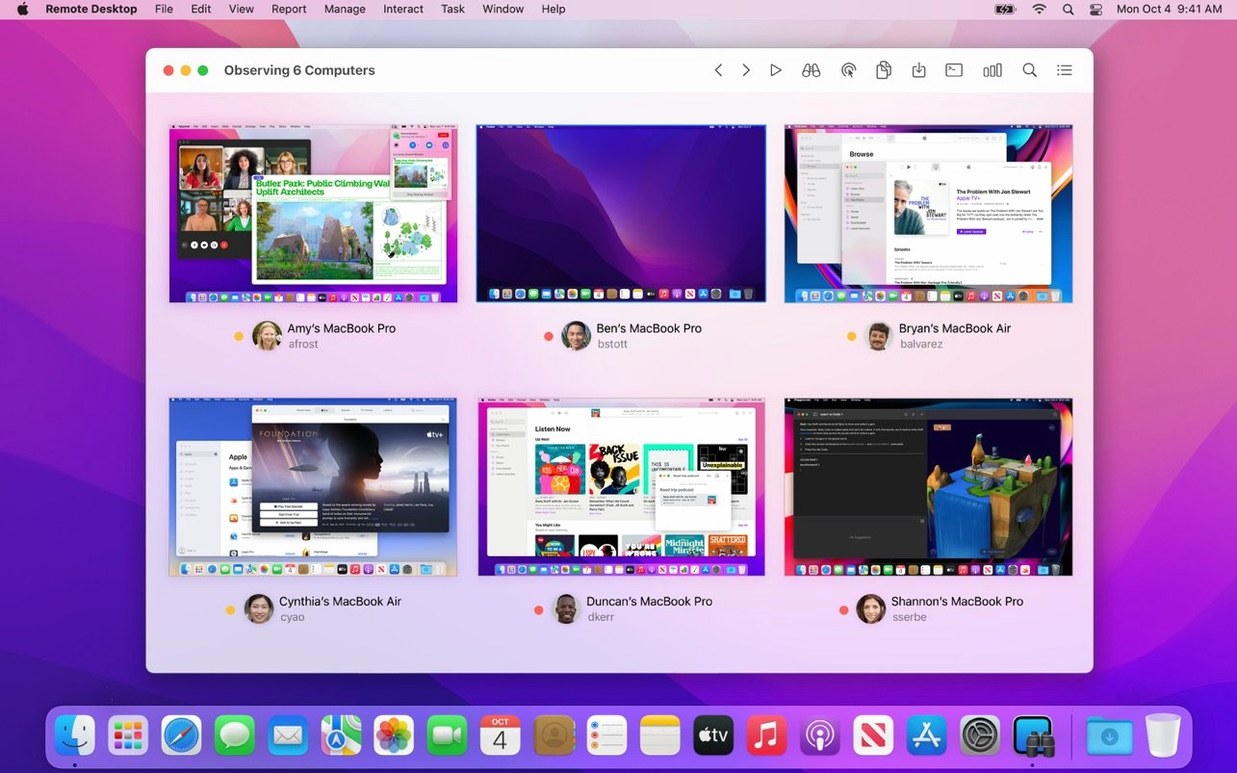
If you’ve used Screen Sharing to drop into a single Mac, Apple Remote Desktop is what happens when that idea grows into a whole post-production house or classroom of machines you actually need to manage. The jump can feel steep, but a handful of early moves make the terrain readable.
A quick-start sequence for new eyes
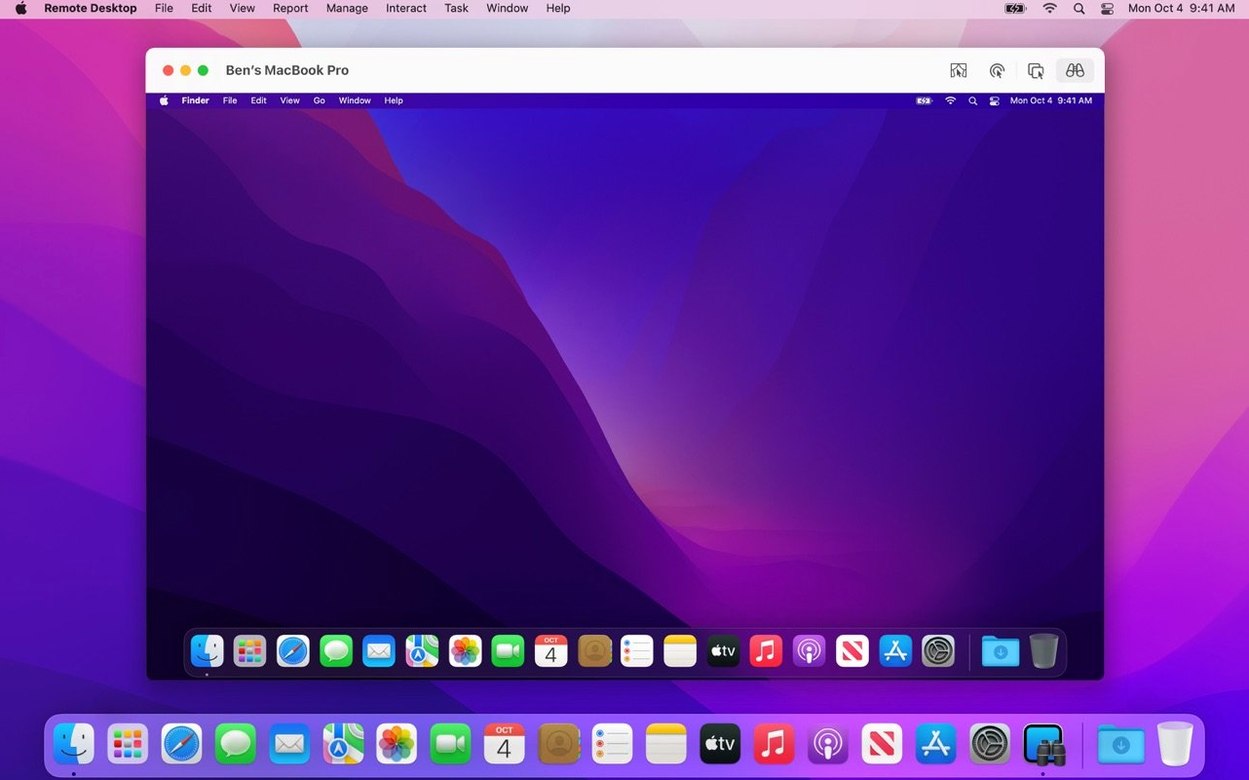
- Curtain Mode, right away. Select a client Mac, hit Curtain Mode, and its display blanks while you work. No one watches a system-report sweep or an accidental Finder browse. It’s courtesy, not just control.
- Run a hardware report on one machine. Go to Report > New Report, pick a template, and let it pull from more than 200 characteristics—memory, GPU, serial number, attached volumes. You’ll see what the tool can read before you ever push software.
- Drag a folder to a remote desktop. Open the control window for a client, then drag a small folder straight onto its Desktop. The file transfer uses the same gesture you already know. No share-point setup required.
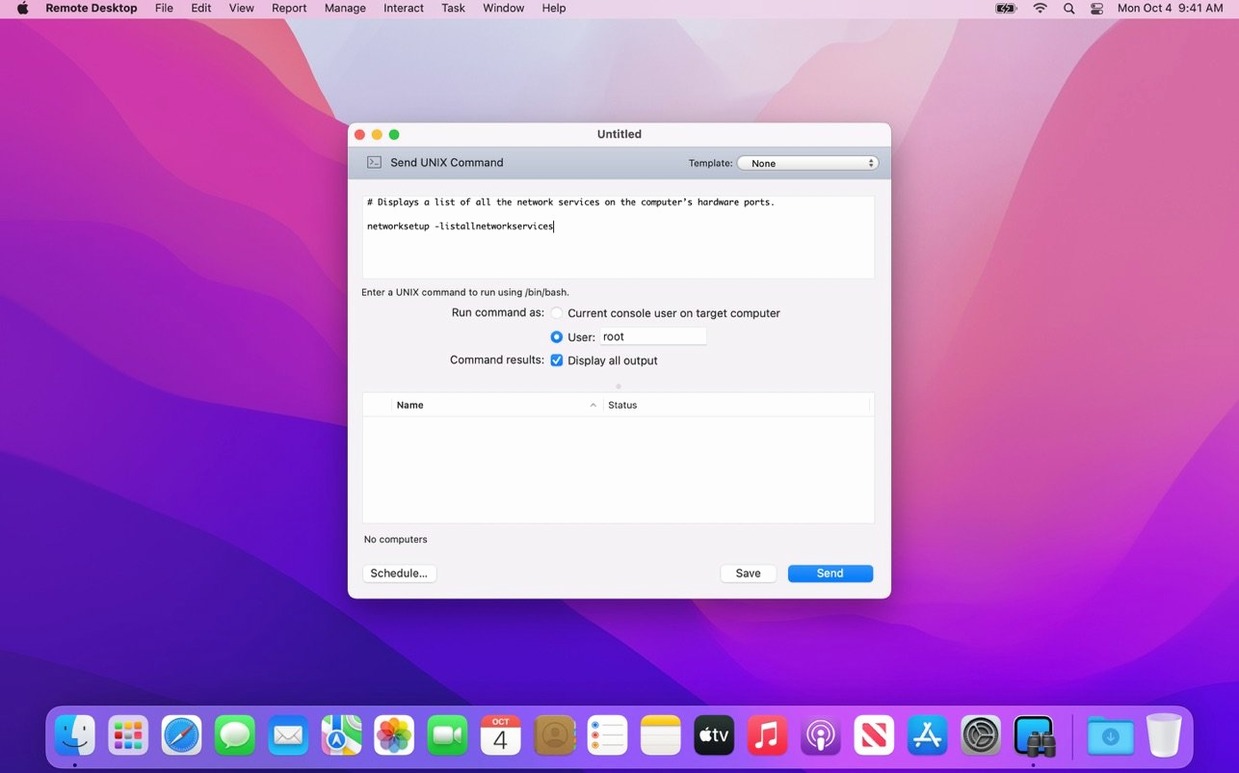
- Send a Unix command to three Macs. Select a handful of machines and choose Manage > Send UNIX Command. Something gentle—
uptimeordiskutil list—proves the pipeline without consequence. - Lock screens at the end of a session. Select all, click the Lock Screen button. It’s the smallest automation that teaches you the rhythm: select, act, verify.
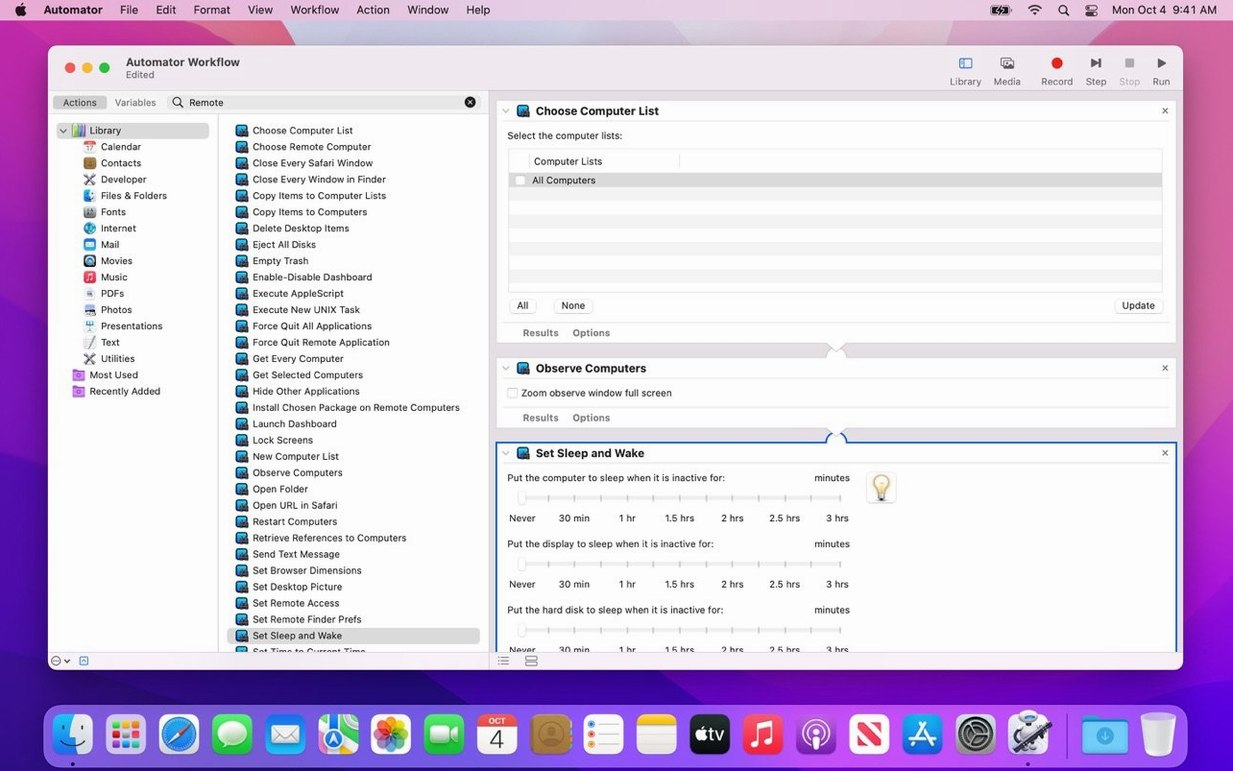
Once these steps feel natural, the forty-plus Automator actions become a logical next layer—for copying software, waking machines, or scheduling reports that arrive before you do.
Who really benefits—and who just gets annoyed
Apple Remote Desktop isn’t a Screen Sharing alternative dressed up with a few extra buttons. It rewards people who need to touch ten, twenty, or a hundred Macs as a single system. The sweet spot is a managed fleet where machines are configured the same way, so a software install or a permission change sent to all of them actually lands. If you’re the person who images the lab before a semester starts, or the post facility tech who pushes a ProRes component update to every render node on a Tuesday morning, the tool earns its place. The same goes for help-desk staff who need to shadow a user’s screen while talking them through a problem—Curtain Mode and the Remote Keyboard item make that feel almost in-person.
On the other hand, if you look after three Macs and mostly want to grab a file from the iMac downstairs, Apple Remote Desktop is likely overbuilt for the job. Screen Sharing and AirDrop cover that ground with less setup. The friction point for small-scale use is the client configuration: every managed Mac needs the Remote Desktop Client enabled and permissions granted, which means a walk through System Settings on each machine before the admin console even sees it. Once that’s done the experience is fluid, but the setup step isn’t something you want to repeat casually.
There’s also a quiet divide between Intel and Apple Silicon fleets that shows up in reporting. The hardware-report templates pull architecture-specific details cleanly, but if you’re scanning a mixed room, you learn to sort by chip type early—otherwise a memory-pressure stat from an M-series Mac sits next to an Intel DIMM listing and numbers start to look like a translation error. The tool reports what it sees; it’s on you to know the context.
VoiceOver now reads the remote Mac’s screen aloud
The 3.10 update is a compatibility release with a few additions that alter how you interact with remote screens, particularly if you’ve moved your machines to macOS Tahoe. The headline feature is VoiceOver support for the remote Mac. Practically, that means a visually impaired administrator can hear the remote interface read aloud while controlling it—not just the local app, but the distant desktop itself. The Accessibility and Remote Keyboard items added to the menu bar and toolbar pull those functions closer to hand, so you no longer dig through a submenu to send keystroke sequences when a remote Mac needs a login or a dialog dismissed.
Bug fixes and performance improvements in this version are the kind Apple tends not to itemize, but early adopters report smoother control-window scaling on high-resolution displays, especially when dragging between a Retina laptop screen and an external monitor of a different density. The encrypted package-copying pipeline feels a tick faster on Apple Silicon, though that may be the Tahoe networking stack as much as the app itself. Compatibility with macOS Tahoe 26 keeps the whole tool viable for anyone who has already updated their fleet—without this version, you’d be locked out of managing newer machines entirely.
It runs agent-to-agent, no server required
Does it require a server, or is it peer-to-peer? Apple Remote Desktop works over your existing network without a dedicated server. The admin app pushes commands and receives reports directly from client Macs, each of which runs a lightweight agent that ships with macOS. For off-site machines, you can tunnel through a VPN or use the built-in SSH support, but the app itself doesn’t broker connections through Apple’s infrastructure.
Will it interfere with other remote tools I already use? The Remote Desktop Client coexists with Screen Sharing and VNC, but you shouldn’t have two control sessions active on the same machine at once—the second connection will typically bounce. If your team uses apple remote desktop 3.10 alongside a separate VNC viewer for Linux boxes, everything works; the app can manage non-Mac systems through standard VNC, though you lose the deep reporting and command features on those machines.
What happens when a client Mac is asleep or offline? You can queue software installations and scripts for delivery when the machine reappears on the network. The scheduling feature holds the package until the client checks in, which is useful for laptop users who drift between office and home. Wake-on-LAN can rouse sleeping Macs that are wired to the same subnet; wireless wake is less reliable and depends on your access points.
Is the connection encrypted enough for sensitive environments? File copies and package transfers use encrypted channels by default. The control session and screen-sharing stream are also encrypted. If you need to restrict what a remote user can see while you work, Curtain Mode blanks the client display and locks input—common practice in financial or medical settings where screen privacy is mandated.
Clipboard sharing bridges your desk and the distant Mac
Copy and paste between computers is one of those features that sounds minor until you use it daily. Highlight text in a report on your admin Mac, switch to a remote control window, and paste into the distant machine’s interface without a file-transfer detour. The clipboard pass-through works for plain text and styled content alike, though very large selections—think a whole InDesign layout—benefit from drag-and-drop file copy instead.
The Remote Spotlight search field, tucked into the toolbar, lets you locate a file on any selected client without opening a control window. Type a filename and the results come back as a list you can act on directly. It’s faster than navigating the remote Finder, especially when you’re hunting a plist or a log across several machines.
For repetitive tasks, the Automator integration is deeper than Apple’s documentation makes it sound. You can string together actions—wake a group of Macs, install a package, run a shell script to clear caches, then shut down—and save the workflow as a droplet or a calendar trigger. The forty-plus built-in actions cover most maintenance routines, and because they’re plain Automator, you can mix them with Finder actions to build sequences that bridge local and remote work. A workflow that pulls a system report, saves it to a local folder, and renames it with the date is four actions and takes less than a minute to assemble.
If you’re working through an Apple Remote Desktop torrent to get started, the disk image you’ll mount follows the standard Gatekeeper-friendly pattern: mount it, open Terminal for the single bypass command, drag the app to Applications, and launch. The Remote Desktop Client on each managed Mac still needs its permissions set manually—no installer shortcut bypasses that—but once the pieces are in place, the admin console sees everything and the task lists start writing themselves.
Version 3.10 arrives with macOS Tahoe 26 compatibility and new Accessibility and Remote Keyboard menu and toolbar items for that release. Remote Macs on Tahoe 26 or later also gain VoiceOver support, alongside the expected bug fixes and performance work.
- macOS 15.5 or later
- Compatible with Apple Silicon and Intel 64‑bit Macs