It runs on any Mac with macOS 12 or later, Apple Silicon or Intel. That covers every machine in my studio, from the M1 MacBook Air I draft scripts on to the older Intel iMac that still handles sound design. App Cleaner & Uninstaller has always been more of an app manager than a simple deletion tool, and this release sharpens that identity.
A wider lens on what's installed
The updates database now tracks Safari extensions and Homebrew command-line tools alongside regular apps. For someone who installs FFmpeg through Homebrew and forgets about it for six months, that matters. The new incompatible applications filter catches software that won't run on the current system, which saves you from launching something only to watch it bounce once and quit. These additions turn the app into a single pane for understanding your whole software picture, not just the .app bundles in the Applications folder.
The tools that stayed the same
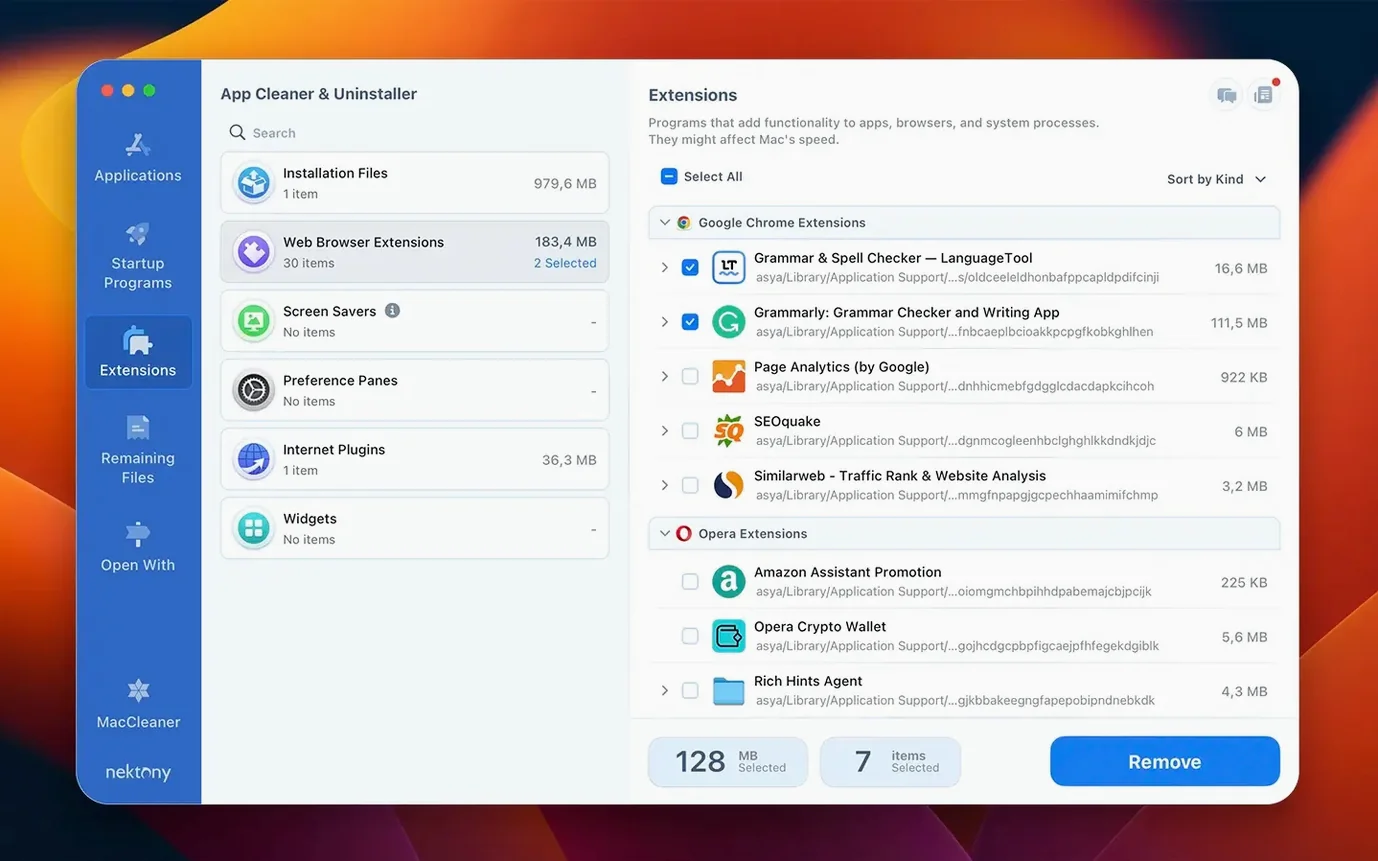
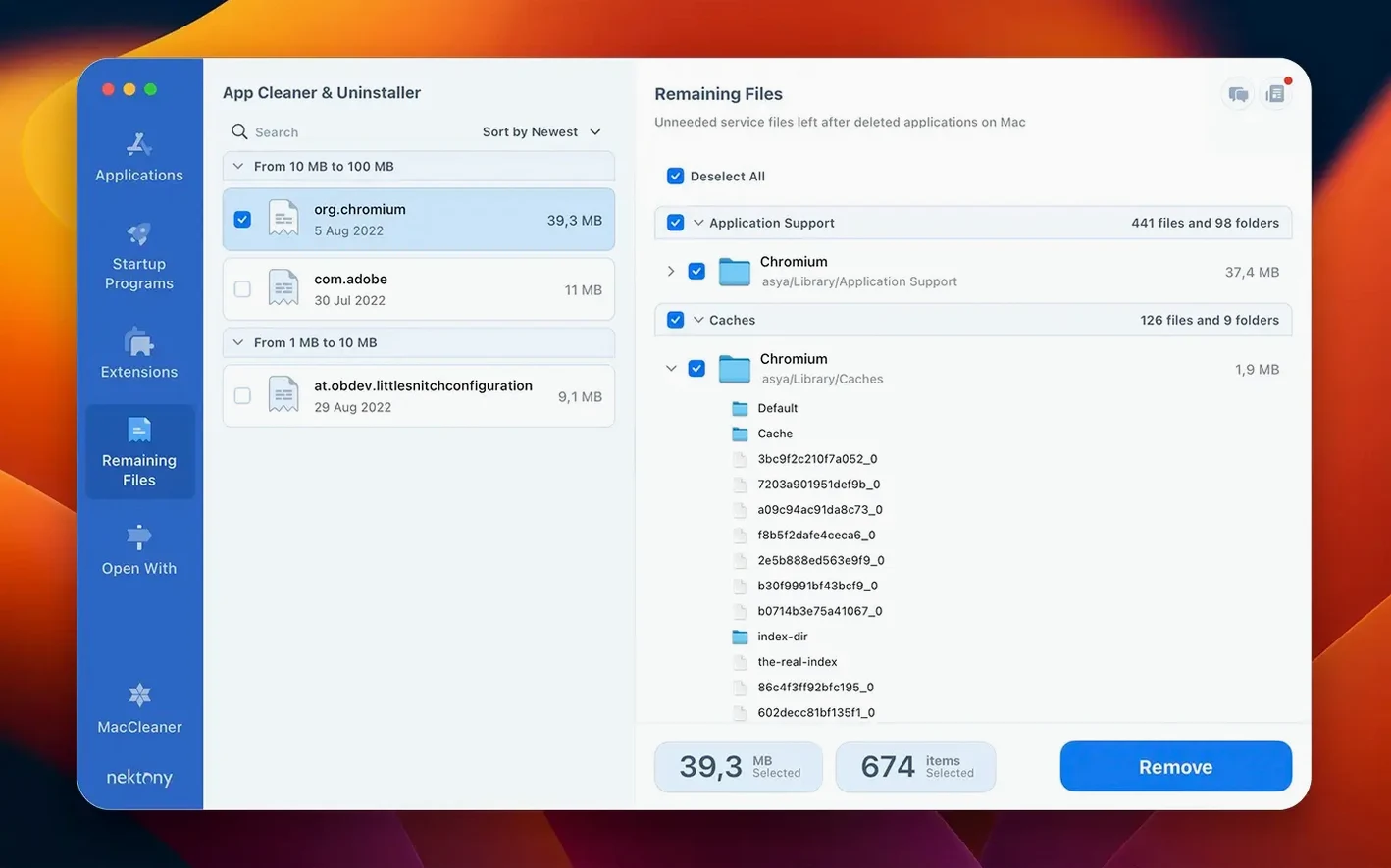
It still finds leftover files from apps you thought you deleted by dragging them to the Trash, removes service files associated with applications, and can disable or delete extension files. The network access tab and redesigned menu bar app with network traffic control are useful additions, but the core remains straightforward: a way to see what's really on your drive and cleanly remove what you don't need.
Surviving Intel and Apple Silicon without a beachball
I've run App Cleaner & Uninstaller on three different Macs in the studio over the past few weeks — an M1 MacBook Air with 16 GB of RAM, an M2 Pro Mac mini that handles rendering, and the old Intel iMac I mentioned earlier. On none of them does the app become a background presence you notice. After the initial launch, which takes about two seconds while it scans /Applications and a handful of Library folders, it sits at around 60 MB of memory. That's less than a single Safari tab streaming video. The scan itself happens fast enough that I never think to time it; by the time my eyes move from the Dock icon to the window, the list is populated.
Disk activity during a scan is modest. Watching Activity Monitor while App Cleaner & Uninstaller does its first pass, I see a brief spike of reads as it walks through ~/Library/Application Support and ~/Library/Preferences, then silence. The developers clearly index what they need without crawling the entire drive. That restraint matters when you're working on a timeline in DaVinci Resolve and don't want a utility app competing for I/O. I've run uninstalls — including large suites like a full Adobe Creative Cloud removal — while exporting ProRes 422 HQ, and the export didn't stutter. The uninstall took around forty seconds for the Adobe suite, with the app methodically deleting files in batches rather than hammering the disk all at once.
Stability has been unremarkable, which is the best thing you can say about a utility. No crashes, no hangs during the "Search leftovers" phase, no kernel panics when removing kernel extensions or launch daemons. The only quirk I've noticed is that occasionally the leftover scan will pause for three or four seconds on an app with deeply nested caches — Logic Pro's sound library comes to mind — but it always resumes without intervention. That's the kind of pause that feels like the app thinking, not crashing.
Resource use during an actual uninstall is similarly quiet. CPU usage rarely breaks 5% on the M1 Air, and it's effectively zero when the window is closed. You can leave the menu bar component running for days and forget it's there until you click it. For a studio machine that needs every cycle for playback and rendering, that kind of restraint is non-negotiable.
Beyond just listing leftover files for deletion
The Mac uninstaller space has settled into a few familiar shapes, and App Cleaner & Uninstaller sits somewhere specific among them. Compared to a free utility like AppCleaner, Nektony's app does more than list files and let you delete them. AppCleaner works by watching you drag an .app bundle into its window, then finding associated files. It's clean and simple, but it doesn't proactively find leftovers from apps you already deleted, doesn't manage extensions or startup items, and doesn't know about Homebrew packages. If you've been dragging apps to the Trash for years and only now install an uninstaller, AppCleaner won't help you with the past. App Cleaner & Uninstaller scans for those orphaned files immediately.
Then there's CleanMyMac X, which bundles an uninstaller inside a much larger suite of maintenance tools. Its uninstaller is good — it groups files the same way, finds leftovers, and offers batch removal — but the app as a whole is heavier. CleanMyMac X routinely uses over 200 MB of RAM just sitting in the menu bar, and its scans touch everything from mail attachments to old iOS backups. If all you want is app management, that's a lot of overhead. App Cleaner & Uninstaller stays focused on one job and stays small doing it.
Compared to an adobe clean uninstaller approach, where you'd use Adobe's own Creative Cloud Cleaner Tool, the difference is scope. Adobe's tool is purpose-built for one vendor's software and requires Terminal commands, verbose logging, and a specific sequence of steps. It works — I've used it after botched Creative Cloud updates — but it's not something you'd launch casually. An app cleaner & uninstaller pro 8.5.0.1 approach, by contrast, handles Adobe alongside everything else in one interface. The same scan that removes Photoshop's scattered preferences also catches the three preference panes left by a Zoom update from 2023. That universality is the point.
The network tab that turned a removal tool into a monitor
The network access tab that arrived in version 10.0 shifts how I think about the app day to day. Before, I opened App Cleaner & Uninstaller when I wanted to remove something. Now I occasionally open it just to see which apps are phoning home. The menu bar app redesign places network traffic control alongside the usual removal options, so I can block an app's outgoing connections without diving into Little Snitch or LuLu. That's not a replacement for a dedicated firewall — the controls are simpler, more binary — but for quick decisions about an app I rarely use, it's enough.
The expanded updates database changes the cadence of maintenance. Safari extensions and Homebrew tools now appear in the same list as regular .app bundles, so I'm not checking three different places to know what's out of date. The incompatible applications filter is the kind of thing you use once when upgrading macOS and then forget about, but during that upgrade it saves real time. When I moved the studio Mac mini from Ventura to Sonoma, the filter immediately highlighted two audio plugins that wouldn't make the jump. I removed them before the upgrade, rather than troubleshooting crashes afterward.
The core experience — scanning, selecting, removing — feels unchanged, and that's deliberate. Version 10.0 added layers around the edges without complicating the centre. The scan is fast, the file list is readable, and the Remove button still asks for confirmation before deleting anything. That restraint is harder to pull off than it looks.
Scrubbing plugin and codec ghosts after a film export
When I finish a short film, my Mac accumulates debris. There's the obvious stuff — Resolve project files, exported ProRes masters — but also plugins I installed for a specific effect, codec packs I needed for camera raw formats, and helper apps that came bundled with transcoding tools. Here's how I use App Cleaner & Uninstaller to reset the machine for the next project.
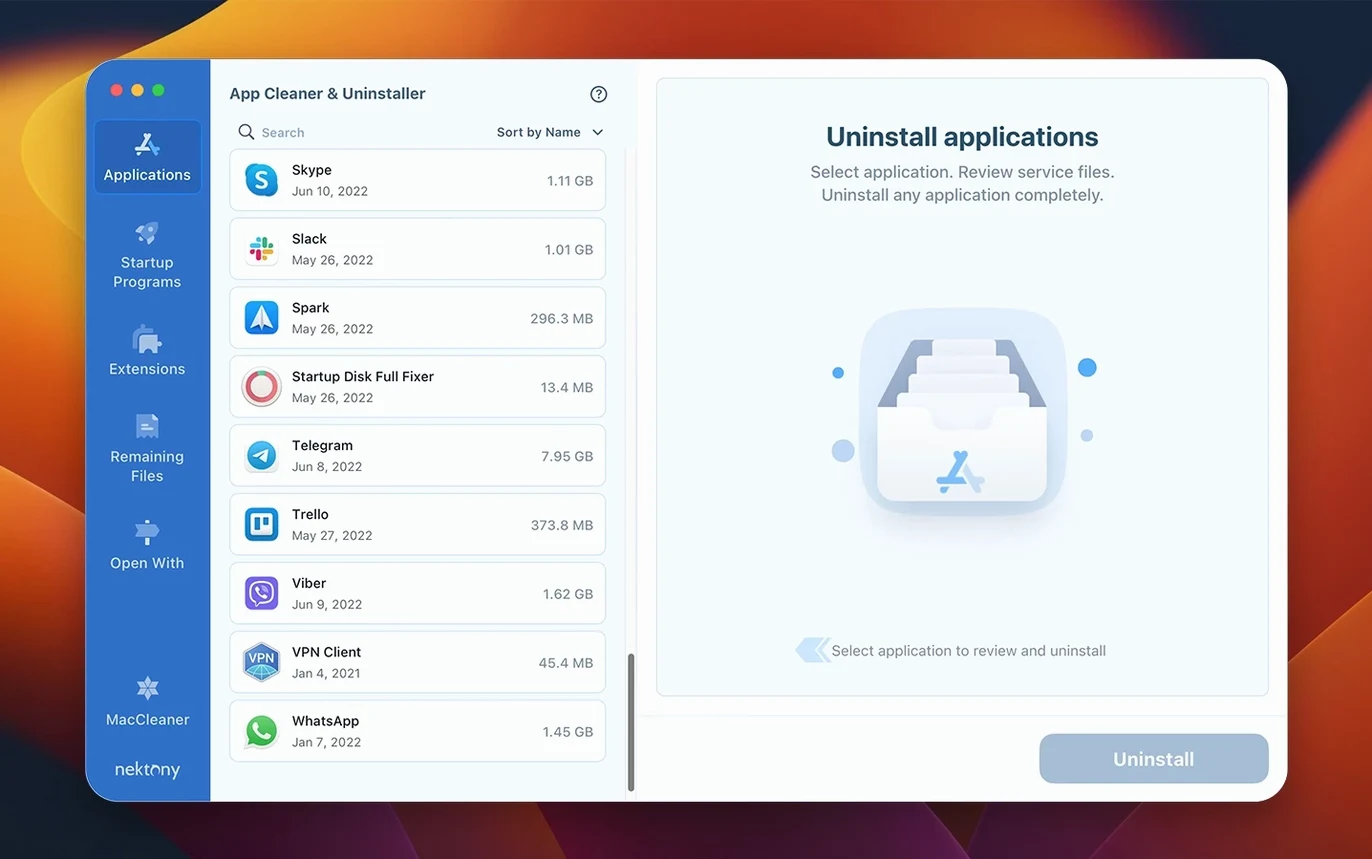
I start by opening the app and switching to the Applications tab, then sorting by size. That surfaces the large items first: usually Resolve, Logic, or a game I installed between edits and forgot about. I'm not removing those, but it gives me a sense of the landscape. Next, I switch to the Leftovers tab. This is where the real cleanup lives. The scan finds files from an older DaVinci Resolve version I deleted months ago — preference plists, LUT caches, a folder of optimized media I thought I'd removed. I select all of it and delete it in one pass.
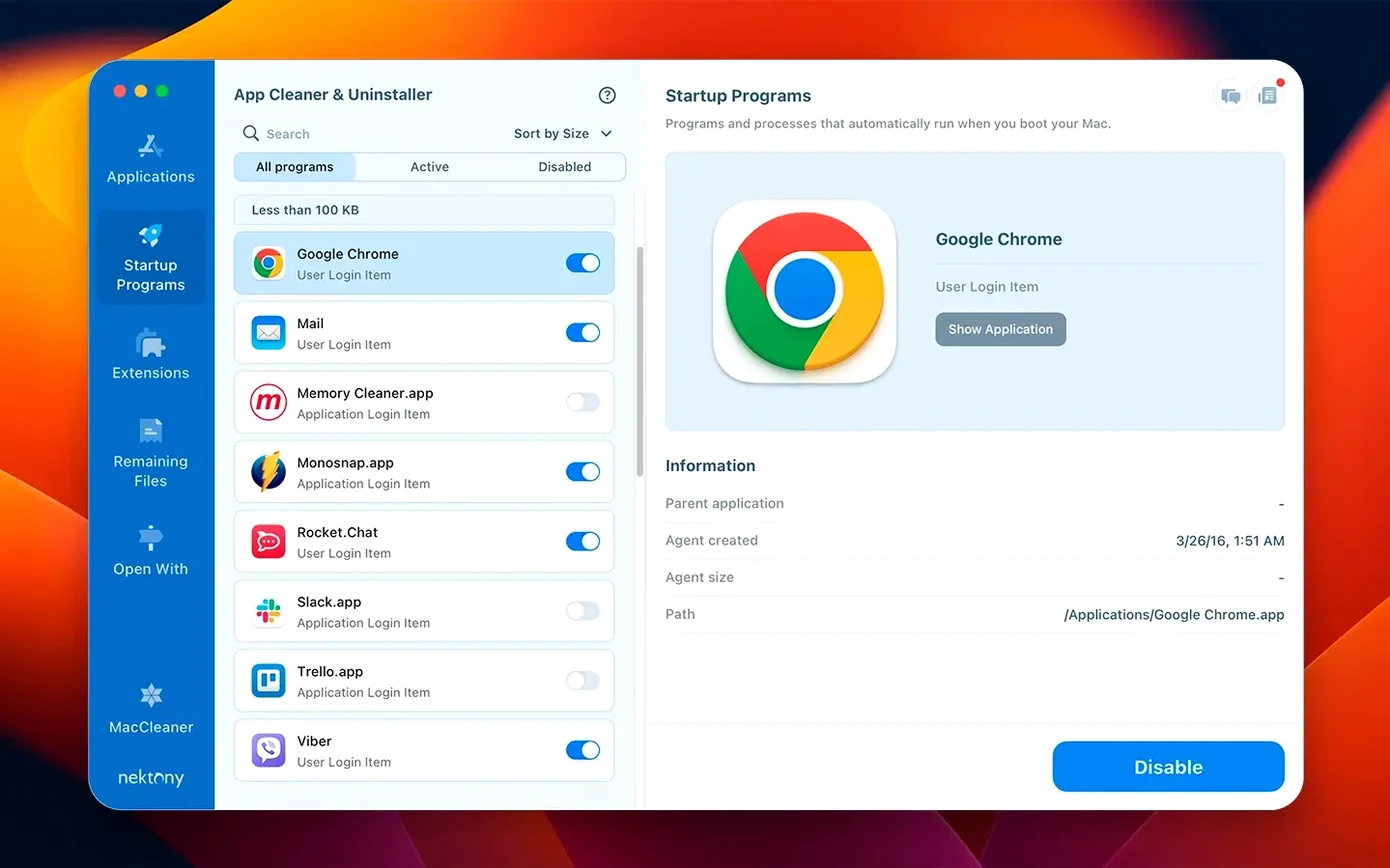
Then I go to the Extensions section and disable two QuickTime components that were installed by a camera manufacturer's software. I don't need them active between projects, and disabling rather than deleting means they're available next time without reinstalling. I check Startup Programs and remove a background helper for a collaboration tool that only mattered during the edit. Finally, I open the Updates list and see that a Safari extension I use for colour grading reference stills is two versions behind. I update it directly from the app.
The whole process takes about four minutes. When it's done, the Mac feels like a fresh machine for the next script, the next shoot, the next timeline. No clutter, no background processes I forgot about, no leftover caches eating drive space. That's the rhythm of the tool in practice: not something you use every day, but something that makes the days between projects smoother.
A network access tab and a redesigned menu bar app that includes network traffic control. The updates database was expanded to cover Safari extensions and Homebrew command-line tools, and an incompatible applications filter helps you spot software that won't run on your current macOS version.
- macOS 12 or later
- Apple Silicon or Intel