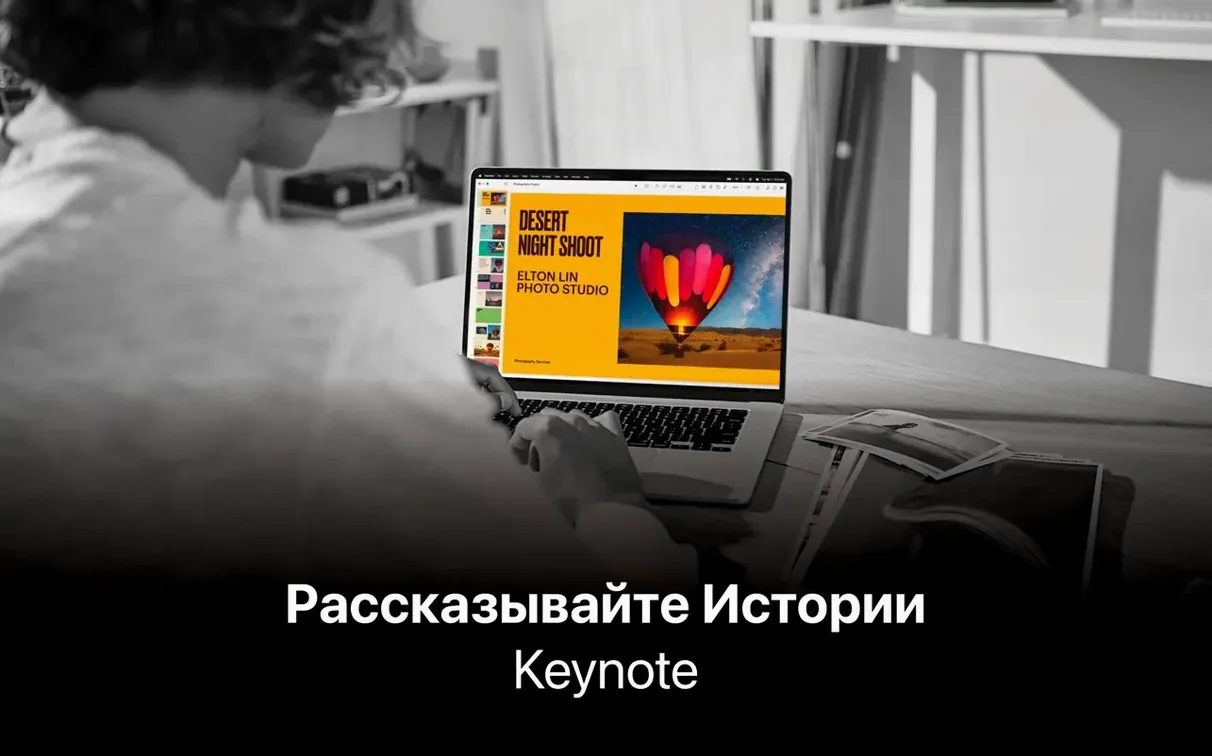
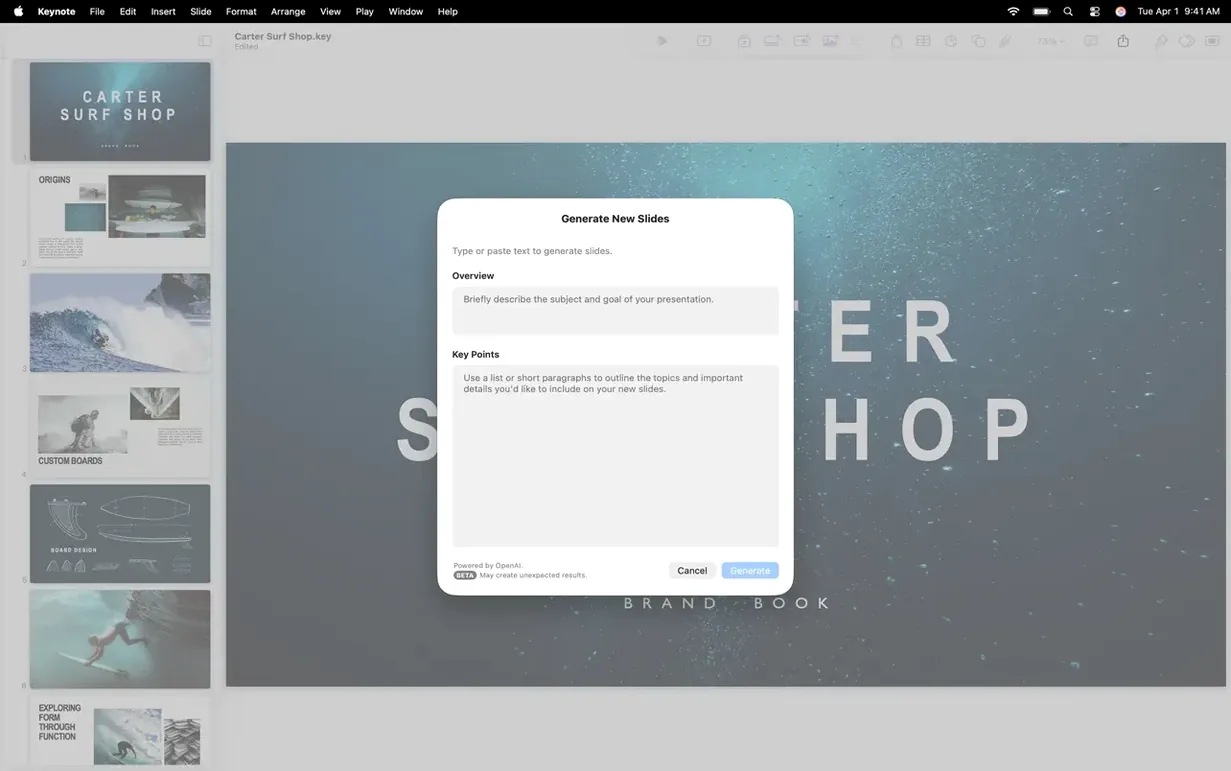
Magic Move is still the transition that makes a room lean forward. It’s the one where objects slide and morph between slides with a continuity that feels more like a single shot than a deck. To get it, though, you need to be on the right version of macOS. Keynote 15.3.1 draws a line at macOS 15.6 — anything older and the disk image won’t get you past the gate. Apple Silicon and Intel Macs are both fine, provided the operating system is current enough.
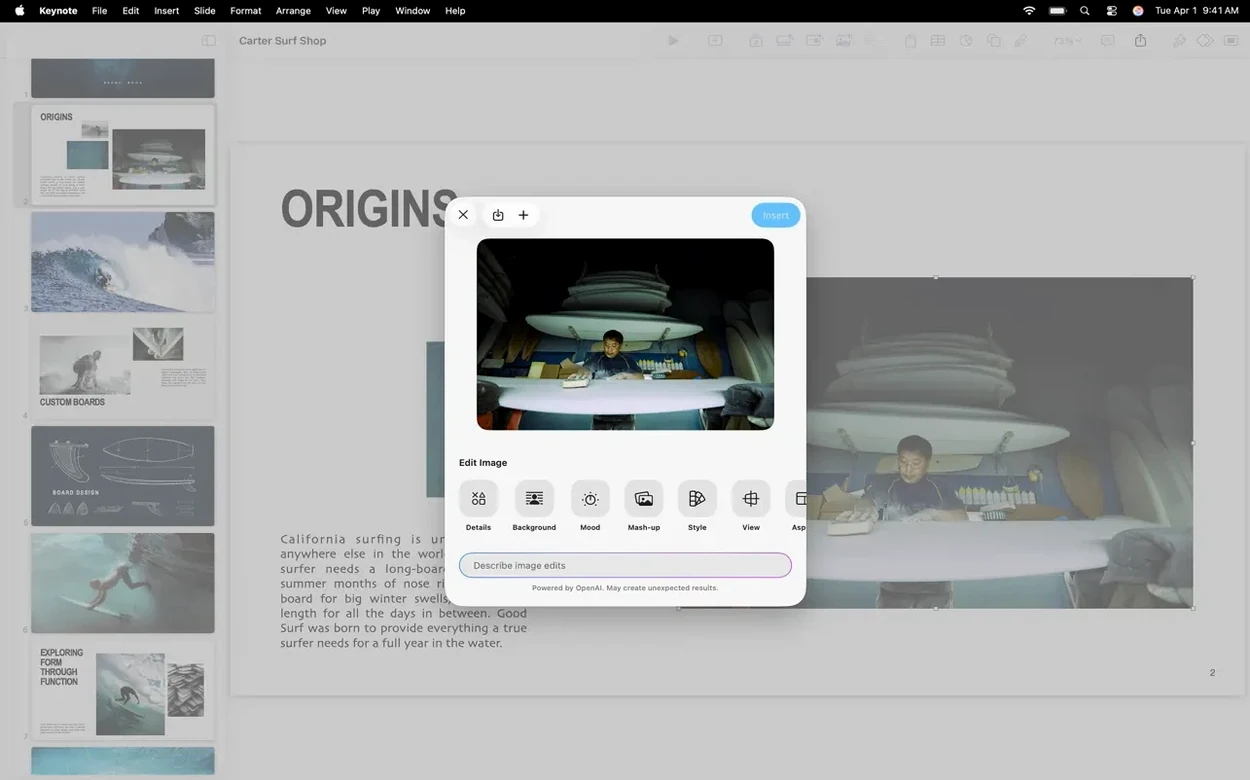
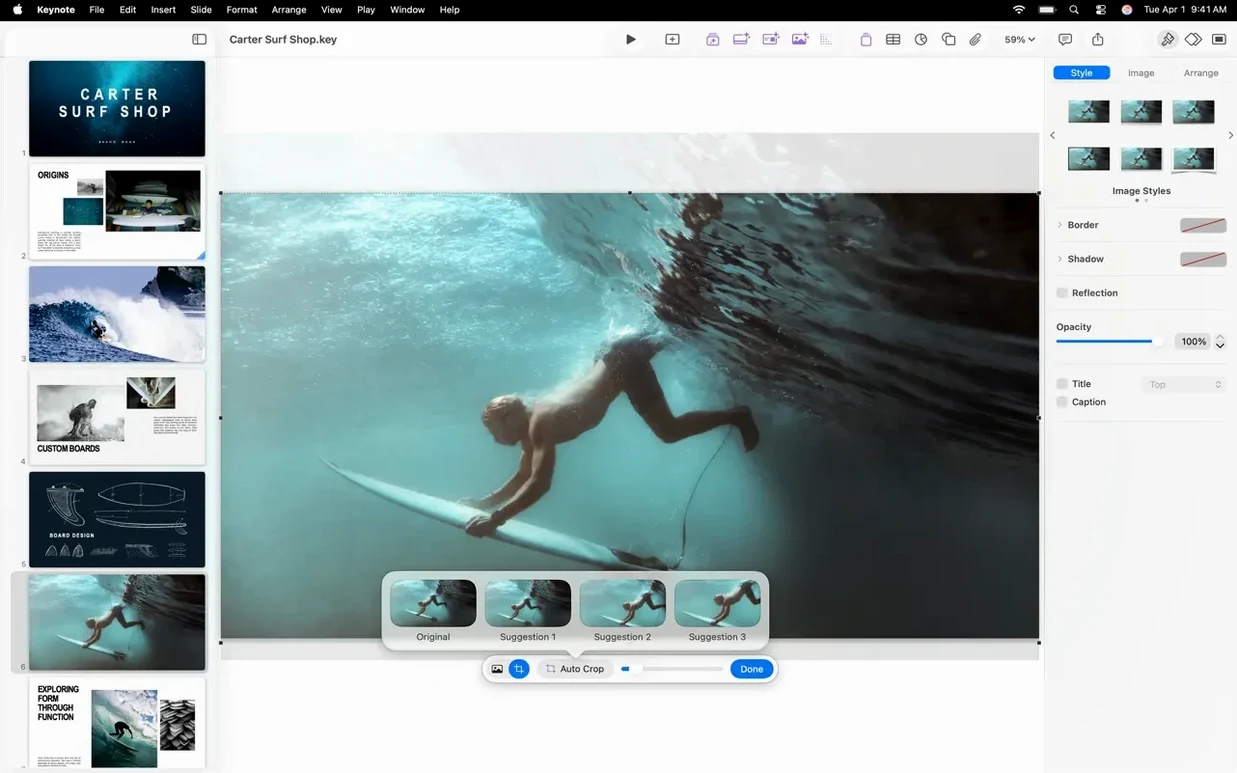
Once you’re in, the toolkit lands somewhere between a design canvas and a broadcast setup. You can drop in an audio recording, embed a live video feed, or build an image gallery that scrolls inside a slide. The graphic tools are quietly aggressive: masks snap to shapes, and the background removal works on people and objects without needing to leave the app. It’s the kind of thing you reach for when a stock photo has the right face but the wrong location.
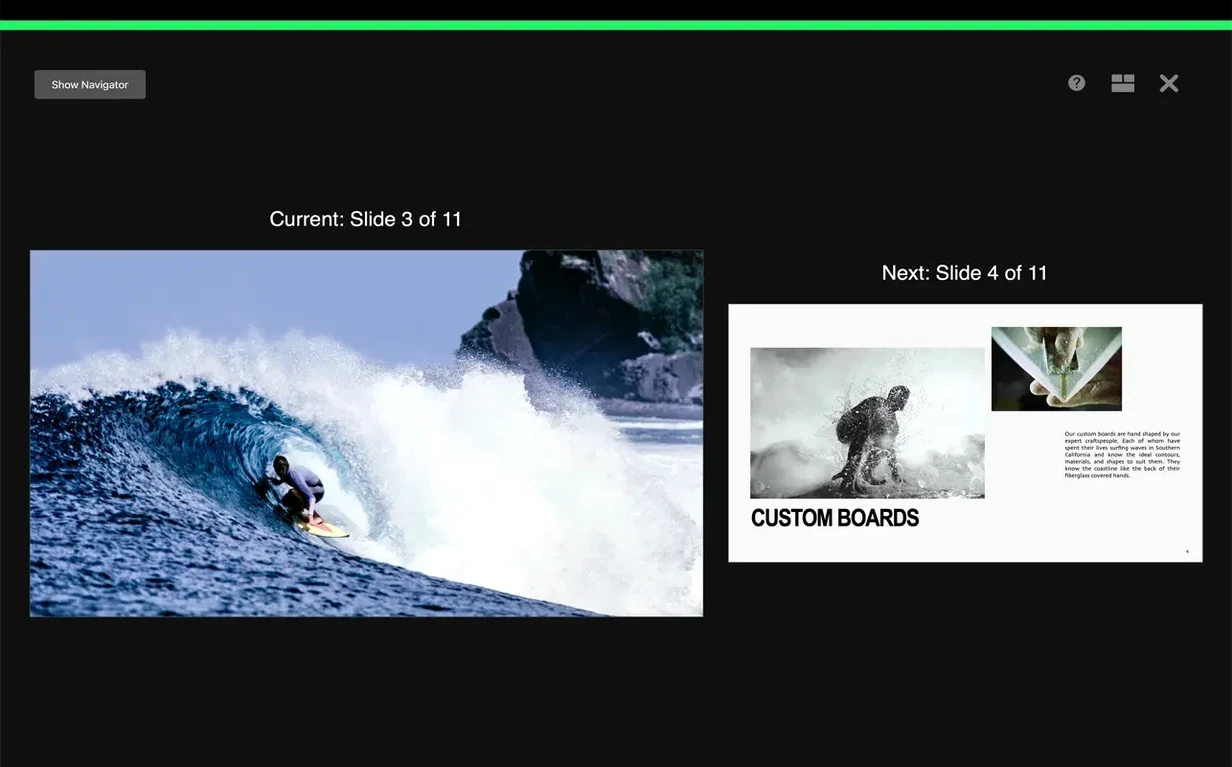
Rehearsing gets its own screen. Customize what you see on the presenter display while the audience sees only the slide — notes, a timer, the next build waiting in the wings. If an iPad is part of your setup, Apple Pencil or a fingertip can annotate directly over the presentation as it runs. When it’s done, sharing through iCloud or Box sends the file to named recipients rather than a link anyone can forward.
What ships in the disk image is a full-featured presenter that has been quietly accumulating these tools for years. The new transitions — shift, radial wipe, character blur — are small things, but they change the rhythm of a talk in ways a crossfade never quite managed.
Drop your rough footage into the Content Hub first
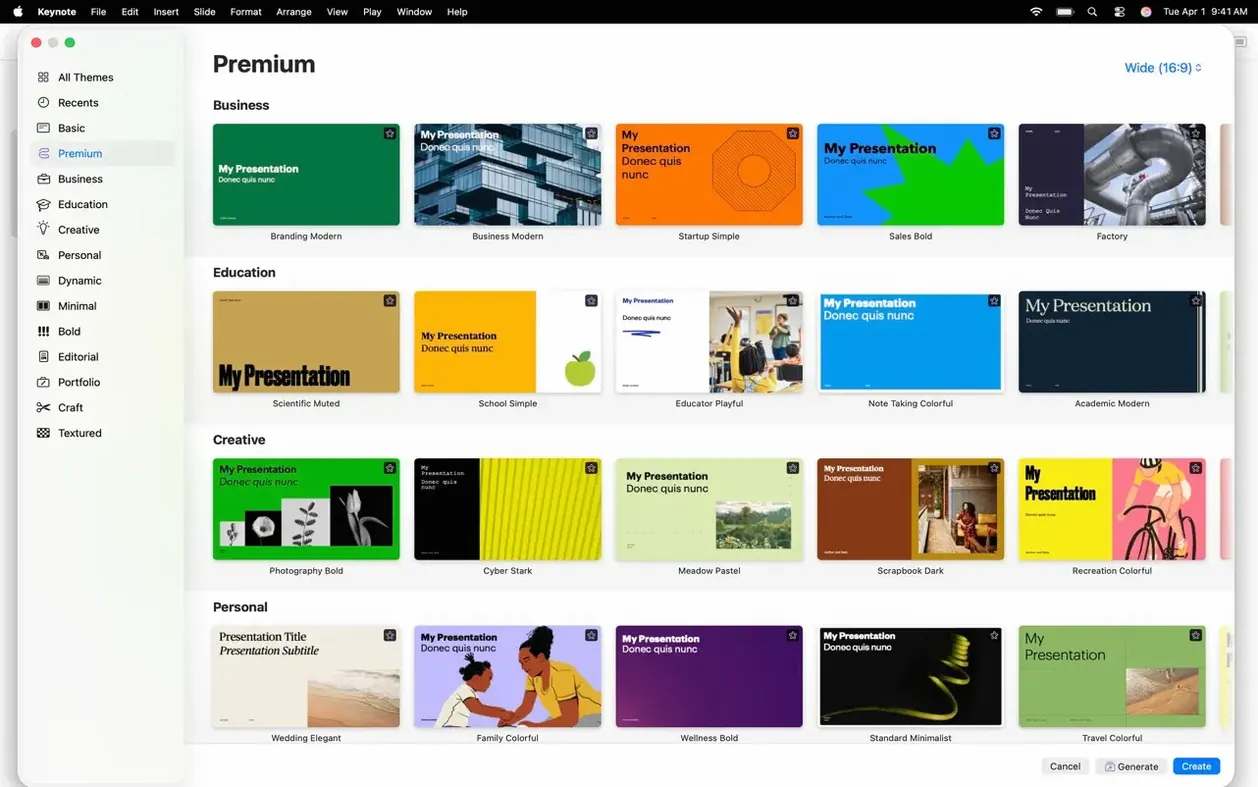
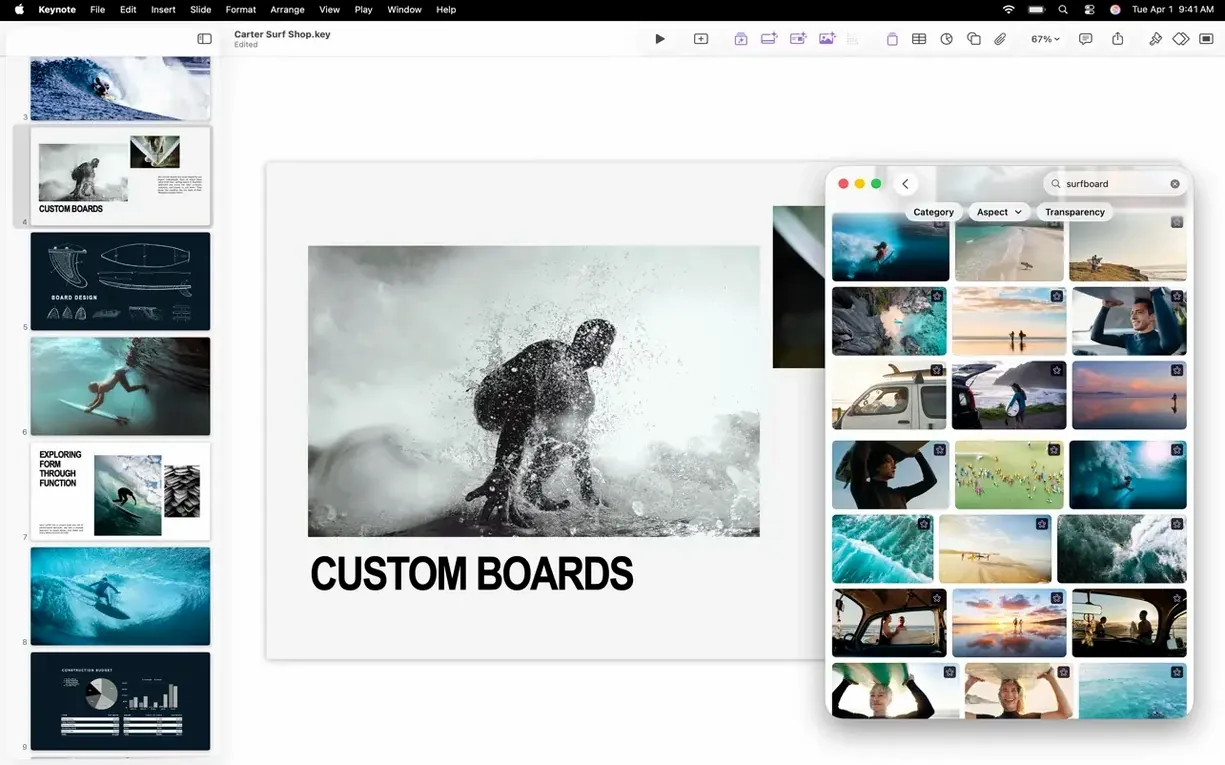
Start with the Content Hub before you touch a single theme. It is where the replace-image workflow now lives, and it quietly changes how you handle placeholder art in templates. Drop a rough cut of your own footage into a slide, then swap the placeholder from the hub instead of dragging from Finder — the mask, position and shadow stay intact, which is exactly what you want when a storyboard changes at the last minute. It feels less like editing a deck and more like recasting a scene.
Give yourself one evening with the new transitions before committing to them. Character blur is the one to watch: it reads as a focus pull, not a novelty effect, and it works beautifully on title slides where the words themselves become the subject. Shift and radial wipe are faster, more mechanical — good for section breaks in a longer talk, less so for quiet moments. Build the deck once, then duplicate the first few slides and rehearse them with different transitions back to back. The difference is easier to feel than to describe.
If you have used a keynote dmg from an older version in the past, clear out the previous app copy from Applications before installing. Two Keynotes on the same Mac tend to argue over which one opens a file, and the disagreement usually happens ten minutes before a rehearsal.
Daily feel: speed, stability, resource use
On an Apple Silicon Mac, the app runs cool and quiet even with a large deck open. A sixty-slide file with embedded video and high-resolution images stays responsive during scrubbing and build adjustment. Memory use sits comfortably below the bloat line — Activity Monitor shows nothing that would alarm a machine with 8 GB, though the usual rule applies: the bigger your media, the bigger the footprint. Intel machines from the last few years handle it too, but export times stretch noticeably on older hardware.
Stability has been uneventful in the best way. No crashes during a week of daily use, no beachballs while previewing Magic Move on a busy slide. The 15.3.1 release notes mention performance improvements, and the difference shows up in small places — faster switching between the light table and editor views, less stutter when resizing masked images live on stage.
Drag a video from Photos and it lands as a native object
Keynote talks to the macOS ecosystem without making a fuss about it. Drag a video from Photos straight onto a slide and it embeds as a native object, not a linked file. Record a voiceover with the built-in audio tools and it lands in the deck itself, which means the file travels as one package — useful when you send a presentation to someone who does not share your iCloud drive. If you prefer a keynote 7 workflow from an older machine, the export options still cover PowerPoint, PDF, HTML, movie and image formats, so nothing in your delivery pipeline has to change.
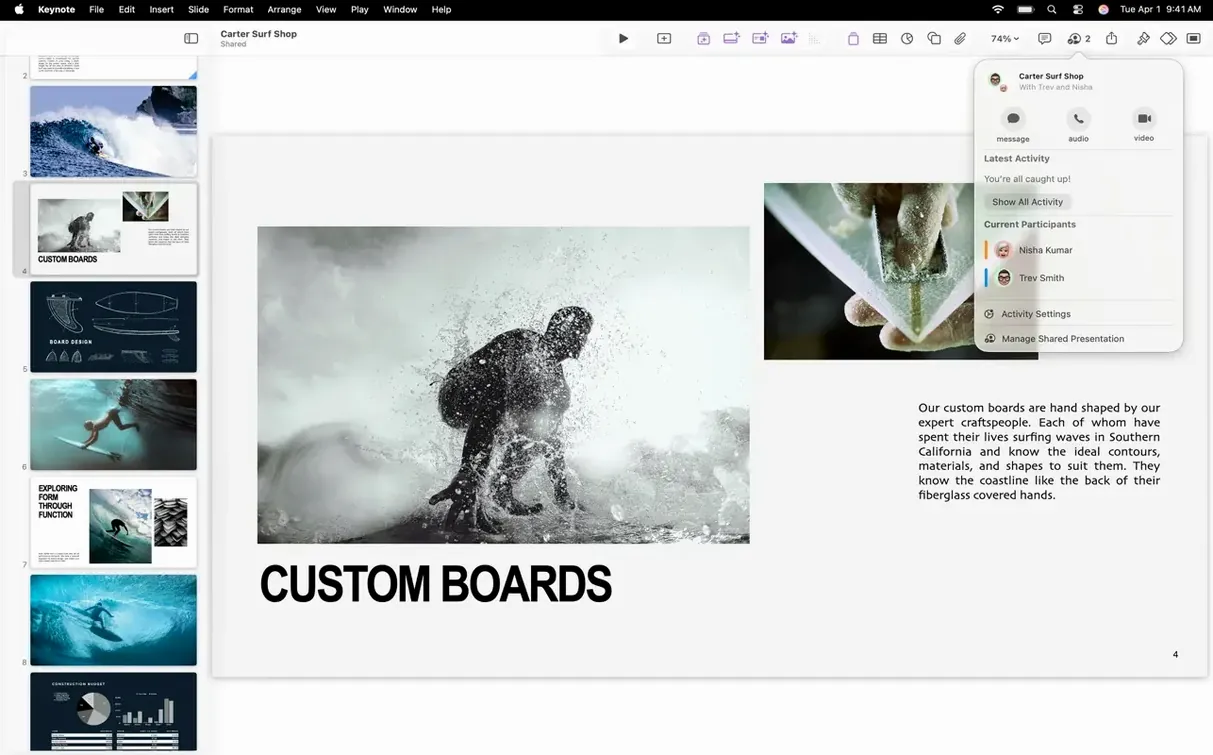
The iCloud collaboration layer is where Keynote most clearly behaves like an Apple app. Changes from a collaborator appear with tracking, and you can present from a Mac while someone edits on an iPad a few seats away. Handoff works between devices without a prompt, and AirPlay just shows up when a display is nearby. No configuration, no codecs to chase, no export-and-send loop. For filmmakers and teachers who already live inside this ecosystem, that is the quiet reason the app keeps its place on the dock.
One practical note: when you finish a project, export a PDF archive alongside the working file. The PDF preserves the typography and layout as a frozen frame, which is often what you need for a shot list or a printed storyboard. The Keynote file remembers where you left off; the PDF remembers what you promised.
Version 15.3.1 is a maintenance release with bug fixes and performance improvements, alongside a handful of new transitions: shift, radial wipe, and character blur. Replacing images in a deck is now quicker, with direct access to the Content Hub from within the presentation.
- macOS 15.6 or later
- Apple Silicon or Intel Mac
Questions from the booth
No, it requires macOS 15.6 or later. Both Apple Silicon and Intel Macs are supported as long as they meet the OS requirement.