
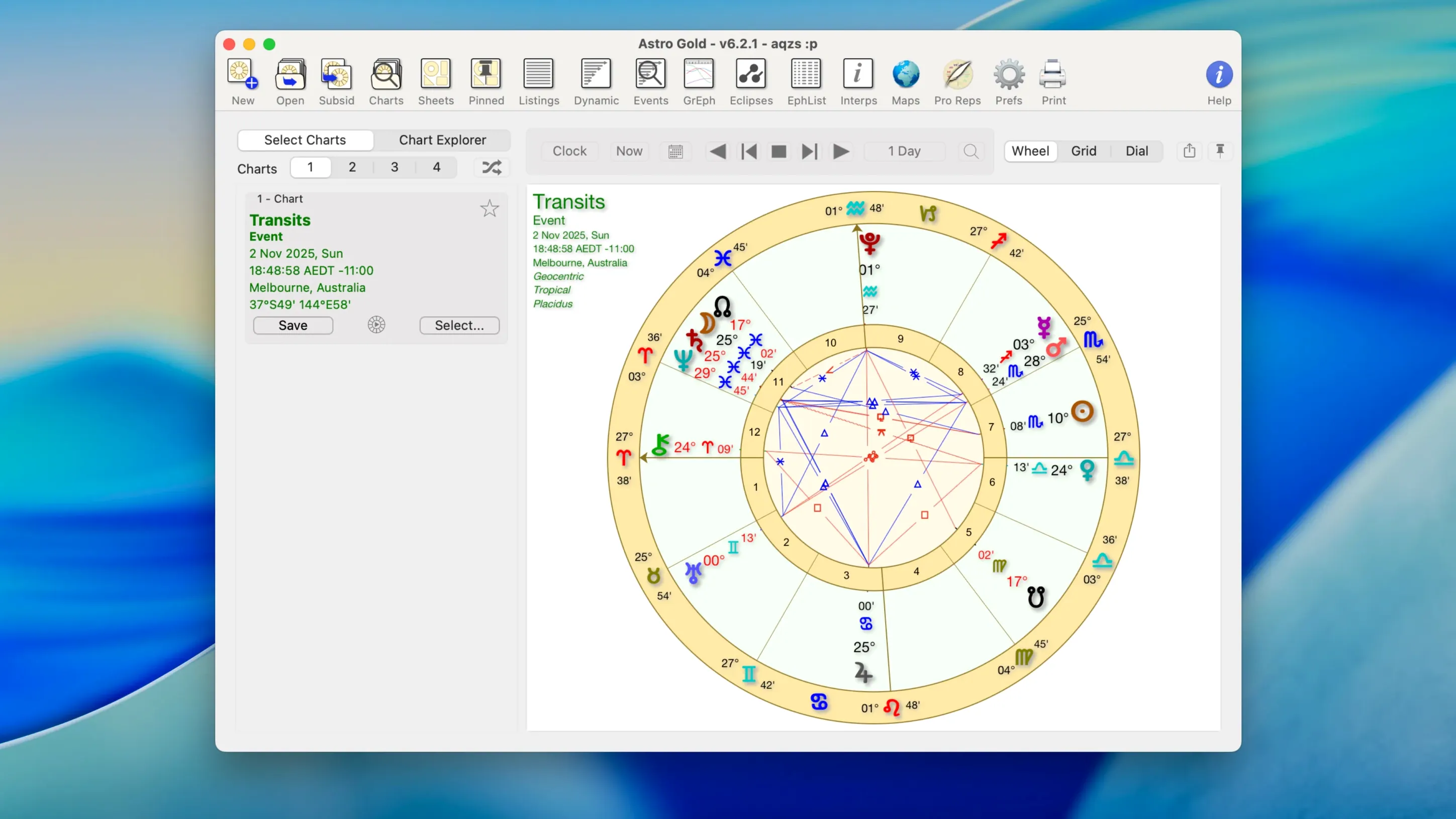
Astro Gold is built for the working astrologer who wants a native Mac experience rather than a web-app compromise. It is the kind of tool you open when a client emails asking about a cross-country move, or when you are prepping for a consultation and need to layer transits over a natal chart without fuss. Here is what a single session with it actually looks like — from entering birth data through to reading a relocated chart.
- Enter the birth date, time and place into a clean data sheet. The software resolves time zones and coordinates without sending you hunting through atlases.
- Choose a round or square chart style, then pull up the natal wheel. Chiron, Proserpina and other asteroids are available right in the point-selection panel.
- Layer transits over the natal chart for any date. The ephemerides are built in, so you are not cross-referencing a separate table.
- Cast a relocation chart by changing the reference place. Astro Gold redraws the house cusps for the new location while preserving the original birth time.
- Add solar, lunar, Saturn or secondary progressions to the same wheel. Multiple return types sit under one menu, which keeps a complex consultation moving.
The relocation chart is where the session comes together. You see the ascendant shift, the house placements rearrange, and suddenly the client’s questions about a new city have an astrological shape. No web service — just a chart on your desktop, ready to read.
From blank slate to a progressed synastry reading
A session often starts quietly: a client wants to know why a relationship feels different this year. You open Astro Gold and create two natal charts from the data sheet, naming them clearly because six months from now “Chart1” means nothing. With both charts on screen, head to the synastry menu and generate a bi-wheel — the software places the inner and outer charts cleanly, respecting whatever orb and aspect set you defined in preferences. If you work with fixed stars, toggle Regulus or Spica on now; their conjunctions to personal points can shift a reading entirely.
Next, add secondary progressions to the inner chart. Astro Gold calculates the progressed positions and draws them against the partner’s natal placements, so you can see, for instance, a progressed Moon crossing a descendant. Switch to a Davison chart for a different angle — the relationship as a third entity. The composite midpoint method lives in the same menu, and flipping between the two takes a click. By the time you pull up a solar arc direction for the outer chart, you have four layers of technique open, none of which required exporting data or opening a browser tab. The session feels less like operating software and more like thinking aloud with a chart.
Launches in two seconds and idles under 200 MB on Apple Silicon
Astro Gold launches in about two seconds on Apple Silicon and stays responsive even with a dozen charts open. Memory use tends to hover under 200 MB on a typical working day — modest enough that you forget it is running. On Intel machines the same session feels a touch heavier during chart redraws, particularly with a full aspect set and asteroids loaded, but the difference is small and the interface never beachballs under normal use.
Stability has been a quiet strength. Crashes are rare in version 6.2.1, and when they do occur it is usually during rapid switching between chart styles while a relocation calculation is in progress — a corner case most users will not hit. The disk image install leaves no background daemons or launch agents, so the app does not nibble at resources when closed. If you leave it running overnight with an ephemeris open, expect a flatline in Activity Monitor.
Leaving the time zone as “Unknown” silently skews house cusps
The most common slip is ignoring the time zone field on the data entry sheet. Astro Gold resolves coordinates automatically, but if you leave the zone set to “Unknown” instead of selecting the correct entry from the atlas, the house cusps can drift by hours. A chart cast for 14:30 with the wrong zone looks plausible — until the ascendant lands in the wrong sign and the reading unravels.
Another early mistake is overloading the chart with every available point. Checking all asteroids, fixed stars and hypothetical planets at once produces a wheel so dense with symbols that aspects become illegible. The software will render it, but you will not want to read it. Start with the personal points, Chiron, and perhaps one asteroid relevant to the question, then add more only when the chart demands it. The orb and aspect filter panel exists precisely for this — learn it early.
Beginners also tend to treat the relocation chart as a new natal chart, forgetting that the birth time stays anchored to the original location. A relocated ascendant describes how you experience a place, not who you become. Astro Gold handles the calculation correctly; the mistake is interpretive, but the software makes it easy to make.
Gatekeeper blocks the first launch until you right-click and confirm
One recurring snag: after dragging the app from the disk image to Applications, macOS Gatekeeper blocks the first launch with a vague warning. The fix is the standard one — right-click the app icon, choose Open, and confirm the dialogue. Subsequent launches proceed normally.
Another friction point is the fixed star catalog. The default display shows a shortlist; users hunting for a specific star sometimes assume it is missing. Open the full catalog from the preferences pane and you will find it there, searchable. If a star still does not appear, check that you have not filtered it out with a magnitude cutoff set too tight.
Chart printing can trip people up when the paper size defaults to US Letter on a system set to A4. Astro Gold respects the macOS print dialogue, but the chart style sometimes scales awkwardly if you do not adjust the page setup first. Preview the print, switch the paper size, and the wheel snaps back to proper proportions. Finally, if transits seem off by a day, double-check that the “current date” field in the transit dialogue is not still holding a date from a previous session — the software remembers it, and a stale date is an easy thing to overlook before sending a chart to a client.
- macOS 10.13 or later
- Apple Silicon and Intel 64-bit Macs
- Interface: English