It runs on any Mac that boots macOS 27, Intel or Apple Silicon. I keep returning to this tool because a cluttered menu bar pulls me out of the frame when I should be watching a rough cut. The current version squashes a persistent annoyance where spacers and icons would shift after a restart, and items no longer get stuck mid-drag while you’re rearranging them.
Setting a trigger for the one icon you actually need
On a sound design day I want the menu bar stripped down to nothing but Audio Hijack’s level meter. Everything else — Wi‑Fi, battery, Dropbox, the clock — lives behind a single click. I open Bartender’s preferences and drag those extras into the hidden section. Then I assign a trigger: when Audio Hijack launches, its icon moves into the main bar and everything else slides away. The trigger fires in under a second, and I can also call the Bartender Bar with a keyboard shortcut if I need to glimpse the time without reaching for the mouse. The Command Bar’s clipboard helper got a refresh in 7.0.4, which means pasting a recently copied file path during export notes no longer breaks my flow.
Letting the app disappear into the background
Once the triggers are set I tell Bartender to hide its own menu bar icon. The app becomes invisible infrastructure, which is exactly what a utility should be. Shortcuts integration lets me tie these states to Focus modes, so when I switch to my colour grading workspace the menu bar reconfigures itself without a second thought. If I ever need to tweak a trigger I launch the app through Spotlight, make the change, and close it again. The fix for items failing to appear means I don’t return from a render to find an icon missing.
A podcast editor’s lunchtime reset
A friend who cuts a weekly interview podcast told me her menu bar sprawls across two-thirds of the screen by midday. She runs Riverside for remote recording, a cloud backup indicator, a transcription service, Focusrite’s controller app, and half a dozen other utilities that insist on claiming territory. The moment she launches Riverside, she wants only its icon visible — nothing else — so she can glance at recording levels without distraction. She set a trigger for that exact scenario. When Riverside opens, Bartender clears everything except the Riverside icon and the Focusrite meter. The trigger reverses when she quits Riverside, restoring her usual arrangement. During mixing she assigned a second trigger to show only Logic Pro’s helper icons and her audio routing tool. She told me the 7.0.4 fix for items shifting after a restart finally stopped her spacers from wandering between the battery indicator and the clock, a small thing that used to needle her every Monday morning. The clipboard helper in the Command Bar also means she pastes episode slugs and folder paths without hunting through Finder while a client waits on the call.
How it shakes hands with macOS and other tools
Bartender doesn’t ask for screen recording permissions the way some menu bar utilities do, which matters when you’re screen-sharing a timeline during a remote review. It also plays nicely with Stage Manager and Spaces: the hidden icons stay hidden regardless of which virtual desktop you’re on, and the Bartender Bar opens on whichever display holds the menu bar. If you use BetterTouchTool or Keyboard Maestro, you can chain Bartender’s Shortcuts actions into larger macros — I have a macro that switches my audio interface, opens Audio Hijack, and triggers the stripped-down menu bar state in one keystroke. Focus mode integration through Shortcuts means my writing workspace automatically hides social media indicators and notification badges without me having to remember. The app respects macOS’s accent colours and transparency effects, so the Bartender Bar feels native rather than bolted-on, something I appreciate when I spend long sessions in a dim grading suite.
What the jump to version 7 changed in daily use
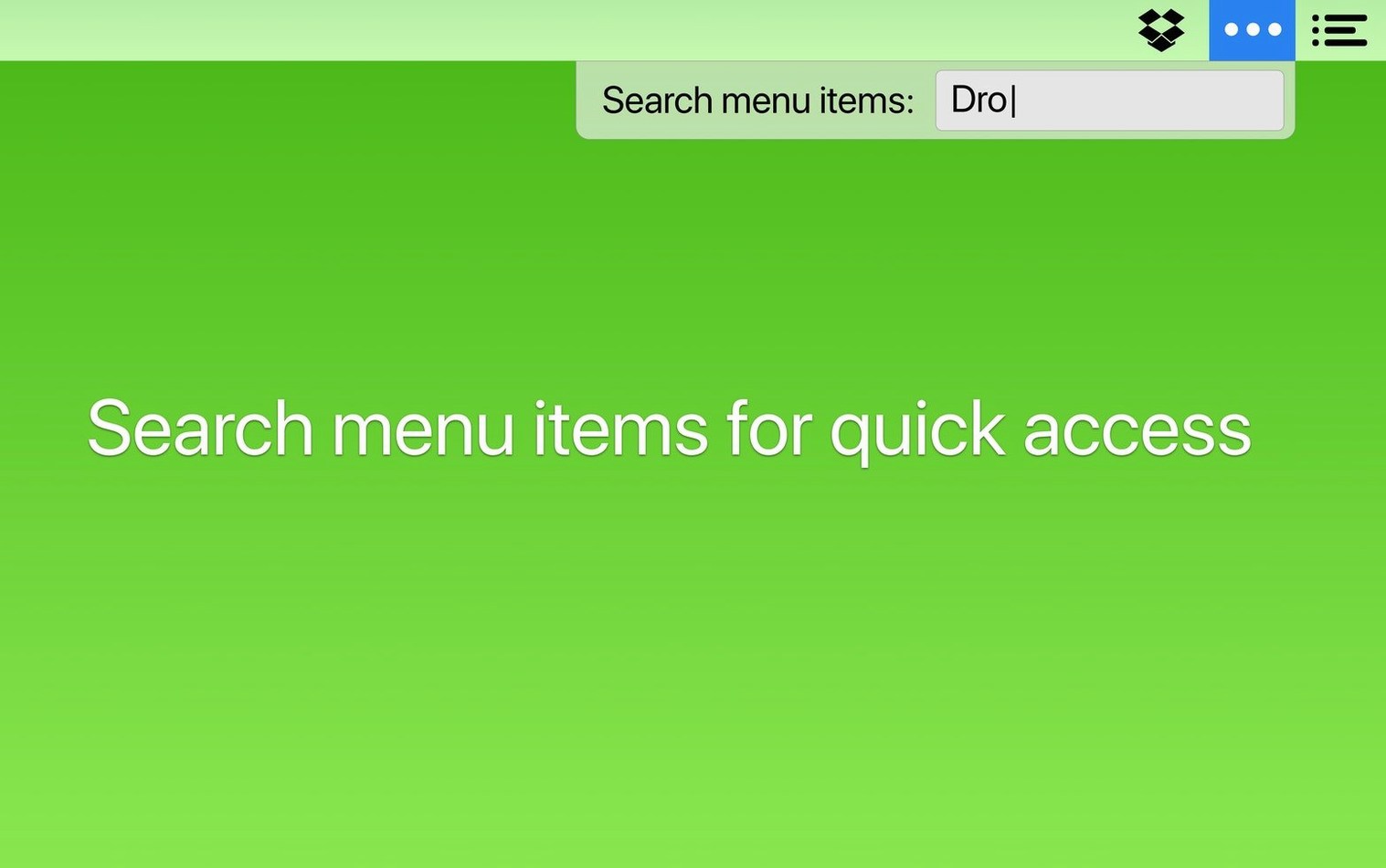
Version 7 rebuilt the app for macOS 27 and removed the screen recording permission requirement entirely, which quieted a privacy concern that came up whenever I recommended the tool to editors handling sensitive documentary footage. More practically, the mouse-free workflow matured. You can summon the Bartender Bar with a hotkey, navigate with arrow keys, and open any hidden item with Enter, which means I can check Dropbox sync status or toggle a VPN without lifting my hands from the keyboard during transcription passes. The Shortcuts actions arrived in this version too, letting you show or hide items, toggle the Bartender Bar, or switch trigger states from automations. The 7.0.4 update tightened the reliability of those triggers — before the fix, an item could occasionally fail to appear when called, which undercut the whole point of a conditional setup. Spacer stability after restarts became a quiet quality-of-life improvement that I stopped noticing after the first week, which is the best kind of fix.
Tie the bartender bar to a shortcut your fingers already know
The defaults are sensible but a few tweaks make the app feel like it was built for your specific setup. First, assign a keyboard shortcut for the Bartender Bar under the General tab — I use Control-Option-Space because it’s reachable with my left hand while my right stays on a trackball. Second, disable Bartender’s own menu bar icon once your triggers and hotkeys are dialled in; the app will still respond to the shortcut and launch via Spotlight, and the icon’s absence keeps the menu bar honest. Third, set up at least one app-based trigger under the Triggers pane to understand how the conditional logic works — pick an app you use daily and map a specific set of icons to appear only when it’s active. Fourth, adjust the spacing slider under Appearance to tighten or loosen the gap between icons; I prefer a few pixels of breathing room so icons don’t blur together when I’m scanning quickly. Fifth, if you use the Command Bar, set its activation shortcut to something distinct from the Bartender Bar hotkey so you don’t summon the wrong panel during a rushed moment. These five changes take under three minutes and they turn Bartender from a utility you tolerate into one you forget is even running.
- macOS 27 or later
- Runs on both Intel and Apple Silicon Macs
Questions from the booth
Yes, you can set Bartender’s own menu bar icon to stay hidden, leaving only the items you choose visible.