Version 6.726 sharpens the utility’s quieter edges—refined scripting hooks and gesture triggers that feel more immediate when you wire them into a late-night editing session. It’s the kind of update that doesn’t shout, but rewards you the third time a complex chain fires without hesitation.
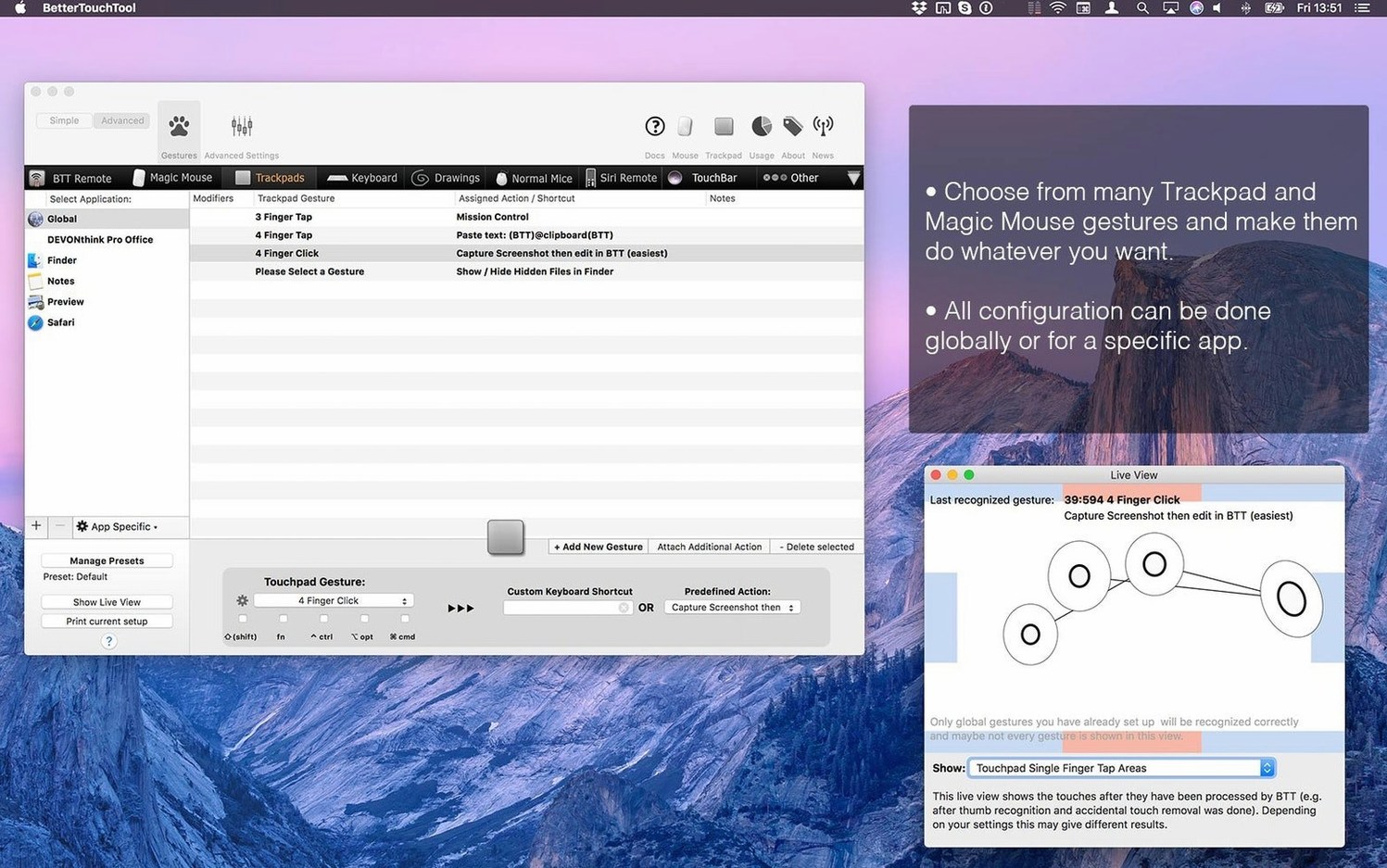
The core promise is simple: make any input device do more, and make it behave differently depending on which app is in front. A three-finger swipe can scrub a Logic Pro timeline, then turn into a tab switch in Arc. A corner click on a Magic Mouse might mute your mic in DaVinci Resolve, but summon Cinema 4D’s asset browser when you’re modelling. It runs on per-application rule sets, so a shortcut never bleeds where it doesn’t belong.
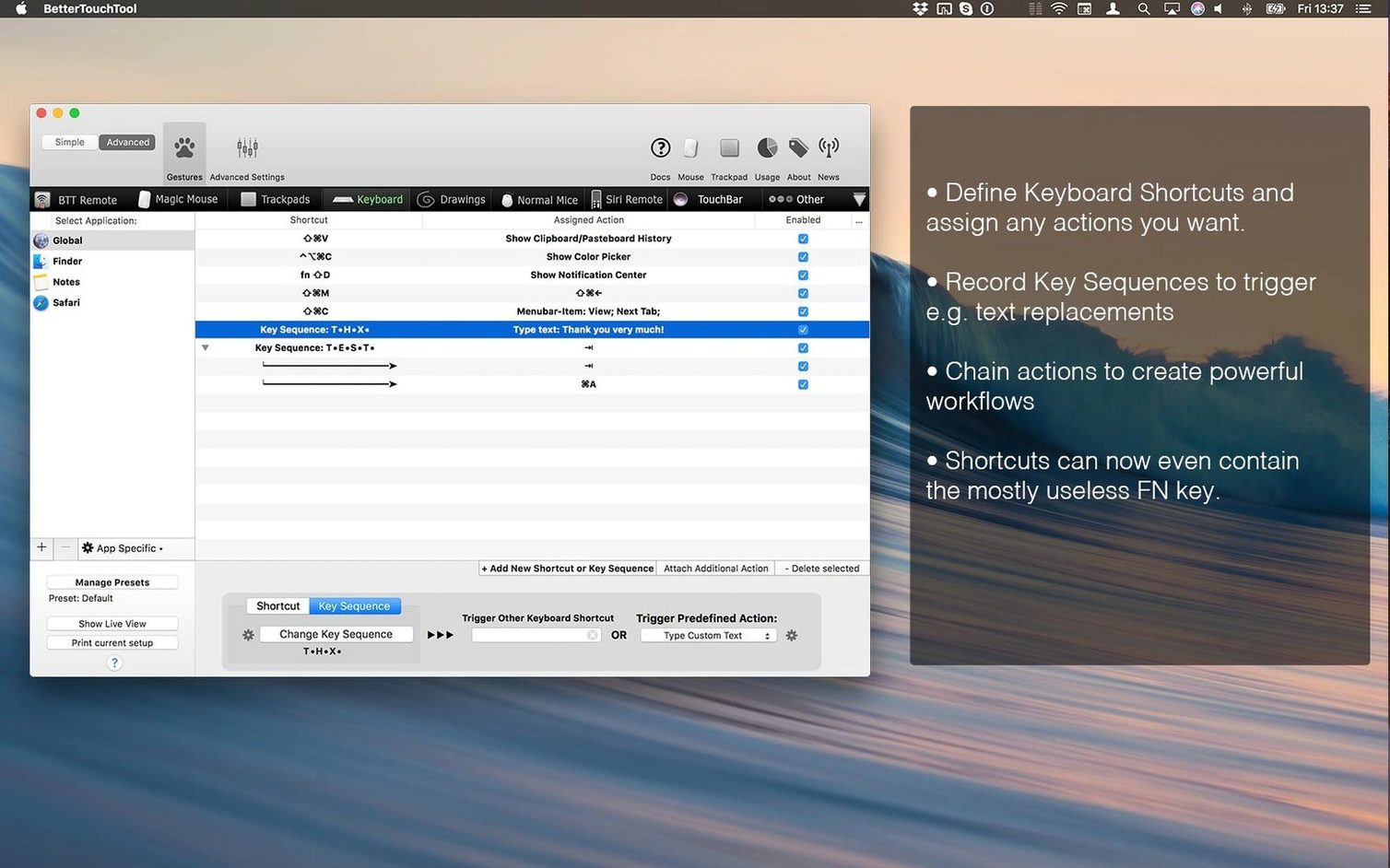
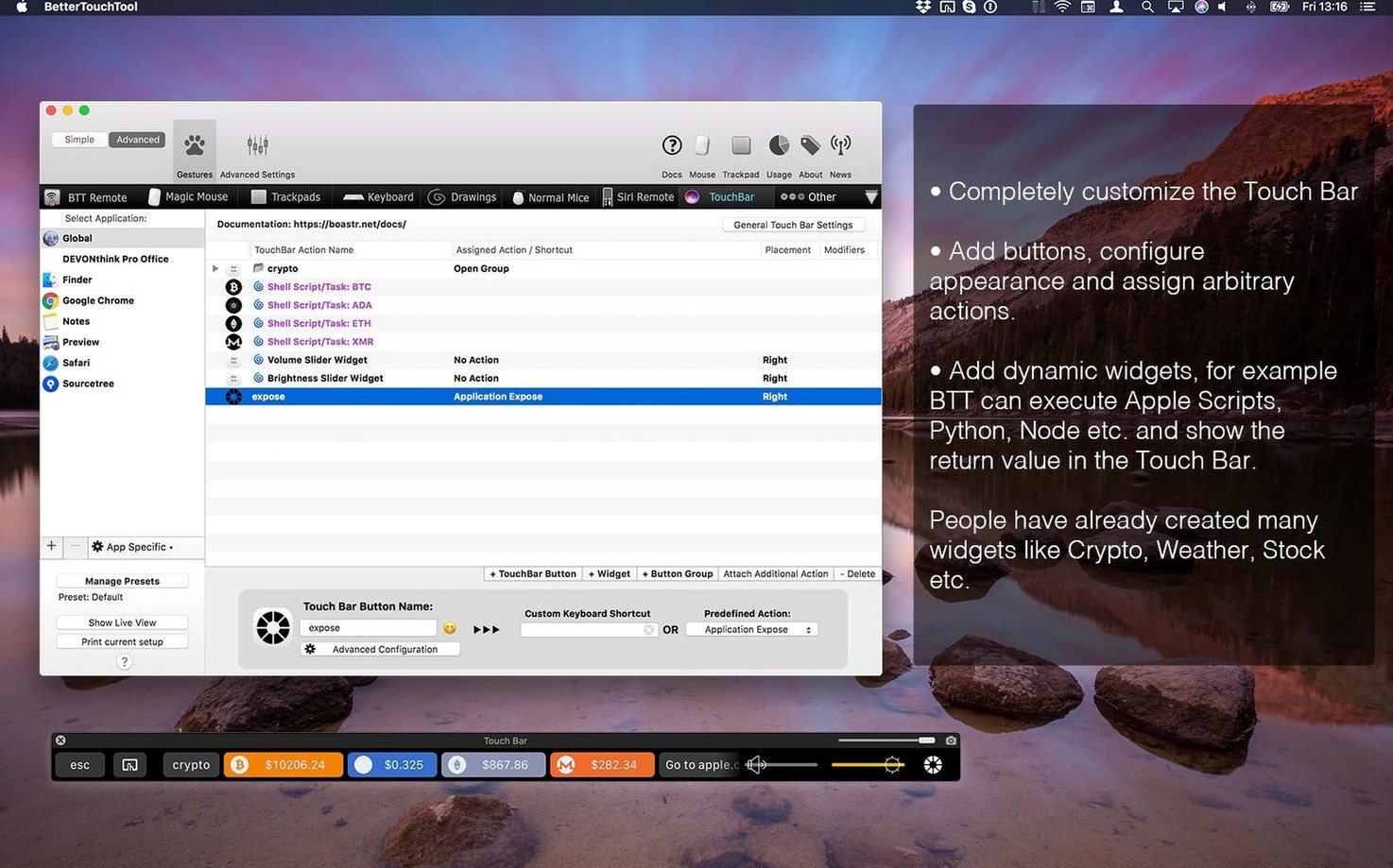
For the Touch Bar, it rebuilds what Apple left unfinished—custom widgets that trigger AppleScripts, fire HTTP requests, or call a named URL scheme. You can float a live CPU meter or a two-tap render kick-off right above the keyboard. The same scripting layer extends to keyboard shortcuts and remote controls, including the Siri Remote, letting a single button press ripple across several apps at once. That’s where it stops feeling like a utility and starts feeling like a quiet co-pilot on set.
Three-finger force click opens my colour pass before I even sit down
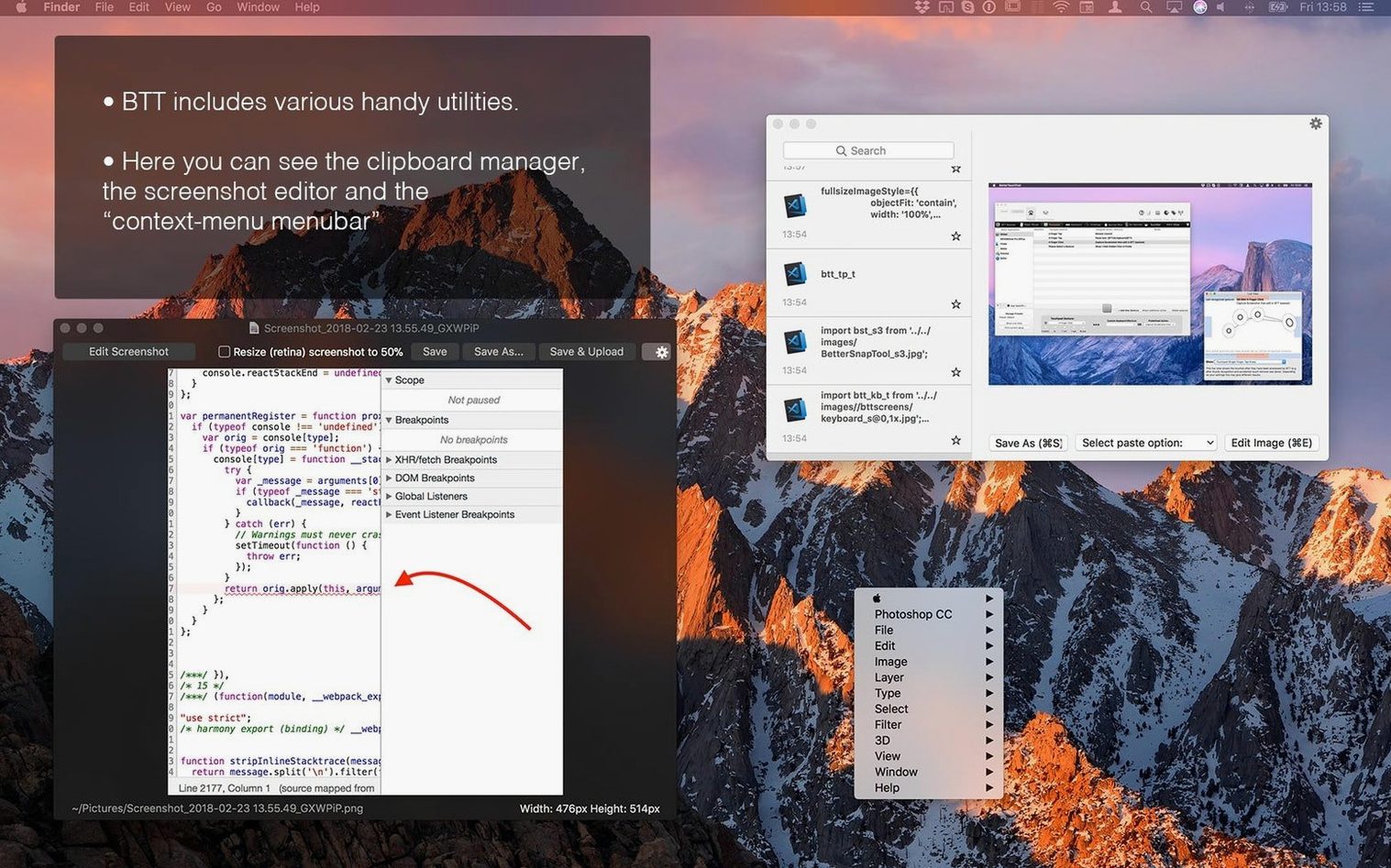
I open the apartment door at half past eleven, drop my bag by the desk, and wake the Mac. Resolve is already open from yesterday’s colour pass, but the first thing I reach for isn’t a timeline—it’s a three-finger force click on the trackpad. BetterTouchTool catches it and fires a named clipboard stack, pasting the timecode notes my editor sent while I was out. No hunting through Messages, no breaking flow. The gesture is mapped globally, but the clipboard manager itself lives quietly in the menu bar, holding the last forty items I copied.
A two-finger tip-tap in the top-left corner of the trackpad pulls up the screenshot tool. I grab a frame from the timeline, scribble a circle around a blown highlight with the on-the-fly annotation, and drag the result straight into a Discord thread. The whole thing takes maybe eight seconds. Before BetterTouchTool, I’d have exported a still, opened Preview, marked it up, saved it, and attached it. Now the tool just floats above whatever I’m doing, waiting for the gesture that calls it.
Mid-afternoon, I switch to Logic to spot-check a cue. The moment Logic becomes the frontmost app, my trackpad remaps itself: a four-finger swipe left scrubs backward by two bars, a four-finger swipe right scrubs forward. A five-finger pinch toggles cycle mode. These are per-app rules I set up months ago and haven’t touched since. They only exist inside Logic, so when I tab back to Finder, the same gestures do something else entirely—or nothing, if I’ve left them unassigned for that context. That quiet intelligence is what makes a session feel less like operating software and more like handling tools.
Evening lands and I’m storyboarding in Illustrator. The Magic Mouse picks up a tip-tap on its left edge, mapped to “undo.” A two-finger swipe down triggers “save.” These aren’t system gestures—they’re custom drawings I taught the app to recognise, little arcs and taps that feel like muscle memory now. By the time I close the lid at one in the morning, I’ve barely touched the keyboard except to type names and numbers. The Mac bent itself around the work, not the other way around.
The GPU stays cool while it idles at a few hundred megabytes
Will it slow the system down when I’m already pushing the GPU? The app idles politely. On an M1 Max or M2 Pro machine, its background footprint rarely climbs above a few hundred megabytes of RAM, and it throttles its event polling when a foreground app demands full attention. I’ve had it running during a 4K render with no dropped frames and no beachballs. If you’re on an Intel Mac that’s already thermal-throttling, you might notice a whisper of extra CPU when complex scripts fire, but it’s negligible next to the weight of a modern browser.
Do I have to configure everything from scratch? There’s a library of community presets that ship with the download, covering common gestures for apps like Logic, Final Cut, Photoshop, and Safari. You can import one, tweak two or three triggers to match your own habits, and be functional in ten minutes. The real depth comes later, when you start chaining actions or writing tiny AppleScripts that live inside Touch Bar buttons.
Is the Touch Bar support still worth it on newer Macs? If you’re on a MacBook Pro that still has the Touch Bar, this transforms it from a volume slider into a command deck. On machines without one, the same widget-building tools feed into the on-screen virtual Touch Bar or into menu bar buttons. The scripting layer doesn’t care which surface you trigger it from.
Can it replace my clipboard manager or screenshot tool entirely? For lightweight use, yes. The clipboard manager holds text, images, and file references, and it searches quickly with a keystroke. The screenshot tool handles annotations and drag-to-share. If you need cloud sync or OCR, you’ll still want a dedicated app, but for the kind of quick-fire copying and sharing that fills a filmmaker’s day, the built-in tools cover the ground without adding another menu bar icon.
Workflow: building a custom render-queue trigger for DaVinci Resolve
Here’s a task I actually set up last winter when I was finishing a short and tired of mousing through Resolve’s Deliver page. The goal: a single gesture that opens the Deliver tab, selects a preset, and starts the render. No code knowledge needed beyond copying a few menu names.
First, I created a new per-app rule for DaVinci Resolve inside BetterTouchTool’s preferences. I assigned the trigger to a five-finger force click on the trackpad—something I’d never hit by accident. The action chain started with a keyboard shortcut that Resolve already understands: Cmd-Shift-D to jump to the Deliver page. Next, I added a short delay of 0.3 seconds to let the UI settle, then a sequence of keystrokes that navigated the preset dropdown: Tab, Down Arrow twice (to reach my custom “Festival DCP” preset), Enter. Finally, a single keystroke—Cmd-Enter—that fires the “Add to Render Queue and Start” command. One gesture, three sequenced actions, and the render begins while I’m already reaching for my water bottle.
The beauty is that the same gesture does nothing outside Resolve. Inside Resolve, it only works when I’m on certain pages, because I added a condition that checks the window title for “DaVinci Resolve.” If I accidentally trigger it on the Cut page, the shortcut chain just fails silently and nothing breaks. That restraint—the ability to scope a trigger tightly—keeps a complex gesture from becoming a liability.
Turn on the translucent finger visualiser before teaching any new gesture
The first checkbox I look for after a fresh install is “Show live view for gesture configuration.” It overlays a small translucent panel that visualises your fingers in real time, so when you’re teaching the app a new tap or swipe, you can see exactly what it’s reading. No more guessing whether a five-finger spread registered as four. It’s tucked away in the trackpad settings, and I leave it on for the first week until the muscle memory settles.
Next, I visit the “General Actions” tab and assign a global shortcut to toggle BetterTouchTool’s gesture recognition on and off. There are moments—screen sharing during a call, handing the laptop to a client—when I don’t want my custom gestures firing. A quick Cmd-Option-Ctrl-B suspends everything until I hit it again. It’s a safety net that costs one key combo to set up.
Under the clipboard manager settings, I raise the history depth to fifty items and enable “Paste as plain text with a modifier.” That lets me strip formatting on the fly by holding Shift when I pick an item from the popover. For a filmmaker who copies between Final Draft, script notes, and email, plain-text pasting saves a dozen little formatting headaches a week.
Finally, I head into the screenshot tool preferences and change the default save location to a “Frames” folder inside my current project directory. The tool remembers the path per app, so when I’m in Resolve it saves to the film’s stills folder, and when I’m in Safari it drops to the desktop. One less file to hunt down later.
Karabiner remaps keys but never reaches the trackpad or Touch Bar
Karabiner-Elements handles keyboard remapping with surgical precision, and for pure key-level modifications—swapping caps lock to escape, turning a spare function key into a hyper modifier—it’s more focused than BetterTouchTool. But Karabiner doesn’t touch gestures, the Touch Bar, or the clipboard. You can’t teach it a trackpad drawing or sequence a chain of actions across applications. It does one layer brilliantly, and BetterTouchTool covers the other six.
Hammerspoon gives you Lua scripting and absolute control over window management, menubar items, and system events. It’s the choice for people who think in code and want to write their own automation engine. BetterTouchTool borrows some of that spirit with its AppleScript and URL scheme hooks, but wraps it in a graphical rule builder. The trade-off is that Hammerspoon can do things BetterTouchTool can’t—like reading system sensors or programmatically rearranging spaces—while BetterTouchTool offers gesture recording and a Touch Bar widget editor that require no scripting at all.
Swish focuses on one thing: window management through trackpad gestures on top of window title bars. It’s elegant, minimal, and feels native. BetterTouchTool does window snapping too, but with broader gesture vocabulary and per-app contexts. If all you want is to flick a window into a half-screen tile with two fingers, Swish feels more immediate. If you want that same two-finger flick to do different things in Finder, Logic, and Blender, BetterTouchTool is the tool you keep.
- macOS 10.15 or later
- Apple Silicon or Intel Mac
- English interface
Questions from the booth
Yes, it operates on per-application rule sets, so the same trackpad gesture or keyboard shortcut can perform entirely different actions depending on which application is active.
It integrates with AppleScript, custom URL schemes, and HTTP requests, allowing you to build widgets and actions that can trigger complex system events or communicate with web services.