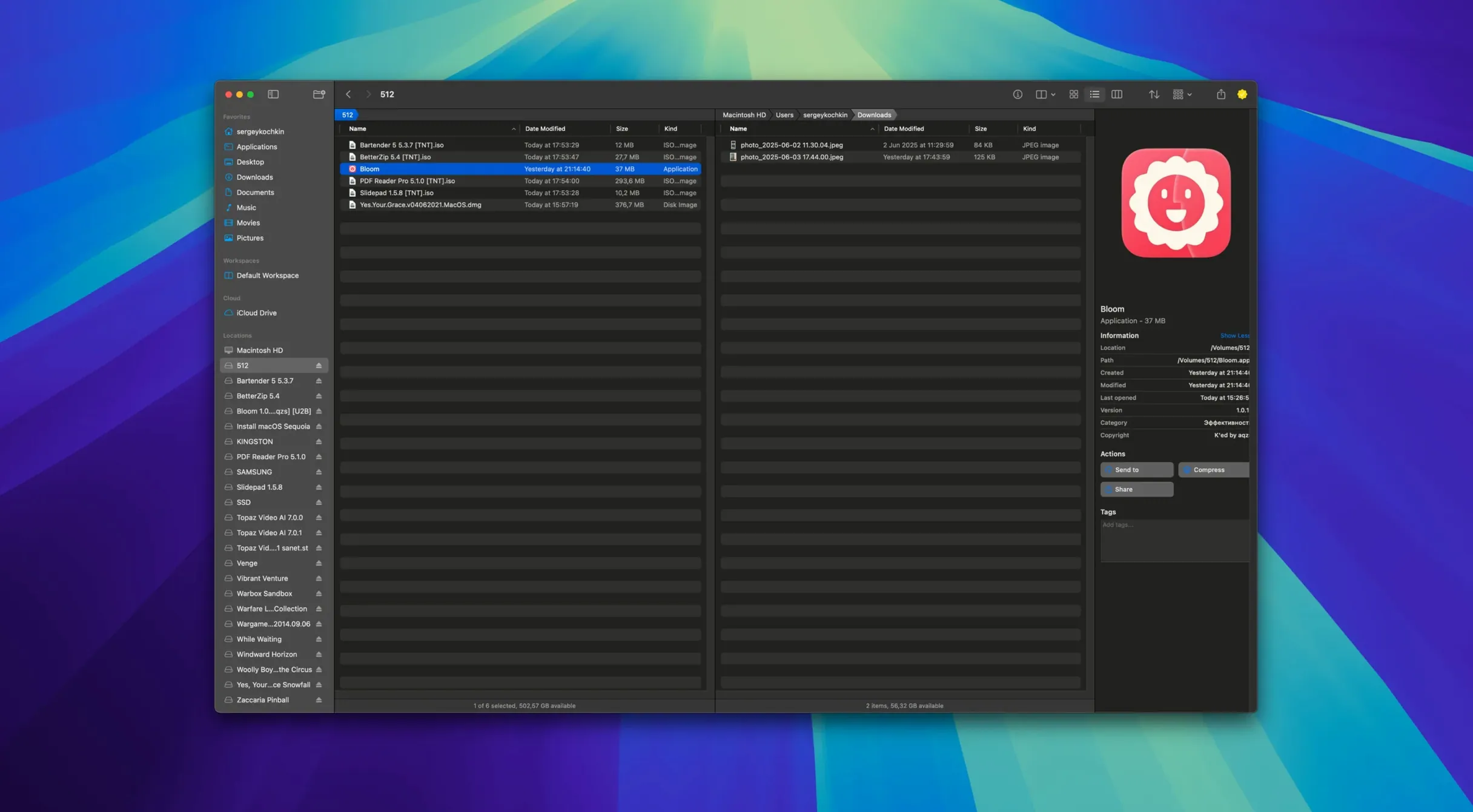
Version 1.5.42 is a maintenance release that tightens stability across Apple Silicon and Intel Macs running macOS 14 or later—no new feature flags, just a more settled foundation for the kind of file work Finder was never built to handle.
How does searching inside a single folder work?
Select any folder and press ⌘F. Bloom scopes the search to that location immediately, rather than forcing a system-wide hunt. If results feel stale—say you just dropped in new exports—⌘R refreshes them against the current disk state.
Where do tags fit into a daily workflow?
Bloom’s tag manager lets you assign and filter by tags without the overhead Finder layers on. It’s practical when you’re assembling selects from a shoot or grouping assets across scattered drives—the colour and name conventions stay responsive, not sluggish.
What file actions replace a trip to another app?
Right inside the workspace you can convert and optimize images, preview text, PDFs, and images under 10 MB, or insert an image directly from a URL. These aren’t replacements for a full editor, but they cut out the round-trip to Preview or a browser when you’re just checking or repurposing files.
Where Bloom fits with other apps and macOS features
Bloom doesn’t ask you to abandon Finder—it just takes over the moments Finder fumbles. You can keep dragging things to the Trash the old way, but when you need to batch-rename forty location-scouting photos with a regex pattern that strips GPS metadata from filenames, you reach for Bloom instead. The app respects iCloud Drive natively, so folders synced across devices appear with the same structure you expect, and tagging done inside Bloom persists in Spotlight searches elsewhere.
Terminal users get a small bridge worth knowing about: select a folder and Bloom can launch a shell session right there, inheriting the working directory. That saves the cd dance when a quick script or ffmpeg command is the next logical step after browsing. For image-heavy workflows, Bloom’s convert-and-optimize tools sit comfortably between a raw Finder copy and firing up something heavier—resize a batch of storyboard frames to reference resolution without opening Pixelmator or Preview, then jump straight into DaVinci Resolve with the results already where you expect them.
What’s less obvious is how Portal mode plays with window managers and stage manager. Pin the compact Portal window above a script in Highland 2 or a timeline in Final Cut, and you have a persistent file browser that doesn’t steal focus when you click back into your main tool. Dock it to the screen edge and it behaves almost like a drawer—the kind of spatial affordance macOS used to lean on more heavily.
⌘F searches the selected folder, not everywhere
The most common stumble is treating search like a Finder Spotlight query. In Bloom, ⌘F searches inside the selected folder, not system-wide. New users type a filename, see nothing, and assume the index is broken—when actually they’re sitting one folder above the target. The fix is muscle memory: check the breadcrumb bar before you hit the shortcut.
Another quiet trap: the preview pane loads files under 10 MB automatically, but people sometimes open a directory of raw camera footage and wonder why nothing appears. Bloom isn’t a media player—it skips what it can’t preview, and it does so silently. If you need a quick look at a large file, you still want Quick Look (spacebar), which Bloom passes through without interference.
Beginners also overlook the undo ledger. Bloom records each file operation—moves, renames, deletions—so you can step back through mistakes individually rather than hoping Time Machine caught the right snapshot. But the ledger clears between sessions, which catches people who close the app before realizing they renamed the wrong folder. If something feels off, undo before you quit.
One more: the task scheduler can queue file operations for off-hours, but scheduling a move and then manually moving the same files beforehand creates conflicts that Bloom resolves by cancellation. It won’t warn you proactively—the scheduled task simply fails, and the notification is easy to miss if you’ve already walked away.
A real-world workflow: organizing dailies from an external drive
Picture this: you return from a weekend shoot with a portable SSD full of footage spread across three camera cards, each dumped into its own folder. The goal is to consolidate selects, rename them with scene and take numbers, tag the keepers, and archive everything to an iCloud-synced project folder—all before importing into your NLE.
Start in Bloom’s main workspace with the external drive visible in the sidebar. Open the first card folder and press ⌘F to search for all .mov files inside it—Bloom scopes the search without wandering into system volumes. Sort the results by duration or frame rate using the column headers, then drag the promising clips into a new “Selects” folder on your internal drive. Repeat for each card.
Now open the Selects folder. Select all files and invoke the advanced renamer. Use a regex pattern like S(\d+)_T(\d+)_(\d{6}) to restructure camera-generated names into Scene-$1_Take-$2_$3.mov. Preview the result in the rename panel before committing—Bloom shows exactly what each filename becomes, so a malformed pattern is obvious before damage is done.
With the files named, tag the wide shots in blue and the close-ups in orange using the tag manager. These tags will follow the files into Finder and Spotlight, so your assistant editor can filter by colour in their own workflow later. Finally, run an image conversion on any reference stills you grabbed alongside the footage—downsize them to 1920 px wide for the script supervisor’s notes, outputting JPEGs beside the originals. Move the entire Selects folder to your iCloud Drive project directory and let syncing handle distribution. The whole sequence, from card to organized folder, stays in one window.
⌘⇧⏎ jumps to any system location instantly
⌘⇧⏎ is the first thing to memorize. No matter where you are in Bloom’s file tree, this shortcut jumps you to a system location—Desktop, Downloads, Documents, or any custom path you configure—instantly. It’s faster than clicking through the sidebar and becomes reflexive within a day.
Automatic column resizing is on by default, but if you’ve ever manually dragged a column width and broken the layout, double-clicking the column divider resets it to fit the longest visible filename. Works silently, isn’t documented in any tooltip.
The treemap view for folder scanning hides in the disk usage panel and is easy to miss entirely. Open it on a cluttered drive and Bloom renders nested rectangles proportional to file size, making it trivial to spot which project folder is bloated with uncompressed audio you forgot to clean up. Click any rectangle to jump directly to that location—no drilling through directories by guesswork.
Archive preview requires no extraction and no third-party tool. Select a .zip or .tar.gz file and Bloom shows its contents inline, same as a regular folder. For quick checks—did the sound designer include the stems?—this saves a round-trip to the Unarchiver or a Terminal tar -tzf command.
Creating new file types from the context menu is quieter than it sounds: right-click in any folder and Bloom offers to generate a blank text file, a rich text document, or a few other formats without opening an app. When you’re scaffolding a project folder structure and just need placeholder files to mark where deliverables will land, it’s a surprisingly fluid shortcut.
- macOS 14 or later
- Apple Silicon or Intel 64-bit