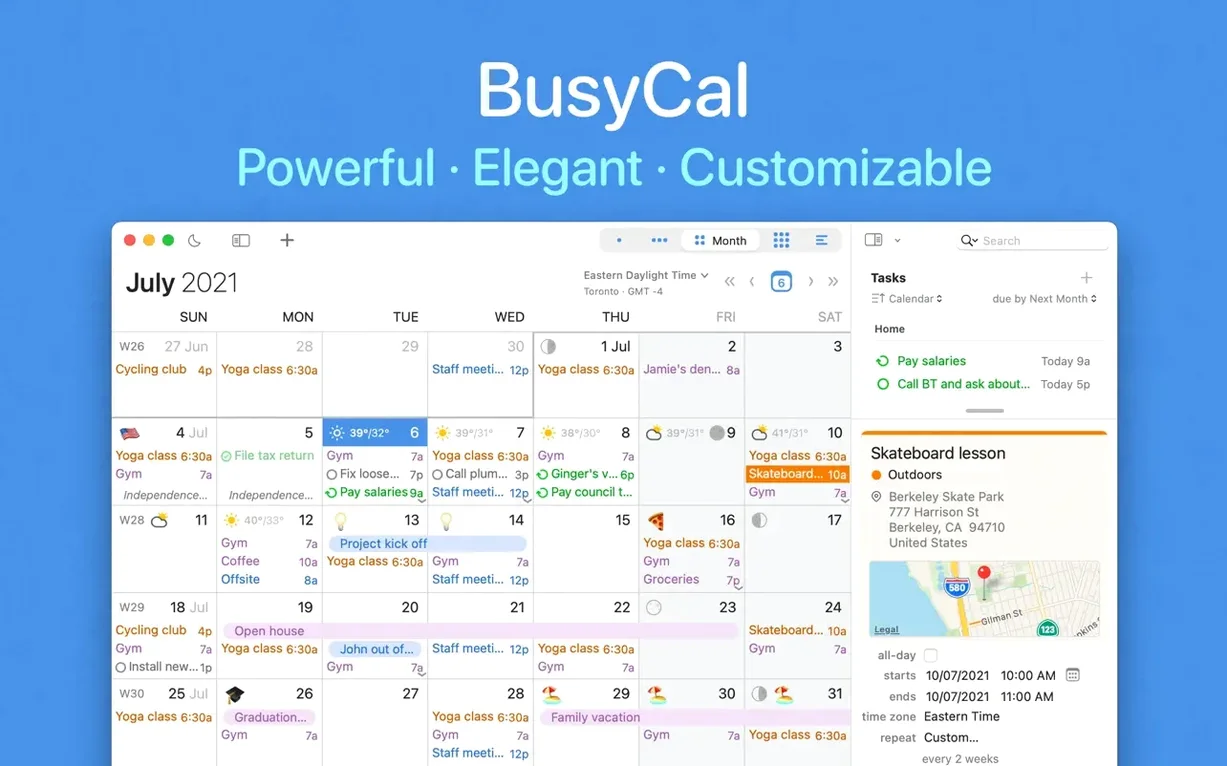
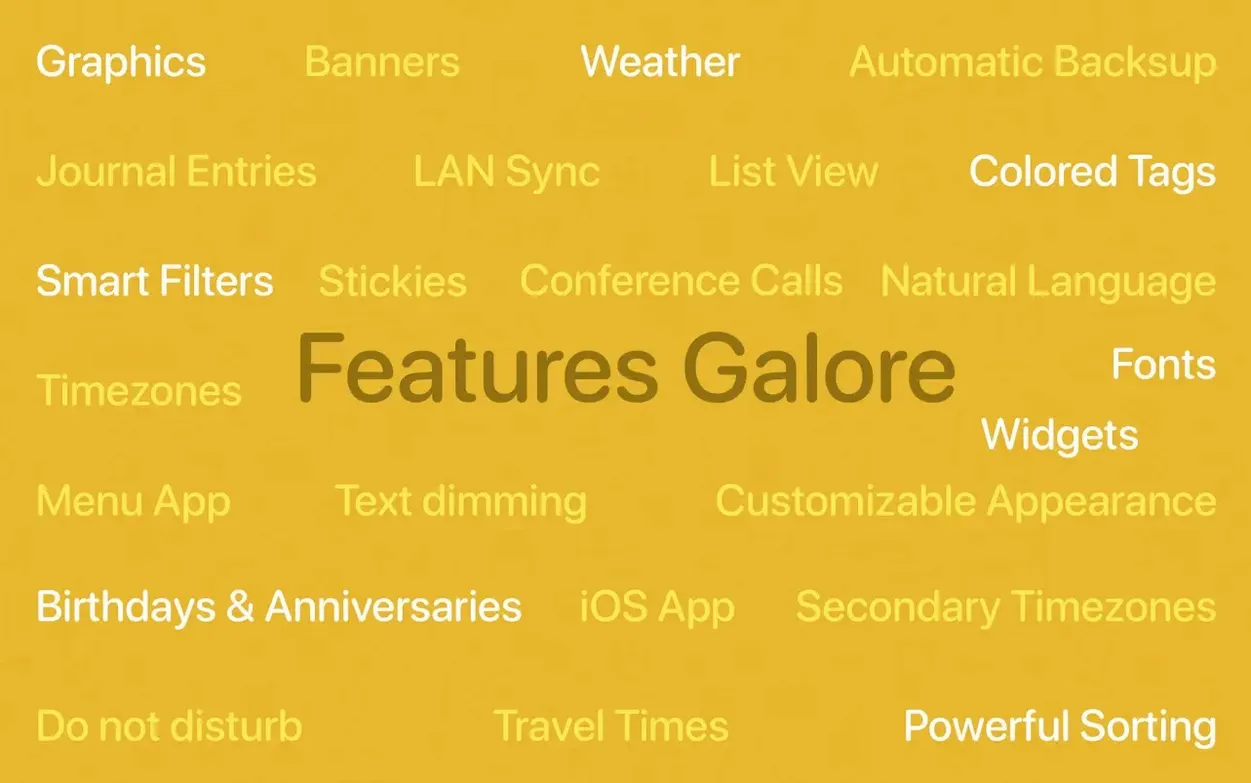
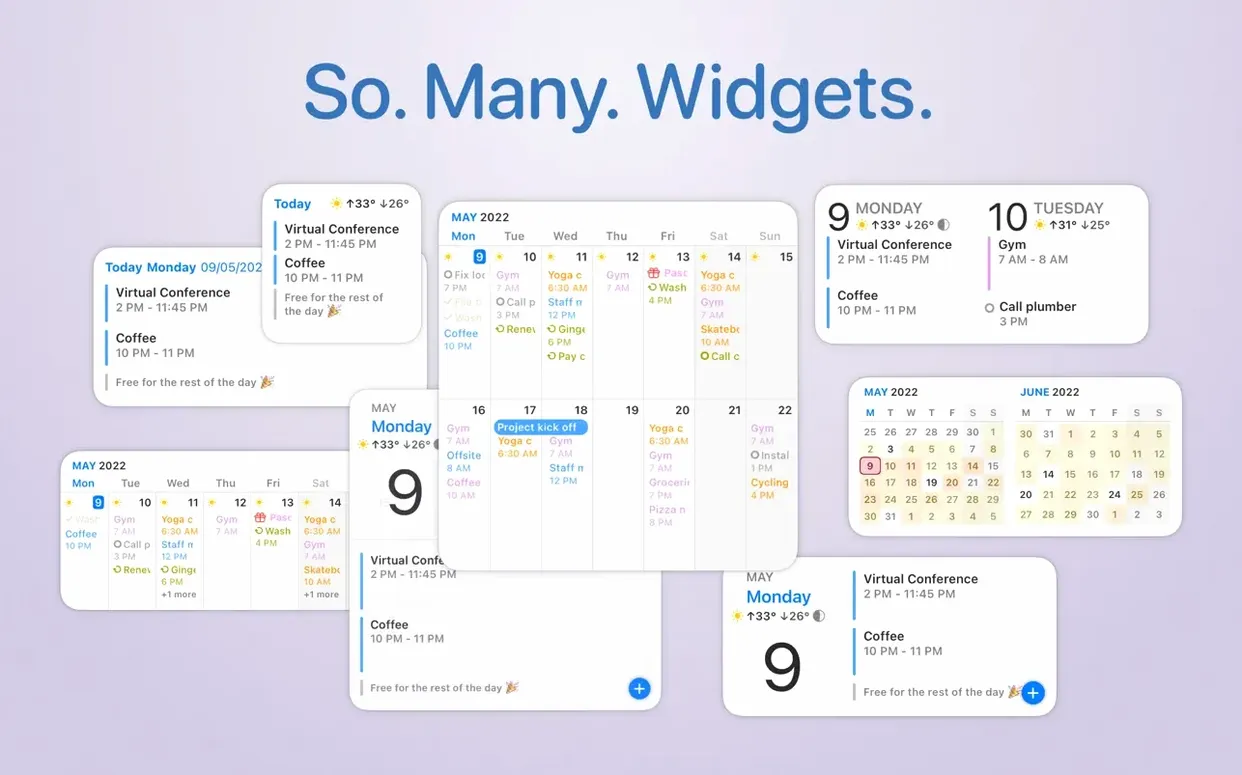
BusyCal is a calendar and task management app for macOS that stretches beyond what the built-in Calendar and Reminders offer, layering smart lists, natural language entry, and a customizable info panel onto the familiar month and week views. The current release sharpens some of those layers without rewriting the core experience. A new Task list font setting lives in Appearance > Fonts, giving you finer control over how your to-dos read alongside your appointments. The Info Panel can now disappear automatically when nothing is selected, clearing the right side of the window for a cleaner look at your week. Find and Replace takes a quiet leap forward with regular expression support, including capture groups and backreferences, so bulk-editing event titles or notes feels less like clerical work and more like a well-placed keyboard shortcut. Google Calendar users gain access to the expanded colour palette and custom event colours, and a Russian localization arrives for the interface. Underneath, the app still runs natively on both Apple Silicon and Intel Macs, asking only for macOS 13 or later.
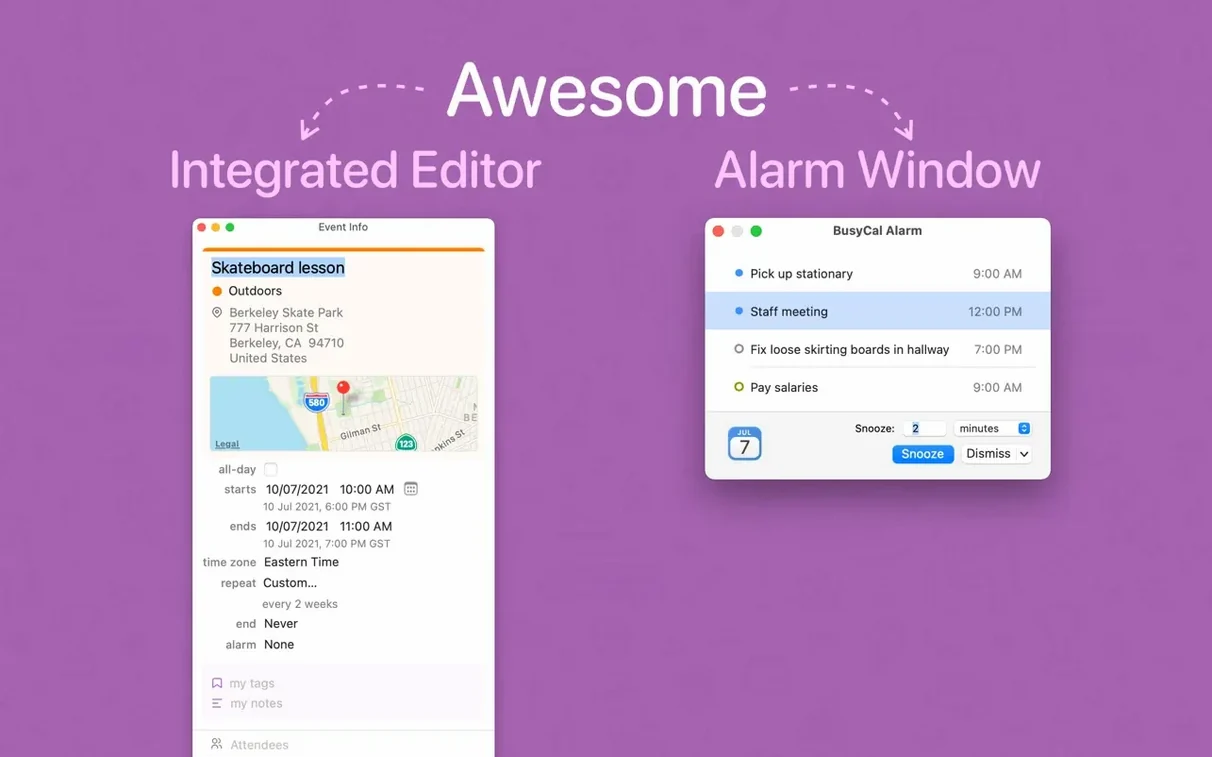
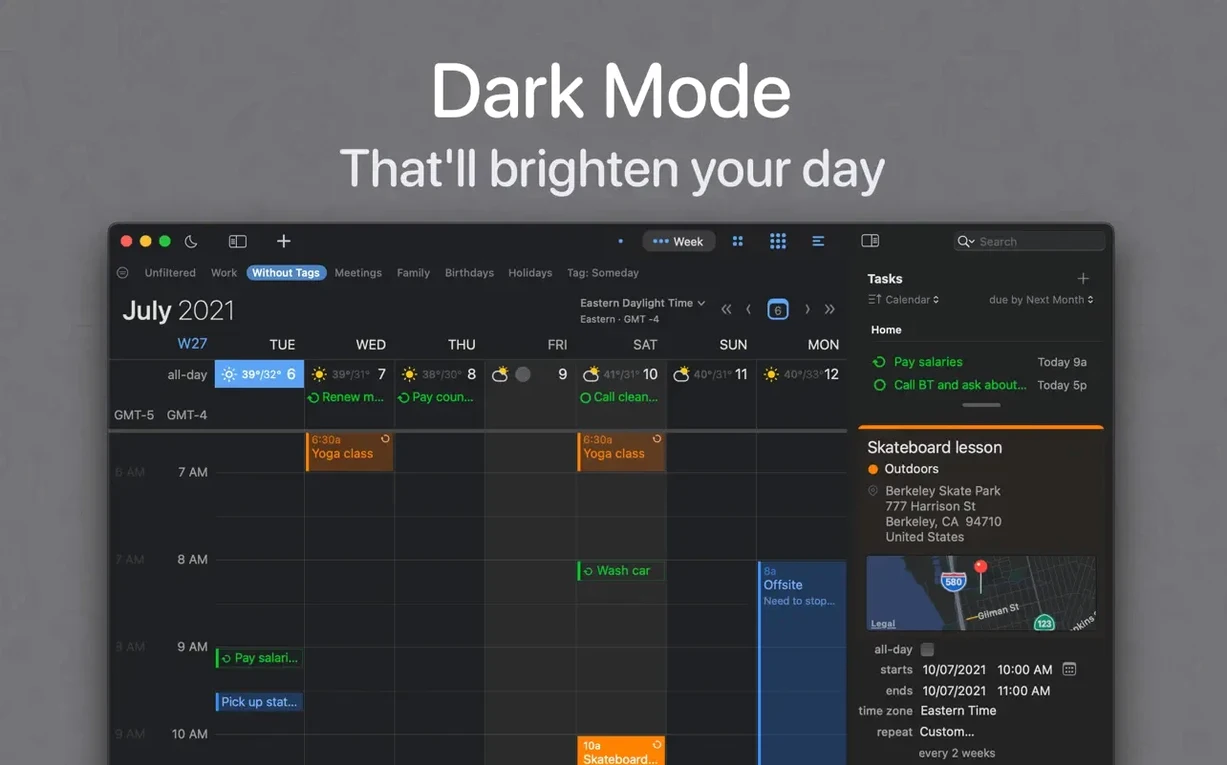
Your first week with BusyCal tends to be the moment you decide whether it becomes a permanent dock resident or gets filed away as an interesting but overbuilt alternative. The difference often comes down to a few early adjustments. Let the Info Panel hide itself when nothing is selected — the checkbox is in Preferences > Appearance, and it keeps the window from feeling cluttered before you've even started building your calendar habit. Then visit the Alarms pane and set your default alert. BusyCal ships with a generous lead time on new events, and dialling that back to something that actually matches your day — ten minutes for most, an hour for the occasional cross-town meeting — prevents the app from feeling like it's nagging you for no reason.
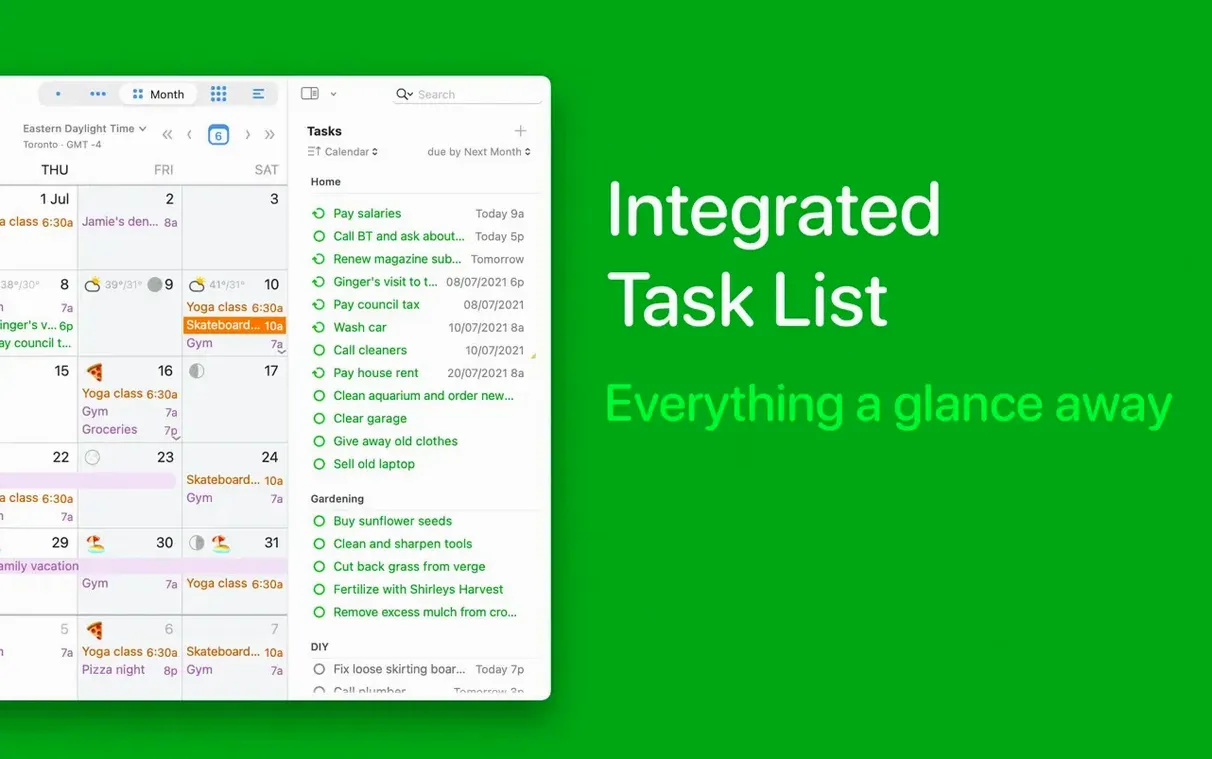
Set a separate font for tasks to visually split reminders from events
Beyond the Info Panel and alarm defaults, a handful of quieter settings shape how the app feels in daily use. In Appearance > Fonts, the new Task list font setting lets you separate the typography of your reminders from your calendar grid — useful if you scan tasks in a narrower sidebar and want something compact without shrinking your event text. Head to General and turn on natural language input if it isn't already active; typing "lunch Thursday 1pm at Riviera" into the quick-entry field and watching BusyCal parse it correctly removes more friction than you'd expect. Finally, if you work across multiple accounts, open the Accounts preferences and assign distinct colours per calendar source. BusyCal respects the expanded Google Calendar palette now, so you can drop those pale default blues in favour of something that actually helps you tell your work schedule from your household reminders at a glance.
Freelancers juggling client calls and project deadlines across calendars
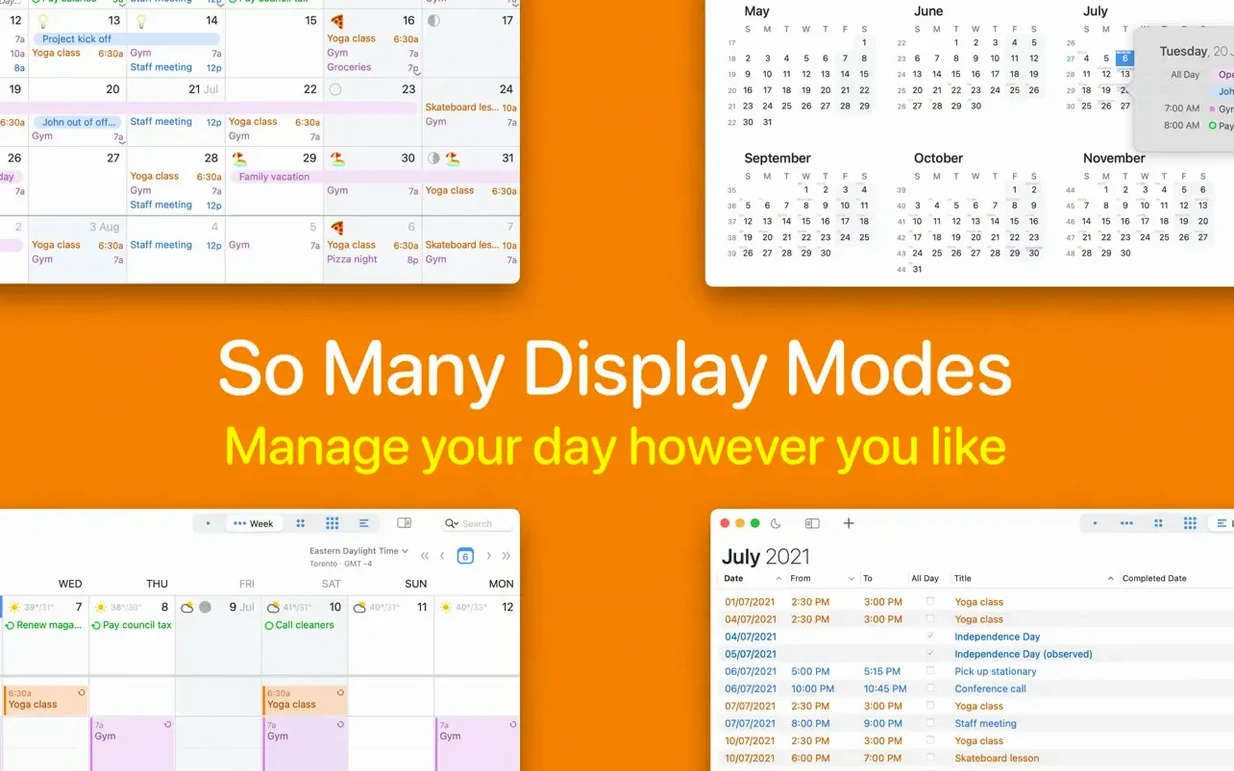
BusyCal for Mac makes the most sense for people who already live in their calendar and feel the edges of what Apple's built-in apps can do. Freelancers and independent creatives who juggle client calls, project deadlines, and personal commitments across multiple Google and iCloud accounts tend to notice the difference first — the unified sidebar, custom list views, and smart filters turn a flat list of events into something you can actually triage. Anyone who relies heavily on repeating events with irregular patterns will appreciate the more flexible recurrence rules. Researchers and writers who use dated notes alongside appointments often gravitate toward BusyCal macos workflows because the task integration sits in the same pane as the calendar, not in a separate app you have to switch to. It rewards users who are willing to spend thirty minutes customizing views, fonts, and display rules — and then mostly get out of the way.
The latest version adds a Russian localization, expanded Google Calendar palette and custom event colour support, a new Task list font setting in Appearance > Fonts, an option to hide the Info Panel when nothing is selected, and Find and Replace with regular expression support including capture groups and backreferences.
- macOS 13 or later
- Apple Silicon and Intel (x86-64) support