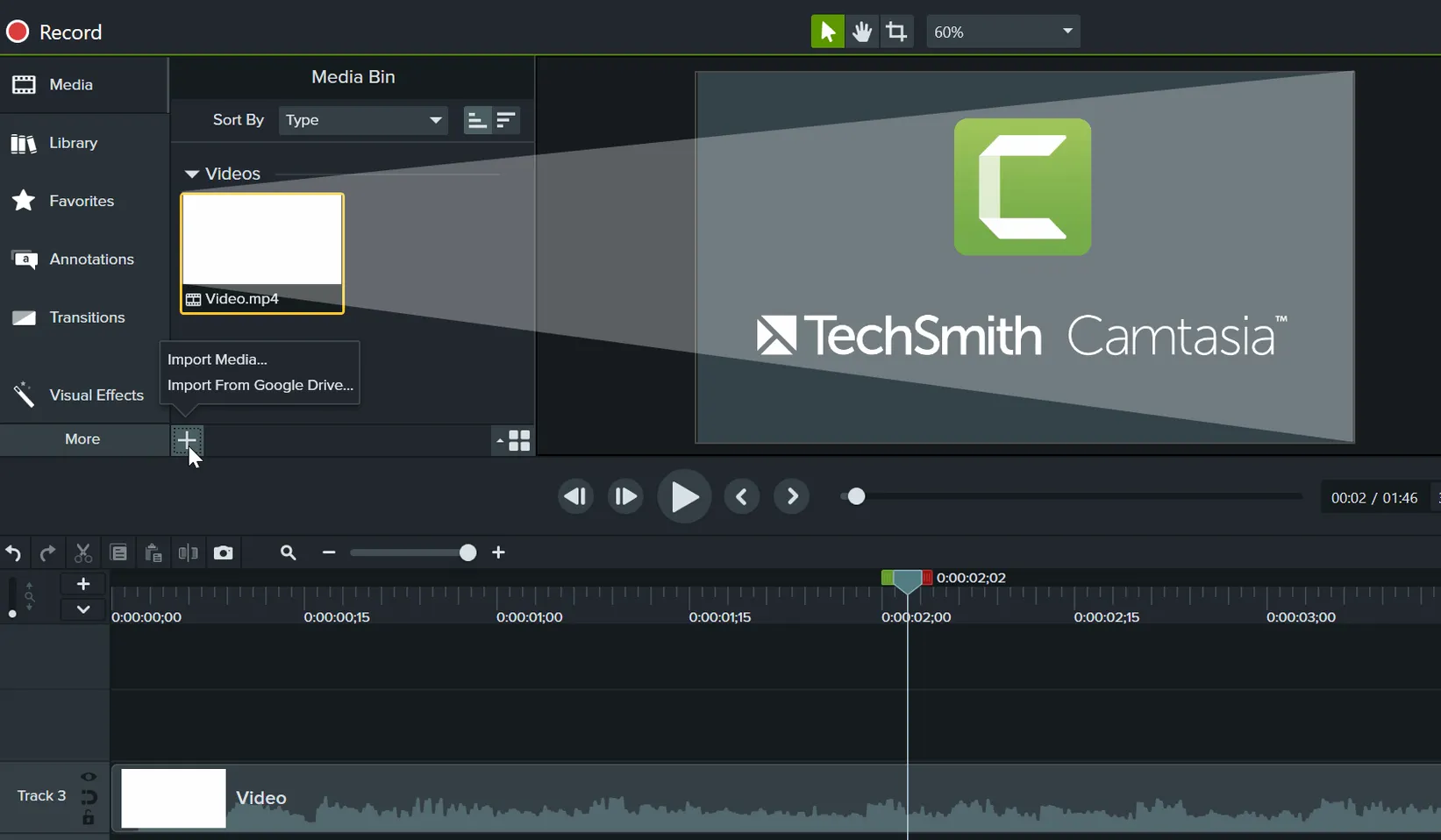
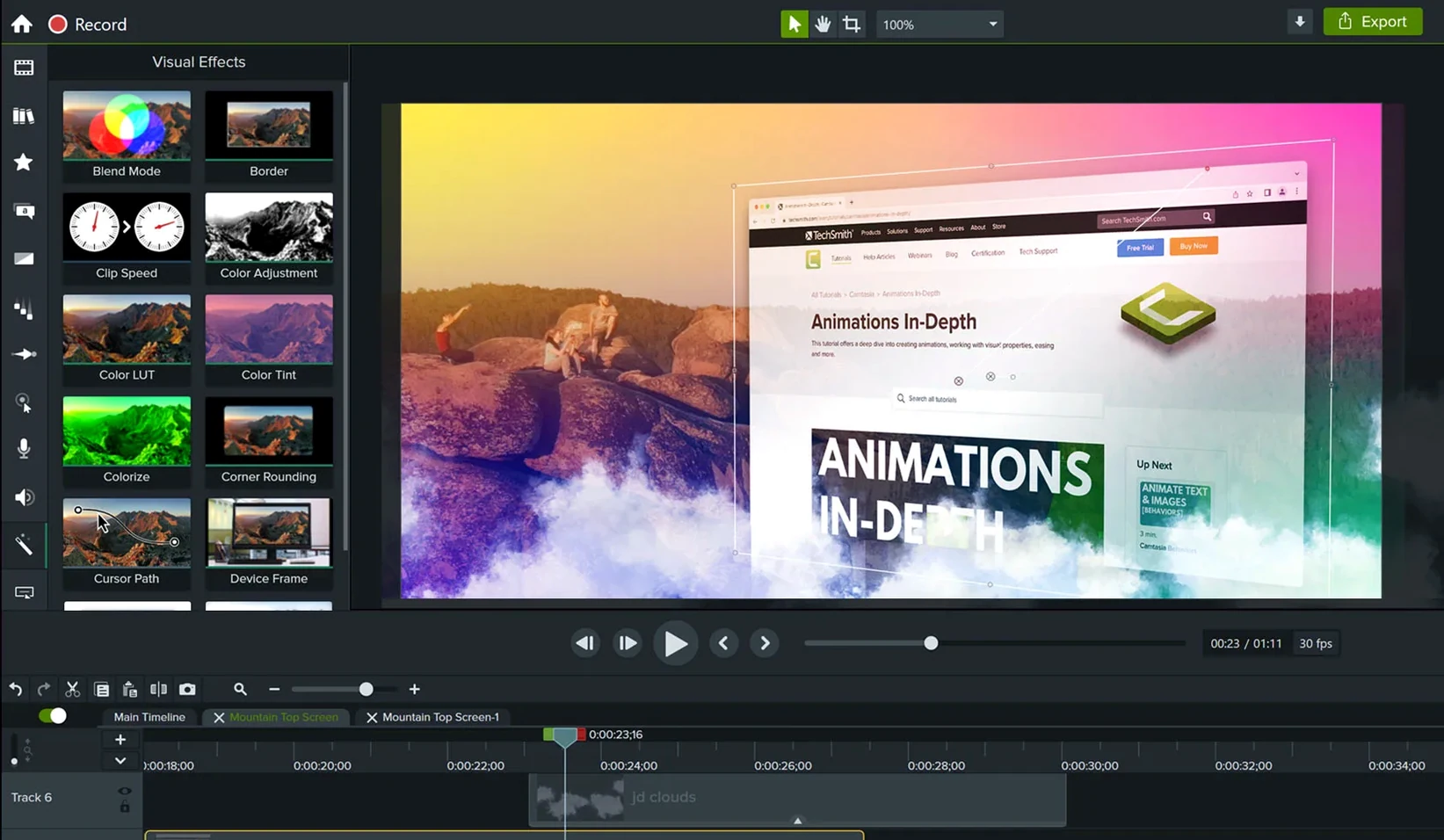
If you’ve spent time in QuickTime Player’s screen recorder, you know the drill: it captures the pixels, but the moment you need to trim a flubbed take or blend in a title card, you’re reaching for another app. TechSmith Camtasia closes that gap. It’s a screen recorder and a video editor folded into one workspace, available on both Mac and Windows, and the interface speaks English, German, Spanish, Simplified Chinese, French, Portuguese, or Japanese. The Mac build asks for macOS 13 or later, and it arrives with a shelf of ready-made templates so a software walkthrough or a presentation doesn’t have to start from a blank timeline.
That crash-on-wake bug is finally gone
- A crash that could interrupt startup or derail an export has been fixed
- Miscellaneous bug fixes and small improvements keep the editing flow steady
The rhythm that stayed the same
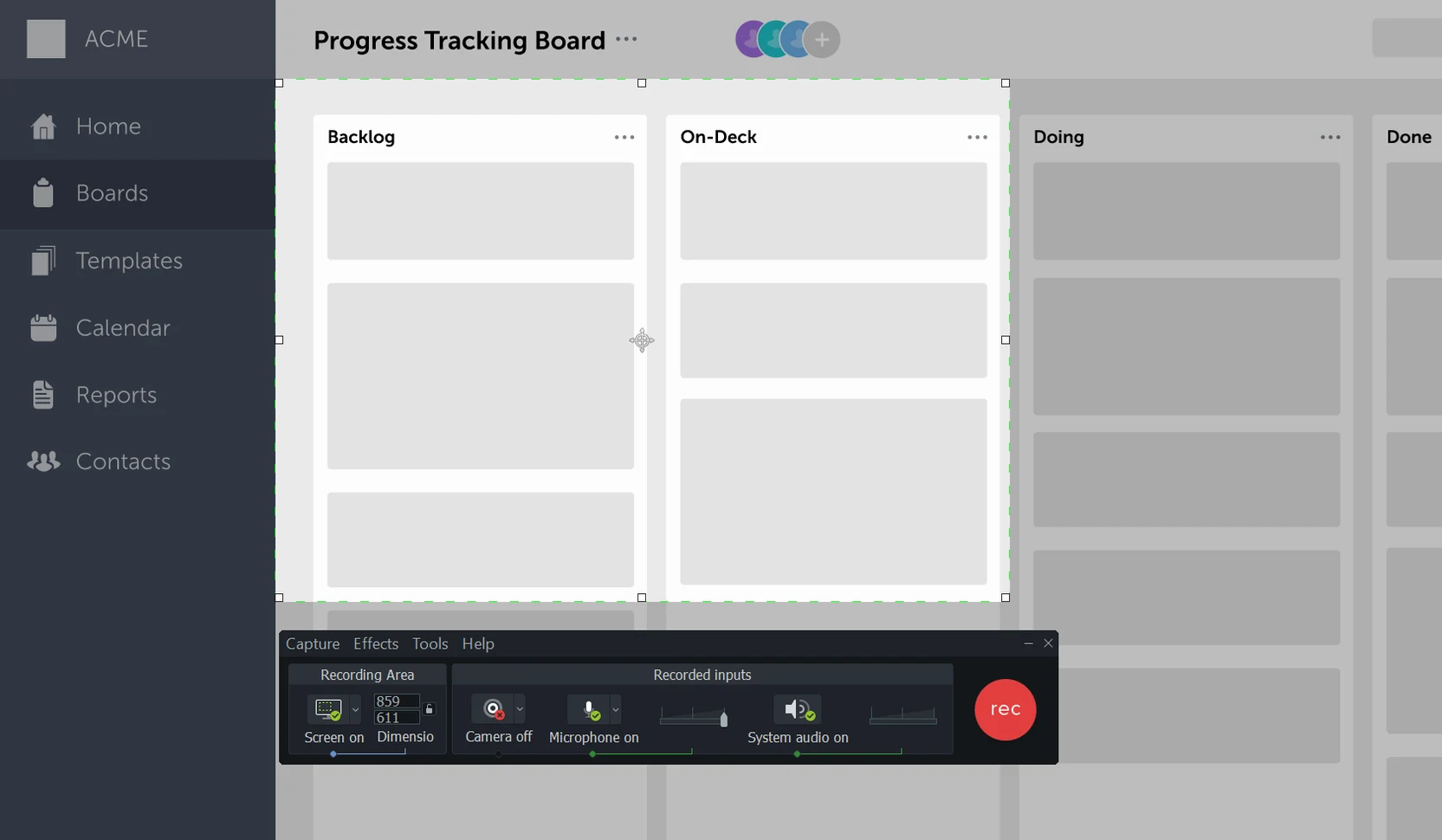
Recording still feels direct: grab the whole screen, a region, or a window, talk into a microphone, and Camtasia lays the footage onto a multi-track timeline. From there the familiar trimming, splitting, and transitions sit alongside behaviours and annotations that help information land without over-editing. When the cut is ready, sharing is a single export away. The 2026.2.3 update doesn’t rewrite the playbook; it clears a few stumbles so the app gets out of the way and the story you’re telling stays front and centre.
Keystrokes and cursor movements appear on the timeline automatically
Software trainers and course creators tend to sink into Camtasia fastest, because the app thinks in terms of demonstration rather than abstraction. The recorder captures keystrokes and cursor movements automatically, which means the edit already contains visual signposts before you add a single annotation. Anyone building a library of onboarding videos or product walkthroughs will reuse the template system heavily — set up a branded intro, a lower-third style, and a standard export profile once, then apply them across twenty recordings without rebuilding the frame each time.
Presentation makers who import slides from PowerPoint also find a natural fit. The app treats each slide as a piece of media on the timeline rather than a static image, so you can trim the duration of a dense bullet-point slide independently of the faster ones. Less obvious but equally at home are indie developers who need to document a feature or patch notes in under three minutes: the quick-export presets and the built-in noise removal on voice tracks mean a recording made in the afternoon can be live by the evening. If your work involves showing someone else what happens on your screen — and then shaping that recording into something someone would actually want to watch — Camtasia sits in the sweet spot between too-simple capture tools and full nonlinear editors that don’t understand screen footage.
A session, from record to render
Imagine a late morning. You’ve just finished tweaking a feature in a Mac app, and the changelog needs a short demo. You open Camtasia, choose “New Recording,” and drag a region around the application window. The countdown clicks from three, and you walk through the feature while talking into a USB microphone. Halfway through, you stumble over a sentence; you pause, repeat the line cleanly, and keep going. Hitting stop drops the raw recording onto the timeline.
The first pass is trimming. You drag the playhead to the flubbed line, split the clip with a keystroke, and delete the mistake. A ripple delete slides the remaining footage together. Next, you want the cursor click to read clearly on a small screen, so you browse the Cursor Effects panel and drag a highlight ring onto the moment of the click. It snaps into place with a subtle scale animation. A text annotation sits above the interface to label a buried menu item, and you pull it to four seconds — long enough to read, short enough not to linger.
Now the audio. The room had a low hum from an air conditioner. You select the voice track, open the audio effects, and drop Noise Removal onto it. The waveform tightens immediately. A quick listen confirms the hum is gone without hollowing out the voice. You add a fade-out to the background music track that comes with one of Camtasia’s built-in templates, dragging its end to meet the final frame. The template already set the intro card and lower-third style, so you only need to edit the placeholder text to match the feature name.
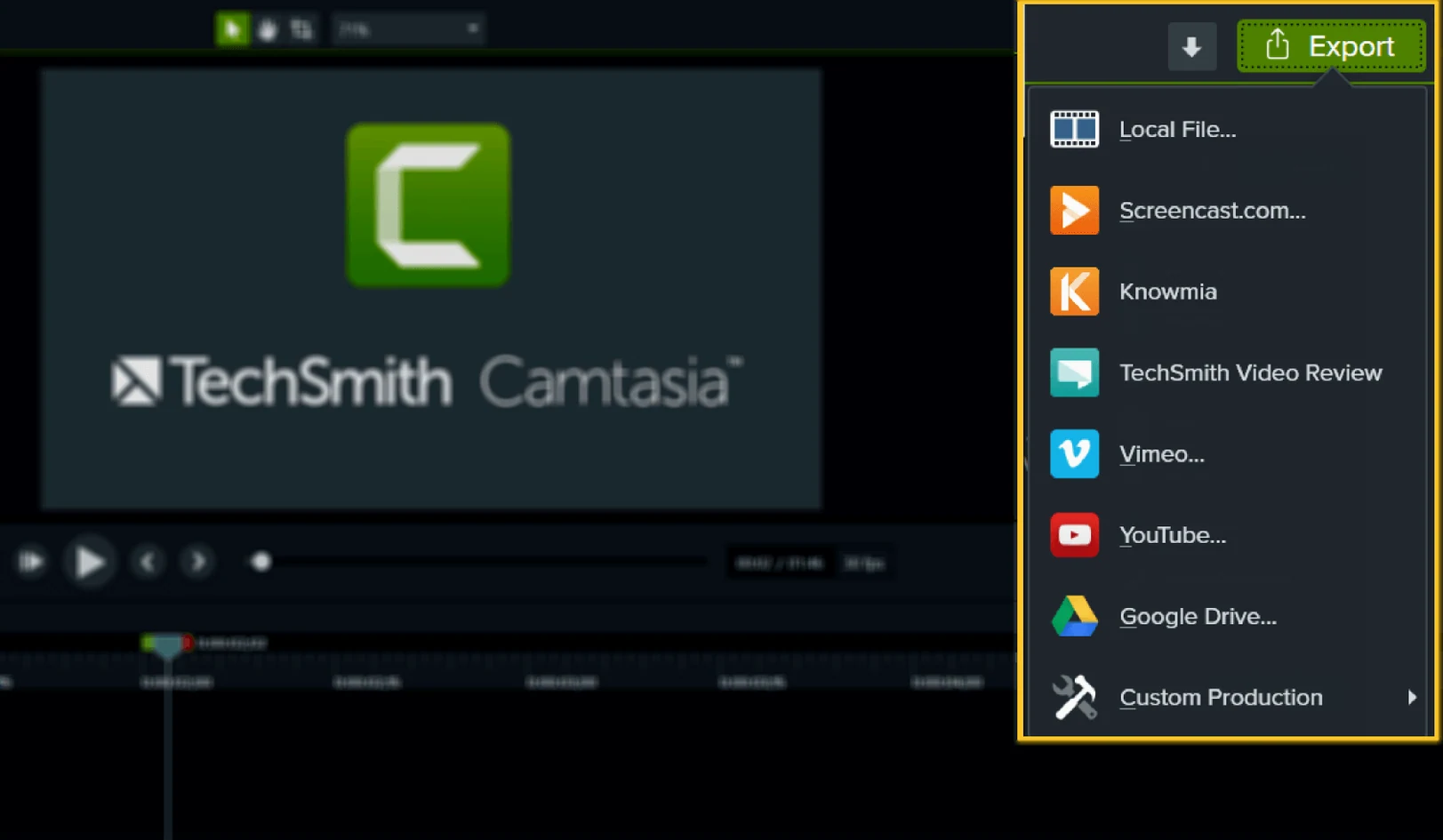
Export is a single dialog: you pick a preset for local file — H.264 at 1080p — and let it render. The whole thing, from recording to finished MP4, runs under thirty minutes. No round-tripping, no separate audio editor, no stitching assets together in a third app.
Leaving projects open between sessions no longer risks a crash
The 2026.2.3 release was a maintenance pass, but the kind of maintenance you notice most by its absence. The startup crash fix matters if you habitually leave projects open between sessions: previously, waking a Mac with Camtasia still in memory could trigger a silent quit on launch, and recovering unsaved timeline work is never a calm moment. Export crashes were rarer but more painful, because they tended to surface after a long timeline had already been reviewed and approved. Knowing the render won’t fall over at ninety-two percent removes a low-grade anxiety that anyone who renders long training videos will recognize.
The miscellaneous bug fixes, though unnamed, show up in small ways. Timeline zooming with a Magic Mouse feels more predictable; the playhead no longer skips a few frames when snapping to the cursor’s edge mid-scrub. These are the kinds of corrections that don’t make feature lists exciting but do make the difference between an editor that fights your instincts and one that follows them.
Option-drag a clip edge for an instant ripple trim
Several small touches are easy to miss on a first pass. Holding the Option key while dragging a clip edge performs a ripple trim in one motion instead of two. Right-clicking any annotation on the canvas reveals a “Copy to All” command that pastes the same callout across every clip at the same timestamp — a papercut-remover if you need a watermark or a consistent chapter marker. The media bin accepts dragged files directly from Finder, but it also accepts dragged folders, which import as organized bins, preserving whatever folder structure you’ve built for assets.
Cursor smoothing is another undersung switch. Tucked inside the cursor properties, it dampens the jitter of high-DPI mouse movements so the pointer glides rather than skitters across a compressed video. For software demos where the cursor is the viewer’s guide, smoothing keeps attention on the action instead of on the shaky tracking. And if you work in multiple languages, the interface language switcher in preferences restarts the app without touching your project files, which is practical for bilingual teams sharing a workstation.
4K scrubs smoothly even with multiple picture-in-picture tracks
Camtasia on Apple Silicon feels like a native citizen. Recording at 4K with a microphone and system audio active stays smooth, and the timeline scrubs without buffering even with several picture-in-picture tracks and a handful of annotations. Memory use sits around the 1.2 to 1.8 GB range for a typical ten-minute project with mixed media, which leaves headroom on machines with 16 GB of unified memory. On an Intel Mac with a discrete GPU, the same project runs fine, though export times lengthen — a five-minute 4K render can take roughly twice as long compared to an Apple Silicon machine, which is expected given the architecture gap.
Stability in daily use is unremarkable in the best way. Leaving the app open overnight with a half-finished edit doesn’t invite a crash dialog the next morning. The autosave system writes recovery files quietly, and if the app does quit, the project reopens to the last saved state without fanfare. The one place where patience wears thin is on first launch after installation: the app takes a few extra seconds to verify templates and assets, but subsequent launches are quick. For an editor that handles recording, effects, and export under one roof, the performance is respectful of the hardware it lives on rather than demanding it.
Camtasia 2026.2.4 tidies a handful of lingering bugs and applies modest polish to the recording and rendering engine.
- macOS 13 or later
- Apple Silicon or Intel 64-bit processor
Questions from the booth
Yes, TechSmith Camtasia runs on macOS 13.0 or later and includes the same screen recording and video editing features as the Windows version.
The app interface is available in English, German, Spanish, Simplified Chinese, Portuguese, French, and Japanese.
Yes, it ships with ready-made video templates so you can build a project from a designed starting point rather than an empty timeline.