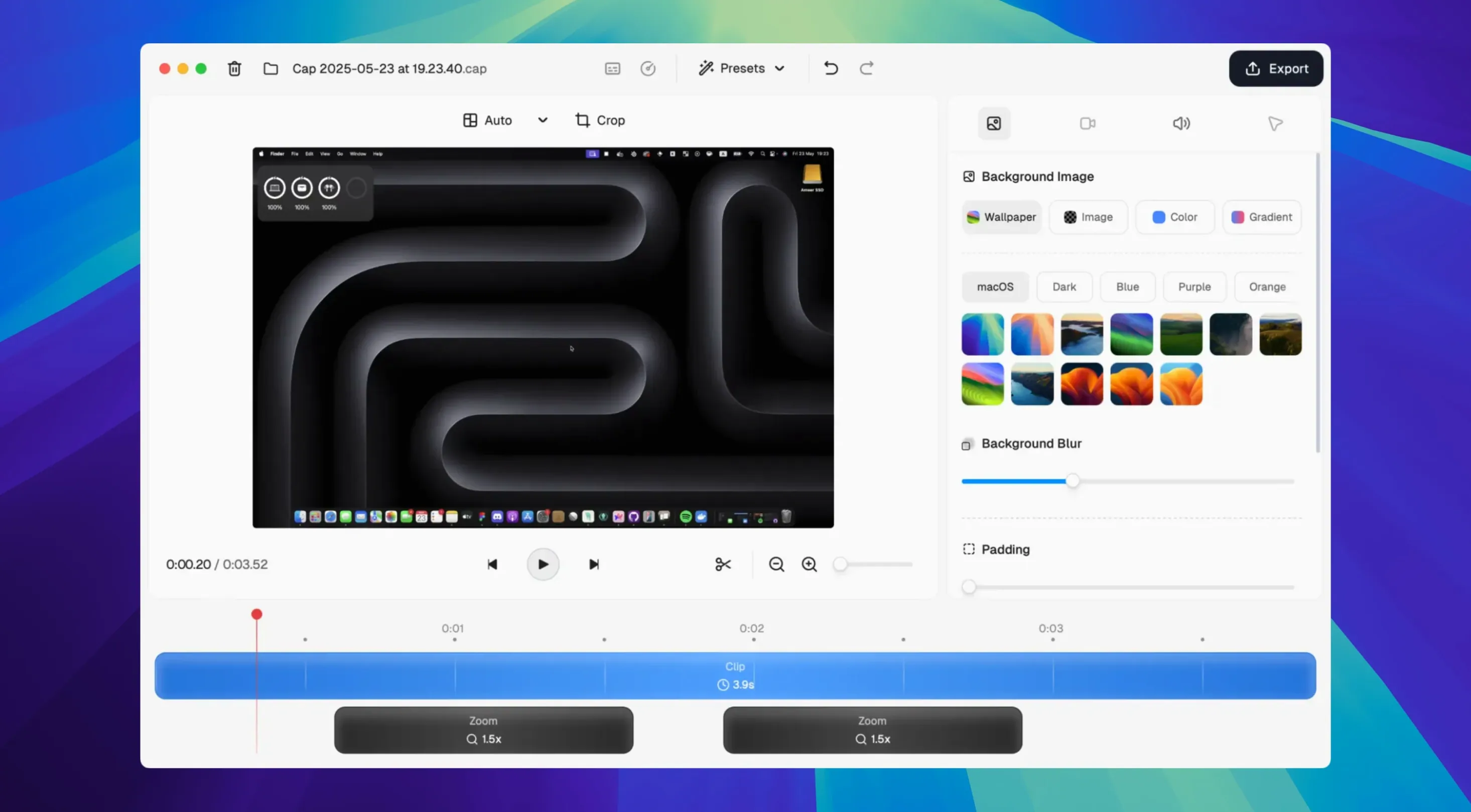
Cap Pro runs on any Mac with macOS 13.1 or later, on both Intel and Apple Silicon machines. It sits somewhere between the dead-simple QuickTime Player recording and a full non-linear editor — a desktop app that records your screen, then gives you a lightweight timeline to trim, join, and move clips before you share them. A web companion handles the sharing side, so you can send a link without leaving the editing view. The capture engine includes cursor magnification, motion smoothing, and click visualization, which makes tutorial and walkthrough recordings read clearly at a glance. You can also add custom backgrounds, gradients, logos, rounded corners, and shadows to the frame — small touches that keep a capture feeling deliberate rather than raw.
Good for
- Quick tutorial clips where cursor effects like magnification and click rings help viewers follow along
- Recording locally, then trimming frame-accurately on the built-in timeline before sharing
- Polishing captures with custom backgrounds, rounded corners, or a logo overlay
- Switching into Studio Mode for high-fidelity captures when quality matters more than file size
- Instant Mode shares — record and send a link with almost no friction
- Smart Auto-Zoom, which follows the action when you need to emphasize a region
Keep in mind
- Editing is timeline-based but purpose-built for screen recordings — not a general video editor
- The web companion requires a network connection for sharing
- Version 0.5.9 is still early; workflows may shift as the app matures
Setting up the recording area wrong is the mistake I see most. People drag the capture frame to roughly the right size, hit record, then realize half the UI they meant to show is cropped out. Cap Pro gives you a precise region selector — take the extra ten seconds to type exact dimensions or use the preset dropdown before you start. Another classic: recording system audio and your microphone on the same track, then discovering you can’t level them independently later. Split the sources early. The app lets you arm the mic and system audio as separate channels, and that small choice saves you from re-recording when your voice gets buried under notification pings.
Recording a clean onboarding walkthrough in Studio Mode
You’re walking a colleague through a new internal tool. You open Cap Pro and switch to Studio Mode — today’s capture needs to look clean enough to reuse in onboarding docs. You set the region to 1920×1080, check that the microphone level is bouncing in the green, and mute system audio so Slack dings don’t sneak in. Hit record.
You talk through the login flow, slowing your cursor near the dropdown that always trips people up — later you’ll be glad the motion smoothing was on. When you reach the settings panel, you pause for a beat; Smart Auto-Zoom tightens on the toggle you’re explaining, and you don’t have to think about it. You finish, stop recording, and the clip lands on the timeline.
Now you scrub to the start. There’s a dead four seconds where you were adjusting your mic — you drag the trim handle and cut it. A minute in, you realize you misspoke about a keyboard shortcut. You split the clip at that point, delete the stumble, and the join is invisible. You pull a gradient background behind the frame, round the corners to twelve pixels, and add a small logo in the bottom right. The whole edit takes under three minutes. You hit share, copy the link, and paste it into Slack before your coffee has cooled.
Accepting the single-stream timeline instead of fighting it
The timeline can feel sticky if you’re used to a full NLE. You can’t stack tracks or add b-roll — it’s meant for a single screen capture stream, and fighting that expectation only leads to frustration. If you need multi-track compositing, Cap Pro isn’t the tool; finish your rough cut here, export it, and move to something deeper. But for trimming dead air, joining segments, and adding polish, it’s quick once you stop looking for features that belong in a different class of software.
People sometimes install from a cap pro mac torrent and find the web companion won’t connect — that’s because sharing depends on the app talking to Cap’s cloud service, and a modified build may need a quick manual sign-in or token refresh to complete that handshake. If Instant Mode links won’t generate, check that your network isn’t blocking the connection; corporate firewalls and VPNs occasionally interfere. Switching to a direct connection or whitelisting the app usually resolves it. Also, if 4K 60 fps captures stutter on an older Intel Mac, drop the recording resolution or frame rate in preferences — the encoder needs headroom, and the timeline scrubbing will thank you.
- macOS 13.1 or later
- Intel or Apple Silicon Mac
Questions from the booth
Yes, it runs on both Intel and Apple Silicon Macs with macOS 13.1 or later.
Yes. Cap Pro includes a timeline where you can trim, join, and move clips with frame-accurate precision.
It offers cursor magnification, motion smoothing, and click visualization to make pointer movements easier to follow in playback.