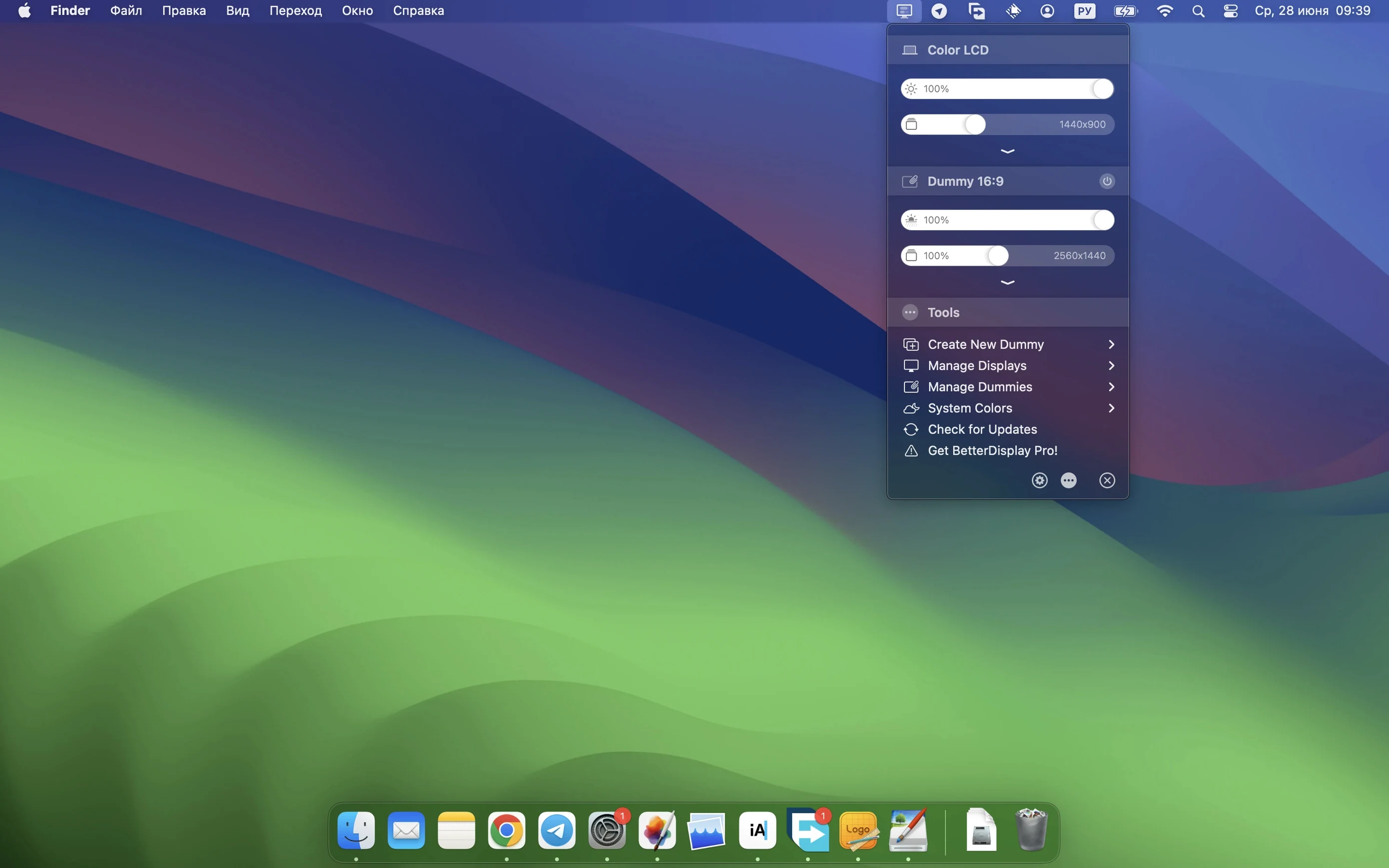
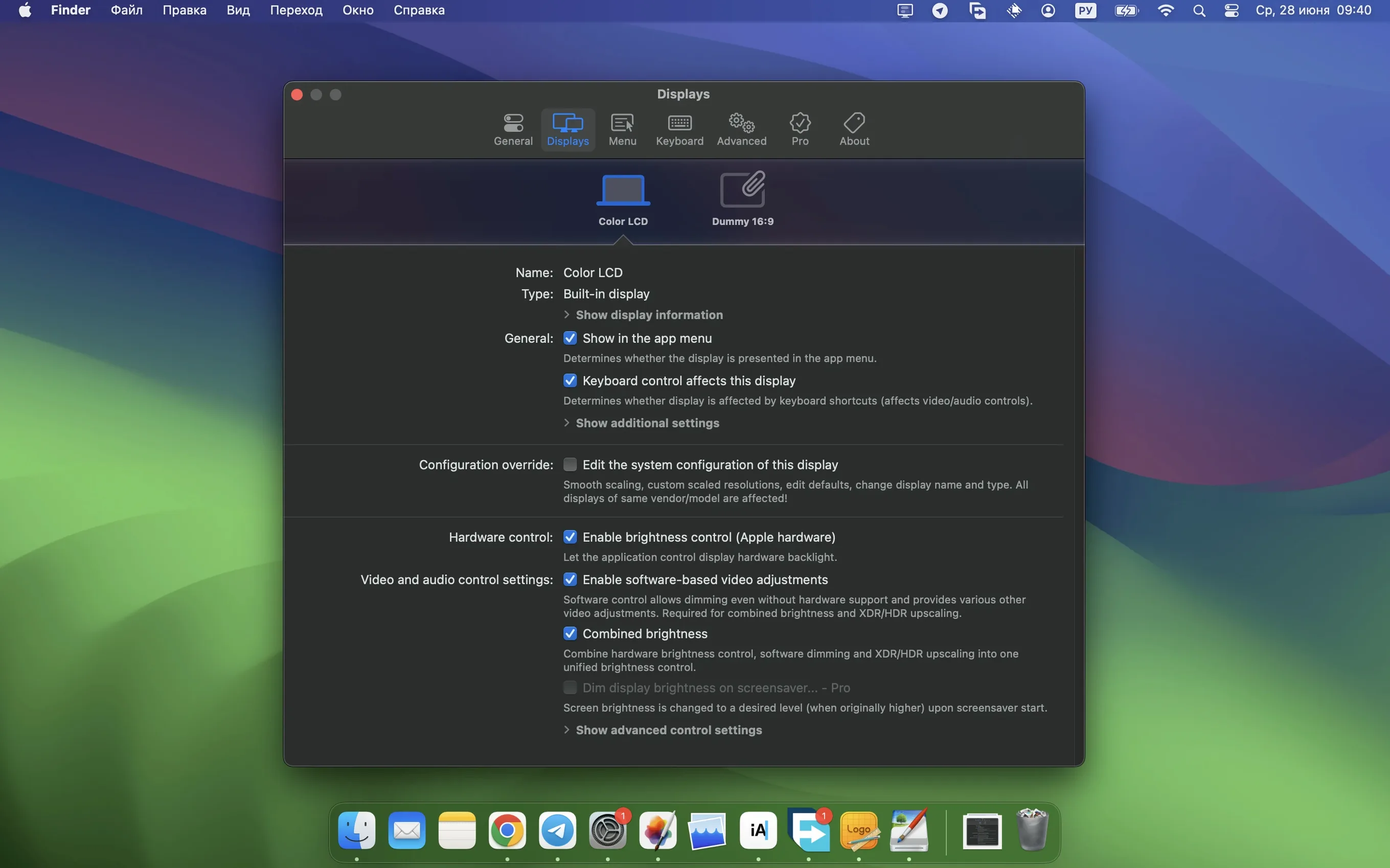
MacOS tends to hide its display guts behind a polite pane of simplified sliders—fine for most, but a dead end when you need per-monitor DDC brightness, custom HiDPI scaling, or a headless virtual screen for a stream feed.
A dictionary of deeper control
Flexible HiDPI scaling — pixel-perfect UI sizing that goes far beyond the four default options in System Settings, letting you pick exactly the look that matches your panel and your eyes.
XDR/HDR brightness upscaling — drives compatible Apple Silicon displays past their usual brightness ceiling in HDR content, useful when grading or reviewing footage in a daylight room.
Custom 3D LUTs — load a calibration lookup table straight into the display pipeline for consistent colour across monitors without extra hardware.
DDC and HDMI-CEC control — hardware-level brightness and volume changes sent directly through the display cable, independent of macOS software dimming.
Virtual screens — create a display that exists only in software, perfect for capturing a clean feed, extending a window manager layout, or routing picture-in-picture previews.
Stream video filter automation — new in 5.0.6, this hooks into the filter chain so a virtual display can process and pass along a video stream without manual intervention.
What the 5.0.6 update changes in daily use
Recent builds have tightened the screws on the parts you touch most. Device control configuration got a quiet reorganization—fewer nested panels, clearer labels—so setting up DDC for a new monitor now takes half the clicks it once did. Multi-display DDC commands land noticeably faster; if you run two or three external screens and adjust brightness with keyboard shortcuts, the lag that used to ripple across displays is essentially gone.
The sharpening effect also received a stronger ceiling. It is not a gimmick. On a 4K panel running a non-integer scaled resolution, a touch of sharpening pulls text back from that slightly smeared look that HiDPI scaling sometimes leaves behind. And the stream video filter automation means a virtual display can now pass through a colour LUT or a crop filter into OBS without you babysitting the pipeline—set it once, and the filter chain runs whenever that virtual screen is active.
A colourist’s afternoon with a single cable
Imagine a DIT on a short film, camped in a rental house corner with a MacBook Pro, a reference monitor, and a client display. The reference panel connects over USB‑C and needs its own brightness curve, a calibration LUT loaded, and DDC control so the Mac keyboard doesn’t fight the monitor’s own OSD. The client monitor is a big consumer TV that only speaks HDMI-CEC.
In BetterDisplay Pro, the DIT gives the reference display a short name, loads a 3D LUT exported from the calibration software, and caps the brightness range so accidental keystrokes can’t blow past 120 nits. The TV gets a virtual display piped through picture‑in‑picture mode, showing a clean feed of the timeline without menus or cursors. A single shortcut dims both screens at once when the director walks in. Nothing about this setup required opening System Settings more than once.
Your Spaces and Dock arrangement are left untouched
Does this overwrite my existing display arrangement? No. BetterDisplay Pro reads the current layout from macOS and layers its own adjustments on top. Your Spaces, Dock placement, and arrangement preferences stay exactly where you left them. Uninstalling the app returns everything to the stock behaviour without residue.
Will virtual displays confuse apps that look for hardware monitors? Most creative software sees a virtual display as an ordinary target. Tools like OBS, Resolve, or MadMapper can route clean outputs to it. A handful of older applications that enumerate GPU ports directly might not list it, but for screen capture and window management, a virtual display behaves like a physical one.
Does DDC control work with every monitor? It depends on the display’s firmware. The majority of modern USB‑C and DisplayPort panels respond to DDC commands for brightness and sometimes volume. HDMI‑CEC covers a narrower set, mostly televisions and some projectors. The app includes a detection tool that tests each connected display, so you know within seconds whether hardware control is available.
Is the app heavy on resources? In everyday use, BetterDisplay Pro idles at a near‑invisible footprint. On an M1 MacBook Air driving a single 4K screen with HiDPI scaling and a loaded LUT, the background process hovers below one percent CPU and keeps under 120 MB of RAM. The menu bar helper adds no perceptible wake‑from‑sleep delay, and switching virtual displays on and off is instantaneous.
Scaling mode switches skip the system animation
Version 5.0.6 feels like a release that has settled into itself. Changing scaling modes on a 5K panel snaps faster than the stock macOS switch, partly because the app bypasses the system animation and redraws the framebuffer in one go. DDC brightness ramps are smooth and respond within a fraction of a second, even across a chain of three daisy‑chained displays. The only occasional hiccup appears when hot‑plugging a mix of DDC and HDMI‑CEC monitors in quick succession—the detection can take two or three seconds longer than usual, though the final configuration is always correct.
Memory pressure stays low. After twelve hours of mixed use—switching between a virtual display for a Zoom screen share, running an HDR reference feed, and toggling picture‑in‑picture for a second Mac over Screen Sharing—the background daemon still sits comfortably under 150 MB. There is no creeping memory leak of the kind that plagued earlier display‑override utilities on Intel machines. Apple Silicon Macs handle the HDR brightness upscaling in hardware, so the GPU hit is negligible and the fans never wake.
- macOS 13.3 or later
- Apple Silicon or Intel 64-bit Mac
Questions from the booth
Yes, it can create and manage virtual displays on both Apple Silicon and 64-bit Intel Macs running macOS 26 or later.
It uses DDC and HDMI-CEC to control brightness and colour at the hardware level on supported monitors, bypassing software dimming.
It lets you load a custom calibration lookup table directly into the display processing pipeline for consistent, accurate colour across your screens.