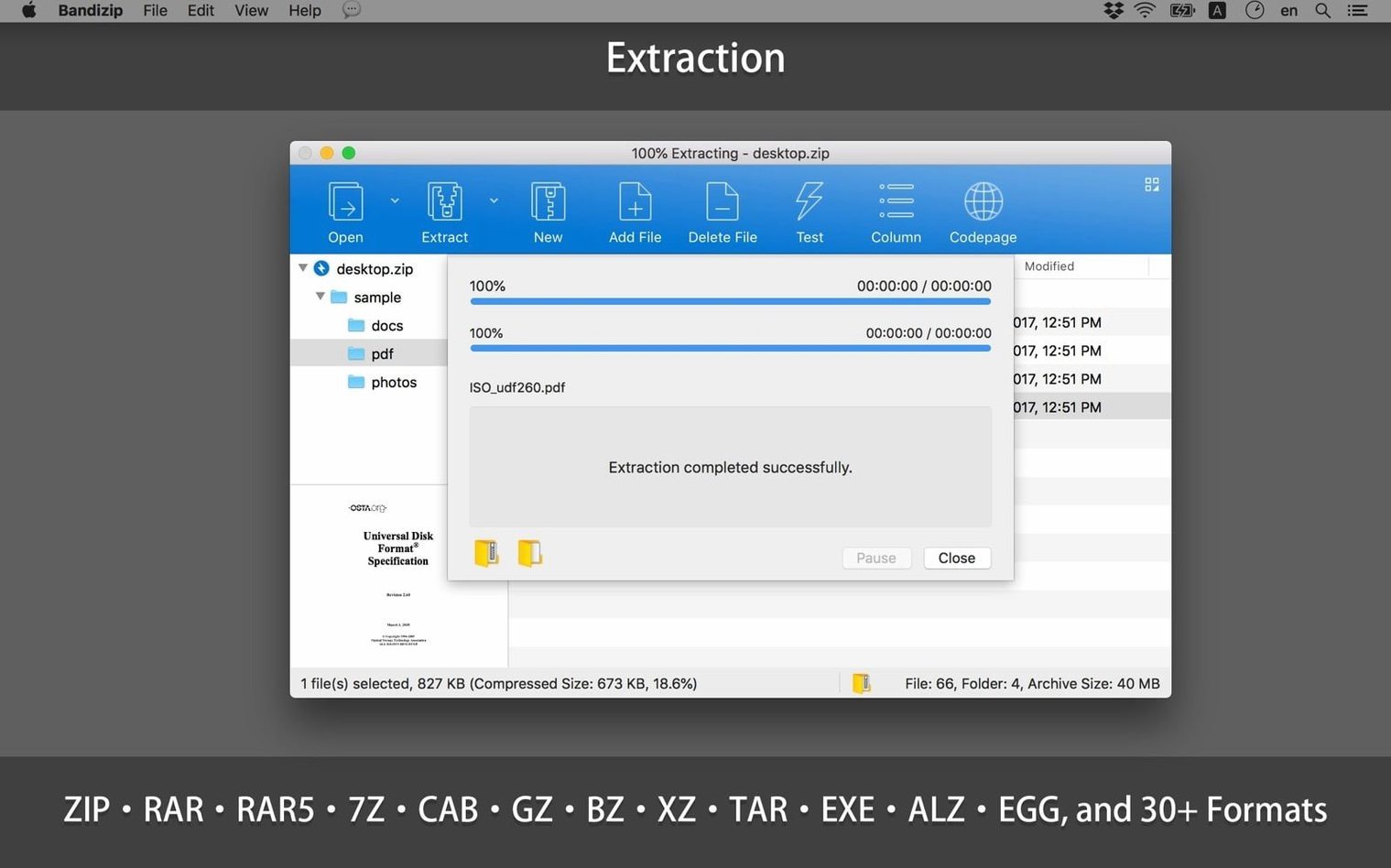
Thirty extraction formats sit under one right-click, but the real trick is modifying a ZIP without unpacking it first.
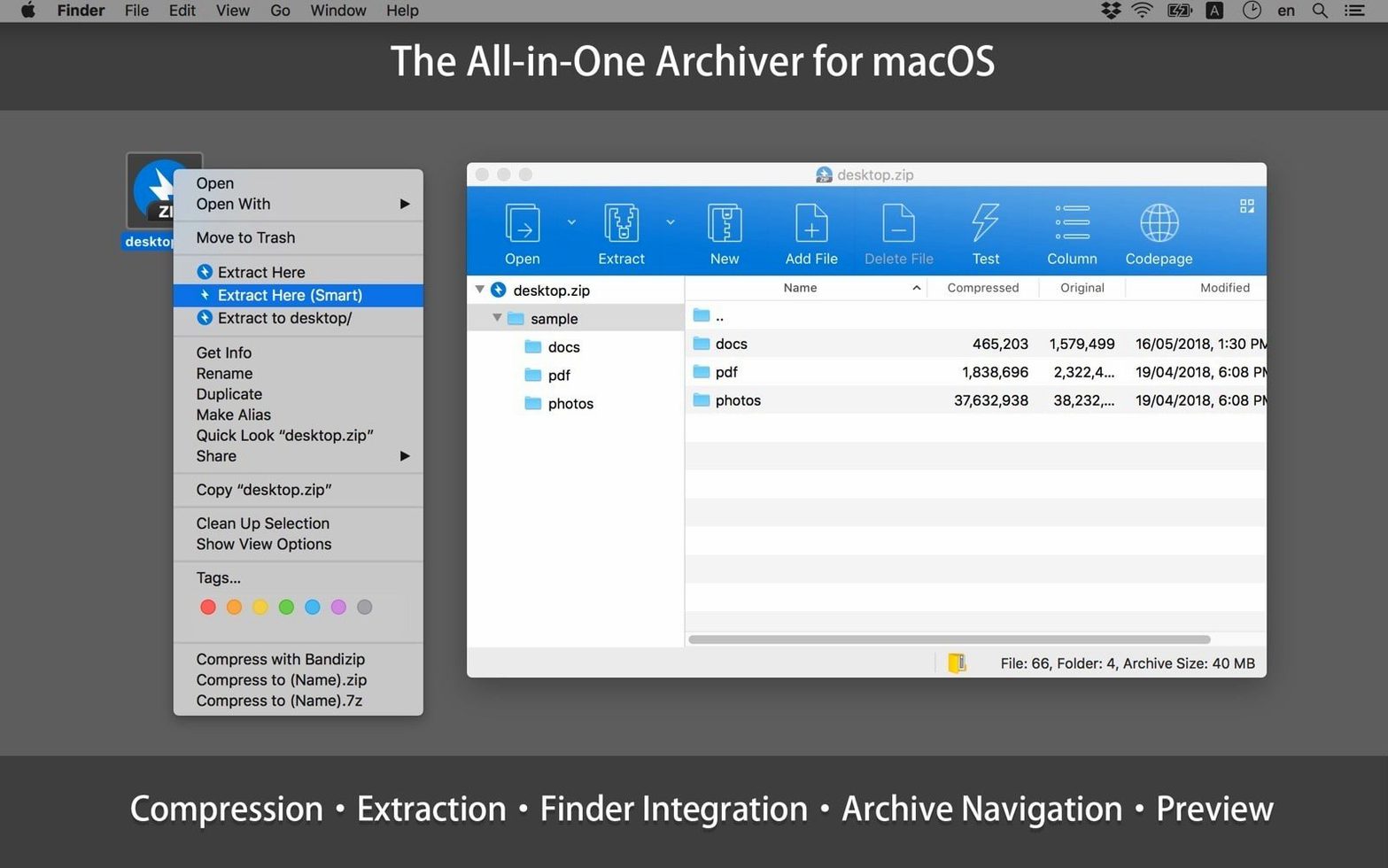
Archive browsing — Opening a compressed file in Bandizip presents its contents in a standard file list, not a temporary folder on your desktop. You can scroll through thumbnails for image archives or sort by modified date before dragging a single file out.
In-place editing — The scenario that changes a workflow: a client sends a ZIP with twelve PDFs and the wrong filename on three of them. Inside Bandizip you select each entry, hit rename, and save. The archive updates without a new extraction-compression cycle. You can also delete outdated files or drag new ones into an open archive, and the tool rewrites only what changed.
Multi-volume splits — When a project folder needs to travel under an email size limit, Bandizip writes a 7z or ZIP split across pieces you define by size. Extraction from a multi-volume set begins from the first segment, and password protection works across the whole chain. The Finder Services integration means right-clicking a folder on the desktop offers the same compression and splitting options without launching the main window.
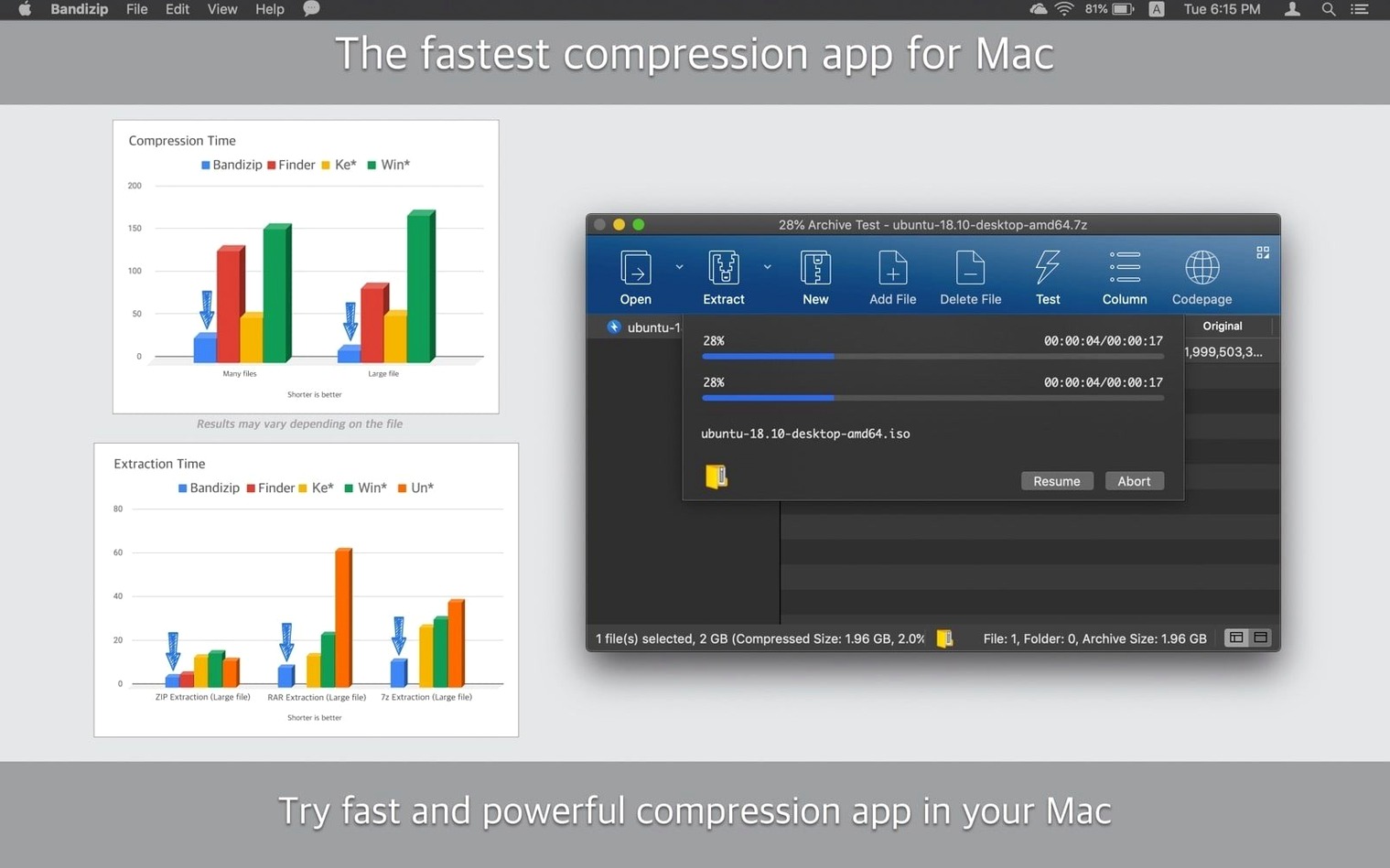
Integrity check — Before you archive a finished short and clear drive space, the integrity check runs through the file list and flags any entry that no longer matches its checksum. It works on archives you’ve created and ones you’ve received.
Rebuilding a producer’s multi-part RAR set into a working project folder
Mid-afternoon, a producer emails over a project folder packed as a multi-volume RAR set — location stills, a rough cut reference, and a spreadsheet of music cues. The first thing I do is select all seven .part1.rar through .part7.rar segments in the Finder, right-click, and choose Extract here from the Bandizip services entry. The password prompt appears before anything touches the disk; I paste the key the producer texted me, and the full folder reconstructs itself in seconds.
I browse straight into the archive from the main window instead of extracting everything — I only need the spreadsheet. Dragging cues_v3.xlsx out leaves the rest compressed. When I notice the rough cut filename still reads rough_assembly_v2_draft.mp4, I open that same archive in Bandizip’s file list, click the name twice, and shorten it. The RAR rewrites cleanly, no unpacking required.
Before I archive my own exports for the colourist, I drop the graded stills folder into the app, switch the compression format to 7z, set a split size of 500 MB from the dropdown, and tick AES256 encryption. A single password protects the entire chain. The integrity check runs automatically after compression finishes — a small green checkmark beside each entry confirms nothing corrupted during the write.
When I need to send a quick ZIP of script drafts to a co-writer, I skip the main window entirely. Right-click the folder on the desktop, pick Compress to “Drafts.zip”, and the file lands beside the original. The whole loop — extract, edit, re-archive, verify — happens without a single temporary folder cluttering my desktop, which matters when you’re juggling three projects and a dwindling afternoon.
Reordering the archive format list so ZIP stops stealing the spotlight
Out of the box, Bandizip’s preferences lean conservative. A few adjustments make it fit a filmmaking workflow where large files and non-English filenames are routine.
Compression format order. The default list puts ZIP first when you create a new archive. If you routinely work with 7z for its higher compression on video project folders, open Preferences → Compression and drag 7z to the top. Version 7.39 already adjusted the list order, but the custom priority sticks between sessions.
Multi-volume default size. The preset split size rarely matches what an email server or upload portal accepts. Under the same Compression tab, set your preferred volume size — 500 MB or 2 GB, depending on where the files travel — so every multi-volume archive starts from a sensible number instead of the generic default.
Unicode filename handling. If you collaborate with editors whose systems use Cyrillic, Kanji, or accented Latin characters, confirm that Use UTF-8 encoding for ZIP filenames is enabled. This prevents the mangled filenames that still plague cross-platform exchanges, especially when a sound designer in Seoul sends field recordings with Korean titles.
Context menu entries. The Finder Services menu can grow crowded if you leave every extraction option checked. Head into Preferences → Integration and keep only the commands you actually right-click for — I pare mine down to Extract here, Extract to folder, and Compress to ZIP. The cleaner the menu, the faster the muscle memory.
Archive comment display. Not strictly essential, but turning on comment visibility in the view options means the notes a cinematographer leaves inside a RAR — “graded selects only, ignore the test shots” — appear at the bottom of the file list instead of staying hidden behind an info icon you’d otherwise forget to click.
Version 7.39 addresses several security vulnerabilities, revises how file sizes update when selecting a folder, and adjusts the order of the compression format list during archive creation. A handful of interface refinements and stability fixes round out the release.
- macOS 10.13 or later
- Apple Silicon or Intel 64‑bit
Questions from the booth
Yes, it extracts password-protected RAR and RAR5 archives along with 7Z, ZIP, and over two dozen other formats on macOS.