Focus modes quiet the banners and pings, but they also make it easy to miss the one message you actually needed. attn LED takes a different route: instead of silencing alerts, it translates them into something physical. The green camera LED on your MacBook blinks when an important notification comes through — a signal you can catch from across the room without a screen in sight.
- Camera LED as notification layer. The indicator is visible from anywhere in a room, so you can step away from the desk and still know something landed.
- Video call awareness. The blinking pauses automatically during FaceTime calls and other video conferences, so you are not flashing a light at colleagues mid-sentence.
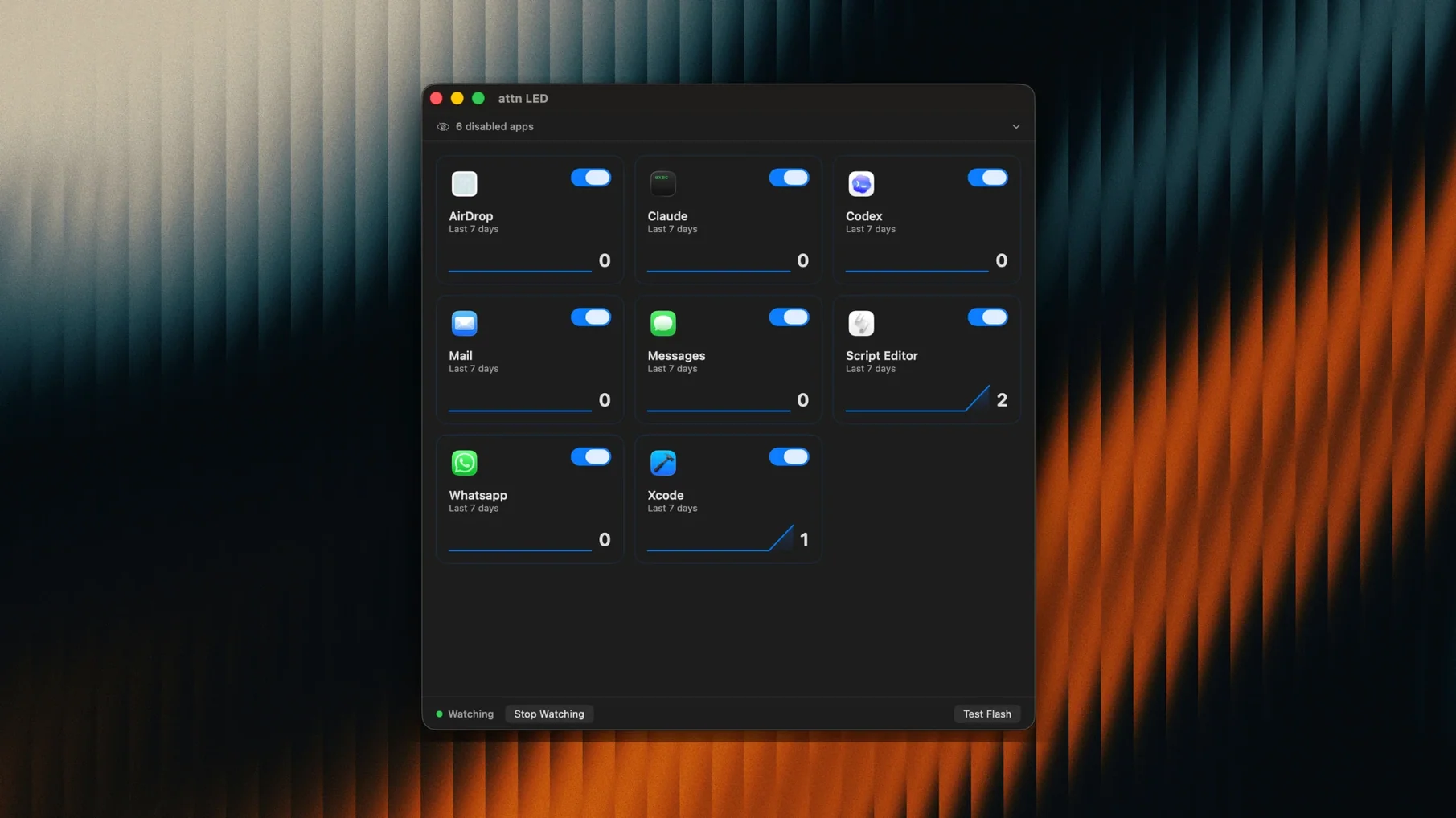
- Automatic app detection. The app can recognize new applications that send notifications without manual setup, keeping the system low-maintenance over time.
- Universal binary. Runs natively on both Apple Silicon and Intel 64-bit Macs, no Rosetta translation in the loop.
- No sound, no banners. The alert exists purely as light — useful when you want to stay reachable without the cognitive interruption of a pop-up or a chime.
Under the hood it is a single-purpose utility, but the thinking is careful: it knows when to blink and, more importantly, when to stay dark. For anyone who spends long stretches in Focus or Do Not Disturb and wants a peripheral awareness of incoming messages, that small green pulse becomes its own quiet language.
Setting up a notification filter for deep work
You probably do not want every system alert waking the LED. The real value comes from narrowing the signal to a handful of apps whose messages genuinely warrant breaking your attention. Here is one way to set that up from scratch.
Start by launching attn LED and opening its preferences. Under the monitoring section, disable automatic detection temporarily so you can build the list deliberately. Then, one by one, add the apps that matter during focus time. For a typical writing day I add Messages, Slack, and Mail — nothing else. The LED now only responds to those three. Next, enable Focus mode on your Mac. The app reads the macOS notifications database through FSEvents, so even when banners are suppressed, the blink still fires. Test it by sending yourself a message from another device. The green light pulses steadily until you click into the app. That is the loop: the LED pulls you out only when you decide, not when the notification centre decides.
If you later install something like Discord or Teams, toggle automatic detection back on and the app will surface them as candidates without any manual digging. The list stays lean, and the LED stays meaningful.
Couch reading with Do Not Disturb and a silent green signal
It is late morning. I have set the MacBook to the side of the desk, screen off, and I am reading a printed draft on the couch a few steps away. Do Not Disturb is active. Any notification that arrives would ordinarily vanish into the void until I check the machine — but attn LED is watching a short list: Messages and Mail.
Twenty minutes pass. Out of the corner of my eye, the green light starts its slow blink. I glance over. No sound, no banner, no urge to drop what I am reading. I finish the paragraph, walk to the desk, open Messages. The blinking stops the moment the app comes into focus. The message turns out to be a location update from a friend arriving later, not urgent, but I am glad I caught it before another hour slipped by. I close the lid slightly to dim the screen and return to the couch. The LED stays dark for the rest of the session.
Later, a video call begins. The light, which had been blinking from an earlier Slack thread, goes still the instant FaceTime activates. No awkward flicker in the camera frame, no need to remember a toggle. When the call ends, the blink resumes — the unread message is still waiting. This rhythm, a quiet pulse met with a deliberate check, becomes second nature after a few days.
The LED blinks until you open the right app, not just any app
A few details that are easy to overlook but change how the app fits into a day. First, the LED keeps blinking until the related app is opened, not just any app. If Slack triggered the alert, opening Mail will not silence it. That per-app persistence means you cannot accidentally dismiss a signal without dealing with its source.
Second, the automatic video call detection covers more than FaceTime. It picks up most conferencing tools that engage the camera, including Zoom and Google Meet, and pauses the blink for the duration. There is no whitelist to manage; the app watches camera activation itself.
Third, the app lives quietly in the menu bar with almost no interface beyond the preference pane. It does not add a Dock icon during normal use, so it stays out of the way. If you ever want to verify it is running, a quick glance at the menu bar is enough. Holding the Option key while opening preferences reveals a small diagnostics readout showing the last few apps that triggered the LED — helpful when you are tuning the filter list and want to confirm what is actually firing.
- macOS 12 or later
- Apple Silicon or Intel Mac with a camera LED