
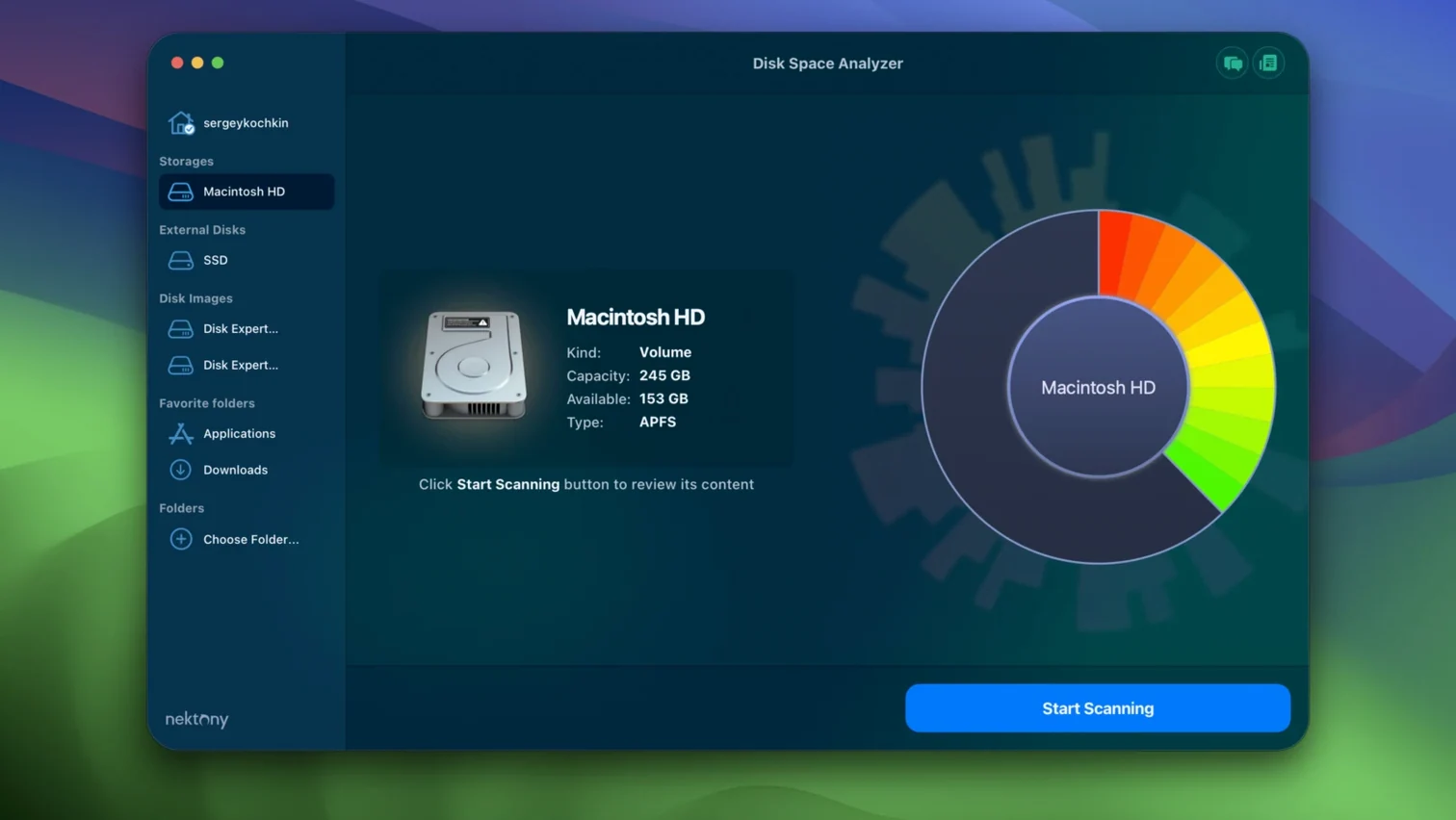
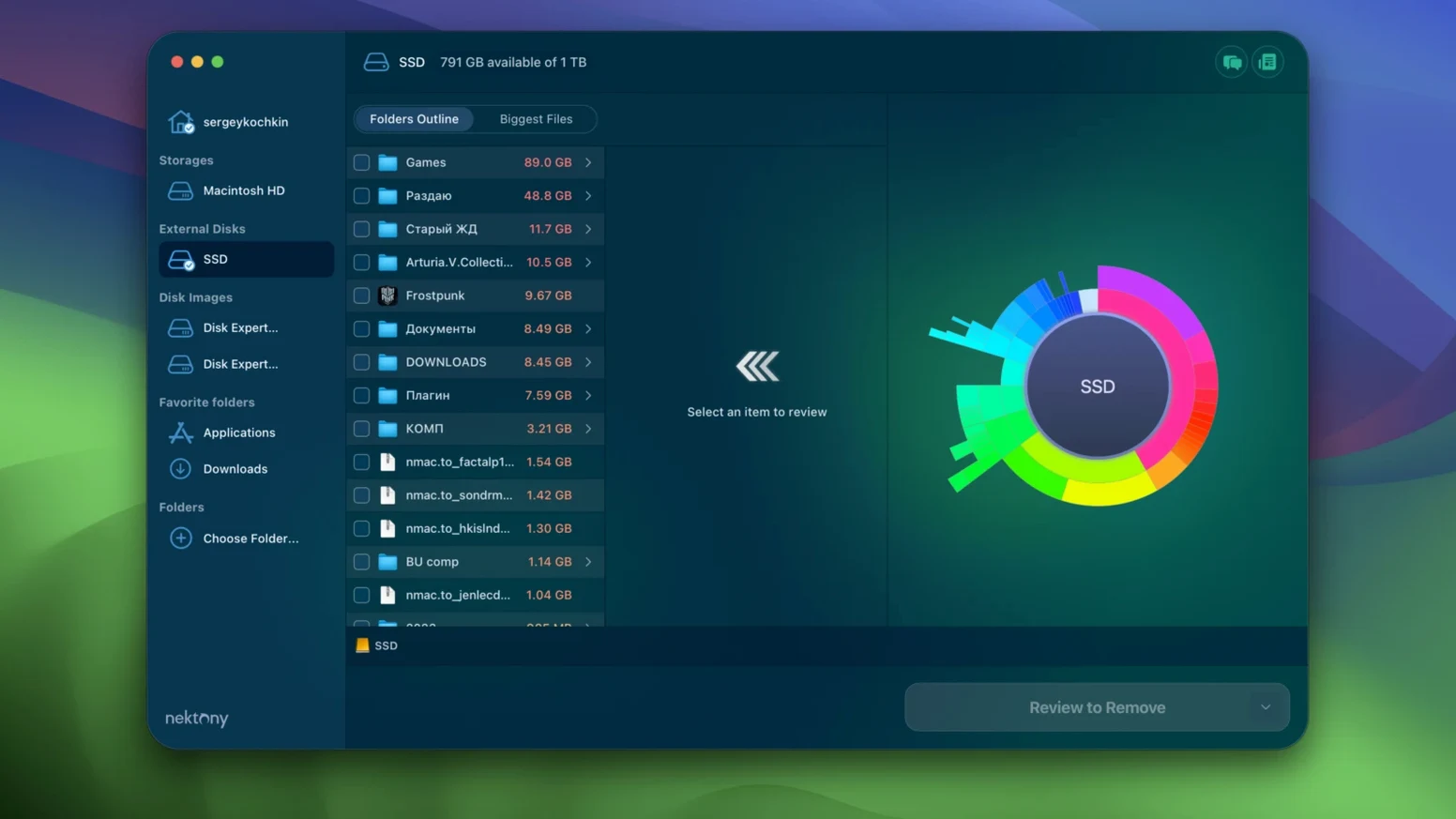
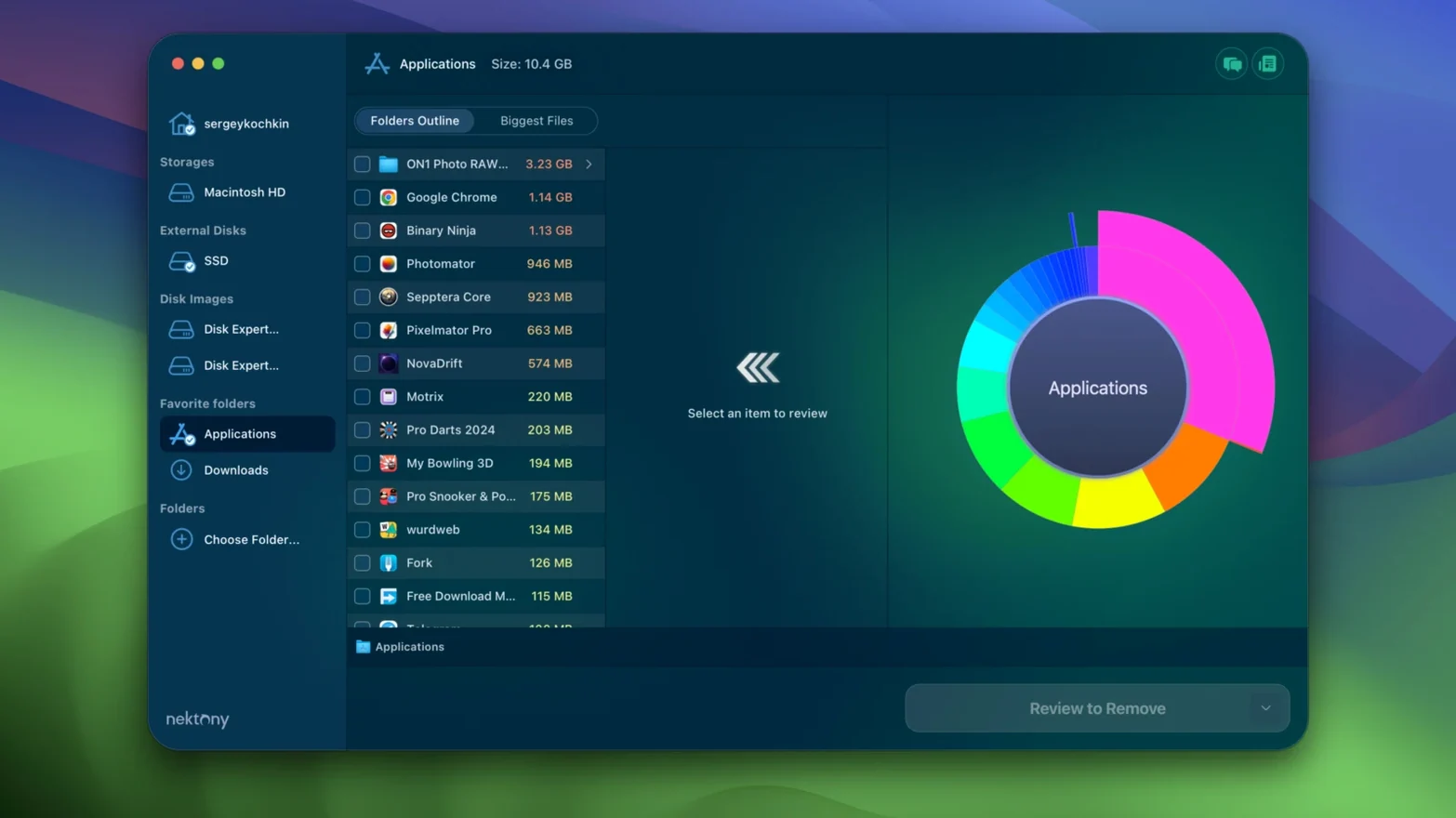
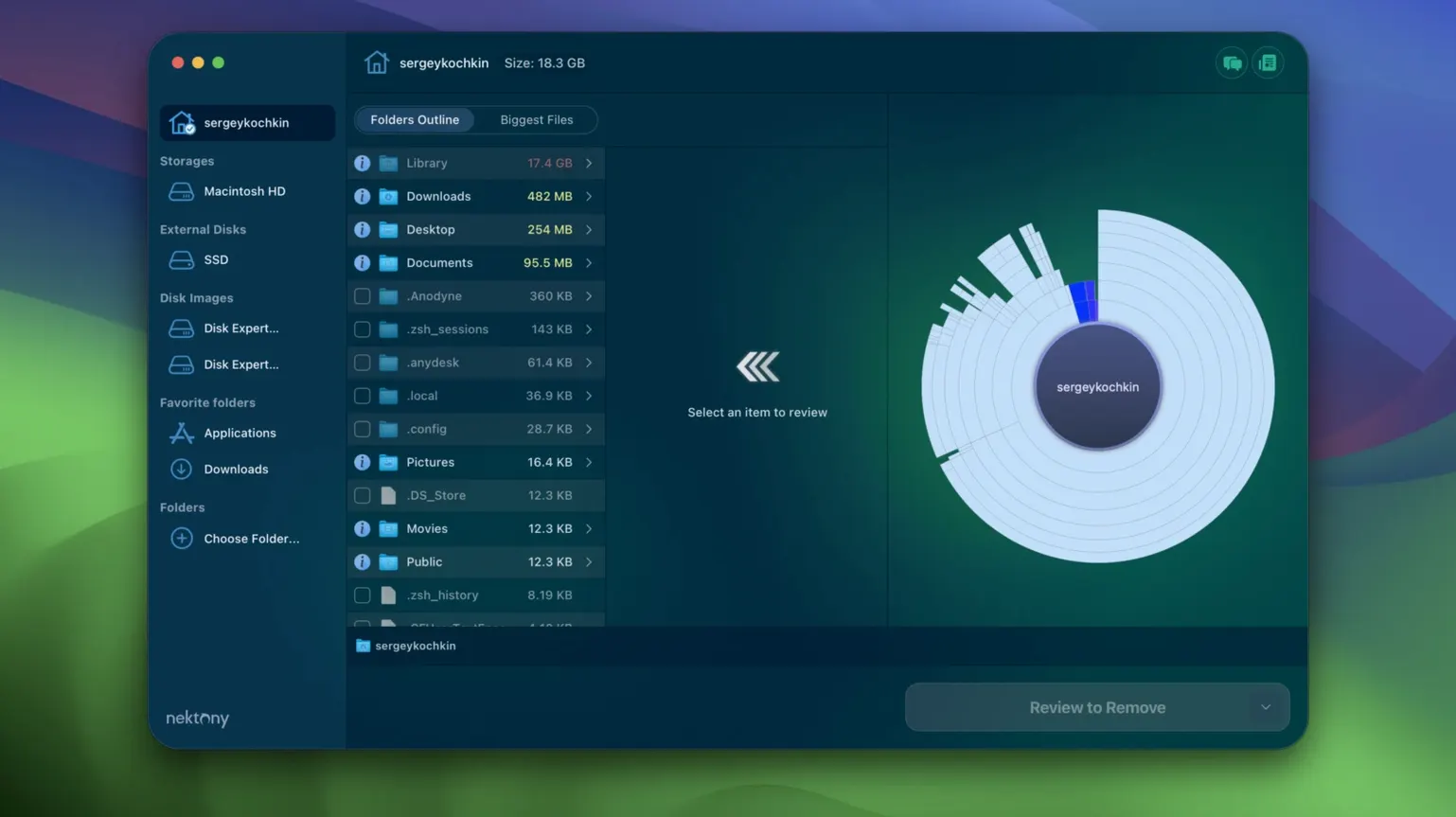
If you already know the visual clarity of a daisydisk official mac disk space analyzer, you understand the immediate value of a sunburst chart. It makes the heavy directories instantly obvious. Disk Space Analyzer 6.0 opens with that same familiar map, but it doesn't stop at the overview. It's the tool you turn to after you've spotted the problem, when you need to act on it without switching contexts.
A deeper workflow for large files
- Scan and orient yourself
Launch a scan of your startup volume or an external drive. The sunburst fills in, and you can click inward to isolate a bloated Users folder or a forgotten media cache. The scale is immediately readable. - Switch to the directory tree
For me, the treemap and the traditional directory tree are where Disk Space Analyzer earns its keep. When a film project's render folder has scattered its gigabytes across dozens of subdirectories, the tree view's sorting by size, name, and date lets me trace the exact sequence of exports that ate my drive. - Search and act in place
Use the built-in search to find a file by name across the entire scan. Once you locate it, you're not just looking. A right-click lets you copy or move the file straight to an external archive, or delete it entirely. The Quick Look integration means you can preview a video or a PSD before you decide, all from within the app's interface. - Manage directly
The real efficiency is in the direct management. Select the largest offenders in a treemap, and move them as a batch to external storage. The Finder integration means you can also reveal any file in its native location instantly, a small touch that keeps you oriented when you're deep in a cleanup session.
The app supports Apple silicon and Intel Macs from macOS 11.0 onward, so it feels native and responsive on current machines. It's an analyzer that understands the job doesn't end with a colourful chart; it ends when your drive breathes again.
Scanning your whole drive without a target question
Scanning the entire drive on a whim, without a question in mind, is the first misstep. Disk Space Analyzer gives you a sunburst of everything, and that everything can be paralysing. A better habit is to start with a specific suspicion—an overflowing /Users/ directory, an external drive that's suddenly full—and let the chart confirm or correct your guess. Another common error is deleting from the chart alone without verifying what a folder contains one level deeper. The treemap rewards a click inward before you act. And if you're working with cloud storage, remember that the app sees local caches and synced files as real disk objects; cutting too aggressively here can trigger re-downloads you didn't intend.
Shortcuts tucked in plain sight
A few gestures in Disk Space Analyzer quietly speed up a cleanup session. When you're deep in the directory tree, the Quick Look shortcut—Space bar, same as Finder—works on any selected file. You don't need the right-click menu. If you regularly offload footage to an archive drive, build a collection first: drag disparate files and folders into the Collections panel, then move or copy them all in one action. The app remembers the destination drive between sessions, so the second time is faster.
For project drives that fill up in predictable ways, export a scan to CSV before you clean. The report becomes a snapshot of what was taking space, useful when a client asks why a drive needs expanding. And the search field accepts partial names immediately—type "proxy" or "cache" during a scan, and results narrow before the sunburst finishes drawing. It's the kind of quiet efficiency that makes a disk space analyzer crack feel like a natural entry point to a production tool, the thing you reach for not just when the warning appears, but when you're planning the next project's footprint.
- macOS 10.13 or later
- Apple Silicon or Intel 64-bit processor