Drama is the app you open when a mockup needs motion and a storyboard isn't enough — a single-window tool that collapses design, animation, and prototyping into the same timeline.
Design — draw and lay out interface elements with vector tools that feel closer to a dedicated design app than an animation afterthought. Shapes, text, and imported assets live on a canvas you'll recognise if you've spent time in Sketch or Figma.
Animation — keyframe any property on the timeline without leaving for a motion tool. Easing curves, auto-animate between states, and a real-time preview that shows exactly what your exported file will look like. It sits naturally alongside screen recording tools: rough out a UI, animate the interaction, drop the clip into your edit.
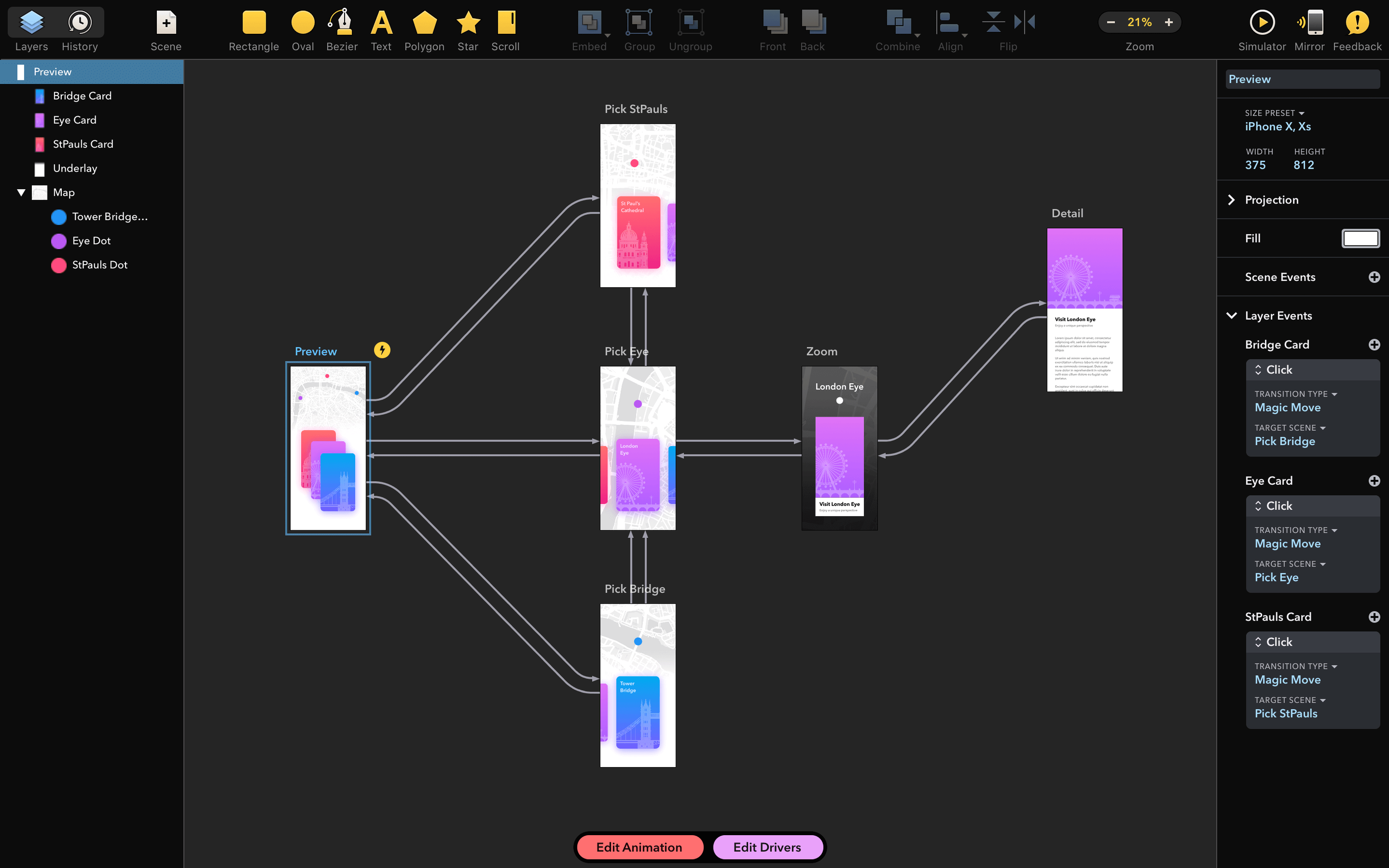
Prototyping — link screens with triggers and transitions, then play through the flow. Useful for handing a designer a clickable walkthrough or dropping a behaviour demo into a pitch deck — no code, no multi-app round-trip.
The 3-in-1 approach means fewer exports between tools. When a crash tied to specific installed fonts crept in, the 2.1.4 update patched it — the kind of fix that matters mid-sprint.
Who clicks with Drama fastest
If you mock up interfaces in Sketch or Figma and dread the moment a client asks “can we see it move?”, Drama slots into your workflow without asking you to learn a new coordinate system. The vector drawing feels familiar enough that the jump is about adding keyframes, not relearning handles and paths.
Solo developers building their own Mac apps get a lot out of it too. When you need to rough out a transition between two views before writing a line of SwiftUI, throwing shapes onto Drama’s canvas and linking them with a tap trigger takes less time than setting up a throwaway Xcode project. The timeline gives you frame-level control over properties you’ve already defined — no exporting to a motion tool, no rebuilding the same rectangle twice.
Short-film makers who do their own title sequences and on-screen graphics occupy a quieter corner of the user base, but the fit is natural. A director cutting a sci-fi short can design a fictional ship interface, animate the blinking indicators, and export the clip straight into DaVinci Resolve or Final Cut Pro. The same timeline that handles UI micro-interactions handles a countdown timer or a targeting reticle just as well. If you ever grabbed a Drama Mac torrent search result hoping for storyboarding software and found this instead, the name's misleading — but the tool still earns its place on a filmmaker's dock.
Design students and early-career UX researchers benefit from the single-window constraint. With no panel-dock chaos to configure, the learning curve is mostly about getting comfortable with keyframe timing and easing — the app itself stays out of the way. That matters when you’re building a portfolio piece on a deadline and can’t afford an afternoon configuring workspaces across three applications.
From static mockup to clickable prototype — a walkthrough
Say you’re designing an onboarding flow for a mobile app. You’ve already drawn the three screens as flat artboards elsewhere. Drag the PNGs into Drama’s canvas and lock them as a background layer — now you have a reference to trace over with the rectangle and text tools, building native vector elements that will animate cleanly.
On the first screen, draw the “Get Started” button and place it in its resting state. Move the playhead forward 0.3 seconds, nudge the button up by 6 points and drop its opacity from 100% to 90%, then set an ease-out curve on both keyframes. Hit the spacebar to preview — the button breathes, a tiny invitation to tap. Duplicate the screen in the page panel, adjust the elements to show the next step, and add a swipe trigger between them. Set the transition to a 0.25-second push with a gentle deceleration curve.
Repeat for the third screen, then switch to prototype mode and click through the flow. What you’re watching is not a video — it’s a navigable sequence that responds to your clicks. Export it as a .mov when you need to drop a walkthrough into Slack or Notion, or hand off the .drama file to a developer who wants to inspect the easing values directly.
A sound designer’s UI gag
Marta makes sound effects for indie games and occasionally needs to pitch an interface idea to a developer who thinks in code, not in After Effects. For a recent project — a retro-futuristic inventory screen — she built a grid of item slots in Drama, imported the pixel-art icons, and animated a selection highlight that pulsed twice before settling. She timed the pulse to a placeholder beep she’d recorded on her field recorder that morning, sliding the keyframes until the visual hit on the waveform’s transient.
She exported the clip, dropped it into Logic Pro as a reference, and composed the final sfx against the exact frame timing. The developer got a single .mov that showed both the interaction and the intended audio sync — no ambiguity about whether the beep should land on the first pulse or the second. Marta keeps Drama in a folder alongside her field-recording utilities and a well-worn copy of Reaper, and for quick UI mockups that need to move, she’s stopped opening anything else.
Version 2.1.4 fixes a startup crash triggered by certain fonts installed on the system — no more hunting for the culprit typeface just to get the app open.
- macOS 11.5 or later
- Intel processor
Questions from the booth
Yes. The same timeline holds both micro-interactions and full screen-to-screen flows, so you can design, animate, and prototype without switching apps or exporting between them.