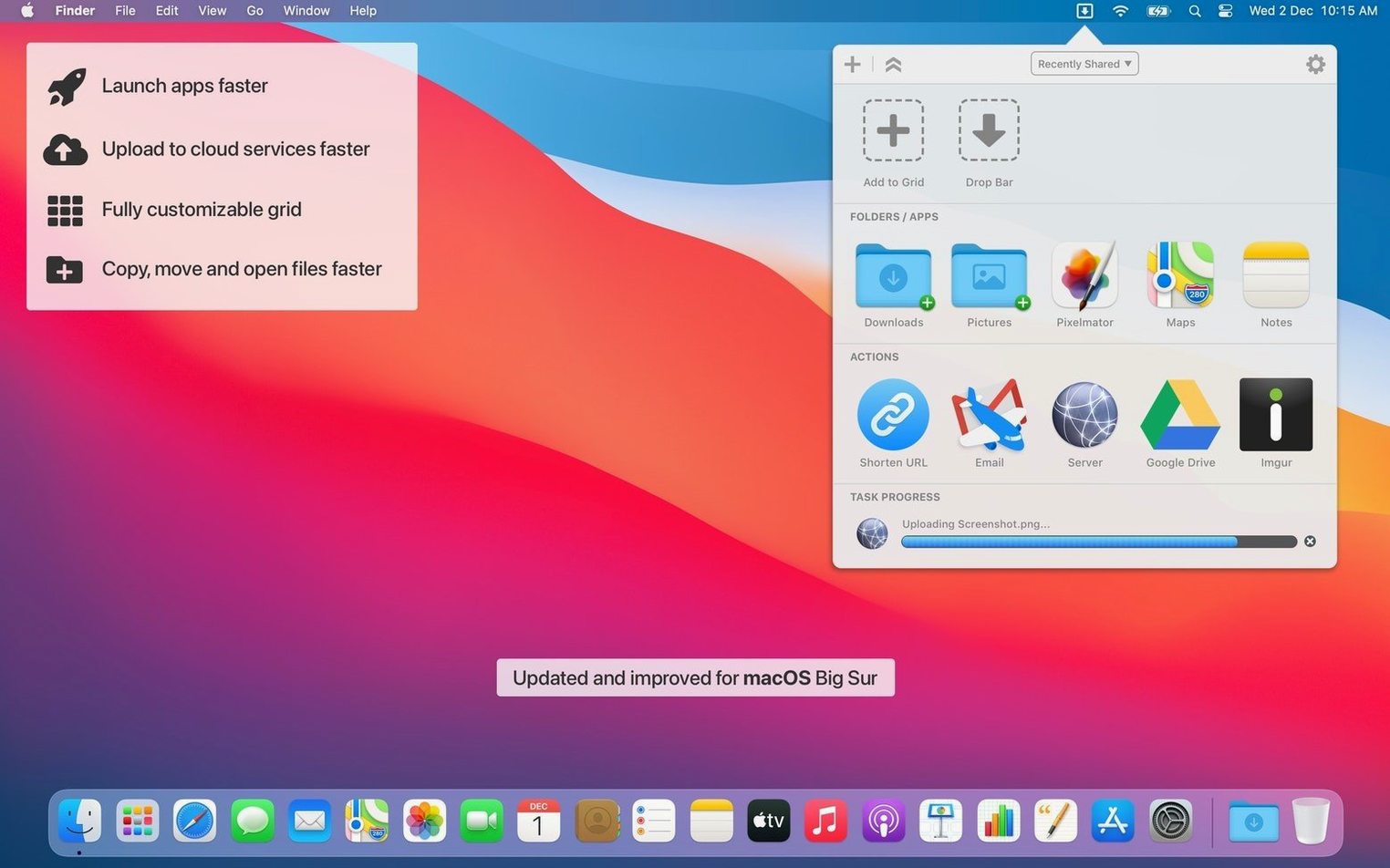
Most people already live inside Finder. Dropzone 5 simply gives that familiar drag a longer reach. Instead of dropping a file onto a folder and stopping there, you drop it onto a compact icon grid that slides out from the menu bar, and the Mac does the rest—copying, moving, uploading, or packaging the file while you carry on with something else.
Send a file somewhere without opening a window
Drag any document or image onto a folder shortcut in the grid and watch it move or copy instantly. It feels less like running a utility and more like tossing papers onto the right desk.
Upload something via FTP without launching an app
Drop a screenshot or a batch of assets onto the FTP icon you set up earlier. The file travels to the server in the background, and a subtle notification confirms it landed.
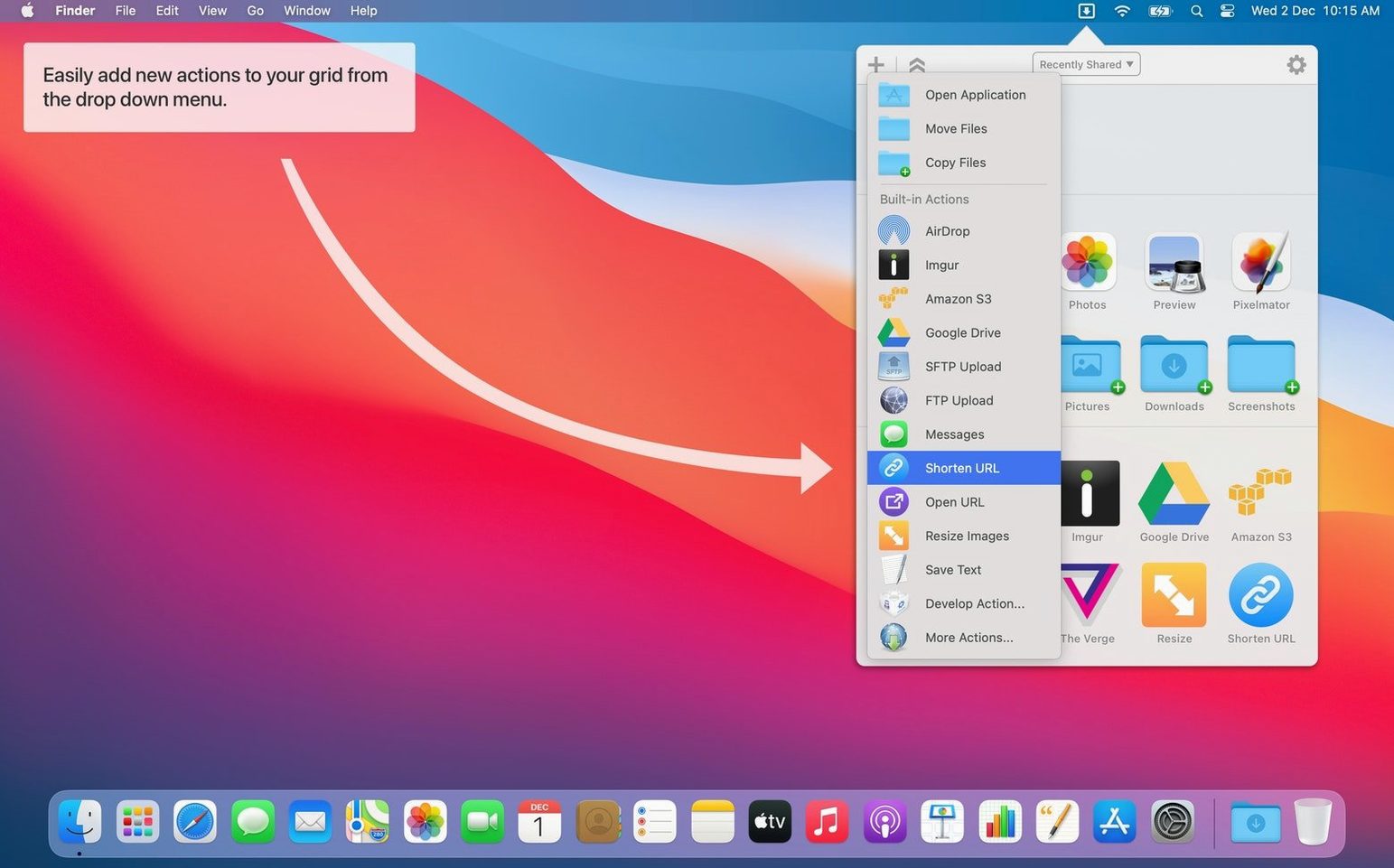
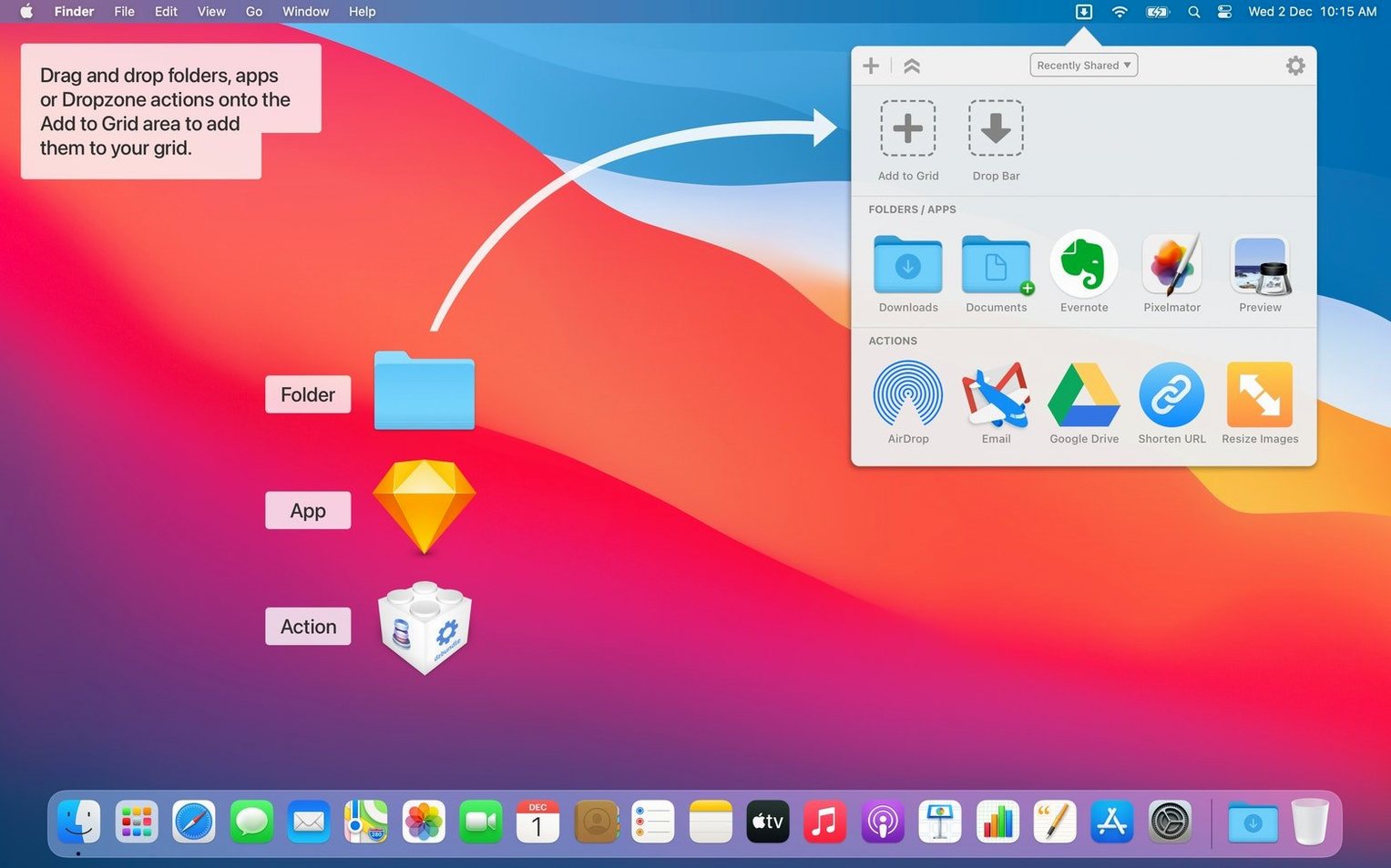
Add your own apps and folders to the grid
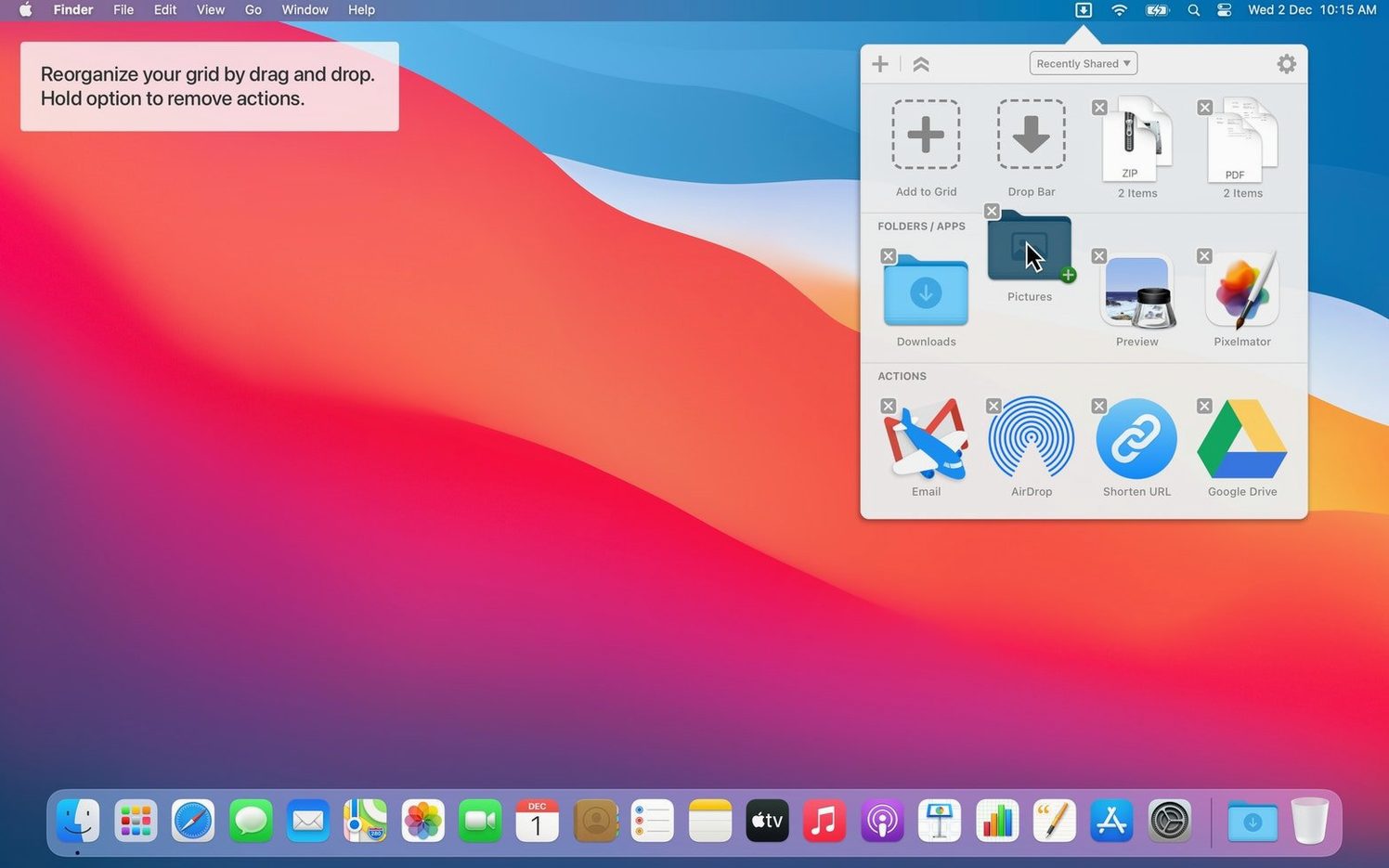
Reserve a few slots for the things you open constantly—a project folder, a script that renames today’s footage, a share action. Assign each one a hotkey from the grid’s settings, and the whole menu bar becomes a launchpad shaped exactly to your afternoon.
First days with Dropzone 5: a few small moves that stick
Start modestly. On day one, clear out the default grid items you won't use and replace them with three folders you open at least twice an hour. Drag each folder in from Finder, give it a recognizable icon, and notice how much less time you spend spelunking through the sidebar. By the end of the first afternoon, the grid should feel like an extension of your hand rather than another panel to manage.
Assign hotkeys early, before muscle memory locks onto the mouse. Open the grid settings and bind your most-used action—the media exports folder, say—to something like ⌃⌥⌘E. It takes thirty seconds and pays back every time you avoid hunting for a window behind a stack of code editors. On day two, drag a file into the drop zone, hold it over a folder shortcut for a beat, and watch the copy-confirm animation. That little pause teaches you exactly where the threshold sits between a quick transfer and an accidental one.
Who really settles into this tool
People who already resent Finder’s window sprawl get the most immediate lift. If you bounce between a downloads folder, a client uploads directory, and a renders scratch disk a dozen times before lunch, those three grid slots alone carve minutes out of the morning. Video editors and sound designers gravitate toward the holding area—a temporary shelf for files you need in five different places but don't want to duplicate yet. Just drop assets onto the shelf icon, keep working, then drag them out to the timeline or DAW when the moment is right.
Developers who already live in Terminal find a quieter ally in the dz command. A Ruby or Python action triggered from the grid can kick off a build script or rsync a folder to a staging server without opening a single window. Less obvious but equally at home: writers and researchers who move between PDFs, image folders, and note-taking apps. A grid action that copies a reference file into a project folder and another that uploads it to cloud storage turns a messy drag into a single motion.
A real-world workflow: client assets from desktop to server
Picture a folder of production stills sitting on the desktop. The client needs them on an FTP server, a local backup drive, and in a shared folder for the colourist. Without Dropzone, that means three Finder windows, a standalone FTP client, and enough drag fatigue to make you question your career choices.
With the grid ready, the workflow collapses into three drops. First, drag the desktop folder onto an FTP action configured for the client’s server. The progress bar flickers in Notification Center while you move to the second step. Grab the same folder and drop it onto a copy action pointed at the backup drive—Dropzone duplicates the folder in the background, preserving the folder structure exactly. Third, drop the folder onto a move action aimed at the colourist’s shared directory. The desktop original vanishes cleanly, and every destination received what it needed. The whole sequence runs under forty seconds, most of it waiting for the upload, none of it spent managing windows.
For anyone who grabbed the Dropzone 5 torrent Mac build to test the waters before committing, this FTP-and-copy chain is the right place to stress-test the app. Set up three real destinations, run a batch of files through them, and see whether the background processing holds steady with larger transfers. It usually does, and that quiet reliability is what turns a trial into a permanent menu bar resident.
Dropzone 5.1.4 brings a welcome refinement to the drag-and-drop shelf. Drop Bar stacks now open as popovers, letting you peek inside a stack and pull out individual files before committing to an action — a small change that saves you from unpacking everything just to grab a screenshot. Grids have grown more accommodating too: you can drop an app or folder straight into the gaps between existing tiles, and the grid reshapes around it. The glass effects on grids feel more at home under the latest macOS, and a visual glitch that cast odd shadows behind dragged Drop Bar items has been quietly ironed out.
- macOS 13 or later
- Apple Silicon or Intel 64-bit