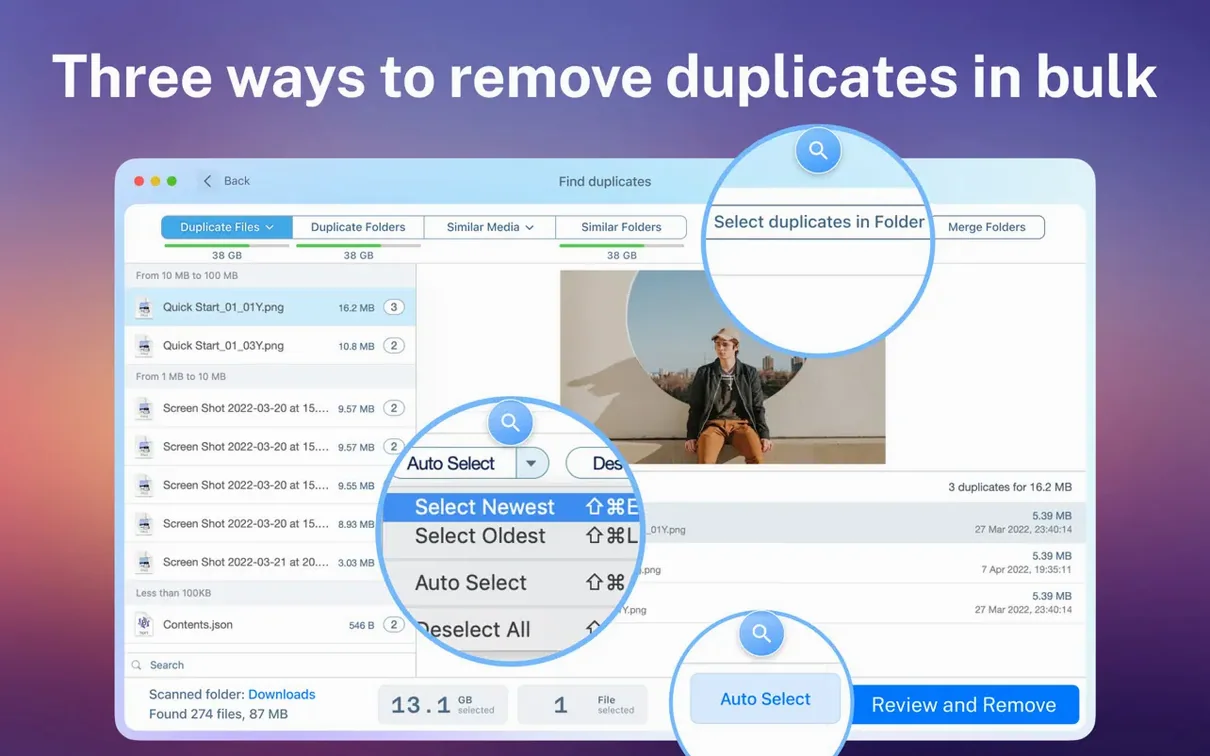
It’s the kind of tool editors and media archivists reach for after a few months of rushed deadlines. Scattered backups, mirrored project folders, and multiple copies of the same ProRes clip start to eat away at storage quietly. Duplicate File Finder Pro handles that sprawl—on internal drives, external enclosures, and network locations, including OneDrive folders that appear right in a Finder window.
Start with the folders that matter most
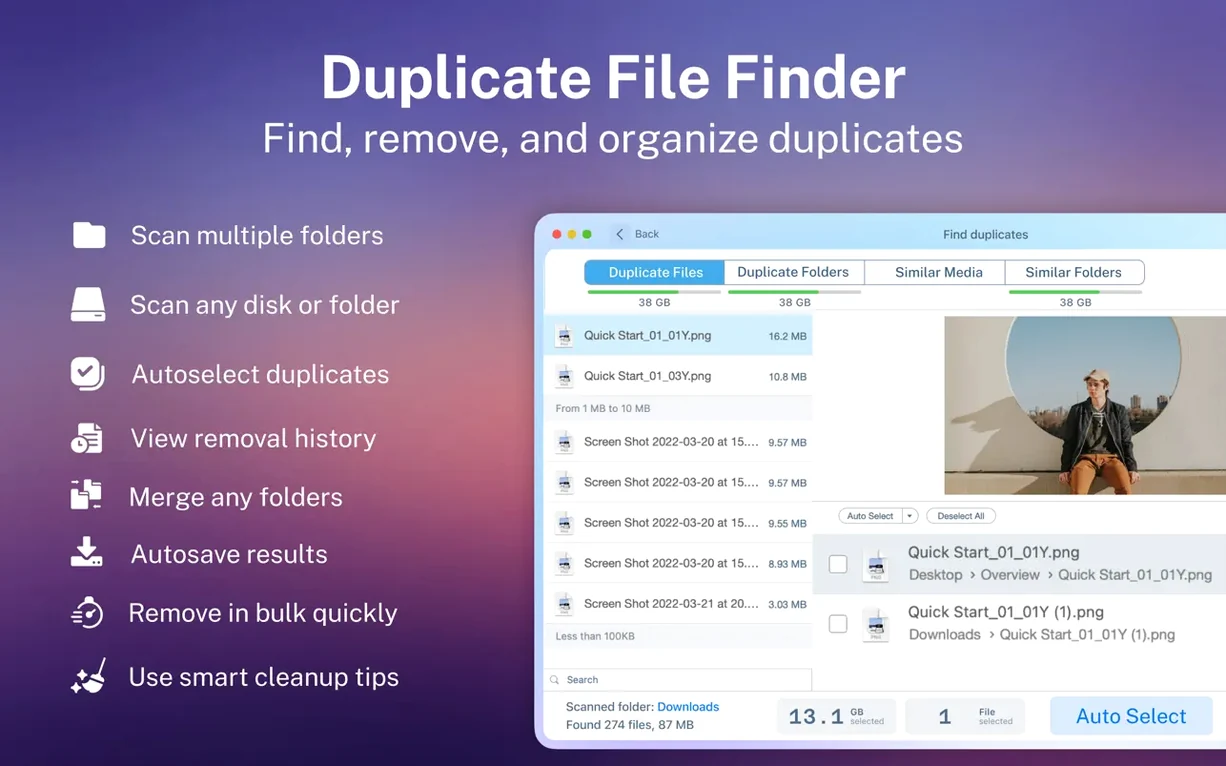
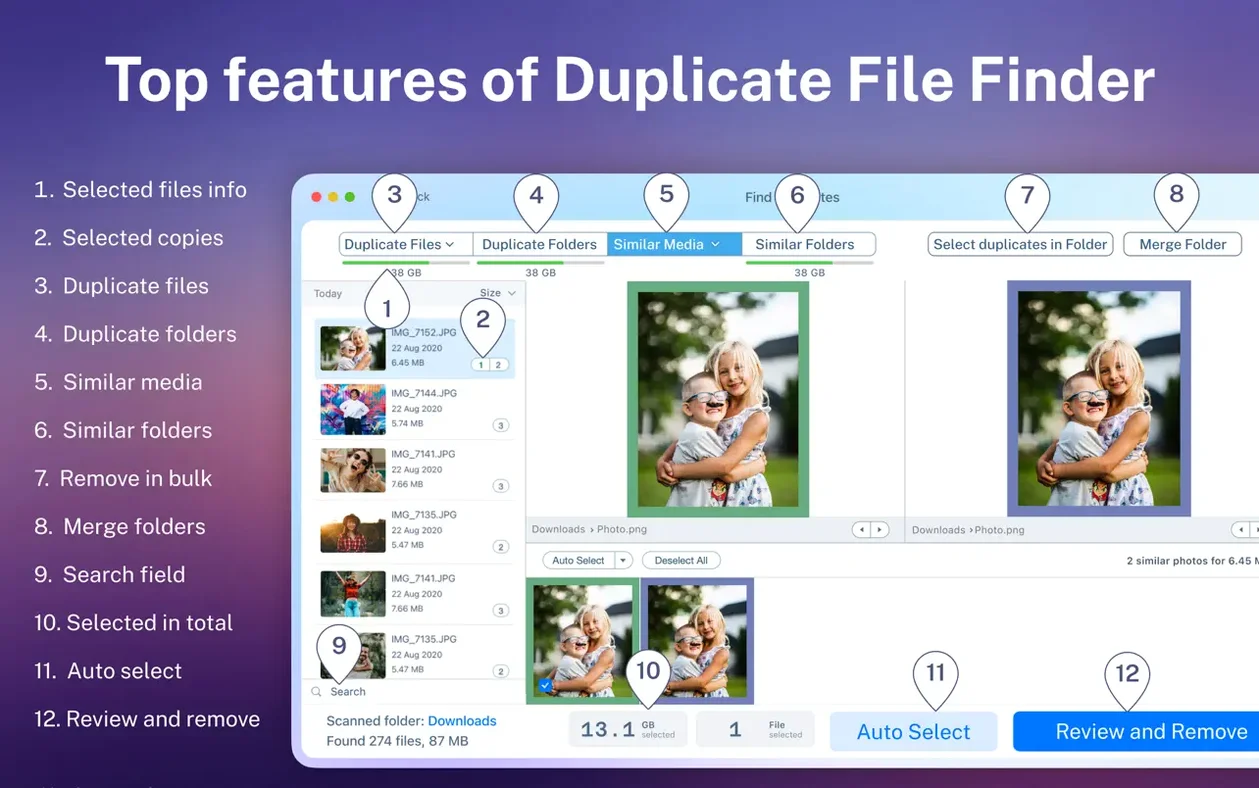
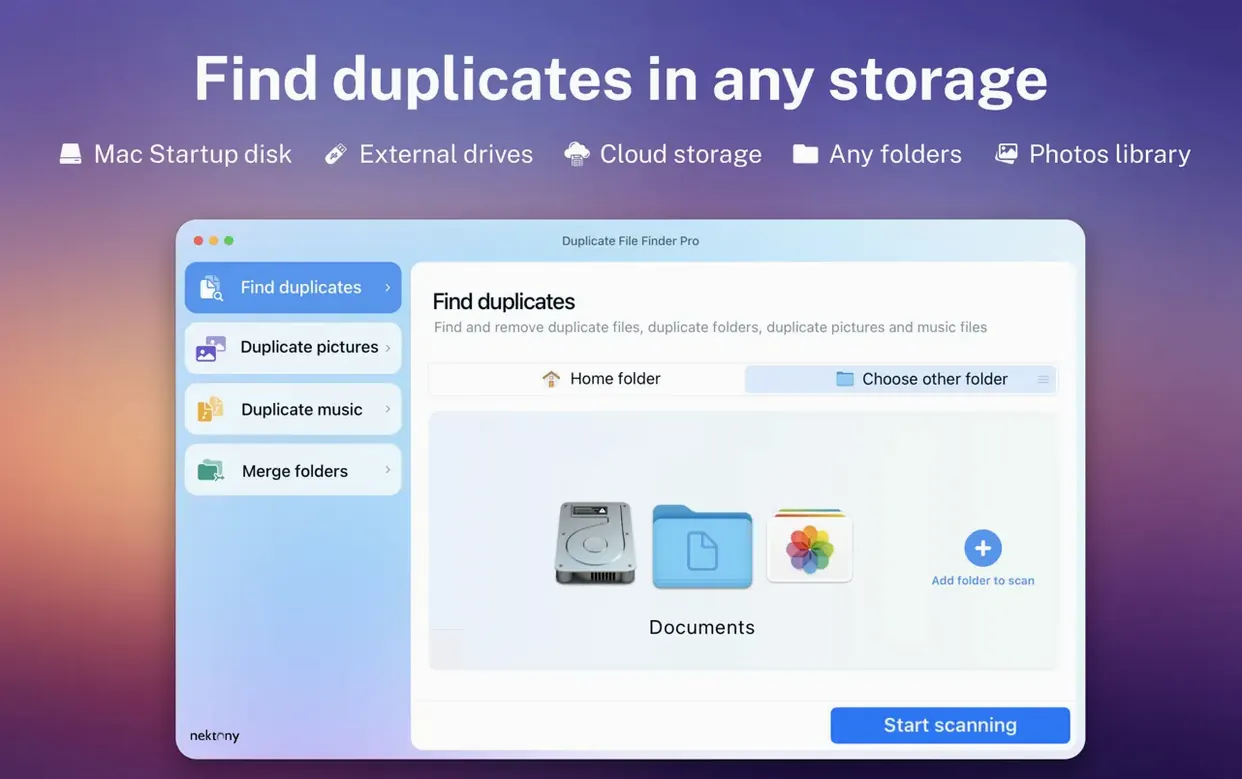
The scan can pull from several places at once. I added my local Documents folder, an external Samsung T7 holding recent short-film edits, and the OneDrive directory that sits in the Finder sidebar. The app lets you drag any folder into the scan list—no hidden preferences or special mounts required. Once the scan finished, the visual report broke everything into categories: video, audio, images, archives, and documents. Right away the duplicate folders view showed a mirrored set of old project bins I had dragged around months ago, so I could collapse entire directories instead of picking off files one by one. Sorting the duplicate file list by total size put the largest wasted space at the top, which is where cleanup should always begin.
Smart selection before anything disappears
Before deleting, I previewed a few large video files directly in the results pane to confirm which ones were safety copies versus active project media. The smart selection feature automatically marks duplicates for removal, keeping the original in place, and you can filter by name, type, or duplicate count to verify its choices. After a quick review, a single click removed over 200 GB of redundant footage and old renders. The app runs natively on Apple Silicon, so scanning a fast external drive never felt sluggish, and it stayed quiet even with network folders in the queue.
How the app sits in daily use
On a MacBook Pro with an M1 Max chip, a full scan across the internal SSD and a 2 TB external drive settled the memory pressure needle barely above idle. The interface never locked up while results streamed in, and scrolling through a list with thousands of duplicates felt as responsive as a Finder window. I left it running alongside DaVinci Resolve and a handful of Safari tabs without the fans spinning up—something I can't say about every disk utility. Network folders mapped through SMB took longer to enumerate, which is expected, but the scan didn't stutter or drop the connection mid-pass. After several days of intermittent use, the app hadn't left behind any background daemons or launch agents, and quitting it genuinely freed the memory it had claimed.
Switch on hidden folders before your first scan
The defaults are sensible, but a few small adjustments make the first scan feel less like a leap of faith. Before hitting the big Scan button, open preferences and enable the option to always show hidden folders in scan results—old cache directories and app support folders often harbour exact clones of assets you already moved elsewhere. Next, switch the removal method to move to Trash rather than permanent delete, at least until you've built some trust with the smart selection logic. If OneDrive or Dropbox folders appear in your scan list, pause a moment and make sure the files are fully synced locally; the app reads whatever the system sees, so cloud-placeholder icons in a Finder window mean the scan will skip those items without warning. Finally, create a small test folder of throwaway duplicates and run a scan on just that directory first—it takes under a minute and gives you a safe way to explore the preview and selection tools before touching real work.
A cleanup workflow for a cluttered media drive
Here's a path I follow when an external project drive starts groaning. Drag the drive into the scan list along with the local Movies folder. Let the scan finish, then switch to the duplicate folders view rather than the file list. This often reveals entire project directories that were copied wholesale during a panic backup, and merging them is far faster than deduplicating file by file. Mark the redundant folder copies, choose merge folders, and the app consolidates contents into one location while preserving the newest version of each file. After that, switch to the duplicate files view and sort by total size. Use the category filter to isolate video files first—those are the space hogs. Run a quick preview on a few large matches to confirm they're genuinely identical, then apply smart selection with the rule set to keep the file in the most recently modified folder. One more review of the list, a click to move everything to Trash, and the drive breathes again. I repeat the same flow for audio and image categories, each pass tightening the drive further without ever touching the source media I still need.
- macOS 10.13 or later
- Apple Silicon or Intel 64-bit processor
Questions from the booth
Yes, if your OneDrive or similar service shows up as a standard Finder location, Duplicate File Finder Pro can scan it like any other folder.
It finds duplicate folders by comparing their contents, so you can remove entire mirrored directory structures at once.