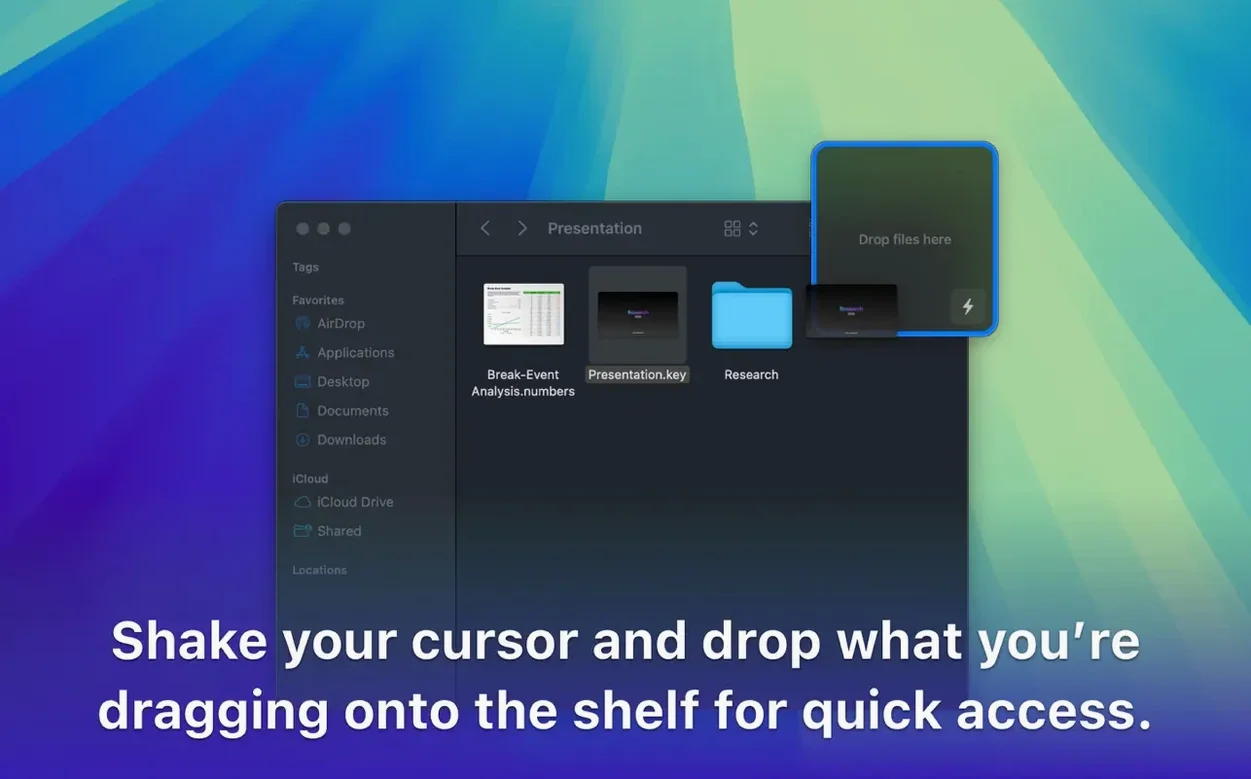
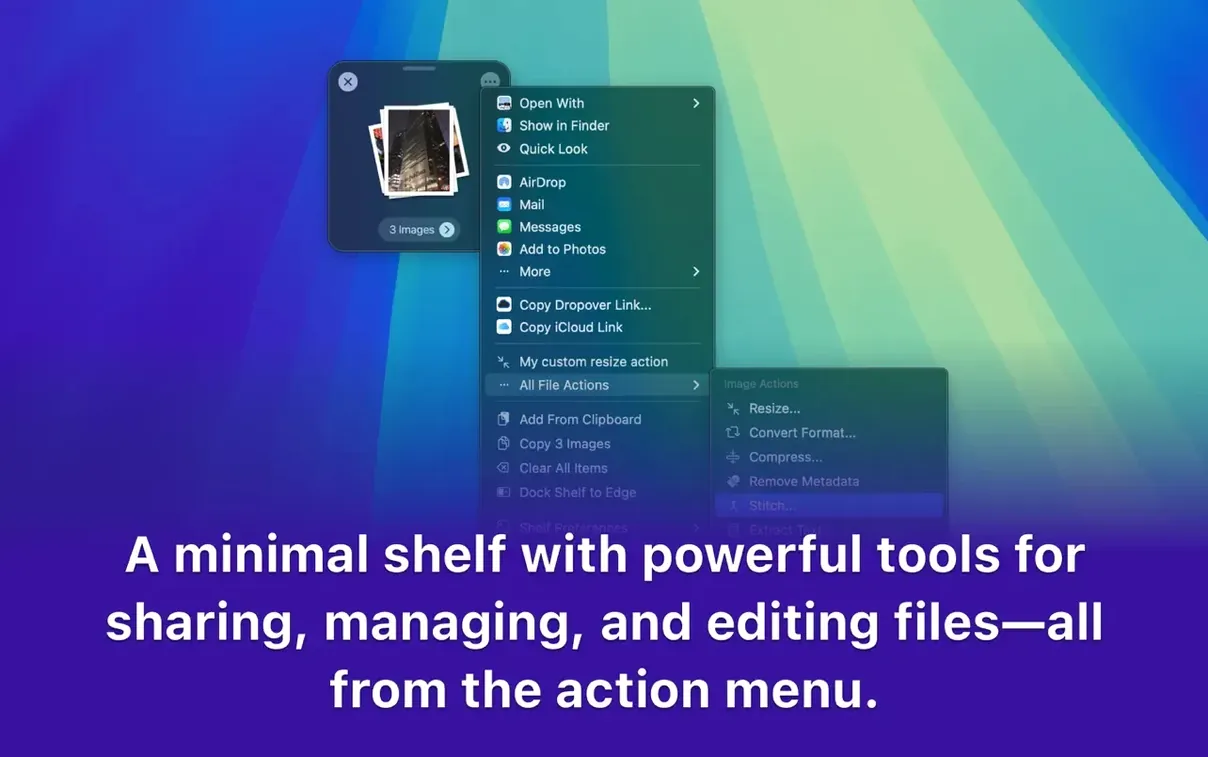
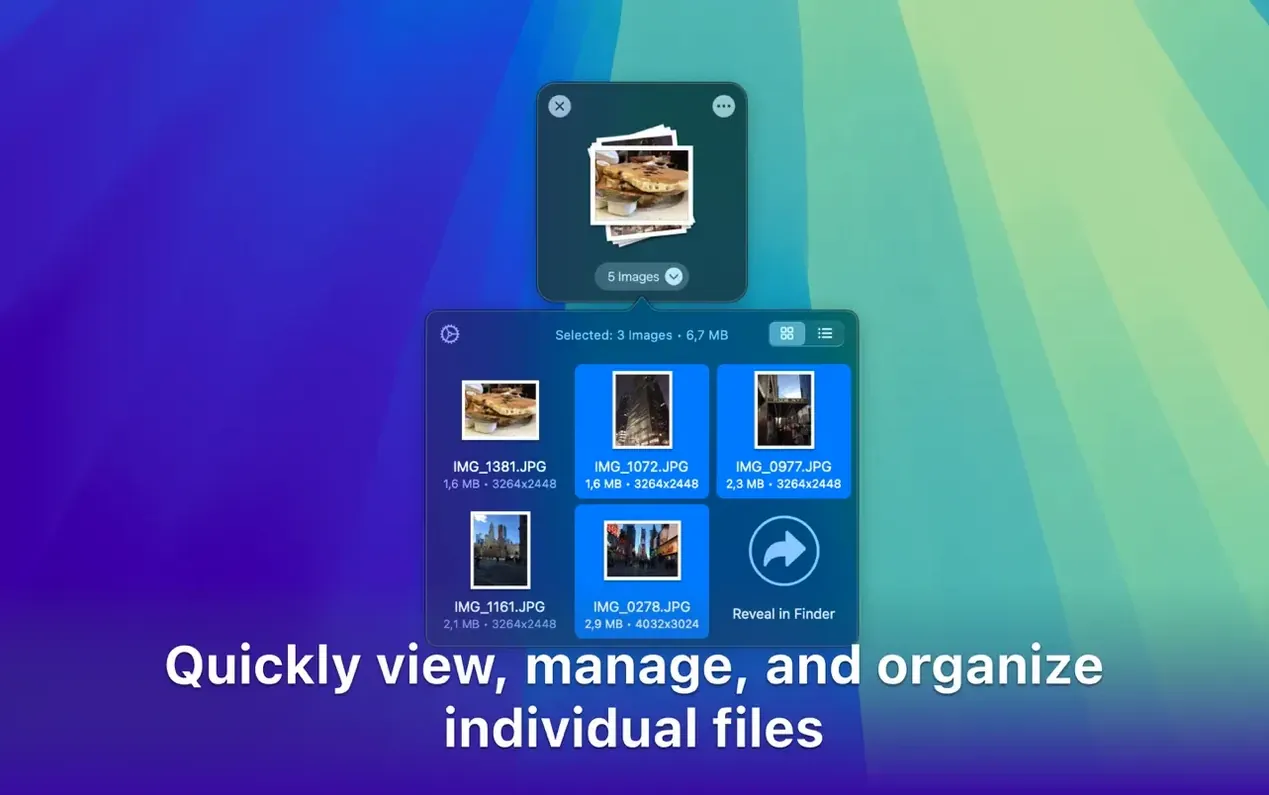
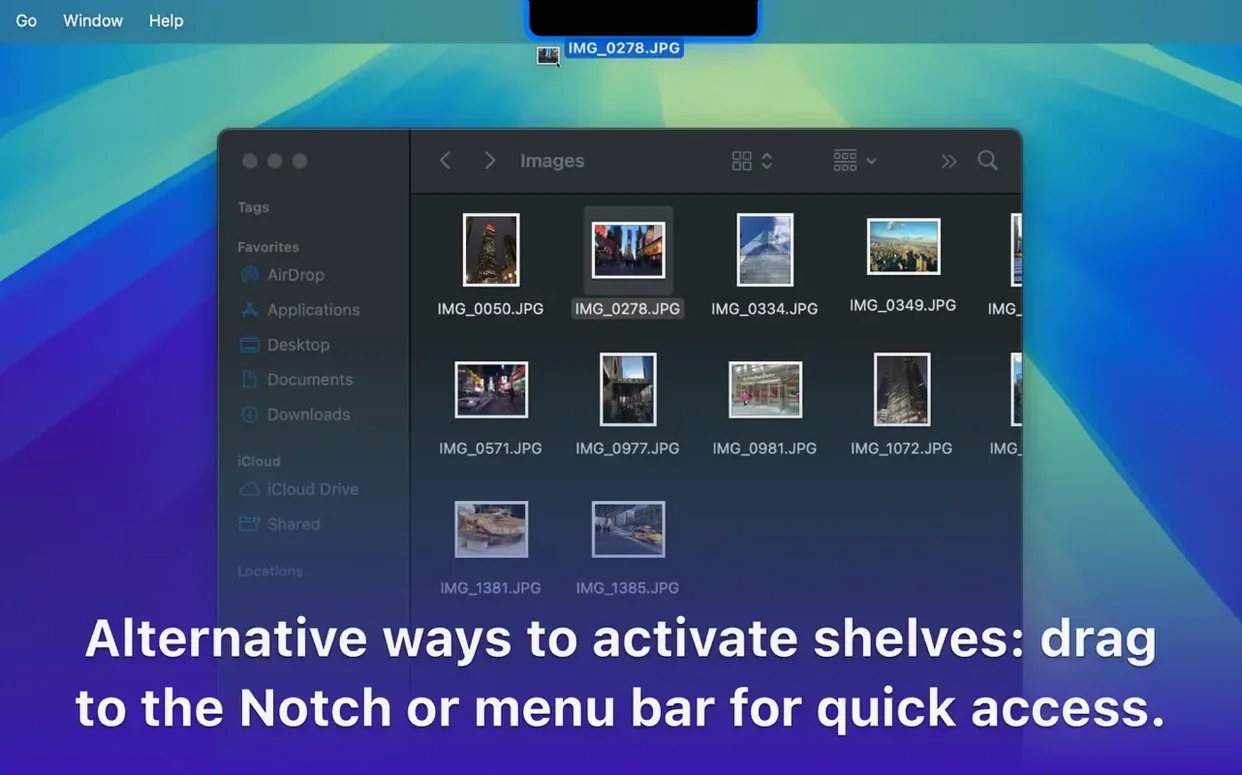
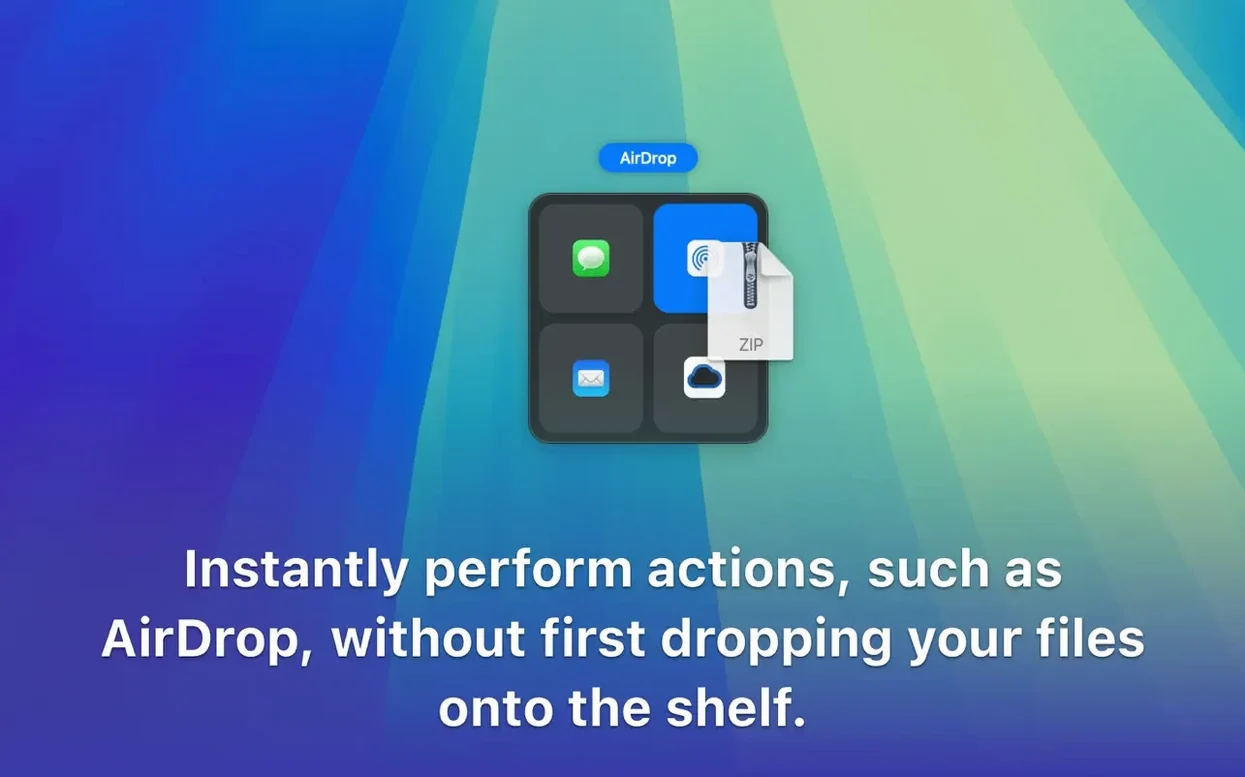
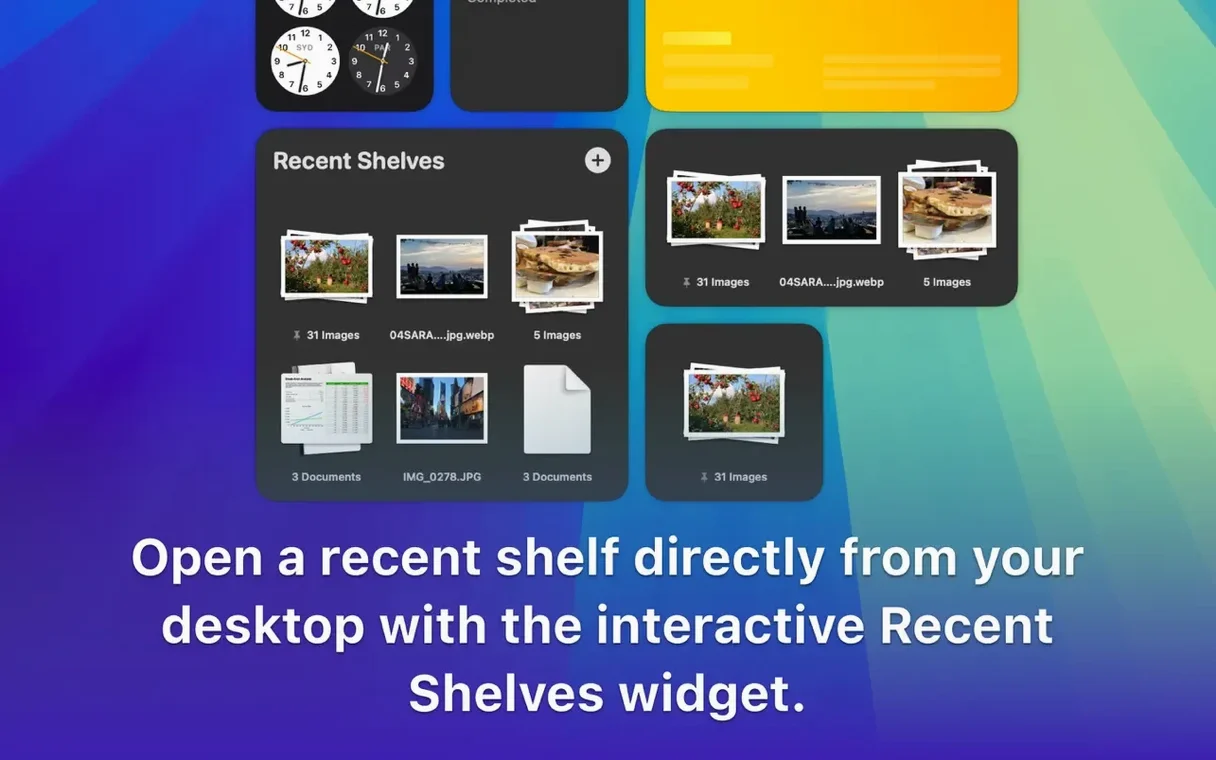
Dropover is a Mac utility that gives you a temporary floating shelf every time you shake your cursor or hold a drag, holding files, images, text, and links until you decide where they belong.
What does the floating shelf actually do?
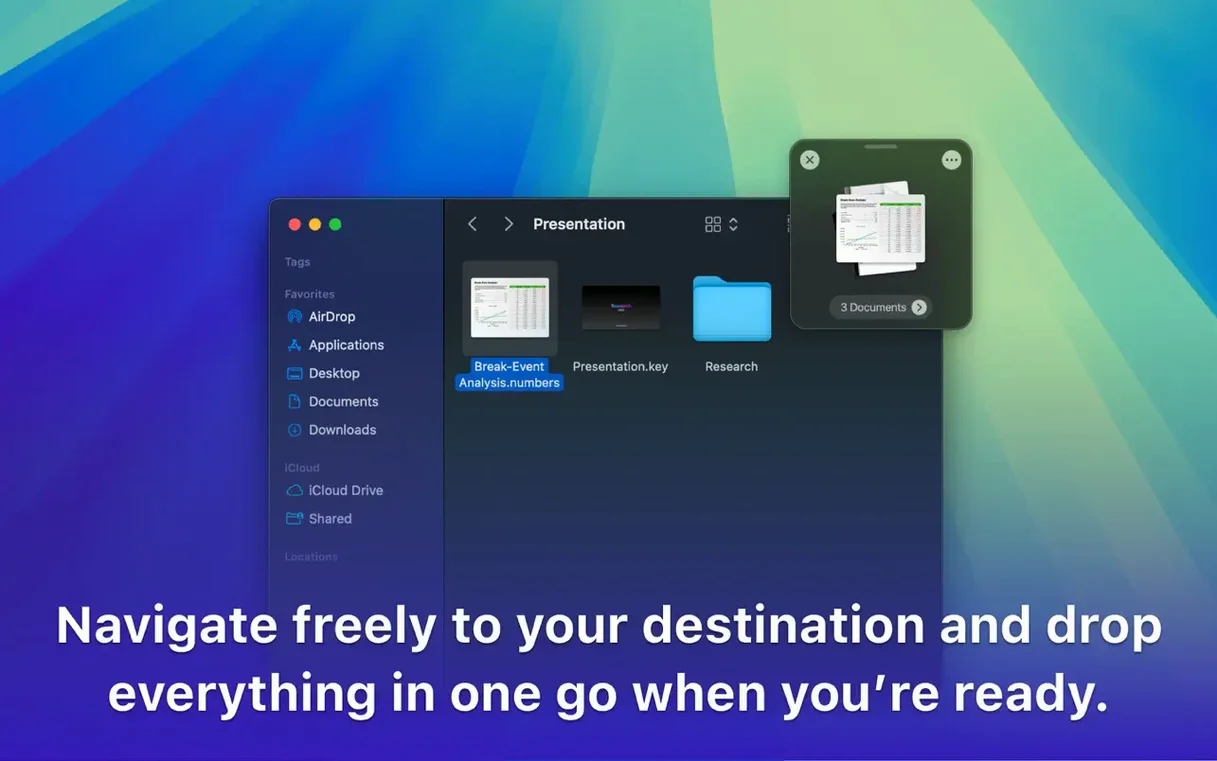
It holds anything you drag — folders, web links, image clippings — while you calmly navigate to the destination window, application, or workspace. The shelf stays visible and out of the way, so you can gather items from several places before acting on them all at once.
How does it work across different apps and spaces?
Because the shelf floats above your current context, you can drag content between fullscreen apps, desktop spaces, and deeply nested folders without losing your grip. Dropover removes the friction of staging moves that would normally require two Finder windows and a lot of patience.
What can you do with items once they're on the shelf?
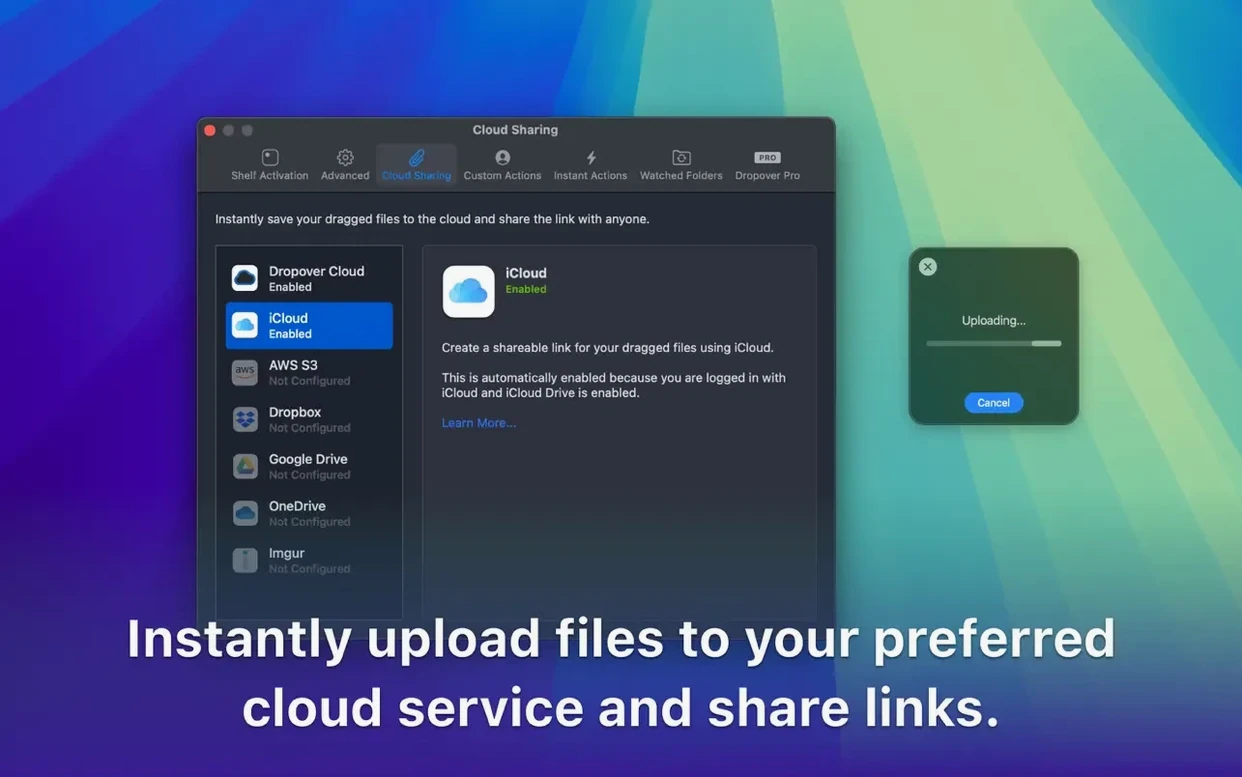
From the shelf you can archive a batch, rename files in sequence, share them directly, or hand them off to a Shortcut. Cloud services like Google Drive and Dropbox integrate naturally — just drag from the shelf to a browser upload zone or a synced folder.
What stayed the same in version 5.3.0?
No release notes accompanied this build, but the core behaviour remains unchanged: a lightweight shelf that appears when you need it, Shortcuts support, and the same quiet integration with macOS 12 and later on both Intel and Apple Silicon Macs. The tool still feels like a calm extension of the drag-and-drop gesture you already use a hundred times a day.
What the latest versions changed in everyday use
Version 5.3.0 arrived quietly, without a public changelog, but the daily rhythm of the tool has shifted in subtle ways across recent updates. The shelf now feels more responsive when invoked mid-drag — the cursor wobble that calls it up registers with less latency, especially on Apple Silicon machines where the animation lands without the micro-stutter that crept in on some earlier builds. Context-menu and share-sheet hooks have grown more reliable, too, appearing in places where they used to be absent, like the Quick Look preview pane and certain Open dialog sheets.
One practical change that regular users notice is in how Dropover handles mixed content types. Dragging a URL alongside a folder and a plain-text clipping no longer flattens everything into a generic stack — the shelf preserves each item's type more clearly, so a web link stays actionable as a link even when it sits next to a .dmg file you grabbed from a mounted disk image. The Shortcuts integration has also matured: actions that pass items from the shelf into a shortcut now carry richer metadata, which matters if you've built workflows that branch on file type or name.
Questions people usually ask before installing
Does it run all the time, or only when I need it? Dropover lives in the menu bar, not the Dock, and uses almost no CPU when idle. It wakes the moment you start dragging or shake the cursor — there is no persistent shelf sitting on screen. You can quit it entirely from the menu bar icon without leaving anything behind.
Will it interfere with my existing drag-and-drop habits? The shelf only appears when you deliberately invoke it, either by shaking a grabbed item or by pressing the configurable hotkey. Normal dragging between Finder windows, into the Dock, or onto app icons works exactly as before. Dropover extends the gesture, it does not intercept it.
What happens to the shelf contents if I restart or the app quits? The shelf is temporary by design. Items vanish when you drop them, clear them manually, or quit the app. There is no persistent clipboard history or automatic restoration — the tool treats gathered files as a transient staging zone, not a permanent library.
Can I use it with the tools I already rely on? If your workflow involves Finder, the share menu, Shortcuts, or cloud services like Google Drive and Dropbox, Dropover slots in without friction. The shelf accepts a dropover dmg download just as easily as it accepts a folder full of RAW photos, and it hands items off to upload zones and synced directories without converting or renaming anything on its own.
A scenario: the project archivist
Consider a video editor wrapping a short film. The project folder is scattered across an external drive, a Downloads pile, and a shared cloud directory. She grabs a graded ProRes file from the timeline export folder, shakes it to summon the shelf, then navigates to the sound designer's folder in Dropbox and adds the final mix. She opens a browser tab, drags the festival submission link onto the growing stack. Without closing a single window or opening a second Finder, she has gathered the deliverables. From the shelf she archives them into a dated zip, renames it to match the submission guidelines, and drops the archive into the upload portal — all in one continuous motion. No temporary folders, no forgotten files.
Which kinds of Mac users get the most out of it
Dropover rewards people who move between many contexts in a session. Designers dragging assets from a reference board into a layout app. Developers collecting log files, screenshots, and code snippets before writing a bug report. Researchers pulling PDFs, web links, and plain-text notes into a single batch before handing them to a Shortcut that tags and files them. The common thread is a need to gather before acting, rather than making a dozen round trips.
It also suits anyone who has ever resented the precise mouse gymnastics of dragging a file from a deep Finder hierarchy into an Open dialog while holding the trackpad down with one finger and hoping for the best. The shelf removes that tension. If you frequently handle dropover mac download workflows — downloading a disk image, mounting it, and dragging the app to Applications — you already know the small friction that Dropover smooths out everywhere else.
- macOS 12 or later
- Runs natively on both Intel and Apple Silicon Macs
Questions from the booth
Yes — you can collect files, folders, images, text snippets, and links together, then drop or process them as a single group.
It does. You can send items from the shelf directly into a Shortcut, which opens up custom rename sequences, upload flows, and conversion routines.