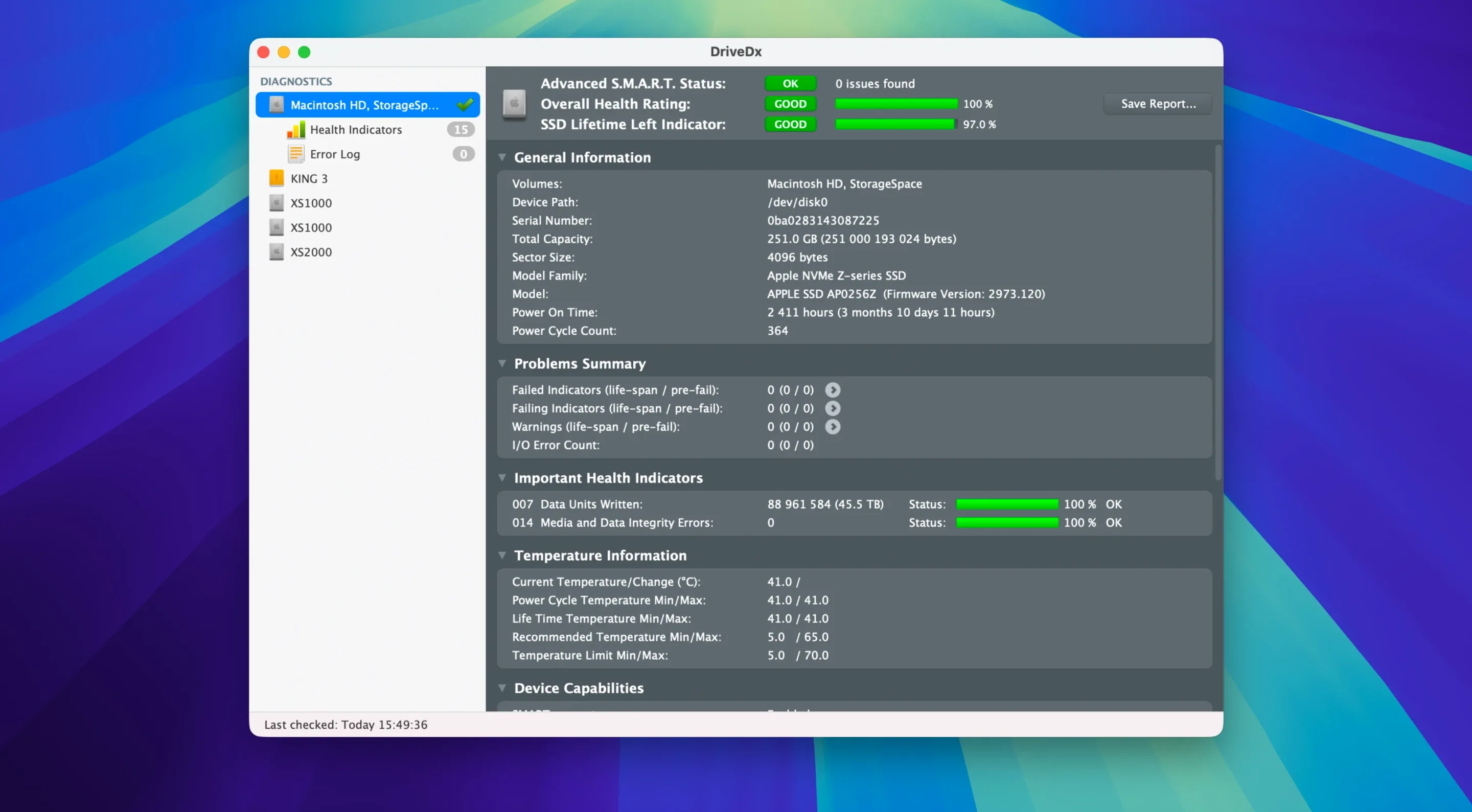
- Open the attribute dashboard. The main window lists every S.M.A.R.T. indicator your drive reports — reallocated sectors, pending bad sectors, SSD wear levelling counts and raw I/O error rates. A colour-coded health bar gives you the headline, but the real value lives in the rows below it.
- Check the pre-failure indicators. DriveDx marks attributes that signal imminent failure. Hover over any flagged row and the tooltip explains what the number means for your specific drive model, not just a generic threshold. For SSDs, lifetime writes and wear normalisation are tracked separately from rotational-drive metrics.
- Set notification thresholds. The 1.12.1 update refined when DriveDx fires a health-change alert, so a single reallocated sector on a brand-new drive won't stay silent while a cluster of them on an ageing disk triggers a prompt immediately. Notifications can land in Notification Centre or sit quietly in the menu bar until you click.
- Let background scanning run. DriveDx polls drives on a schedule you set. Between scans it stays quiet unless a threshold trips, which means you can forget about it until a drive actually starts degrading.
- Read the failure prediction summary. The app's heuristic engine weighs multiple attributes together — it won't panic over one borderline value if the rest look healthy. When it does warn, it includes the specific evidence, so you know whether to clone the drive tonight or just keep an eye on it.
The driver installer no longer asks for Rosetta 2 on Apple Silicon Macs, and the diagnostic heuristics got a quiet refresh that tightens false-positive rates. Patriot P200 SSD support sees a small bump in accuracy. Under the hood it's a maintenance release, but for a tool that sits between you and data loss, maintenance is the point.
How DriveDx sits alongside similar Mac utilities
Disk Utility tells you a drive is “verified” and leaves it at that. That’s fine until you realise it’s reading a single S.M.A.R.T. status byte — essentially a thumbs-up or thumbs-down — without surfacing the attributes behind the verdict. DriveDx opens the bonnet. Where Disk Utility stops at a pass/fail check, DriveDx graphs raw attribute histories, flags pre-failure states and distinguishes between outright failure and a drive that’s merely tired. For anyone who has ever watched a drive chug through a Finder copy with no indication of why, the extra granularity is the whole point.
SmartReporter gives you menu-bar peace of mind with a lightweight footprint, but its S.M.A.R.T. parsing leans simpler. It watches for threshold breaches and can fire off an email or run a script. DriveDx shares that alert-driven philosophy yet brings model-specific heuristics — a Seagate Barracuda and a Samsung EVO are read through different lenses rather than a single rulebook. That matters most for SSDs, where wear levelling and lifetime writes tell a story that rotational-era checks never captured.
Drive Scope by Micromat takes a technician’s approach, bundling surface scans and partition recovery alongside health monitoring. It’s deeper in some corners, especially if you’re already inside Micromat’s ecosystem. DriveDx stays narrower: it’s a health watchdog first, not a repair toolkit. The trade-off is a cleaner daily experience. You install it, it runs in the background, and the interface doesn’t ask you to interpret block-level scan maps unless you choose to drill into the attribute list or run a self-test.
What quietly changed in everyday use
The 1.12.1 release doesn’t add a marquee feature, and that’s a good thing. The diagnostic heuristics received a round of tuning that trims false positives — the kind where a borderline raw value on a specific drive family used to nudge the status toward “failing” a shade too early. In practice this means fewer amber warnings that resolve to nothing when you double-check. The adjustment is subtle, but if you’ve ever spent an hour cloning a drive because of an overeager alert, you’ll notice the difference.
Apple Silicon Macs benefit from a driver installer that no longer routes through Rosetta 2. It’s a plumbing fix, invisible once applied, yet it removes a compatibility layer between low-level drive access and the ARM kernel. For users who run a fleet of M-series machines in a studio or post-production house, the installer runs natively now — one less thing to explain when onboarding a new Mac. Patriot P200 SSD owners also get a bump in attribute interpretation accuracy, which is a small target but a welcome one if that drive lives in your enclosure.
Switch alerts to persistent banners so a transient warning is never missed
Out of the box, DriveDx ships with sensible defaults, but a few tweaks make it fit a real workflow. Head to the Notifications pane first. The 1.12.1 update refreshed the health-change thresholds, yet the alert style — Notification Centre banner versus a persistent alert — is yours to set. For a drive that holds active projects, switch to a persistent alert so it doesn’t vanish before you see it.
Next, visit the Scan Schedule tab. The default polling interval of once per hour is reasonable for a laptop that sleeps often; for a desktop with external RAID enclosures that spin 24/7, dropping it to every 30 minutes catches transient I/O errors sooner. Conversely, on a Mac that acts as a cold-storage archive, dialling it back to every three hours reduces idle wake-ups.
In the Drive Self-Test section, schedule a short test monthly and a full extended test quarterly. Neither test disrupts normal use on SSDs, but spinning hard drives will briefly pause during the short test, so set it for a time when the Mac is awake and lightly loaded. The results feed into the same dashboard, giving the heuristics another data point beyond passive S.M.A.R.T. polling.
Thunderbolt array owners who need per-disk health across the whole chain
Video editors and colourists working with external Thunderbolt arrays live with a quiet fear that a drive will degrade mid-project. DriveDx suits them because it watches every disk in the chain — not just the boot volume — and reports wear on SSDs that Apple’s own tools treat as opaque boxes. A Final Cut library sitting on a Patriot P200 now gets model-aware monitoring, which is the kind of detail that prevents a renders-drive failure from becoming a client conversation.
System administrators managing labs or small post-production houses gain from the background-scan philosophy. One Mac running DriveDx can track a dozen external drives, and the notification system means nobody needs to remember to check. When a freelancer hands in a drive that’s quietly accumulating reallocated sectors, the alert arrives before the footage gets copied to the server.
Writers and anyone who works from a single MacBook shouldn’t discount it either. The worst time to discover a failing SSD is the morning it won’t mount. DriveDx’s menu-bar icon sits unobtrusively — green, yellow, or red — and a glance before you open a manuscript is faster than launching Disk Utility and hoping it tells you something useful. It’s the kind of tool that earns its keep the one time the icon turns orange and you still have a chance to back up.
Version 1.12.1 is a maintenance release tuned for macOS Sonoma. The driver installer no longer requires Rosetta 2 on Apple Silicon Macs, so setup stays native. Diagnostic heuristics were refined, and support for Patriot P200 SSDs was improved. The update also adjusts drive health change notification thresholds, making alerts more responsive to genuine degradation.
- macOS 10.9 Mavericks or later
- Intel or Apple Silicon Mac