
If you keep VLC around for those files QuickTime won't touch, Elmedia Player Pro occupies a similar space but feels more at home on the Mac desktop. It steps in when you double-click a stubborn MKV or need to pull a video down from a webpage without reaching for a separate tool. The built-in browser makes that part straightforward — open a page, play the video, and save it locally or just grab the audio track.
Local playback now embraces M4B audiobooks alongside films
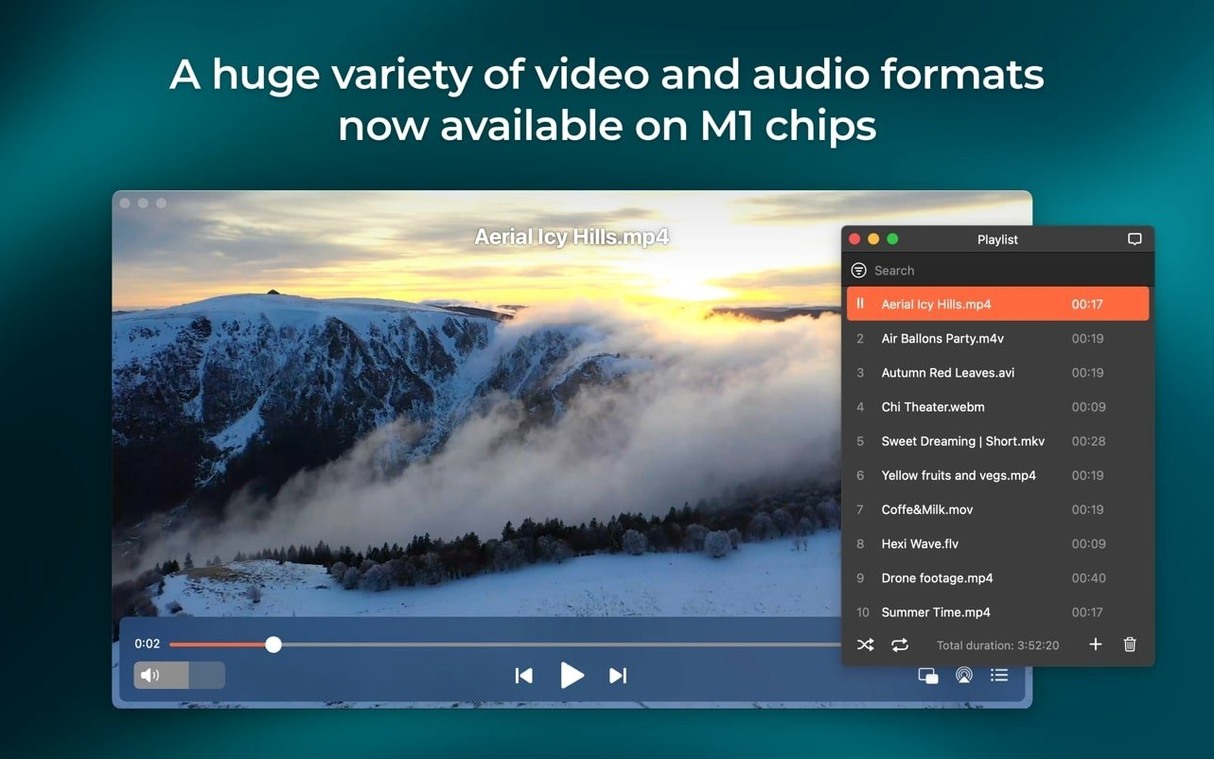
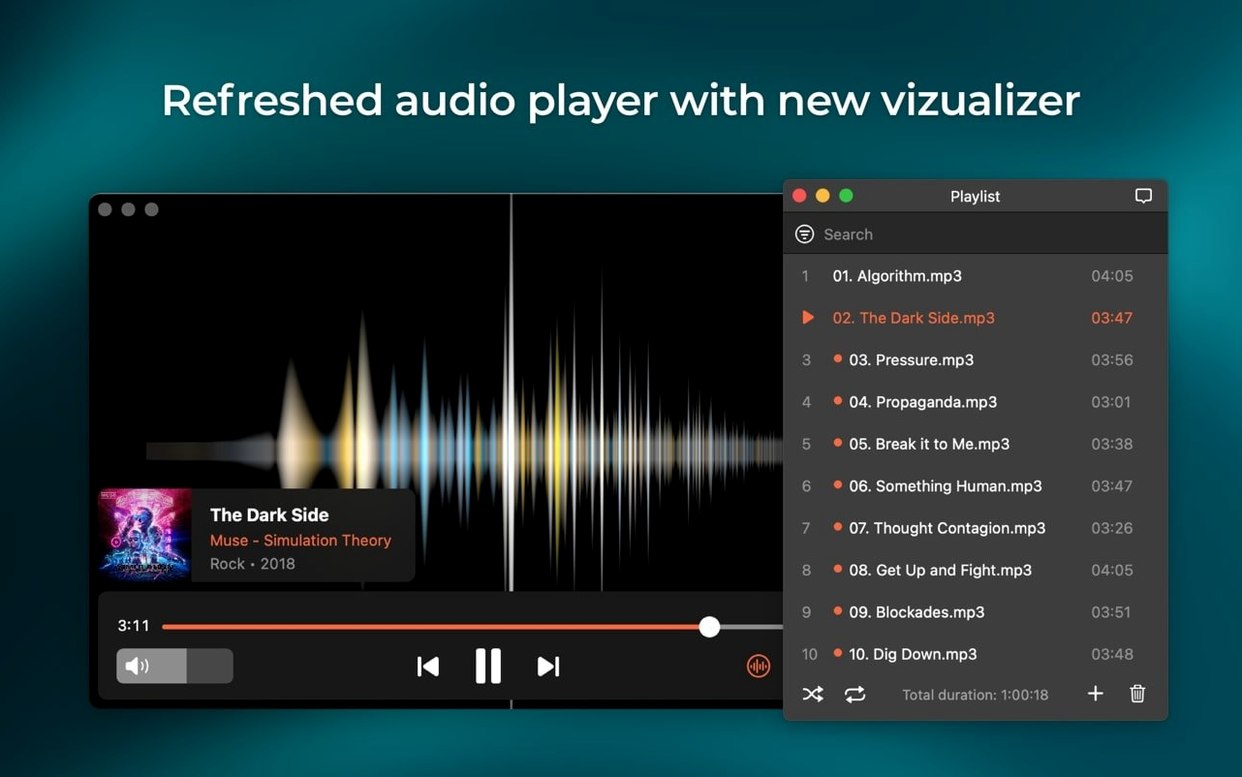
- Local playback — Handles a wide spread of video and audio formats with hardware-accelerated decoding for smooth HD. Version 8.24 quietly added M4B audiobook support, so it now covers spoken-word files alongside music and film.
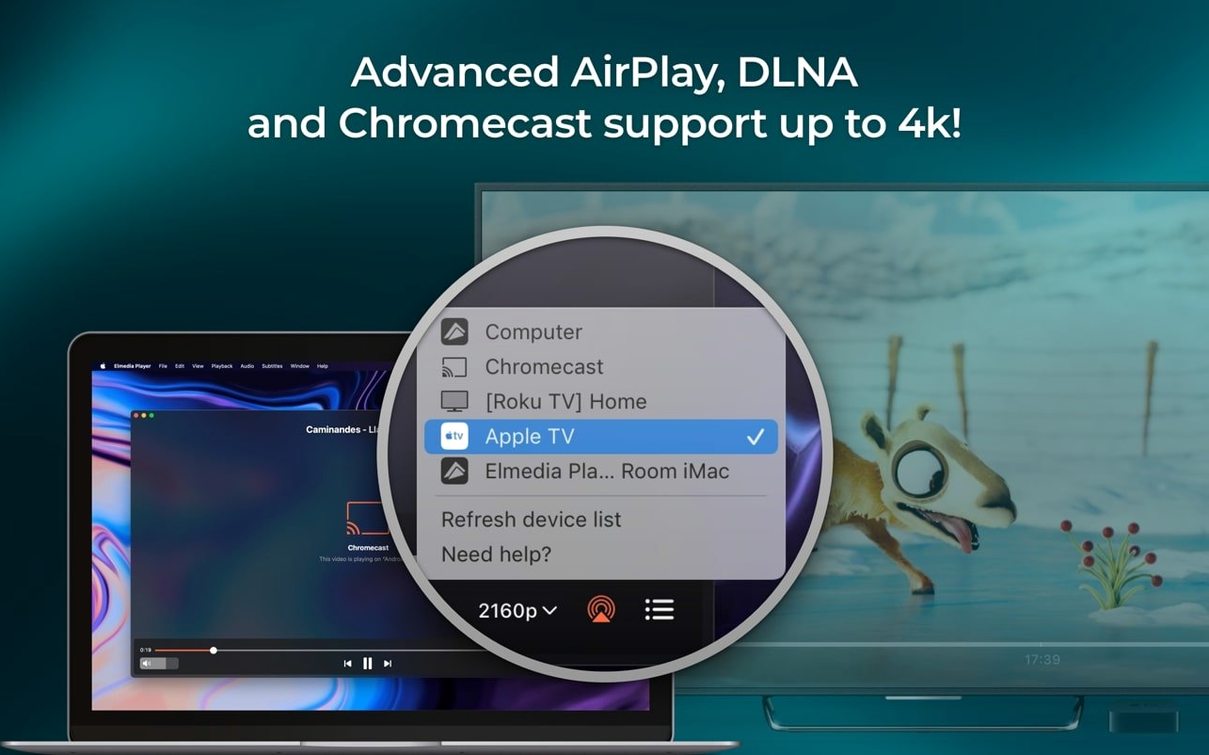
- Streaming and screen capture — AirPlay sends video to a TV or another Mac running Elmedia. The screenshot tool grabs frames during playback without needing a separate screen-capture app.
- Online video downloads — The web browser can download video and extract audio from streaming pages, including RTMP streams. The latest update also improved preventing your Mac from sleeping mid-stream.
Streaming device list errors finally disappeared on macOS 26
Beyond the M4B addition, version 8.24 smoothed out streaming to certain devices and addressed an error that appeared when opening the device list. It also brought compatibility improvements for macOS 26. These are small, practical fixes — the kind that keep a utility player reliable rather than flashy.
Disable the on-screen overlay so playback feels invisible
Out of the box, Elmedia Player Pro makes sensible choices, but a few tweaks in Preferences turn it from a capable player into one that fits how you actually work. Open the preferences window and head straight to Playback. The "Resume from last time" checkbox is off by default — turn it on if you tend to dip in and out of long video files or audiobook chapters. Just below it, the "Seek forward/backward" shortcuts default to ten-second jumps. If you are scrubbing through interviews or lectures, five seconds often feels more precise; for films, thirty seconds lands closer to what you want.
Under the Streaming tab, check that "Prevent computer from sleeping while streaming" is enabled. Version 8.24 tightened this behaviour, so it no longer drifts off mid-stream when casting to a living-room setup. In the Network section, you will find remote file access settings — useful if you keep a media drive attached to another Mac and prefer opening files directly rather than copying them across. The default buffer size is conservative; bumping it up a notch helps with high-bitrate files over Wi-Fi.
The Screenshots tab deserves a quick visit too. The default format is PNG, which makes sense for single frames you plan to use in editing, but switching to TIFF preserves more colour depth if you are pulling stills into DaVinci Resolve or After Effects for grading reference. The destination folder defaults to the desktop — changing it to a project folder keeps things tidy.
AirPlay devices vanish when your Mac and TV join different networks
The most frequent stumble involves AirPlay streaming to a device that never appears in the list. Version 8.24 fixed errors that used to crop up when opening that list, but the underlying cause is usually a network mismatch. Both the Mac and the receiving device need to be on the same subnet — if your router splits 2.4 GHz and 5 GHz bands with separate SSIDs, check that both are on the same one. Toggling Wi-Fi off and on again on the target device often flushes whatever state was blocking discovery.
Another common moment of friction: downloaded online videos that arrive without sound. This typically happens when the page serves audio on a separate stream from the video track. Elmedia's download dialog shows available streams as separate entries — if you spot one labelled "audio only" alongside the video stream, grab both and mux them afterwards, or use the audio extraction option directly to pull just the soundtrack. The RTMP download feature handles most cases smoothly, but live streams sometimes require a short delay in the capture before the buffer stabilises.
Users coming from VLC occasionally miss that hardware acceleration is not automatically applied to every codec. If an HEVC file stutters, check under the Video tab that hardware decoding is enabled and that the file is not being read from a network drive with a bottleneck. Quick test: copy the file locally and see if playback improves. If it does, the network buffer size mentioned earlier is your next stop.
A rough-cut MKV and a YouTube link, both playing back in seconds
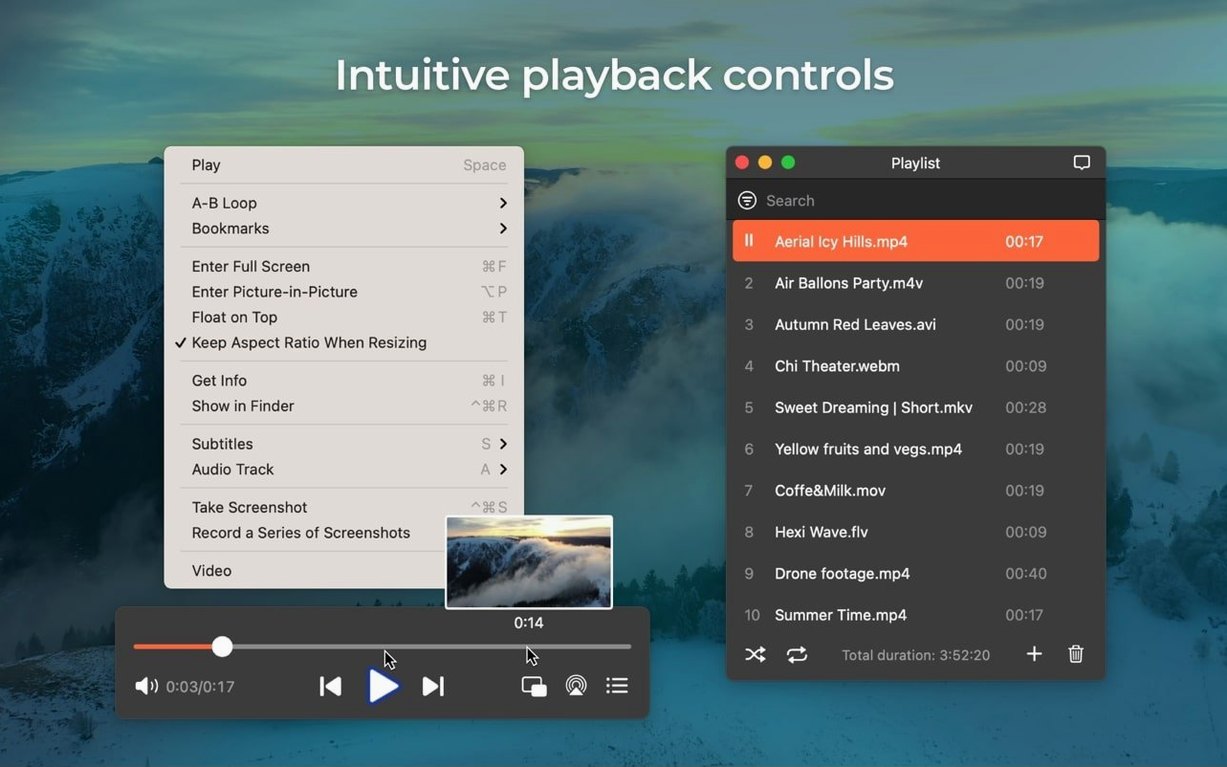
You sit down with a coffee, an MKV of last night's rough cut, and a YouTube link a collaborator sent over. The MKV opens with a double-tap — Elmedia fills the screen, audio routing cleanly through your desktop monitors. You set a bookmark at the two-minute mark where a sound-design cue needs checking, then jump back to it twice using the bookmark panel docked on the right.
Halfway through, you remember the reference clip online. You open the built-in browser, paste the link, and let the video buffer. The download button appears in the toolbar — you click it, choose the 1080p stream, and save it directly into the project folder. While that finishes, you grab three screenshots from the MKV at the frames where lighting shifts dramatically, each saved as TIFF to drop into your grading notes. The screenshots land in the project folder, not the desktop, because you changed that setting last week.
Your collaborator messages asking to see a section right now. You pull up the AirPlay menu, select their Mac running Elmedia across town — the device appears without the old list-loading error — and stream the relevant thirty seconds. The Mac stays awake throughout, no mid-stream sleep interruption. When the call ends, you close the player, and it remembers exactly where you left off in the rough cut for tomorrow morning.
Version 8.24 added M4B audiobook support and improved compatibility with macOS 26. The Mac now stays awake more reliably during streaming, a device-list error was fixed, and streaming to certain hardware was corrected.
- macOS 10.12 or later
- Apple Silicon and Intel Macs
- Interface languages: English, German, Spanish, Italian, Chinese (Simplified), Korean, Dutch, Polish, French, Czech, Swedish, Japanese
Questions from the booth
Yes, its built-in web browser lets you download online video and even extract just the audio track from supported streaming pages, including RTMP streams.
It supports AirPlay streaming from your Mac to AirPlay-enabled devices, including other Macs with Elmedia installed.
Version 8.24 expanded its audio support with M4B audiobook files, alongside the many video and audio formats it already played.