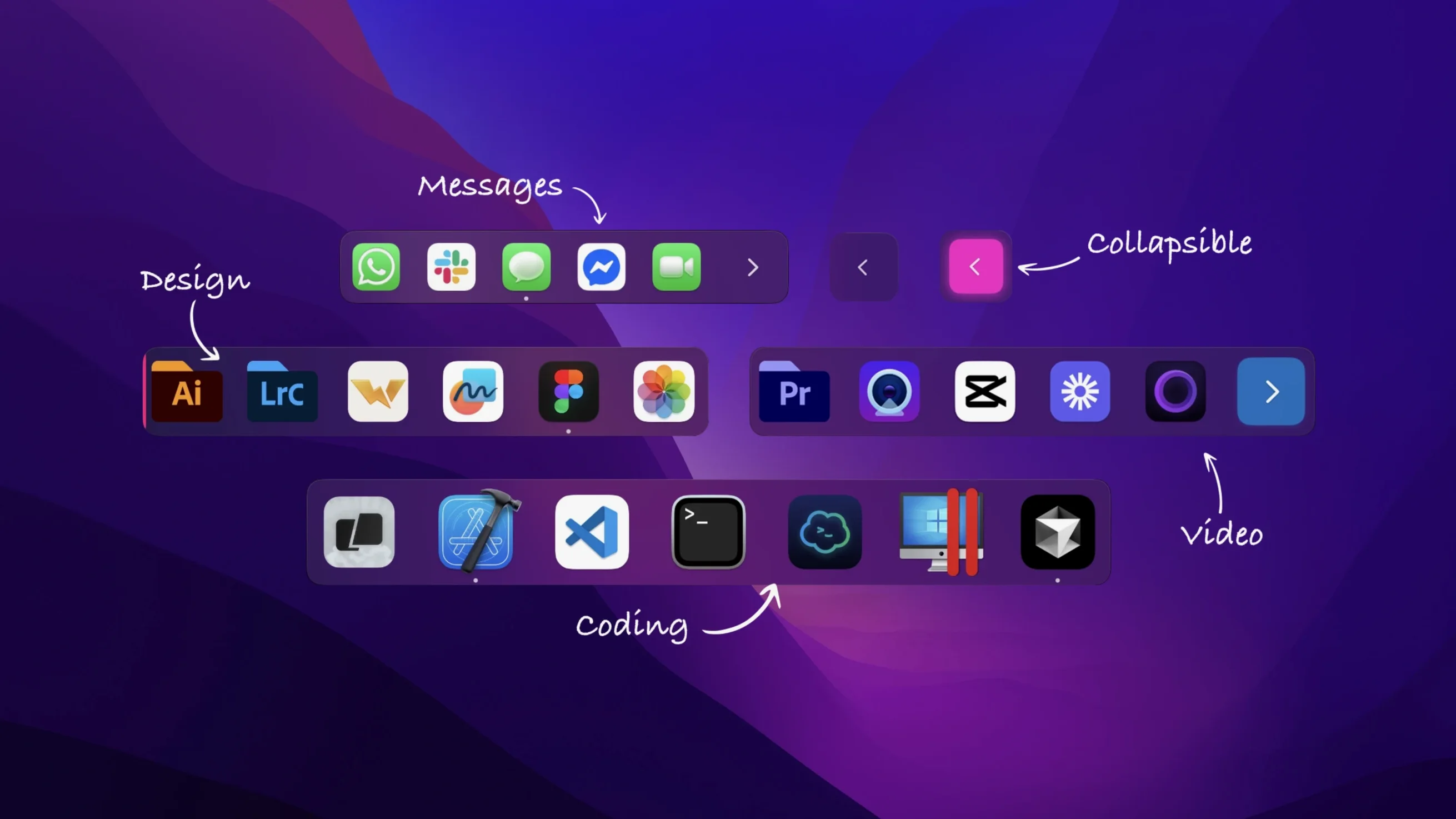
ExtraDock is a macOS utility that lets you create multiple floating docks for apps and folders, each with its own orientation, auto-hide behaviour, and screen assignment. It works alongside the native macOS Dock rather than replacing it, so your main dock stays exactly as you left it while extra docks handle specific workflows or secondary displays.
Version 4.3.21 is a stability release that fixes two long-standing frustrations. Docks set to remain in a fixed position now actually stay where you placed them after a restart or display reconnect — something that had been unpredictable in earlier builds. Live Clock and Calendar icons, which render small previews right in the dock, no longer cause the app to quit when those previews refresh.
A dedicated dock for every display
- Multi-display setups where each screen needs its own app launcher
- Keeping project-specific apps and folders grouped in a dock that appears only on the relevant display
- Collapsing a full dock into a single button to reclaim screen space, then expanding it with one click
- Creative workflows that benefit from a vertical dock on one side of the screen while the main dock stays horizontal at the bottom
Drag apps or click plus — no other way to build a dock
- Requires macOS 12 or later; the previous-generation ExtraDock 4 is also supported through macOS 15 for those who haven't updated
- Docks are added by dragging apps and folders onto them or via a plus button — there's no automatic population from the native Dock
- Fullscreen detection and fast animation are present, but the docks remain separate from Mission Control and Spaces behaviour
Waking the edit dock pinned to my main screen’s right edge
Most mornings I sit down with a script open on the left monitor and reference material on the right. The first thing I do is wake the edit dock — it's pinned to the right edge of the main display, neon-styled so it reads at a glance, and it holds Final Cut, Motion, a folder of current project audio, and Compressor. A single click expands it from its collapsed state. The dock on the second monitor stays hidden until I move the cursor to the bottom edge; that one carries the screenplay PDF, a browser, and the notes folder I keep for continuity.
Dragging a new folder from Finder onto a dock takes about two seconds. The plus button works just as well when I'm adding a group of utilities I rarely launch. The key step is labelling early — I name each dock after its context, not after its contents. "Edit" and "Write" mean more to me than a list of app names, and the tray menu reads like a small to-do list of modes.
Using it like a second macOS dock creates two half-used bars
The most common one is treating extraDock as a copy of the native Dock. It isn't, and trying to mirror your main dock into a second one usually ends with two half-used bars and a lot of dragging back and forth. Better to keep each dock purpose-built, even if that means leaving one dock with only three apps in it.
Another early stumble is pinning multiple docks to the same screen edge. They stack or overlap in ways that look accidental, and the auto-hide timers start competing for the same cursor movement. Spread docks across different edges or different displays. And if a dock vanishes after a restart, check that its display assignment still matches your current monitor setup — fixed-position docks restored properly in 4.3.21, but a disconnected monitor is still a disconnected monitor.
Hover to expand a collapsed dock, click for deliberate reveal
- Hold the cursor over a collapsed dock's button to expand it on hover; click if you prefer a more deliberate reveal.
- Open apps show a small status indicator on their icon, so you can tell at a glance whether Final Cut is already running before clicking.
- The size slider works per-dock, not globally — a neon dock on a secondary monitor can be smaller than the classic one on your main screen.
- Auto-hide when fullscreen is detected means a dock won't linger over your edit preview while you're in cinema mode.
- Vertical orientation with a transparent style on the left edge of a laptop screen takes up almost no visual weight until you need it.
The developer hasn't published a list of changes for 5.2.1, so this one arrives as a quiet maintenance pass — the kind of update that keeps extraDock running smoothly on current systems without fanfare.
- macOS 12 or later
- Apple Silicon or Intel 64-bit Mac