
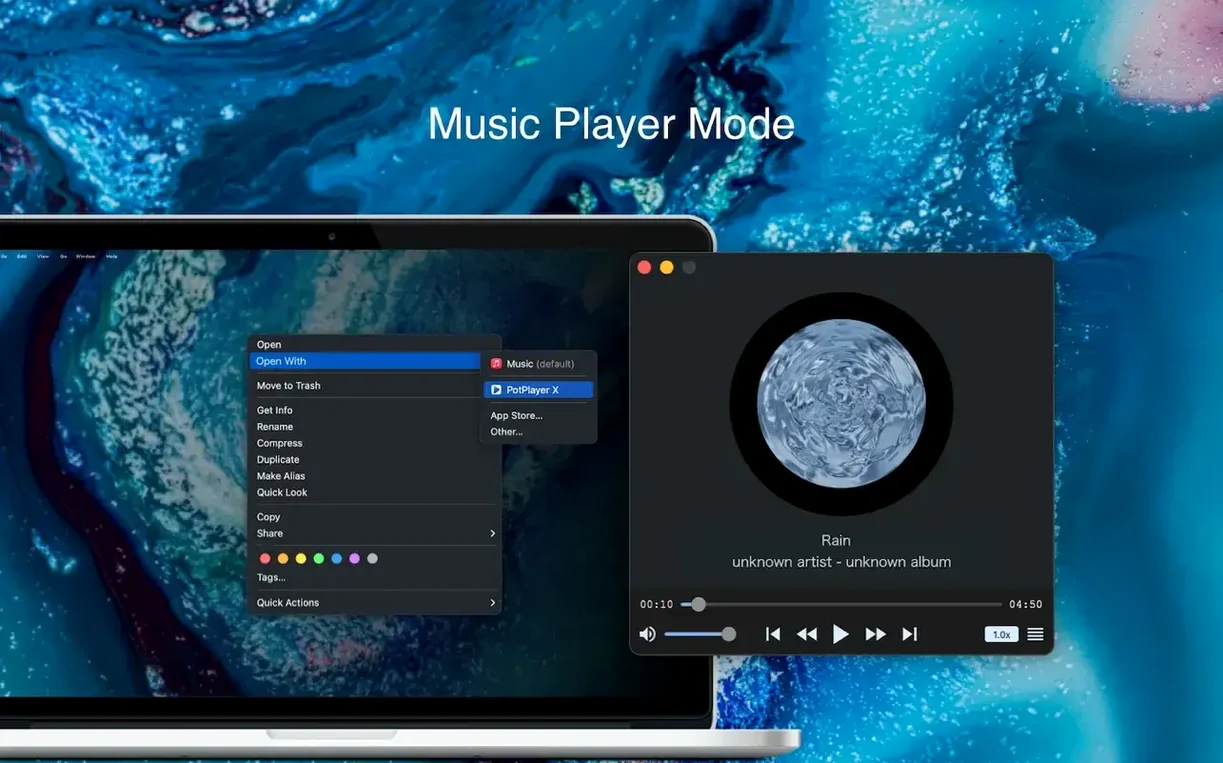
The multi-audio device selector is the kind of detail that tells you Fig Player was built for people who live in their media library. Watching a film with the commentary track? Send it to your headphones while the main mix stays on the desk speakers, or route a music video to the interface in your studio without touching System Preferences. It is a small feature with an outsized effect on a quiet evening’s viewing.
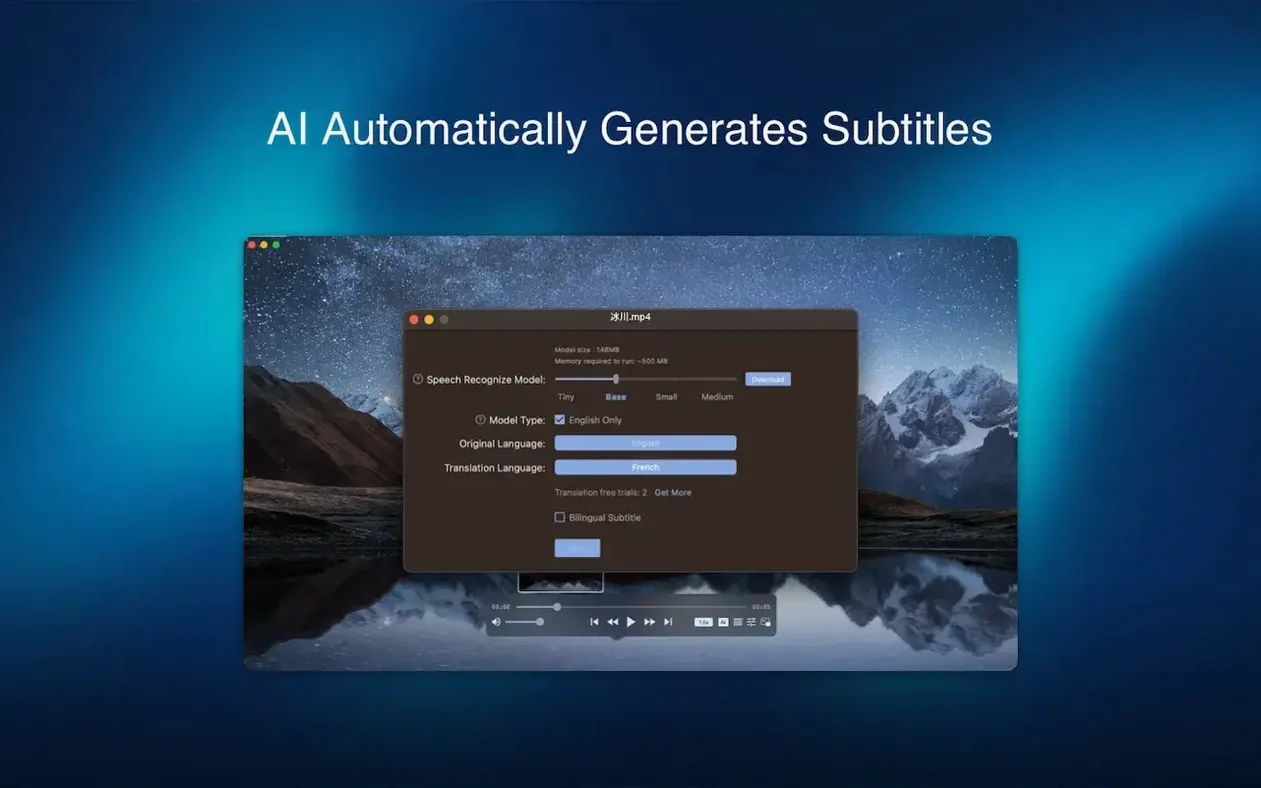
Format support covers the ground most Mac users actually need. Video lands in mkv, mp4, mov, avi, wmv or webm, with subtitle stacks that handle ASS, SSA, SRT and IDX+SUB cleanly. On macOS 12 and later, OCR kicks in for hard-coded subs when you need to grab a line. Audio is just as flexible — flac, wav, ogg, opus and the mp3 and aac files you have been carrying since university all play without a second thought.
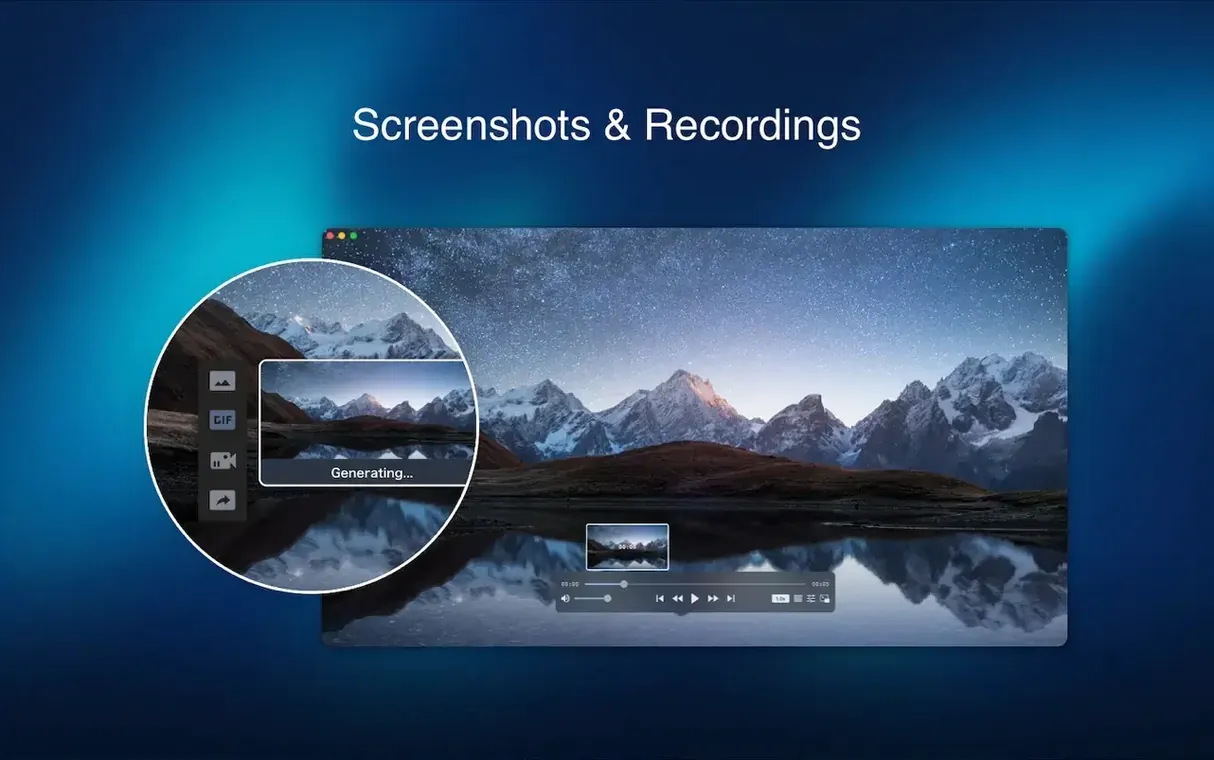
4K playback runs smoothly, and automatic deinterlacing keeps older rips looking stable on a modern display. There is a quiet practicality to the whole thing: you can pause on a frame you like and save it as a scene poster, building a visual index of moments worth returning to. It feels less like a playback utility and more like a companion for someone who watches closely.
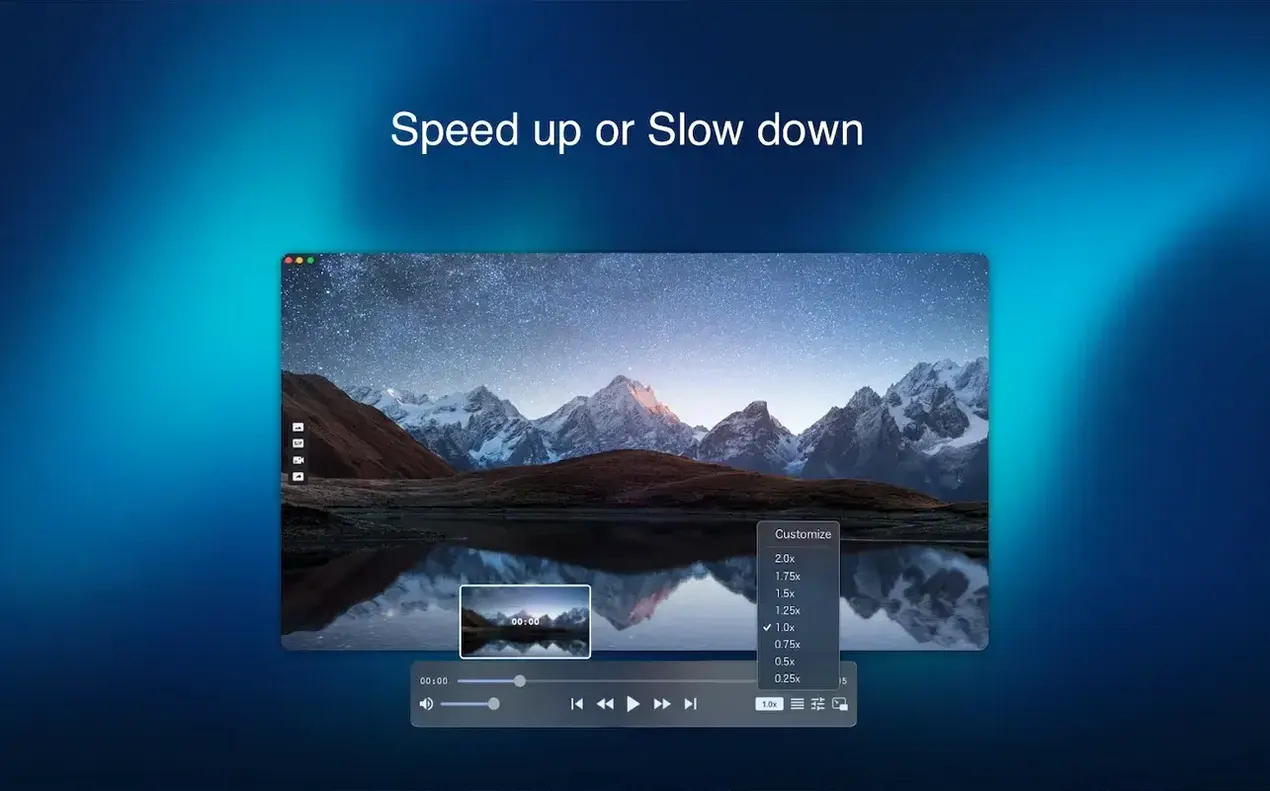
Version 1.3.37 tightened up playback stability on Intel Macs in ways you notice when you are forty minutes into a 4K mkv and the scrub bar finally snaps to where you click, no beach ball, no audio dropout. The frame-by-frame stepping — hold the right arrow — is more responsive now, particularly with h.265 material that used to stutter when you tried to inch through a scene. Nothing in the release notes announces a redesign; the changes are under the hood, the kind that make you stop bracing for a crash and just watch the film.
Older versions could lose sync on long audio files after a seek, especially with opus or flac tracks embedded in webm containers. That behaviour is gone. The deinterlacing also feels smarter: I ran a 2006 DVD rip of a documentary shot on interlaced DV, and the combing artefacts that used to flicker across panning shots were absent without me toggling anything. OCR text recognition, macOS 12 and up, still needs good contrast to grab clean text from hard-coded subs, but the selection window is snappier now — fewer missed frames when you drag across a line.
Cueing a subtitled scene for a rough cut
Suppose a director sends you a reference clip in mkv with an ASS subtitle track, and you need to export a still with the subtitle burned in for a lighting reference. Open the file in Fig Player. Let it play through once so the hardware acceleration settles the decode pipeline — the timeline becomes more responsive after the first pass. Pause a few seconds before the frame you want, then tap the right arrow key to step forward frame by frame. The subtitle renders live as you advance; you are looking at exactly what the viewer would see, no separate overlay to composite later.
Once you land on the right frame, hit the screenshot command. The scene poster it creates saves at full playback resolution, subtitle included, to a folder you keep for production stills. If the subtitle is hard-coded instead of soft, select it with the OCR tool, copy the text, and paste it into your notes before you take the shot. The whole process — open, cue, step, capture — runs inside a single window, no timeline export, no round-trip to a compositor.
Late night with a scattered library
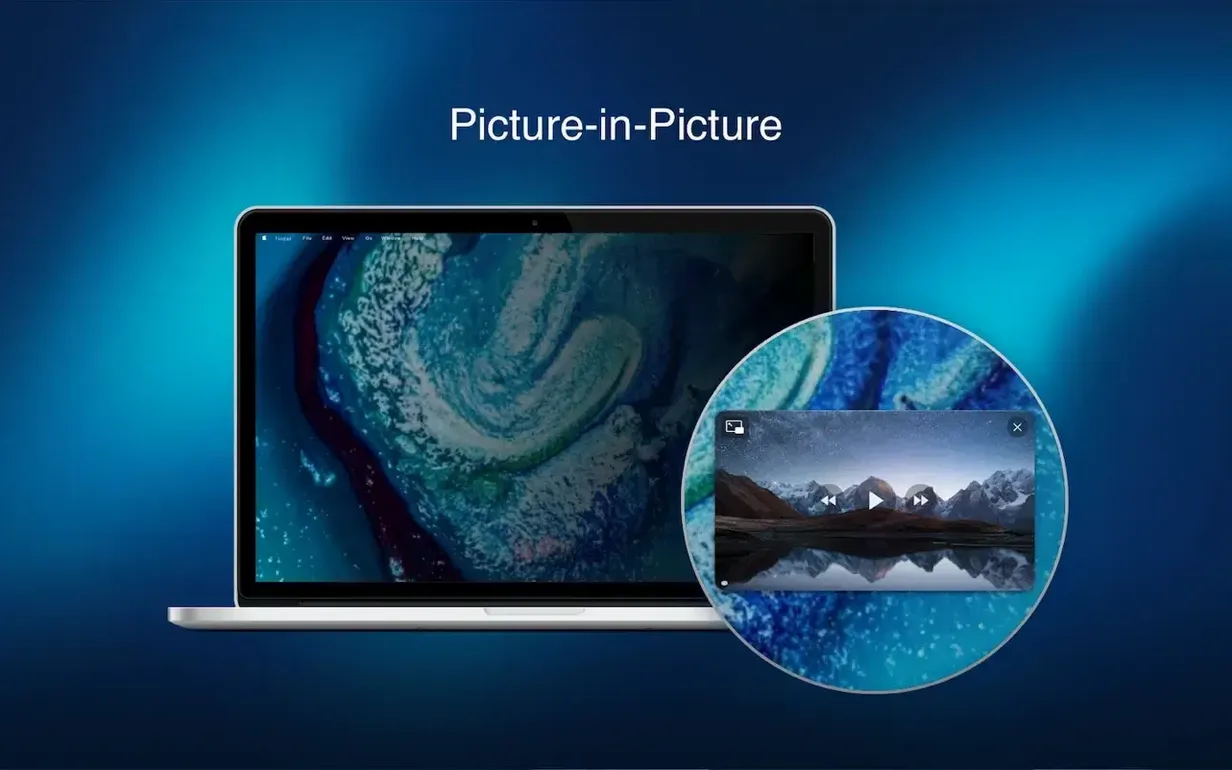
It is past eleven and you have an m4v of last week’s location scout, an opus recording of a VO audition, and a 4K webm someone uploaded from a drone. You drag all three onto the Fig Player icon. Three windows open, each playing independently. The drone footage runs in picture-in-picture, a small square hovering over your notes while the full-screen scout footage plays behind it. The VO file routes to your headphones through the audio device selector; the drone clip keeps its sound on the MacBook speakers so you can hear the wind noise without it bleeding into the audition track.
You pause the scout video on a wide shot of the harbour, step forward three frames to catch the ferry at centre frame, and save a poster. Later you will drop that still into the treatment. The drone clip loops. The VO finishes and you close its window — the other two keep playing. Nobody talks about media players in terms of companionship, but a tool that handles a late-night stack of mixed formats without a single prompt to install a codec or convert a container earns a kind of quiet loyalty.
- macOS 11 (Big Sur) or later
- Intel 64-bit processor
Questions from the booth
Yes, it includes 4K video playback support alongside automatic deinterlacing for older or interlaced content.
It supports ASS, SSA, SRT and IDX+SUB subtitles, and includes OCR text recognition for hard-coded subtitles on macOS 12 and later.
Yes, Fig Player lets you select among multiple audio output devices from inside the app, so you can route sound without changing your system settings.