
The app runs on any Mac with OS X 10.11 or newer, as a native build for both Intel and Apple Silicon machines. It asks for full disk access on first launch—a necessary step for it to peer into every corner of your drive.
Hunting a phantom torrent
A project I was scoring needed a specific sound library. I remembered downloading an archive named something like taiko-ensemble-2026 months ago, but Spotlight turned up nothing. The file was long gone from my default Downloads view, likely buried inside a nested folder or a package that Apple’s indexer decided was off-limits.
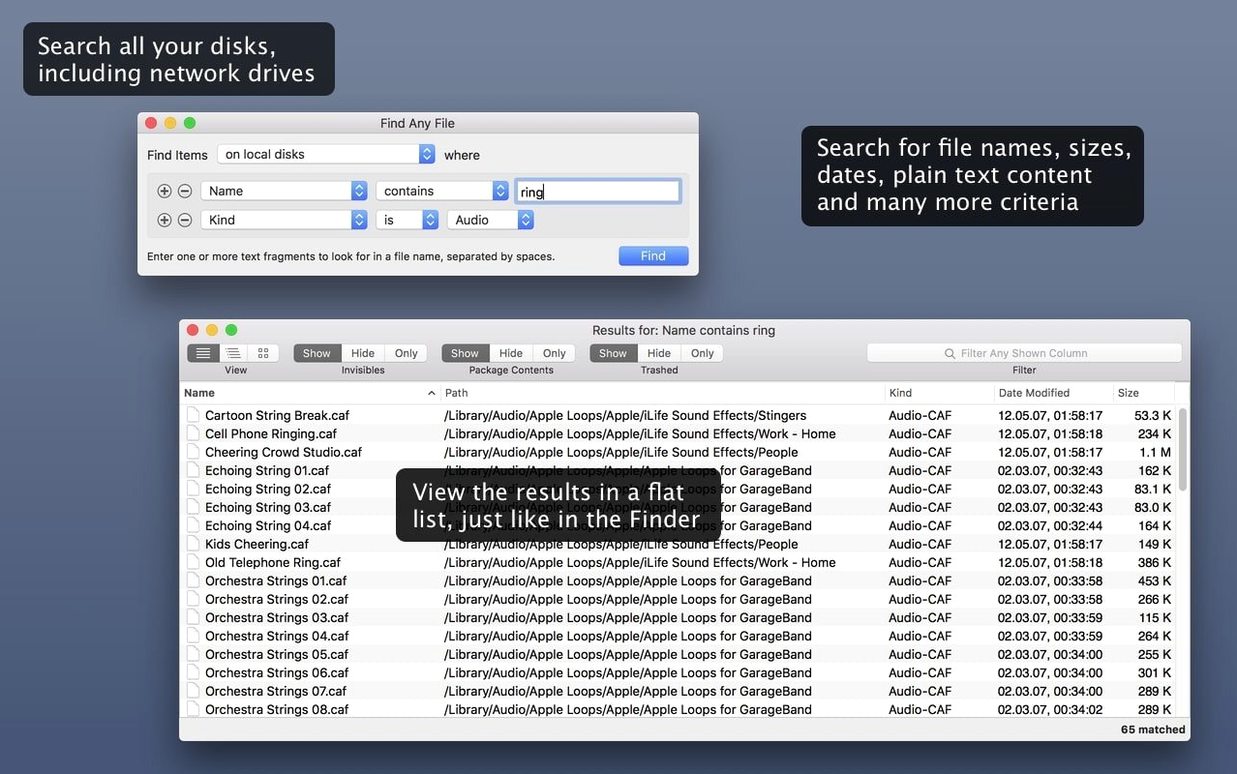
I opened Find Any File and set a two-pronged search. The name criterion looked for any item containing “taiko”, and the extension filter was set to .torrent. I switched the search location to my entire startup disk. In about four seconds, the results list populated with a single entry sitting inside an old backup sparse bundle that Spotlight had never indexed. Right-clicking the file revealed it directly in the Finder.
Reaching inside bundles and packages Spotlight ignores
- Searching inside bundles, packages, and system folders that Spotlight excludes.
- Finding files by a combination of name, extension, date, and size.
- Plain text searches within files when you don’t need full document parsing.
Email, Word, and PDF contents remain Spotlight’s job
- It does not search the content of emails, Word documents, or PDFs—that remains Spotlight’s territory.
- It is designed as a companion to Spotlight, not a wholesale replacement.
Two apps that bypass the Spotlight index entirely
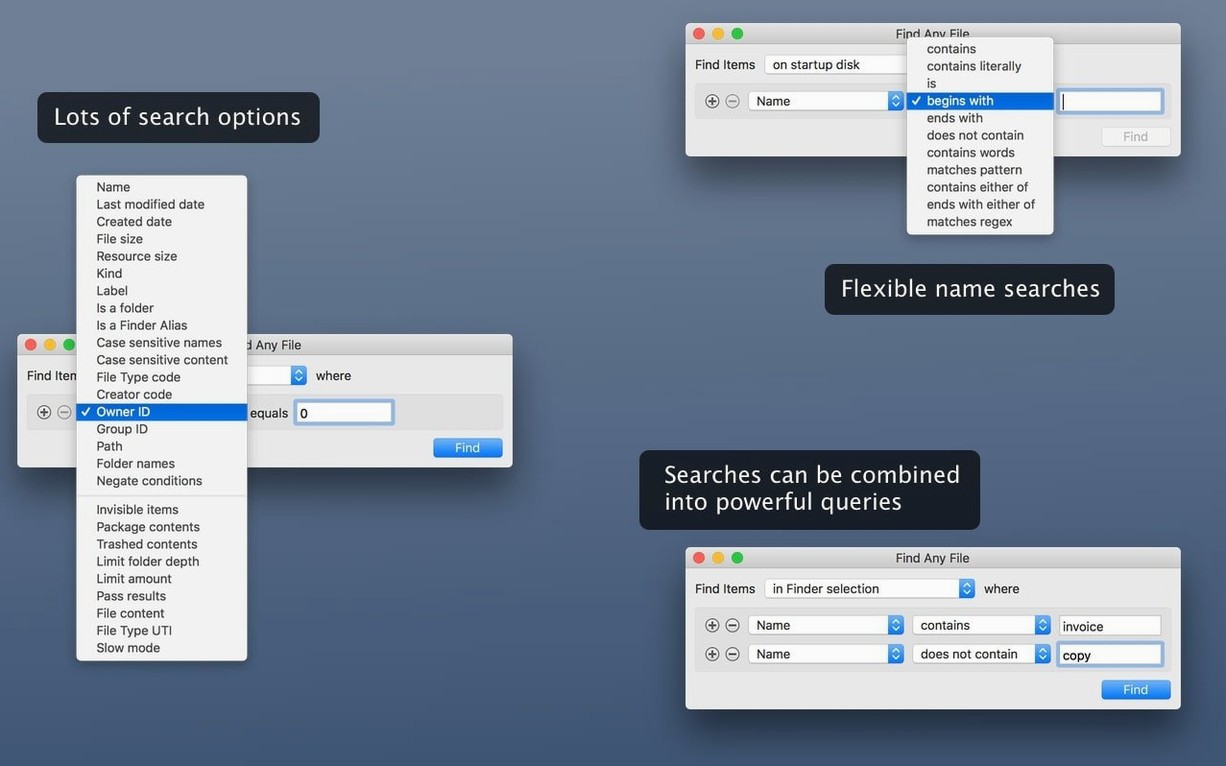
Find Any File sits in a small but distinct category of Mac utilities that bypass Spotlight's index entirely. The closest conceptual cousin is EasyFind, a free tool from DEVONtechnologies. Both apps perform raw filesystem searches and both can dig into packages and system folders. The practical difference comes down to interface and operator logic. EasyFind uses a single search field with toggle buttons for boolean operators, which feels quicker for one-off keyword hunts but less precise when you need to combine a date range, a size floor, and a name pattern in one sweep. Find Any File lets you stack criteria visually—adding a date rule alongside a name rule—so the search reads like a sentence you build piece by piece.
HoudahSpot is the other tool that often enters the conversation. It actually does query Spotlight's index, just with far more granularity than the Finder's search bar. If you regularly need to find a PDF by a phrase inside it, or an email from last spring with an attachment larger than ten megabytes, HoudahSpot is the sharper instrument. But HoudahSpot cannot see what Spotlight cannot see. An old .torrent inside a Time Machine sparse bundle, a plist tucked three levels deep in a system folder—these remain invisible to it. That is where Find Any File earns its keep. The two apps complement each other neatly, and plenty of Mac users keep both around.
A more specialized comparison is Tembo, which the developer himself mentions as an alternative for improving Spotlight results. Tembo groups results by category—documents, images, folders—and leans on Spotlight's index rather than raw scanning. It is friendlier for someone who wants a Finder-like browsing experience but finds the stock search too limited. Where Tembo polishes what Spotlight already knows, Find Any File goes to places Spotlight never visits.
The emergency door when Spotlight draws a blank
I tend to think of Find Any File as the emergency door in macOS. Spotlight handles the everyday—launching apps, finding that note I wrote last Tuesday, locating a contact's email thread. But when I know a file exists and the system insists otherwise, I reach for this tool. It pairs well with Finder tags and Smart Folders, which you can set up after locating stray files. Tag a recovered folder with a colour, and suddenly it surfaces in every Open dialog across your Mac.
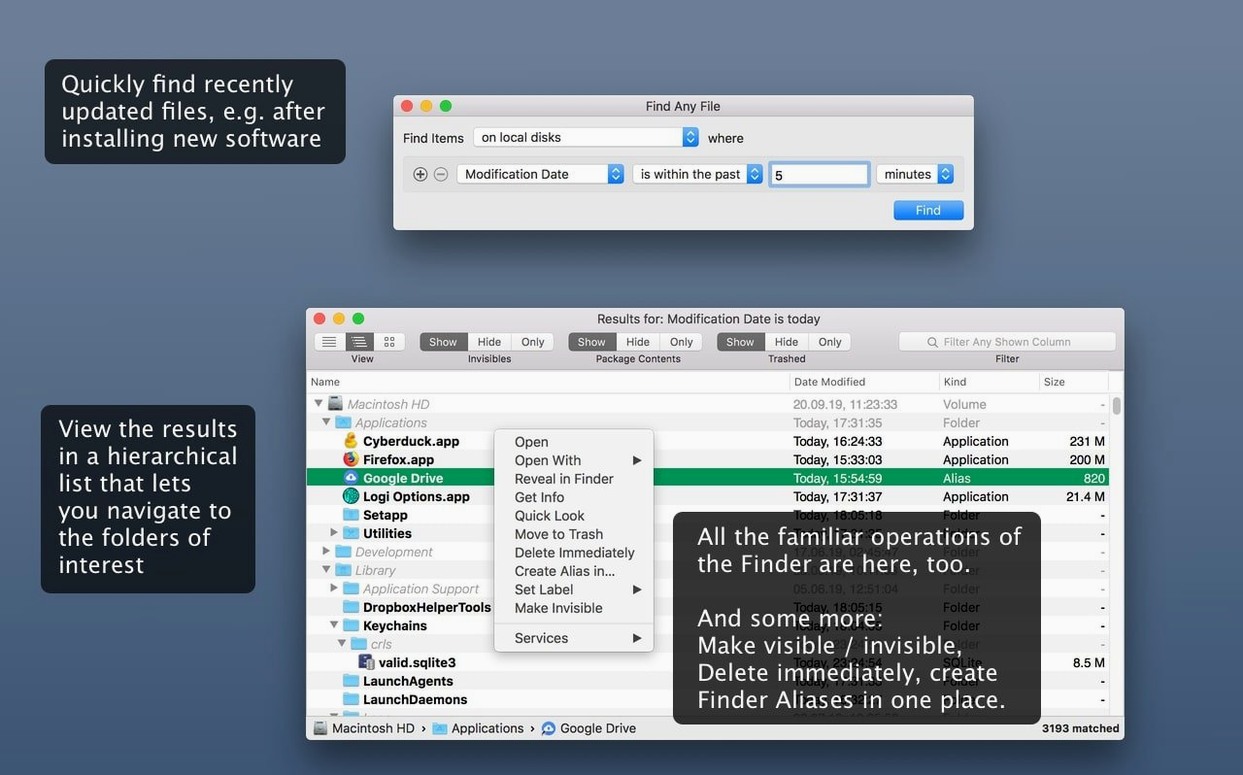
It also plays nicely with Terminal users who want a visual browser before they commit to find or mdfind commands. You can construct a search in the app, confirm the results, then right-click to copy the path and paste it into a script or a terminal window. The hierarchical folder view—where results appear nested under their parent directories—makes path inspection faster than scrolling through a flat list of matches.
For anyone who keeps media libraries on external or network volumes, the app fills a gap that Spotlight's architecture was never designed to address. Server volumes, exFAT drives formatted for cross-platform use, and even some NAS configurations that Spotlight refuses to index all become searchable. Drag the volume into the search location field and Find Any File treats it like any other folder tree.
No background index, no database, no idle resource drain
Does it run constantly in the background, like Spotlight? No. Find Any File performs searches on demand, directly from the filesystem, and quits when you close it. It does not maintain a database, it does not index anything while your Mac idles, and it does not consume resources between searches. The trade-off is that each search is a live scan, so a full-disk query on a large drive takes longer than an indexed lookup—but you are in control of when that happens.
Will it slow down my Mac during a search? A deep scan across an entire startup disk will use CPU and disk I/O for the duration, as any thorough file operation would. On an Apple Silicon machine with an internal SSD, the impact is barely perceptible. On an older Mac with a spinning hard drive, you will notice the drive working. You can always limit the search to a specific folder to keep things snappy.
Can it find text inside any file? It searches plain, unformatted text—think .txt, .csv, .html, .xml, .log, and similar. It does not parse rich document formats like Word files, PDFs, or emails. If you need to search inside those, Spotlight or HoudahSpot remains the better choice. The feature shines when you are hunting through script files, exported chat logs, or configuration files where the content is raw text.
AppleScript support lets you trigger searches from automation
The 2.6 release brought a handful of additions that shifted how I use the app day to day. AppleScript support is the headliner for anyone who builds automation into their workflow. You can now trigger searches from scripts, which means Alfred workflows, Keyboard Maestro macros, and custom Shortcuts can all feed into Find Any File and act on the results. For a tool that already appealed to power users, this opens up batch renaming pipelines and automated file verification routines that were previously clumsy to orchestrate.
Three new columns—Comments, Trashed, and Hidden—appeared in the results view at the same time. The Comments column is the quiet standout. macOS has supported Finder comments for years, but Spotlight does not index them consistently, and few search tools surface them at all. If you annotate project files with notes like “rough cut, needs colour grade,” you can now search specifically within those annotations. The Trashed column tells you whether a file sits in the Trash, which saves you from chasing down duplicates you already discarded. Hidden files—those prefixed with a dot or flagged by the system—now announce themselves without you needing to toggle Finder’s invisibility settings.
The reliability fix for comment searching matters more than it sounds. Earlier versions sometimes missed comments on files stored in certain directory structures. Version 2.6 made that detection more consistent across the board, so a comment you wrote two years ago on an archived project file is no longer a coin toss. Taken together, the 2.6 changes reinforce Find Any File's role as the tool you turn to not just when files go missing, but when you want to understand what you actually have.
The 2.6 release brought AppleScript support, making it possible to trigger searches from scripts and automation workflows. New columns for Comments, Trashed, and Hidden status now appear in the results list, and the reliability of finding Finder comments was tightened up.
- macOS 10.11 or later
- Runs natively on Intel and Apple Silicon Macs
- English interface