
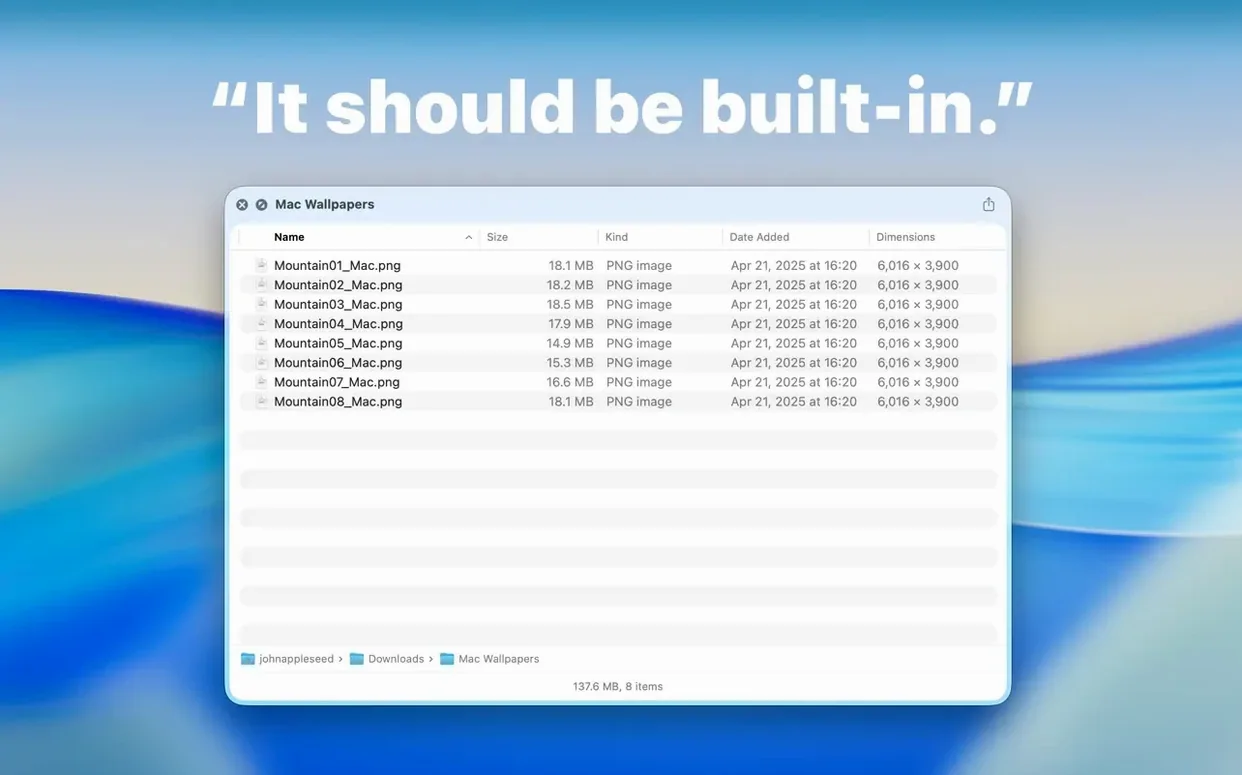
Dual Columns view is the first thing you notice after updating. Where earlier versions of Folder Preview Pro gave a single pane of folder contents, 3.1 splits the preview so subfolders open beside their parent — a small change that makes navigating a project directory feel closer to working in a two-pane file manager, without leaving Quick Look.
Side-by-side columns and draggable files arrive in the latest update
- Dual Columns view for side-by-side folder browsing
- A Contents item for level-by-level navigation through nested folders
- Files can be dragged out of the preview from both list and icon views
- Archive size limit options of 5 GB and 10 GB for ZIP, TAR, GZ, 7Z, and RAR previews
Quick Look stays the only door — press Space to peek inside any folder
Folder Preview Pro remains a Quick Look extension first: select a folder in Finder, press Space or Command-Y, and the contents appear without opening a new window. The app still supports Apple Silicon and Intel Macs, still requires Quick Look to be enabled in System Settings, and still installs the way small Mac utilities always have — drag it to Applications and launch. Version 3.1 relocates folder size information from the status bar to the toolbar under the folder name, a quieter home that keeps the preview window uncluttered.
Three-year-old documentary clip found by location name and a quick Space tap
I keep a drive full of archived shoots — folders inside folders, some compressed, most not. This morning I needed a clip from a documentary shoot three years ago. The parent folder is named by location and date. I hit Space. Quick Look opens, and right there is the first layer: subfolders for each camera angle, plus a scratch audio folder and a notes text file. I arrow down to Camera A and the Dual Columns view slides open beside it, showing me every clip inside without ever leaving the preview. I spot the take by its file size and duration, drag it straight out of the preview onto my timeline bin in DaVinci Resolve, and close the window. Whole thing took maybe twelve seconds. No Finder window opened, no tabs to close afterwards.
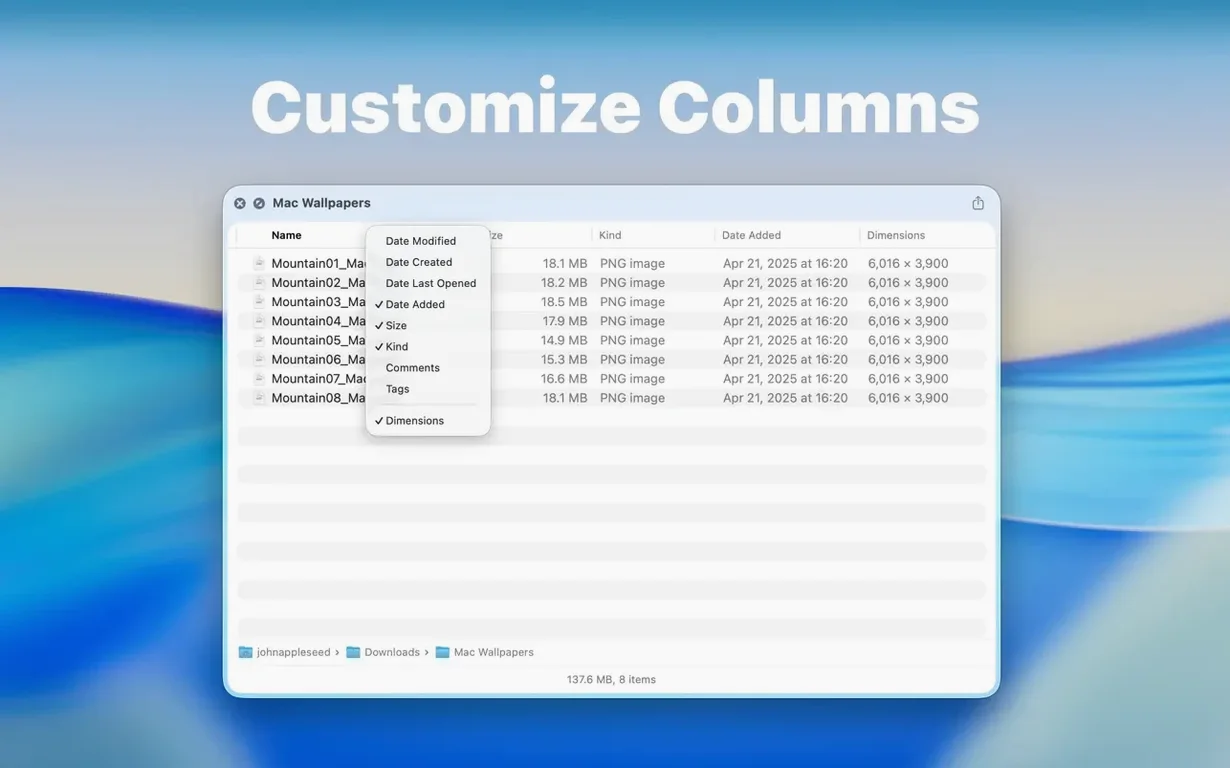
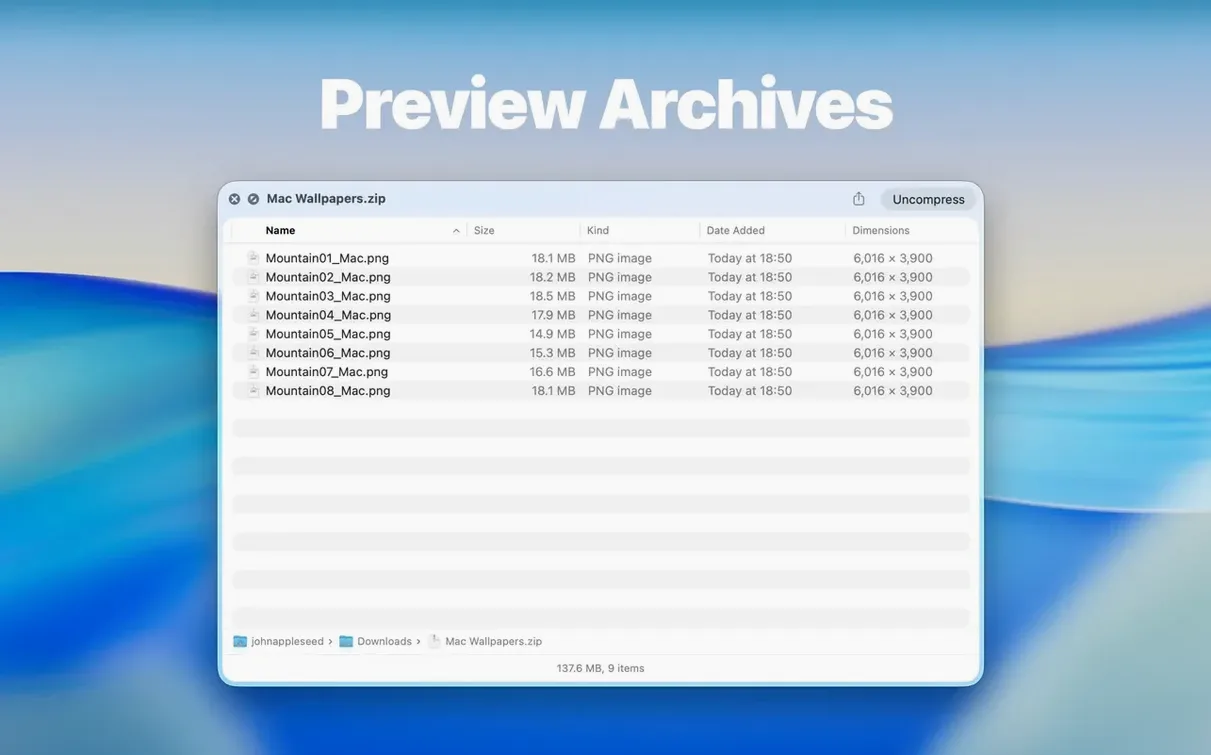
Later that day I was hunting through an old music library someone sent me as a multi-part RAR archive. The 10 GB size limit option in 3.1 meant the preview loaded without the beach ball I half-expected. I paged through the tracklist in list view, right-clicked a column header to hide everything except name and kind, and found the stems I needed. Dragged them out the same way.
What 3.1 changed day to day
Version 3.0 was already solid, but it worked in one dimension — you looked at one folder level at a time. The Dual Columns view in 3.1 turns that into something closer to spatial navigation. You see where you came from and where you're going at the same time, and that cuts down on the back-and-forth that used to mean closing the preview and reopening it on a different folder.
The new Contents item in the context menu supports a different rhythm: right-click inside a preview, pick Contents, and you browse level by level without columns at all. It's useful when you're deep in a tree and want to tunnel straight down, one step at a time, rather than spread everything across columns. And the fact that drag-and-drop now works from both list and icon views means you don't have to switch views to pull a file out — whichever view you're in, just grab and go.
The archive size limit choices of 5 GB and 10 GB are the kind of thing that doesn't seem important until you preview a large compressed file and the app doesn't struggle. Earlier versions had a single threshold; now you can set a higher ceiling if your work involves large archives regularly. Folder size moving to the toolbar, meanwhile, sounds minor but means the preview window no longer reserves a strip at the bottom for a number you glance at once. It's there when you want it, tucked under the folder name, and gone from your peripheral vision the rest of the time.
Hundreds of files appear in a blink with no lockups during testing
On an M-series Mac, Folder Preview Pro loads folder contents in the time it takes to blink. A directory with a few hundred files appears instantly; a nested archive takes a beat longer, but the preview never locked up during a week of daily use across photo libraries, code repositories, and old backup drives. Memory use stays modest — it never climbed above a couple hundred megabytes even when previewing a 9 GB ZIP full of video files. The app feels like a system extension more than an application, and that's the point: you forget it's there until you need it, and then it responds like part of Finder.
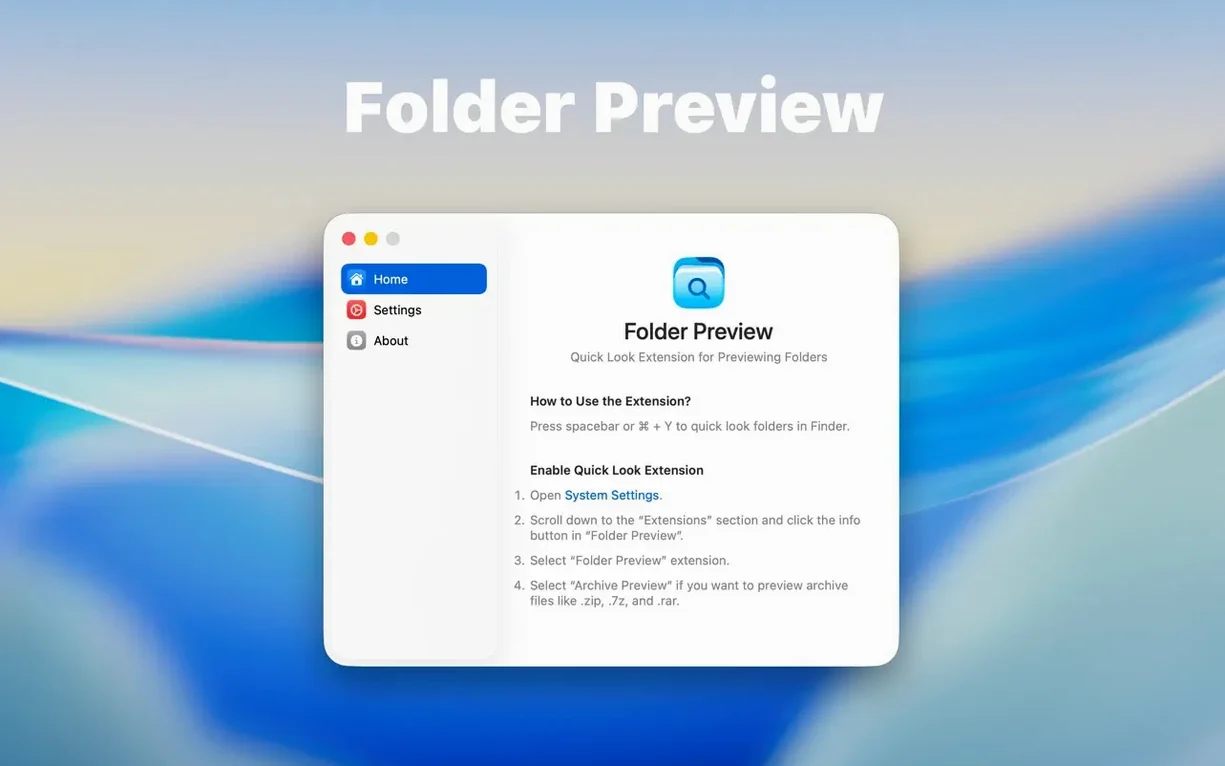
I did notice that the first launch after installation took a moment to register the Quick Look extension — quitting and relaunching Finder fixed it immediately, and the app itself prompts you to enable the extension in System Settings if it's not active yet. After that, it's been transparent. No crashes, no Finder slowdowns, no conflicts with other Quick Look plugins I keep around for Markdown and JSON files.
Open a folder you know and press Space to learn how the preview behaves
Once the extension is enabled, the first thing to do is open a folder you know well — something with a mix of file types and a couple of subfolder levels — and just press Space. Get a feel for how the columns behave when you arrow into a subfolder and then back out. The keyboard navigation is the same as Finder's list view, so it picks up muscle memory fast.
Right-click a column header early and hide the columns you rarely need. I keep Name, Size, and Kind visible and hide everything else; the preview reads faster when it's not showing creation dates and comments I never filter by. If you work with large archives, go into the app's preferences and set the size limit to 10 GB right away — it saves a moment of confusion later when a file refuses to preview because it crossed the default threshold.
The drag-and-drop feature is worth testing on your most common workflow. For me that's pulling clips into a timeline or dropping assets into a project folder. Once your hands learn that you can grab a file straight from the Quick Look panel, you stop opening Finder windows for simple retrievals. And if you use icon view for visual browsing — say, scanning a folder of storyboards or location stills — the 3.1 update makes that view as functional as list view for grabbing files, which it wasn't before.
Version 3.1 adds a Dual Columns view for browsing folders side by side, a Contents item for level-by-level navigation, and the ability to drag files out of previews from list and icon views. Folder size now appears under the folder name in the toolbar, and archive previews gain 5 GB and 10 GB size limit options.
- macOS 13 or later
- Apple Silicon or Intel Mac