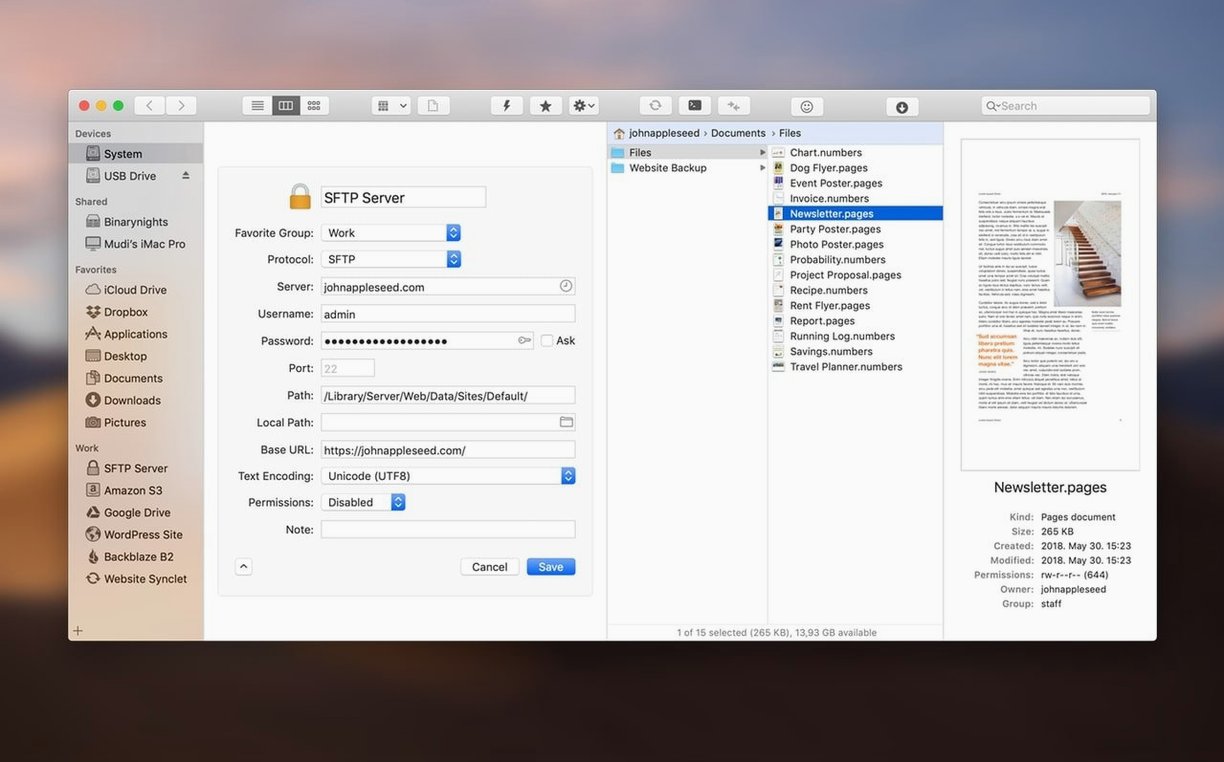
Two panes for when Finder feels flat
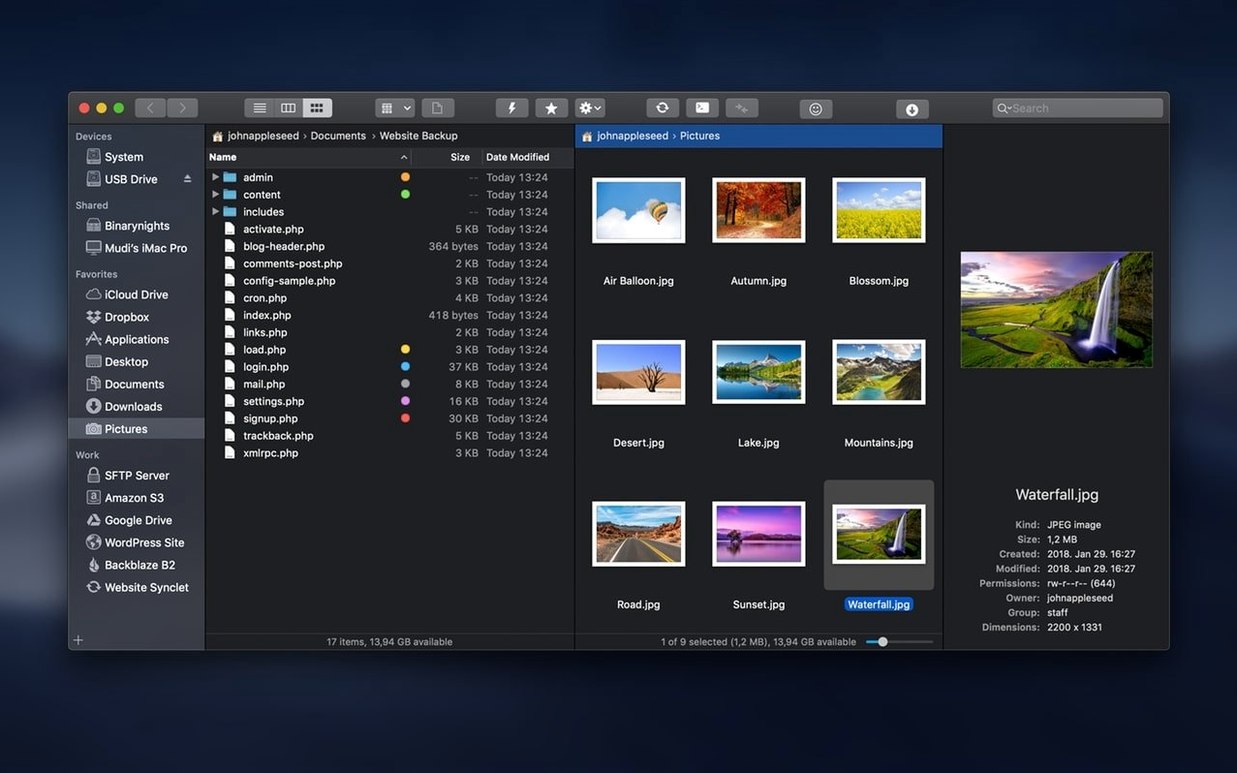
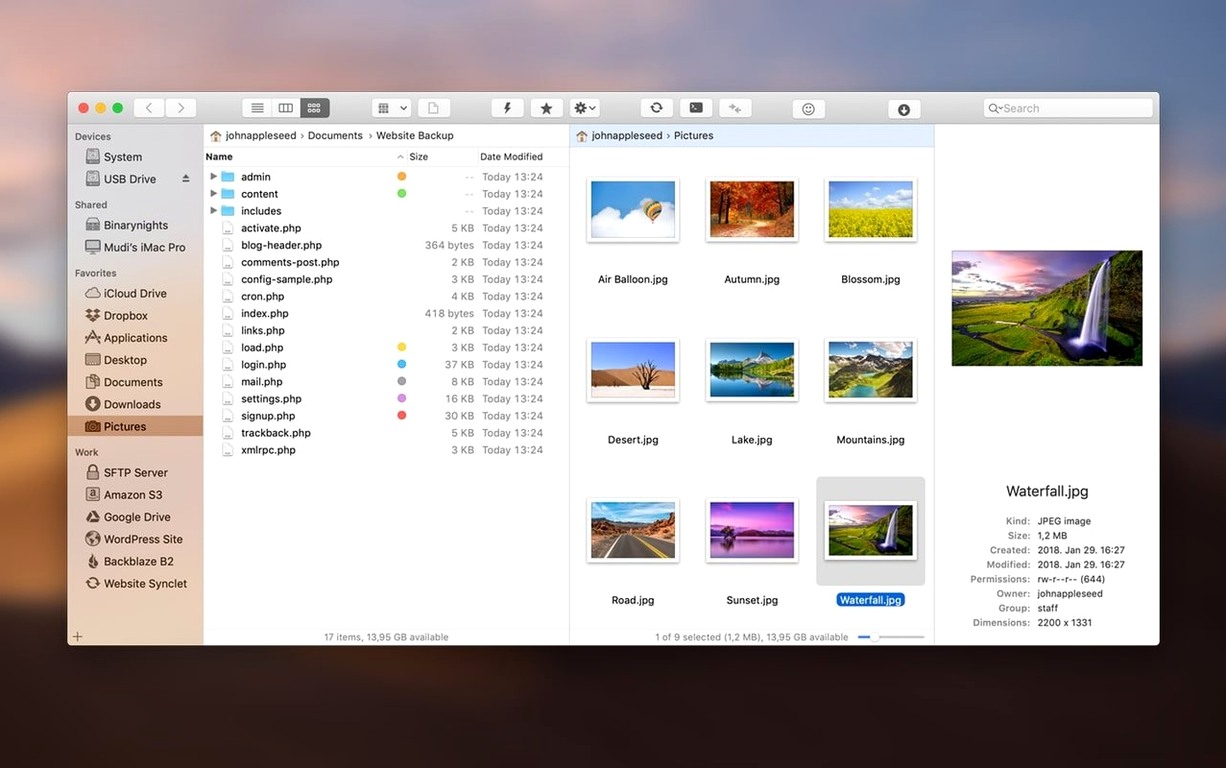
- Open it when Finder feels one-dimensional. ForkLift shows two panels side by side or stacked vertically, and you can keep just one open when you don't need the comparison. Between local folders or across a remote connection, the layout mirrors how you actually move things around.
- Connect to a server without reaching for a separate app. It handles FTP, SFTP, WebDAV and cloud services from the same interface. You can compare local and remote sources, edit text files directly on the server, and preview photos or PDFs before you pull them down.
- Set up sync jobs that remember the rules. One-way or two-way synchronization works across local and remote locations. Name a folder pair, set the direction, and it becomes a repeatable action rather than a manual check every time.
- Search without switching contexts. The search field covers local drives and connected servers at once—by name, extension, text inside files, or Finder tags. Results live in the same panel structure, so you drag, open, or delete from the list directly.
- Drop into Terminal from the active folder. ForkLift can open Terminal, iTerm, or Hyper pointed at whichever directory you're browsing. It's a small thing that saves the cd-paste routine when you spot something better handled on the command line.
The preview pane sits to one side of the file list and shows selected images, documents, and other common formats without launching a separate viewer. Between that, the sync rules, and the multi-protocol connections, it covers the gaps that Finder leaves open—especially once a project involves servers or batch file work.
Syncing a web project to staging without second-guessing
Say you have a local folder full of site assets that need to land on a staging server via SFTP. The remote copy has drifted—someone tweaked a stylesheet directly on the server, and a few image files are missing from your local side. You want the staging environment to match your working directory exactly, but you don't want to blindly overwrite everything and lose changes you haven't seen yet.
Open ForkLift and set the left panel to your local project folder. In the right panel, connect to the staging server over SFTP and navigate to the matching directory. From the Commands menu, choose Compare. The app scans both sides and marks files that are newer, older, missing, or identical. Colour coding and arrow indicators make the differences readable at a glance—no need to cross-reference timestamps by hand.
Before committing, click through a few highlighted files. The preview pane shows the remote stylesheet side by side with your local version, so you catch the injected media query someone added late the night before. You decide to pull that change down to your local copy first, then set the sync direction to mirror local to remote for everything else. A two-way sync would preserve both changes, but in this case you're aiming for a clean staging snapshot. You save the sync job with a name like "assets to staging," and next time it's a single click from the favourites sidebar—same folders, same rules, no reconfiguration.
An afternoon session with multiple connections open
You drag the ForkLift icon into the dock on a Tuesday morning and leave it there. The first thing you do is open a saved workspace that connects to an SMB share on the office NAS, an SFTP session to a web server, and a local folder where client deliverables live. The dual-pane layout is horizontal today because the file names are long.
A client messages asking for last month's raw footage. You type the project name into the search field while all three connections are active. ForkLift digs through the NAS and the local drive simultaneously, returning a list of matching folders and files. You select the batch, press F2 to rename them sequentially with a date prefix, then drag the group from the NAS panel to the local deliverables folder. The transfer queue appears at the bottom of the window, showing progress across the network without blocking the rest of the interface.
While the copy runs, you open a remote configuration file in the built-in text editor. It's an nginx conf that needs a port change. You edit, save, and the file is written directly back to the server. No download, no external editor, no re-upload. The transfer queue finishes. You close the workspace and the connections drop cleanly.
No SIP sacrifice required for a standard install
Does ForkLift require disabling System Integrity Protection? For most setups, no. The standard installation asks you to mount a disk image and drag the app into the Applications folder. If you run into a Gatekeeper block, a quick terminal command clears the quarantine attribute. SIP adjustments only enter the picture in rare configurations, and the majority of users never touch that setting.
Will it feel slow with several remote connections open at once? The app handles multiple protocols in parallel without tying interface responsiveness to transfer speed. You can browse one server while another queues uploads in the background. On an Intel Mac running macOS 12 or later, the experience stays fluid even with SMB, SFTP, and S3 connections active side by side.
Can it replace a dedicated FTP client for daily work? Many people who come looking for a ForkLift torrent or a ForkLift 4 crack end up using it as their primary file manager and FTP client combined. It supports the full range—FTP, SFTP, WebDAV, Amazon S3, AFP, SMB, and NFS—and manages them from the same dual-pane layout. The sync and compare tools mean you stop juggling separate utilities for deployment and directory checks. Those who search for an absolute ForkLift experience often find that the combination of local and remote file management in one window is what actually changes their workflow, rather than any single feature in isolation.
ForkLift 4.7.7 is out. The developer's release notes detail the latest fixes and refinements for this update.
- macOS 12 or later
- Intel 64-bit