Version 2.10.2 of Gemini settles into a quiet maturity. There is no splashy changelog this time around — just a stable build that continues to do one thing with a kind of theatrical flair: finding files your Mac doesn't need twice. If you are opening it for the first time, the interface will feel more like a conversation than a utility, gently nudging you toward folders that tend to accumulate clutter.
Good for
- Scanning your entire home folder in one pass, then drilling into results grouped by exact and similar matches.
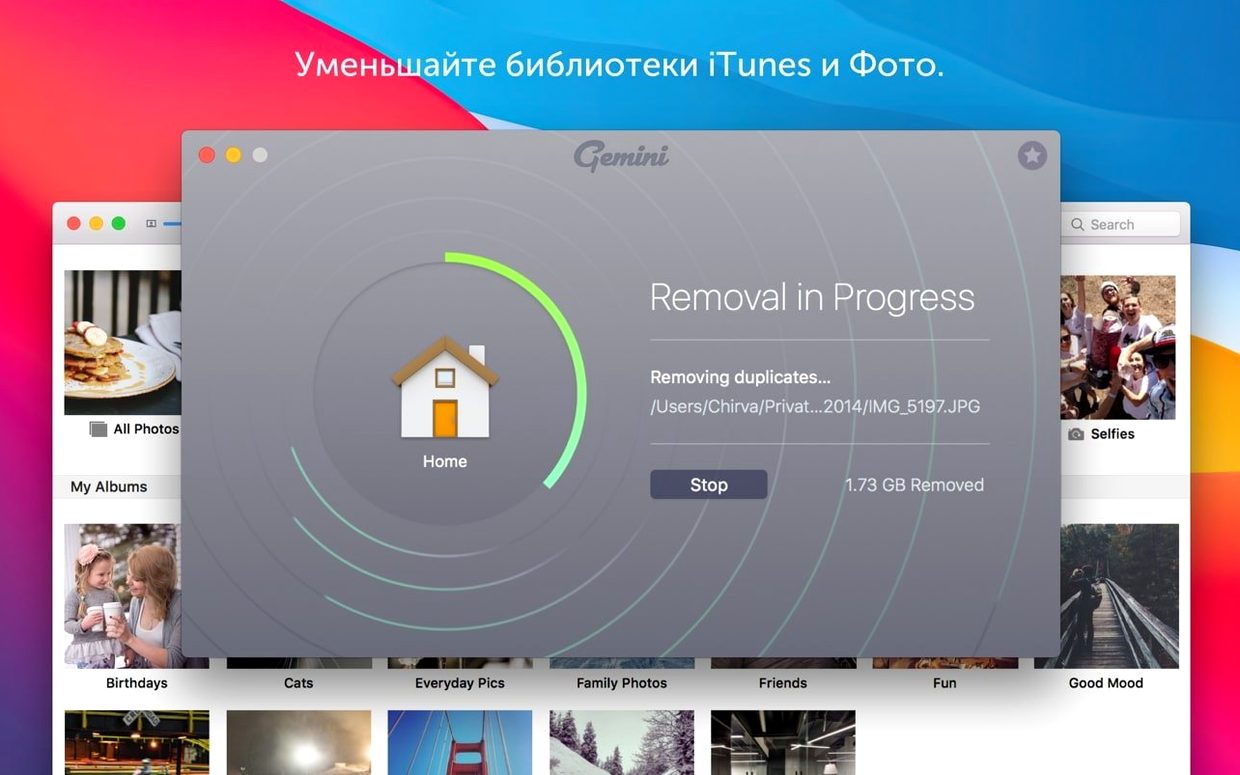
- Pulling duplicates directly out of iTunes and Photos libraries — Gemini knows how to read those databases without breaking anything.
- Recovering a file you deleted too hastily; the Recently Deleted area holds removed items until you are certain.
- Spotting nearly identical images, like a burst of ten photos where only one shifted a fraction.
Keep in mind
- Similar-file detection for music and video is limited to what the algorithm can compare; it shines brightest with image libraries.
- The app requires macOS 10.13 or later, despite older support pages mentioning earlier systems.
- Gemini leaves the final call to you — it suggests, you select, and nothing vanishes without confirmation.
A cleanup run, step by step
Suppose you have just wrapped a short film. Your project drive holds three rounds of exports, a folder of reference stills pulled from old shoots, and a music library where you dropped the same ambient track into four different temp-score folders. You know there is bloat, but you do not have an afternoon to hunt it down. That is the moment Gemini is built for.
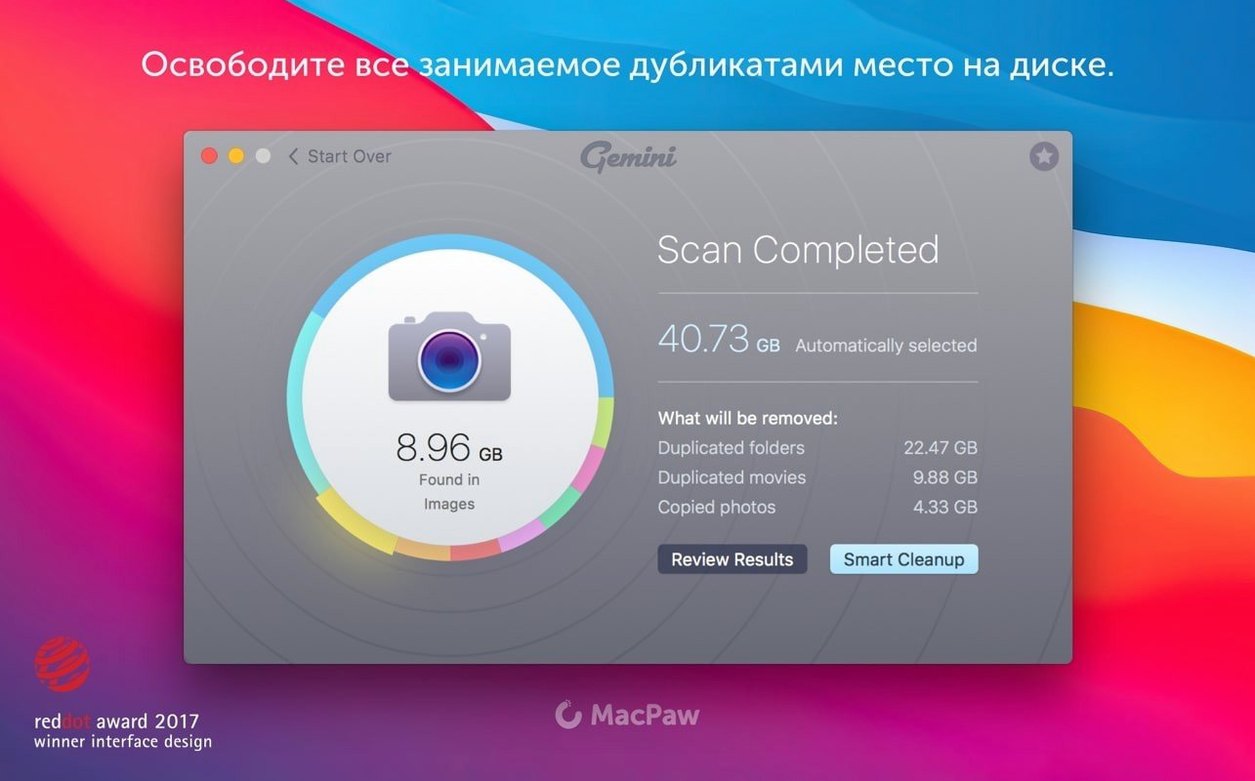
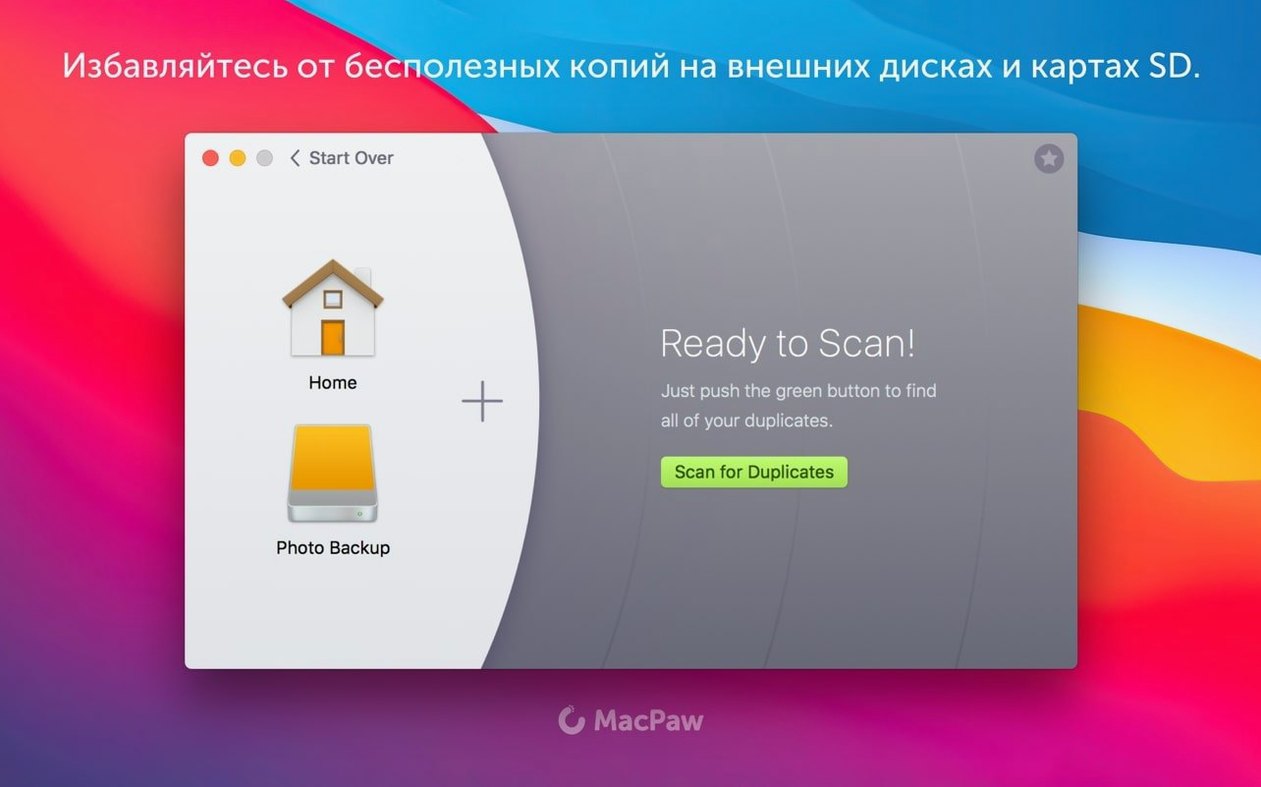
Open the app and let it greet you with the large plus button. Click it, point Gemini at your project drive — not the whole Mac, just that one external — and start the scan. While it works, the interface shows a rolling count of files examined and potential duplicates flagged. It does not rush. For a drive with a few hundred gigabytes of footage and rushes, the scan might take two or three minutes.
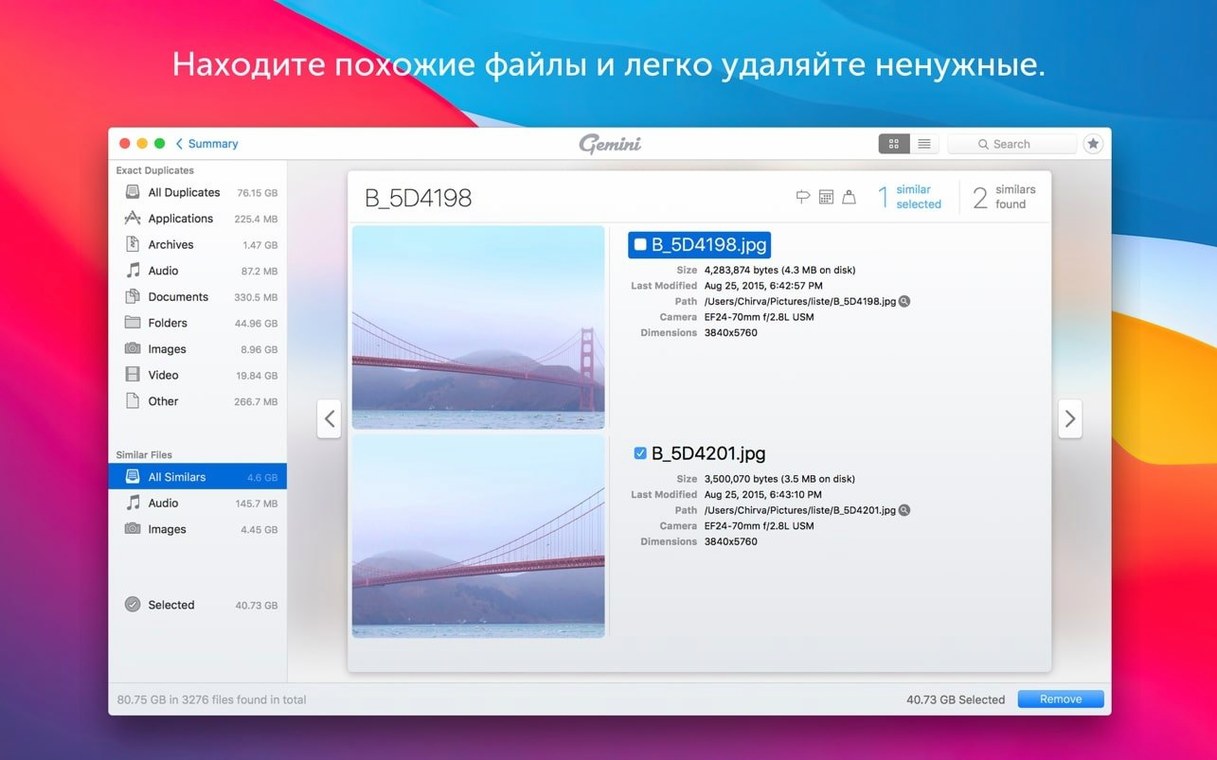
When the results surface, Gemini separates them into two tabs: Exact Duplicates and Similar Files. Most people head straight for exact matches first, and so should you. The app groups identical files regardless of name; those four copies of the ambient track sit together even though one is called atmos_bed_v3.aif and another is final_atmos_master.aif. Smart Select automatically ticks all but one copy in each group, leaving the one with the shortest path or the original location intact. You can override it — for instance, you might prefer to keep the copy that lives inside the final Premiere project folder and delete the strays.
Switch to the Similar Files tab for the reference stills. Here Gemini shows you a grid of images that look nearly alike. A burst of nine frames from a tracking shot appears; the app highlights the subtle differences — a slight pan, a shift in focus — and suggests keeping only the sharpest one. You click through a few groups, confirm the selections, and hit Remove. A confirmation dialogue tells you how much space you are about to reclaim. The files move to the Recently Deleted area, where they sit until you are truly done.
Where people stumble
One common snag is the instinct to scan too broadly, too soon. Selecting your entire Mac on a first run sounds efficient, but Gemini will return thousands of system-level duplicates — cached fonts, localisation files, framework copies — that are genuinely identical and genuinely necessary. Filtering those from personal duplicates takes more review time than scanning folder by folder. Start with known trouble spots: your Downloads folder, old project directories, the desktop, and media libraries. Expand outward later.
Another hitch involves Photos and iTunes libraries. Gemini knows how to read them, but only if the library is in its default location and has not been renamed. If you moved your Photos library to an external drive and gave it a custom name, the app may not see it during an automatic scan. The fix is straightforward: drag the library file itself onto the Gemini window, or use the plus button to point directly at it.
Similar-file results can occasionally feel overzealous. Two screenshots taken a week apart, with different browser tabs open, might land in the same group because the background wallpaper is identical. That is not a bug — it is the algorithm being thorough. If the groups feel too loose, use the similarity slider (it appears above the results grid) to tighten the threshold. Slide it right, and Gemini becomes more conservative about what counts as a match.
Recovery trips people up rarely, but the Recently Deleted area is worth noting. Removed files stay there until you manually empty it or the app hits a space threshold. If you delete something and regret it minutes later, open the Recently Deleted panel from the sidebar, find the file, and click Put Back. It returns to its original location. If you have already emptied the panel, the file is gone — Gemini does not hold a second-level backup.
Your files stay put until you confirm each deletion
Will Gemini delete something important without asking? No. The app never removes a file unless you explicitly confirm the action. Smart Select pre-checks items it considers safe, but you review every group before hitting Remove. If you are unsure about a file, you can right-click it and choose Reveal in Finder to inspect its location and contents before deciding.
Does it work on external drives and network volumes? External drives connected via USB or Thunderbolt scan without issue — just point Gemini at them. Network-attached storage is more hit-and-miss. Mounted SMB shares sometimes appear in the file picker, but scan speed drops considerably, and the app does not officially support NAS volumes. For best results, copy the folders locally, scan them, and move the cleaned set back.
Can Gemini compare the contents of two specific folders without scanning everything else? Yes. Hold the Option key while clicking the plus button, and you can add two folders for a side-by-side comparison. The app finds duplicates that appear in both locations, which is useful when you are merging old backup drives or consolidating two editors' project folders.
Is there a way to automate the cleanup on a schedule? Not within Gemini itself. The app is designed for manual, reviewed sessions. That said, its learning function does remember your past choices — if you consistently keep files from a particular folder and delete duplicates found elsewhere, Gemini starts favouring that pattern in future scans. It is a soft automation, not a scheduler.
An evening session, told plainly
It is late, the kind of evening where you meant to close the laptop an hour ago. You notice your internal drive has dipped below thirty gigabytes free, and you know the culprit is the Downloads folder — months of compressed project files, unzipped media kits, and duplicate exports you dragged there as a temporary measure that somehow became permanent.
You launch Gemini. Instead of scanning the whole Mac, you drag just the Downloads folder onto the window. The scan completes in under a minute. The results show sixteen groups of exact duplicates. The first group catches your eye: three copies of a .zip file, each downloaded separately because you forgot you already had it. Smart Select has ticked all but one. You leave the checkmarks as they are.
You scroll through the remaining groups. Most are unremarkable — duplicate PDFs, a font file that appeared in two subfolders — but one group contains a pair of video files with different names. You right-click the older one, choose Reveal in Finder, and recognise it as a rough cut you sent to a collaborator. The newer one is the final export. You uncheck the newer, keep the older ticked for removal, and move on.
Before clicking Remove, you glance at the bottom of the window: 12.4 GB selected. You confirm. The files vanish from the results list and appear in Recently Deleted. You do not empty that panel tonight — you will give it a week, just in case. You close Gemini and see your free space has climbed back over forty gigabytes. The laptop feels no faster for it, but you feel lighter.
- macOS 10.13 High Sierra or later
- Intel-based Mac
Questions from the booth
It handles images, music, video, and documents across folders, libraries, iTunes, and Photos.
Open the Recently Deleted area inside the app — removed files wait there until you restore or permanently clear them.
macOS 10.13 High Sierra and later, on Intel-based Macs.