
Uninstalling a Mac app rarely clears the whole story. Preferences, caches, saved states—the Library folders accumulate these orphaned files, and the operating system doesn't chase them down. Ghost Buster Pro exists for that one moment after you've dragged an app to the Trash but sense the faint footprint it left behind.
How a cleanup scan works
- The app opens directly into a search. No setup screens, no indexing phase—it immediately begins scanning common Library paths for files tied to applications that are no longer on your system.
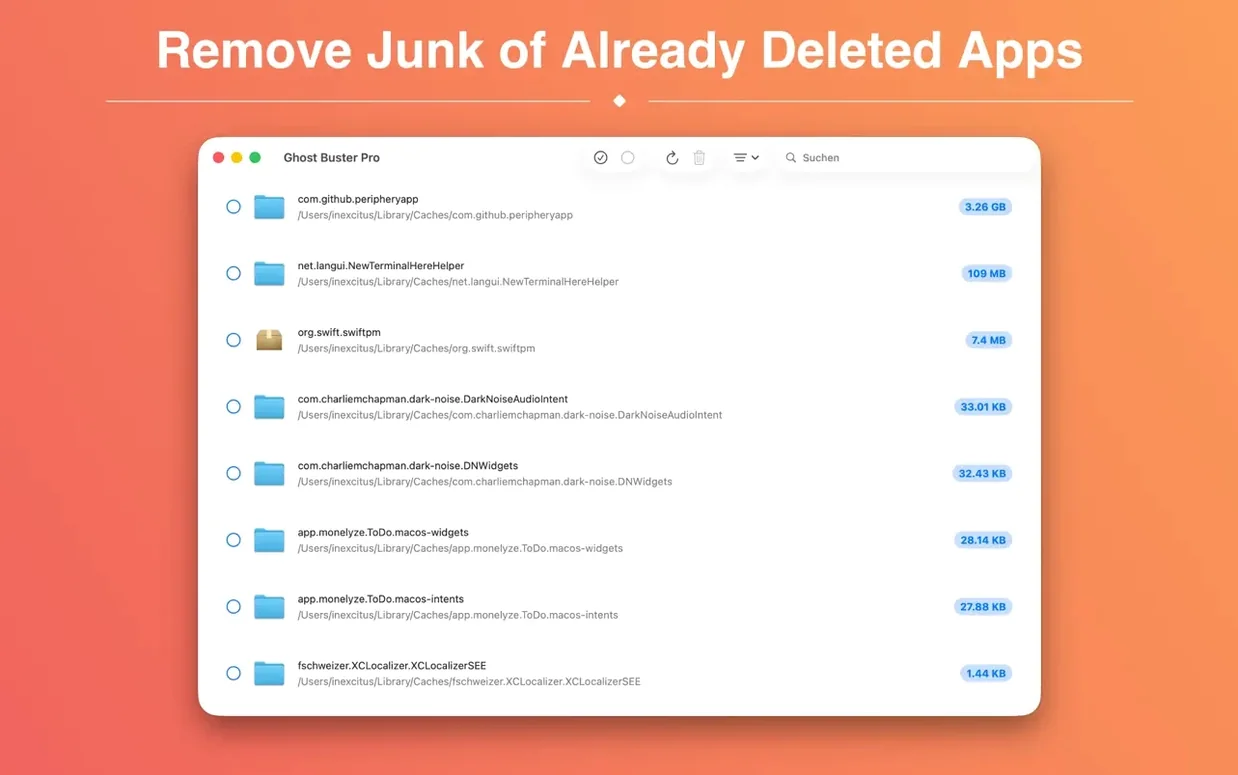
- Results list the leftovers plainly: file name, originating app, and location. Nothing is selected by default, and nothing gets removed until you decide.
- Mark the entries you want gone, click once, and the app clears them. The Russian, Korean, and French localizations mean this workflow stays legible across a multilingual studio setup.
There's no background daemon or automated purging here—the utility acts only when you open it and confirm a deletion. On an Apple Silicon Mac running macOS 15.6, the native ARM build keeps the scan light and brief, while Intel users get the same binary without a translation layer.
Where scans can miss the mark
Ghost Buster Pro searches a defined set of Library paths—the usual suspects where preferences, caches, and application support files settle. But an app that scattered logs into a custom directory you added to your PATH, or a helper tool that stashed launch daemons outside the standard folders, won't surface here. The utility is thorough within its scope, not omniscient.
Another snag hits when you rename an application before trashing it. The scan matches leftovers to the original bundle identifier, so a renamed app still lights up the results correctly—but if you removed the app months ago and can't remember what it was called, the generic bundle-ID label on some entries can feel cryptic. Jotting down the name of the app you just uninstalled before running the scan keeps things readable.
Sandboxed apps from the Mac App Store sometimes leave behind container folders that Ghost Buster Pro flags even when parts of the app remain active through a background login item. Deleting those containers while the helper is still running can cause a brief permissions prompt or, in rare cases, a crash of the lingering process. The fix is simple: log out and back in before scanning, or check Login Items in System Settings first.
Artifacts from uninstalled apps only, not active software
People often ask whether the app can resurrect space taken by apps they still use. It cannot. Ghost Buster Pro only hunts for artifacts of uninstalled software—the cache files, preference panes, and saved application states that no longer have a parent app to answer to. If you're trying to slim down an active app, you'll want to clear its caches manually or use a dedicated uninstaller that reads the app's own receipt files.
Another common question is whether the scan touches personal documents. The utility stays inside the Library folder structure—it doesn't crawl your Documents, Desktop, or external drives. A leftover .dmg or a stray installer sitting in Downloads won't appear. The scope is deliberately narrow, which is why a full scan finishes in seconds rather than minutes.
"Does it run in the background?" comes up often enough to address directly. No daemon installs itself, no scheduled scans fire on their own. The app is purely manual. You launch it, you scan, you delete, you quit. For people who've had bad experiences with system cleaners that nest too deep into macOS, this restraint is the appeal.
Some users wonder if they need a separate ghost buster mac variant for older systems. The same binary works across Apple Silicon and Intel, and the minimum requirement is macOS 15.6, so as long as your machine runs that or newer, you're covered. There's no feature split between architectures.
Settings to adjust after the first scan
Ghost Buster Pro doesn't present a preferences window, but there are a few behavioural details worth knowing. The scan path is fixed to the current user's Library—scanning another user's leftovers requires logging into that account and running the app there. If you share a Mac and want to clean up a departed family member's orphaned files, that's the route.
The deletion itself is permanent. The files don't pass through the Trash, and there's no undo. On a first run, I'd suggest scanning immediately after uninstalling one known app—something small and recently removed—so you can see exactly what gets flagged and build trust in the results before marking dozens of entries for removal. The app's restraint in not pre-selecting anything helps here; you control every tick.
If you're using a useful ghost torrent or side-loaded build of something that left odd detritus in ~/Library, the scan will catch it just as readily as App Store leftovers. The utility doesn't discriminate by installation source, which makes it handy for creatives who bounce between signed and unsigned tools.
Cleaning up after a video-editing trial: a walkthrough
Say you tested a colour-grading suite for a short film, decided against it, and dragged the app to the Trash last week. Its name is gone from the Applications folder, but you suspect the LUTs it installed and the render-cache folder it created are still eating space somewhere. Here's how to chase those down with Ghost Buster Pro.
Launch the app. The scan begins immediately—no start button to press. Within a few seconds, the results panel populates. Look for the bundle identifier of the grading suite; if the name isn't obvious, the path column usually gives it away. Application Support folders named after the developer, preference files with the company's reverse-domain prefix, and caches inside ~/Library/Caches are the typical catch.
Before ticking anything, open Finder and navigate to one of the listed paths. Confirm the folder's contents—those LUTs and render cache files should be sitting there, timestamped from your trial period. Once you're satisfied, return to Ghost Buster Pro, check the relevant entries, and click the delete button. The files vanish immediately.
Reboot or log out and back in to clear any in-memory references the old app might have held. The scan is fast enough that you can run it again afterward to confirm nothing reappeared. For a filmmaker like me who cycles through colour tools, audio analysers, and subtitle editors while searching for the right fit, this loop—test, trash, scan, confirm—keeps the Mac from accumulating digital ballast over a production cycle.
Version 7.0.0 brings a clearer look under the hood. A new built-in help panel walks through how the scan engine works and what's genuinely safe to remove, so you're not left guessing at checkboxes. Each result now carries an info button that explains precisely why a file was flagged as a leftover — the kind of transparency that makes a cleanup tool feel less like a leap of faith. One structural shift: this release requires a Mac with Apple silicon. Intel Macs can stay on the previous version, which remains fully functional.
- macOS 15.6 or later
- Apple Silicon or Intel 64-bit
Questions from the booth
No, Ghost Buster Pro never removes data without your explicit consent. Every file deletion requires a manual selection and confirmation step.