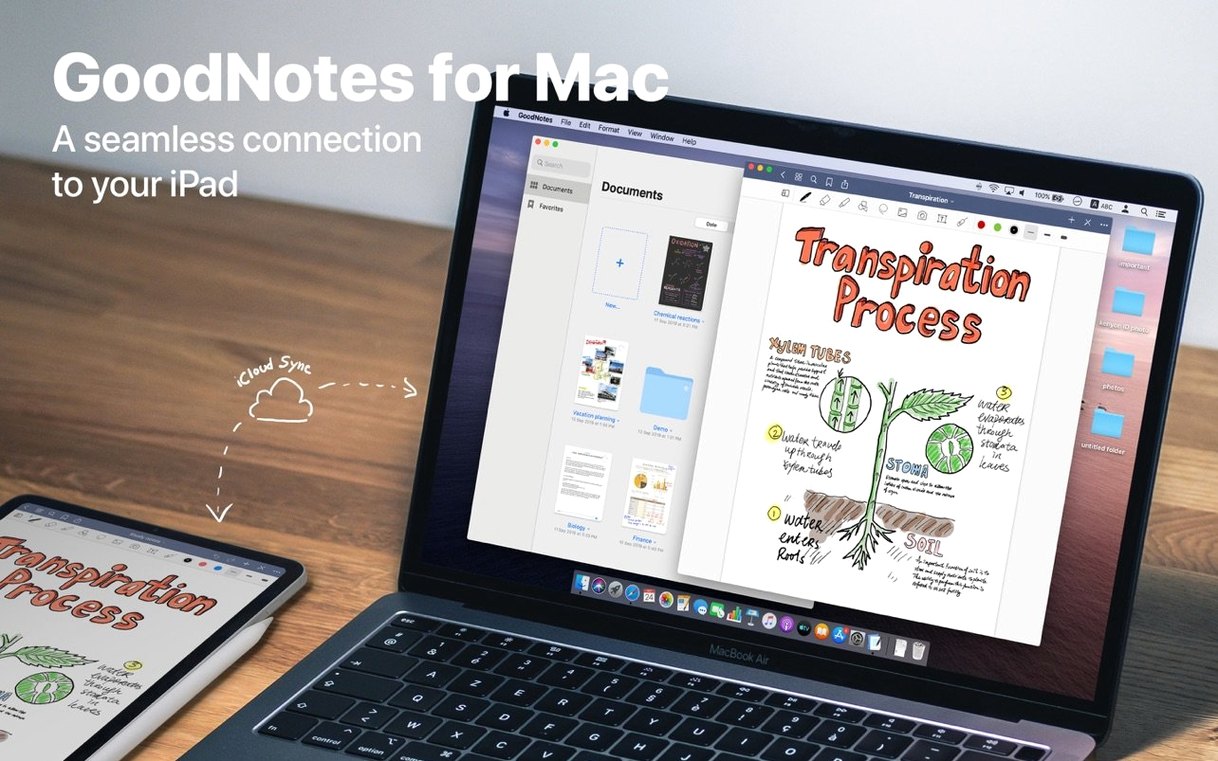
This version of GoodNotes 5 brings the full notebook experience to the desktop without reinventing its core promise. It runs on any Mac with macOS 10.15 Catalina or later, on both Intel and Apple Silicon machines, so the deciding factor is rarely the hardware — it's whether your writing and reading habits span more than one screen. Because the Mac app becomes most useful when it sits inside a wider iCloud sync loop with an iPad or iPhone.
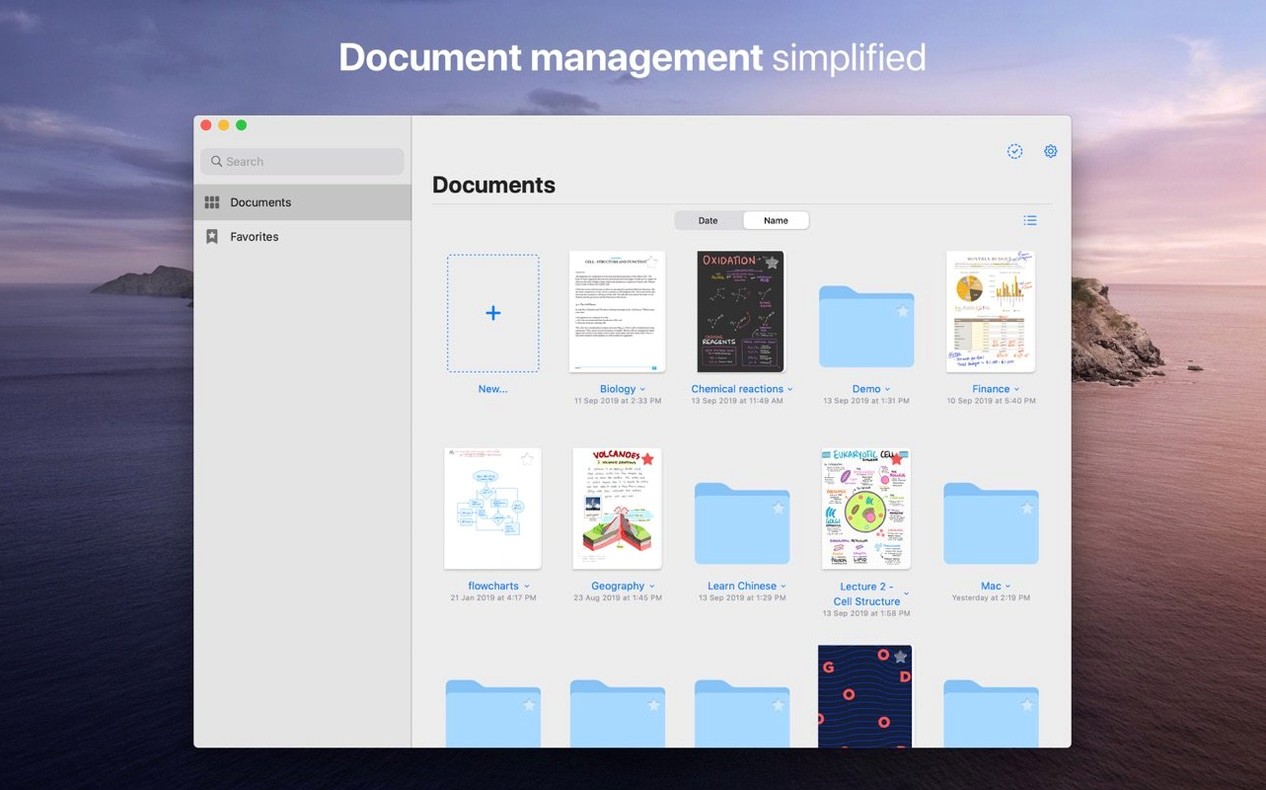
Once you open a notebook, the workflow follows a natural order. First, you create a digital notebook and give it a cover and paper style that suits the content — blank, lined, or grid. Second, you build a structure of folders and subfolders, then drag your most-used pages and documents into the Favorites section so they sit one tap away. Third, as imported PDFs arrive — research papers, scripts, marked-up contracts — the app preserves live hyperlinks inside them, which saves the quiet frustration of broken references. Fourth, if the document grows long, you can assemble a custom table of contents that makes navigation feel closer to a printed book than an infinite canvas. Finally, when a page or a whole document needs to leave the app, you drag it out as a PDF and it lands on your desktop or in a message thread as a clean, self-contained file.
Everything you change on the Mac quietly surfaces on an iPad or iPhone through iCloud, and the reverse holds true. The app speaks fourteen interface languages, from Russian and Japanese to Dutch and Turkish, so the toolbars and menus can match the language you think in while the contents of your notebooks stay in whatever language you write.
Flick one preference to stop stray palm marks ruining your page
The default setup works, but a few early switches make the app feel less like a generic editor and more like your own desk. Open Preferences and head straight to the Stylus & Palm Rejection pane even if you never plan to connect a stylus — the palm rejection sensitivity slider affects how the trackpad interprets rests and drags, and dialling it up slightly prevents accidental ink marks when your hand brushes the surface during long writing stretches. On a MacBook with a larger trackpad, this one adjustment saves a surprising amount of cleanup.
Next, turn off Auto-Advance in the Document Editing section unless you regularly write in short bursts that end exactly at the right margin. The feature jumps the view forward when a page fills, which sounds helpful but tends to disorient when you are rereading a paragraph and suddenly find yourself staring at blank paper. For the same reason, consider setting the scroll direction to Vertical rather than Horizontal — it matches the way most people read long documents on a desktop screen and makes comparing two pages in split view feel less cramped.
The iCloud sync toggle sits under iCloud Settings, and it is worth confirming it is active before you build a folder structure that you expect to appear on your iPad later. GoodNotes syncs documents selectively, not as one monolithic library, so anything you want available elsewhere needs to live inside a synced folder from the start. Moving it afterward works, but the process leaves temporary duplicates that you then have to hunt down and delete.
Drag a PDF straight from Safari onto a notebook to start marking it up
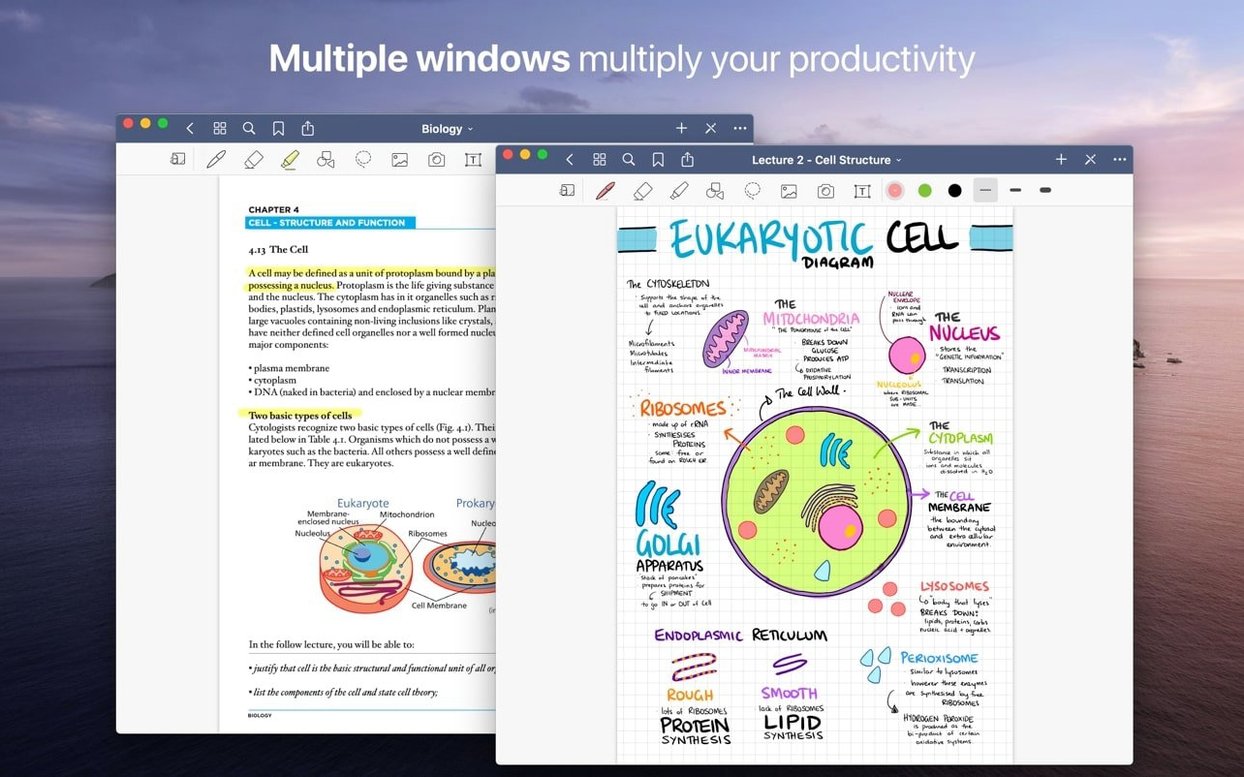
You sit down with a research paper open in Safari and a blank GoodNotes notebook ready on the left half of the screen. Dragging the PDF from the browser’s download shelf directly onto the notebook’s page list imports it as a new document, live hyperlinks intact. The paper lands with its original formatting preserved, and you immediately switch to the pen tool — a dark blue fine tip on a pale yellow lined background, because stark white burns the eyes after the second hour.
Highlighting a key passage takes one stroke with the highlighter tool set to straight-line mode, which snaps to the text baseline and looks cleaner than a wobbly freehand drag. When a margin note grows too long, you tap the Add Page button and continue writing on a fresh sheet — the app inserts it right after the page you are on, so the annotation stays physically close to the source material it references. Thirty minutes in, you notice the paper references a dataset you have as a separate PDF. You drag that file in too, then open the Favorites sidebar and pin both documents so they sit at the top of the folder for the rest of the session.
Later, when the notebook reaches a dozen annotated pages, you open the outline view and start adding custom table-of-contents entries — one for the methodology critique, one for the statistical notes, one for the literature gaps. These entries become tappable anchors that let you jump between sections without scrolling through pages of highlights. When the session ends, you drag the fully marked-up document to the desktop as a single PDF export, and it appears with every highlight, note, and shape exactly where you left them.
Your lasso won’t grab a single stray pixel, so encircle the stroke completely
The first thing that trips people up is handwriting that refuses to move after they select it. The lasso tool needs to fully enclose every stroke you want to grab — if even a single pixel of ink sits outside the selection boundary, GoodNotes ignores it. Drawing a wider loop than you think you need solves this almost every time, and once selected, the floating toolbar handles resize, rotation, and colour changes without switching tools.
iCloud sync lag is the second regular complaint. A notebook edited on the iPad might take a minute or two to appear updated on the Mac, especially if the document is large and full of high-resolution images. The fastest way to nudge it along is to pull down on the document list to force a refresh, then wait. If the document still shows an old version, closing and reopening the app on the Mac triggers a fresh sync check, but avoid editing the same page on two devices simultaneously — that creates a conflict copy rather than merging changes, and resolving it means manually copying content from one version to the other.
The eraser tool confuses newcomers because it defaults to erasing entire strokes. If you only want to clean up the tail of a letter or the corner of a sketch, switch the eraser mode to Precision in the tool options — it then works like a real eraser, removing only the pixels you drag over. There is also a separate toggle for erasing marker ink only, which is useful when you have layered highlighter over pen and want to remove the fluorescent layer without touching the text beneath.
Imported PDFs sometimes render with missing fonts or odd spacing. This is not a GoodNotes flaw but a consequence of the PDF lacking embedded font data. The workaround is to open the PDF in Preview first, print it to a new PDF via the system print dialogue, and then import that flattened copy — it will look identical to the original but display reliably inside a notebook.
Students who scribble in class and tidy up at home on a bigger screen
Students who split their time between lecture halls and a desk at home are the most obvious fit. The iPad captures handwritten notes during class and the Mac becomes the evening review station — larger screen, keyboard shortcuts for navigation, and the ability to drag in lecture slides for annotation without emailing files to yourself. The iCloud bridge means nothing needs to be transferred manually, and the Favorites system keeps current-semester materials grouped even when the folder structure runs deep.
Researchers and lawyers who work with document-heavy workflows benefit from the PDF handling more than the handwriting tools. The combination of live hyperlinks, custom tables of contents, and drag-and-drop export turns a folder of imported papers and case files into a browsable reference library that exports cleanly when you need to share a marked-up version with a colleague. The Shapes tool also earns its place here — callout boxes and clean arrows drawn with it make margin notes legible to someone who was not in the room when you wrote them.
Creative writers and script editors who prefer longhand drafting but need a typed final product find a middle ground. A notebook page offers the freedom of pen on paper without the stack of physical journals, and the export pipeline means a handwritten scene can become a searchable PDF in seconds. The Mac’s larger display makes the split-view workflow — notebook on one side, typed draft on the other — practical in a way that feels cramped on even the largest iPad screen.
The users who gain the least are those who treat the Mac app as a standalone tool without an iPad or iPhone in the loop. GoodNotes on a desktop works perfectly well on its own, but its personality comes from the sync — the sense that a notebook is never tied to one device. If your entire workflow lives on a single Mac and you rarely annotate documents by hand, a simpler PDF reader and a plain text editor might cover the same ground with less overhead. But the moment a second screen enters the picture, the app stops being a note-taker and starts behaving like a shared workspace that follows you between rooms.
- macOS 10.15 or later
- Apple Silicon and Intel 64‑bit
Questions from the booth
Yes, GoodNotes syncs changes through iCloud with other Macs, iPads, and iPhones as long as you are signed into the same Apple ID.
You can export entire documents or individual pages as PDF files simply by dragging them out of the app.
It preserves live hyperlinks in imported PDF files, so references and web links remain functional inside your notebooks.