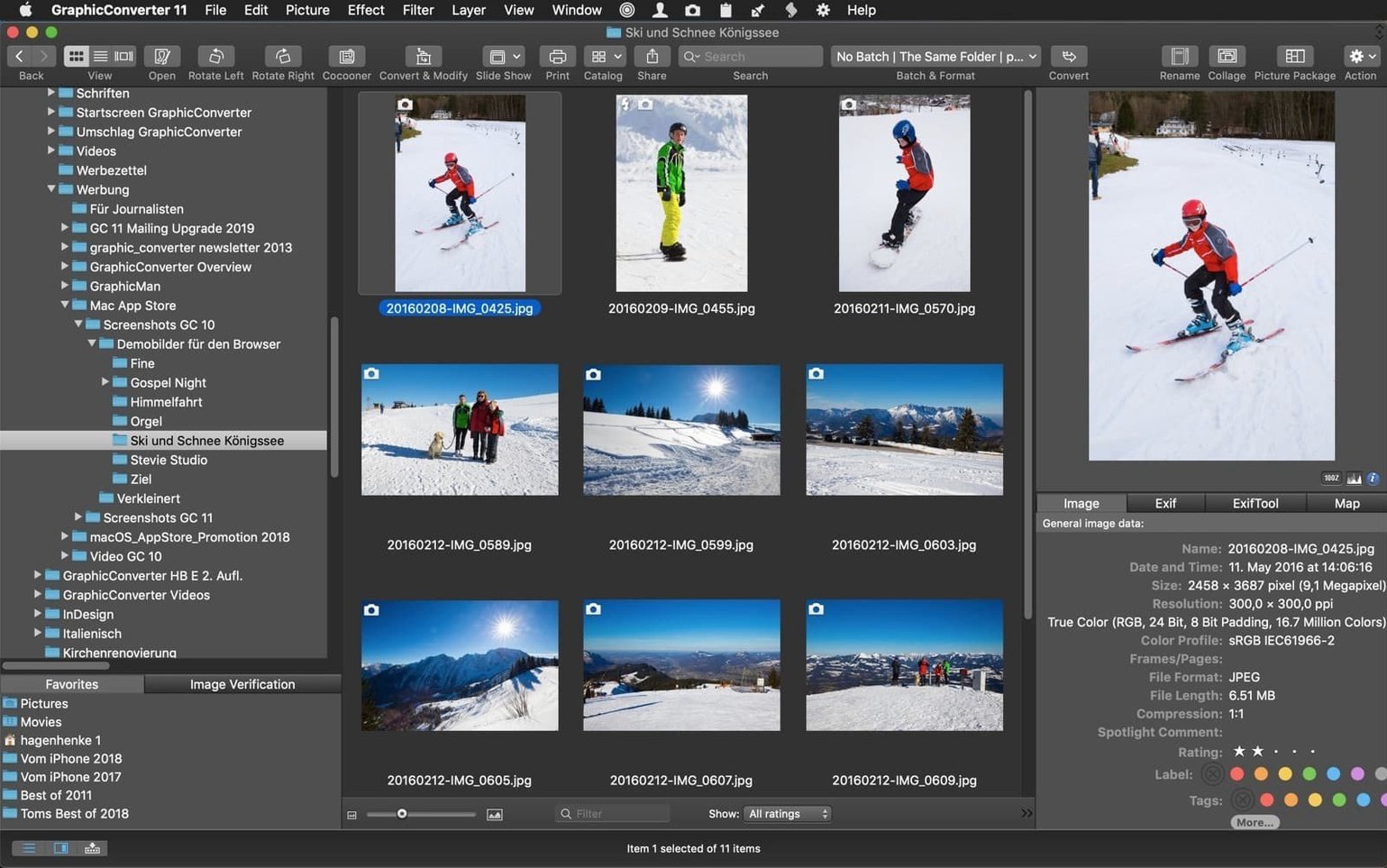
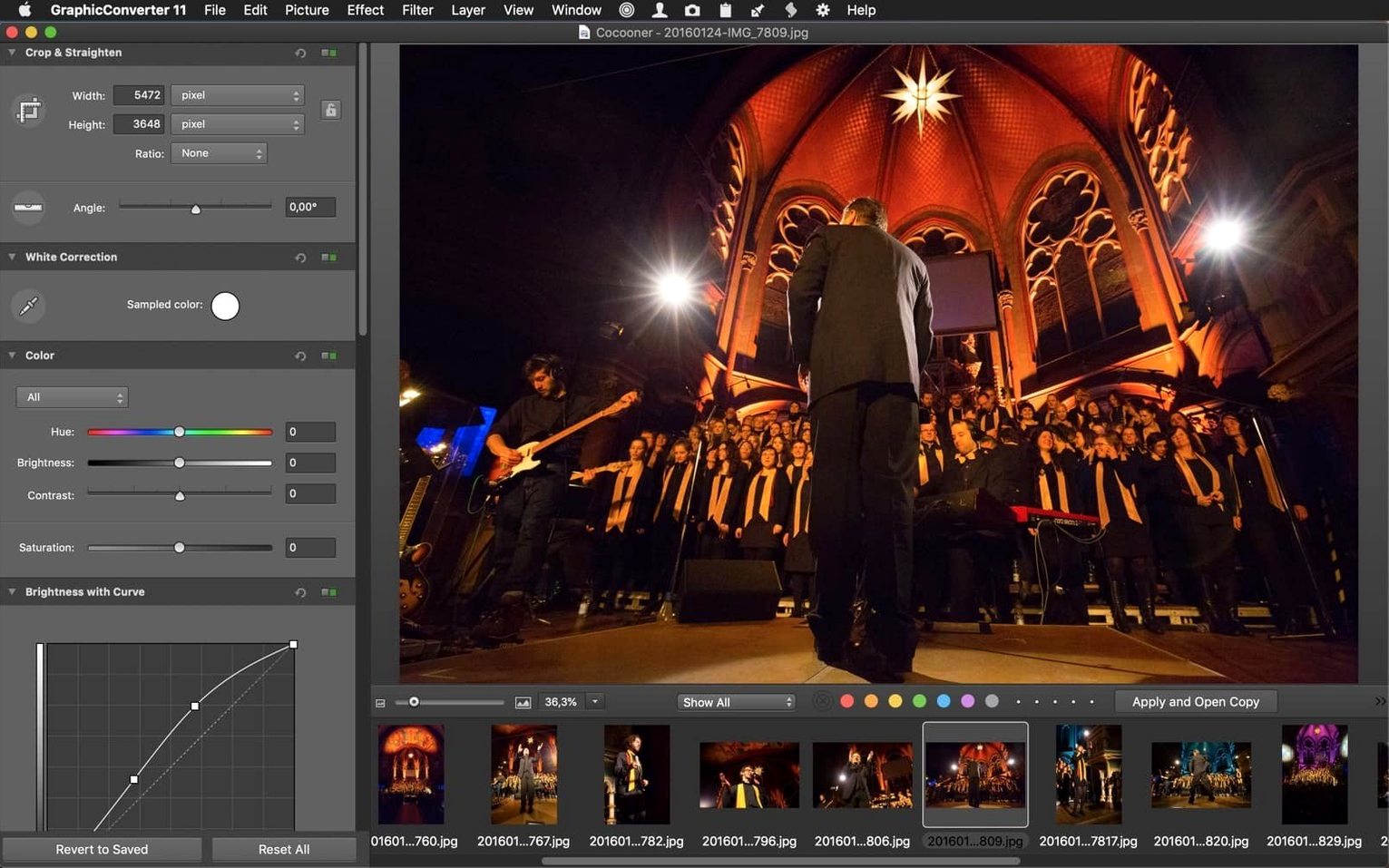
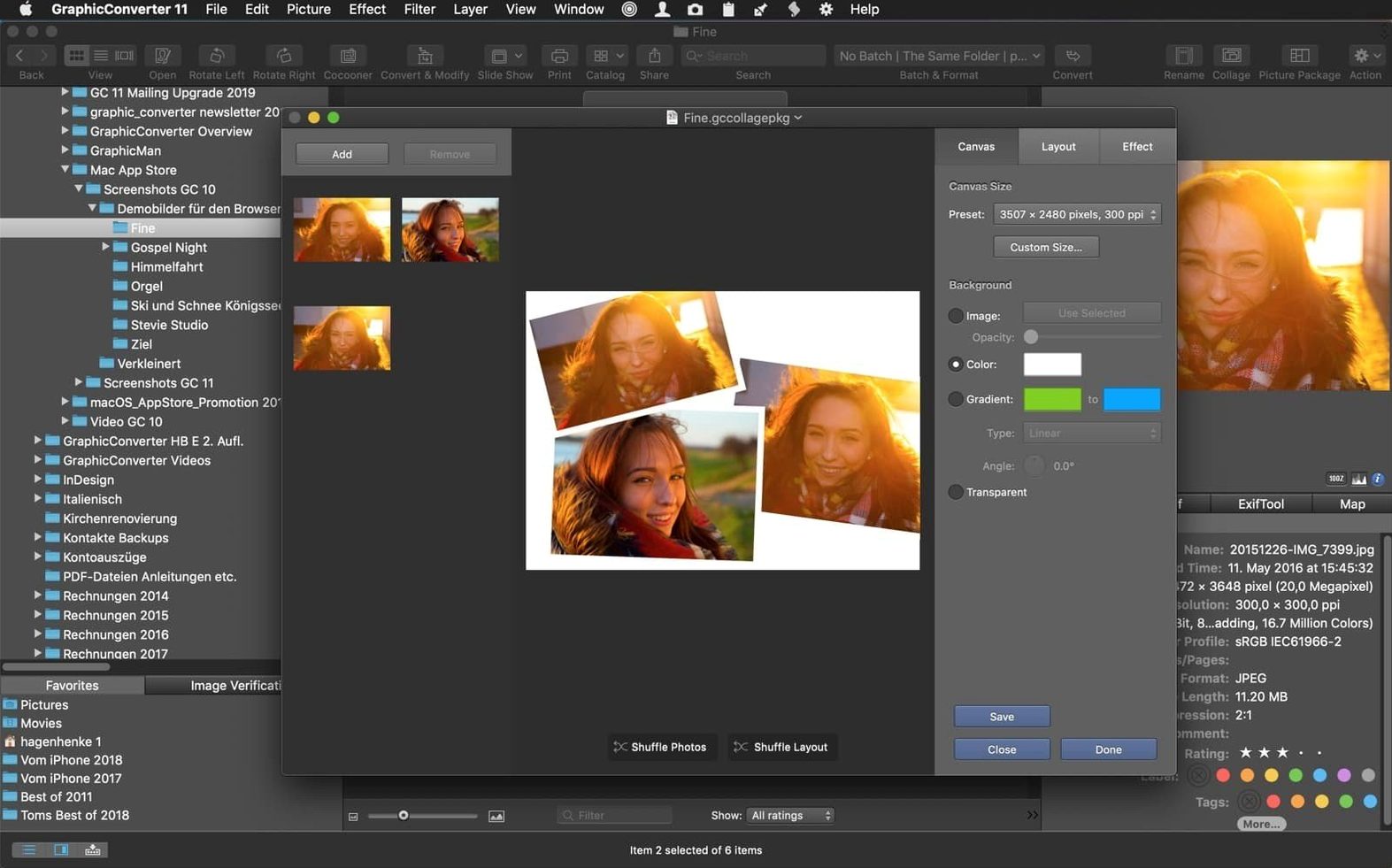
You come back from a shoot with a card full of RAW files in a format your other tools won't touch, or you inherit a folder of thirty-year-old MacPaint relics from an archive drive. Getting them open, let alone edited and exported consistently, usually means juggling three different utilities. GraphicConverter 12 for Mac has spent decades as the quiet answer to that problem — a single application that reads almost anything you throw at it and gives you a straightforward path from browsing to finished output.
Resurrects ancient and obscure image formats other editors abandon
- Opening and converting obscure or legacy image formats that other editors refuse to recognize
- Batch processing large sets of files — resizing, colour correction, format changes, and resolution adjustments applied across hundreds of images in one pass
- Working with colour-critical workflows, thanks to full ColorSync and ICC profile support
- Simple pixel editing and Photoshop-compatible filter use without launching a heavyweight suite
- Browsing and cataloguing photos with geographic metadata shown on a map
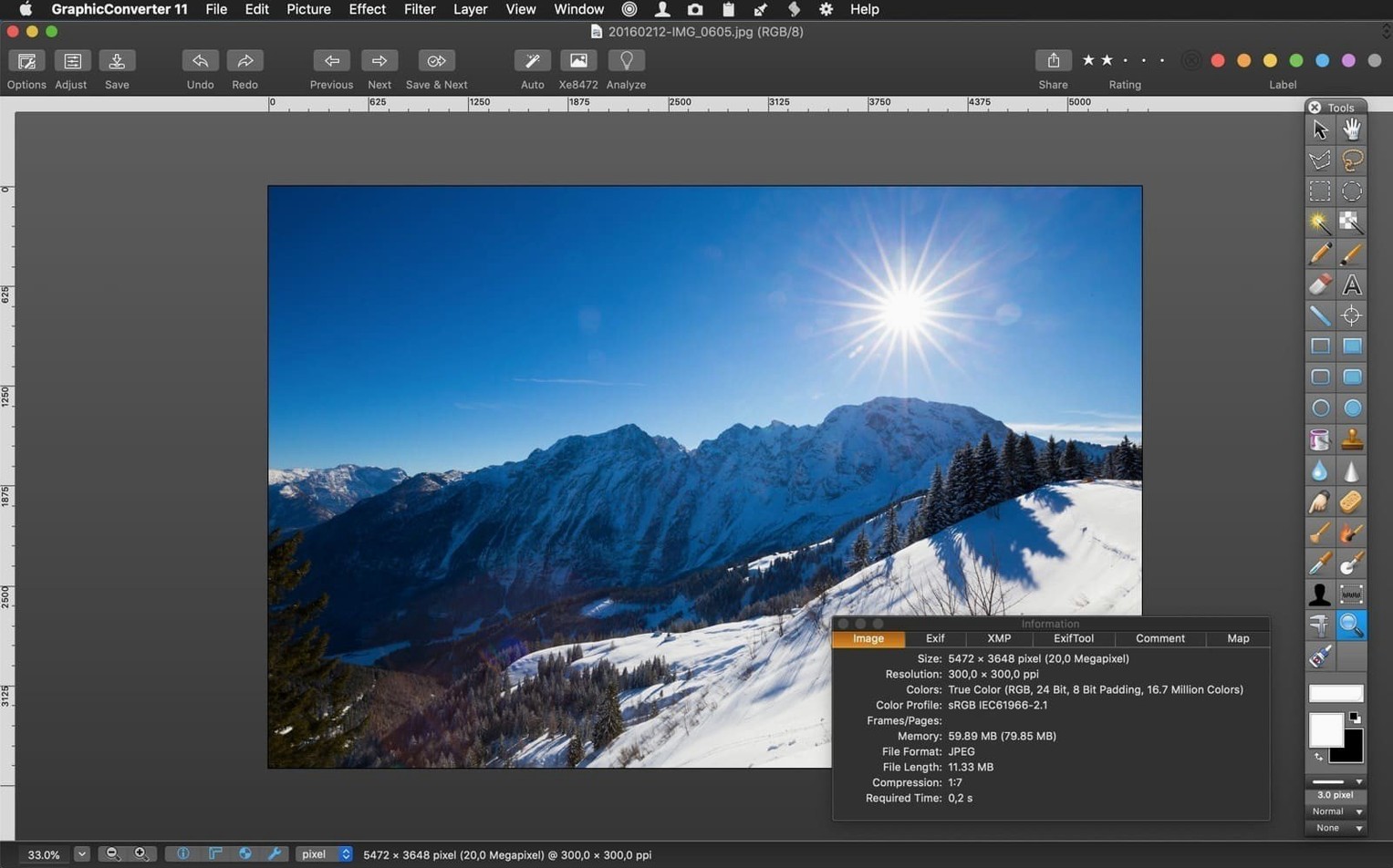
A 1990s-era interface that trades polish for unshakable utility
- The interface prioritizes function over contemporary aesthetics — it feels like a tool built by someone who has been refining it since the 1990s
- Version 12.5.4 requires macOS 10.13 High Sierra or newer and occupies roughly 260 MB of disk space
- Runs natively on both Intel and Apple Silicon Macs as a Universal Binary
A file-conversion workhorse that sidesteps library management entirely
GraphicConverter lives in a peculiar space on macOS — it isn't trying to be a creative suite like Affinity Photo, and it doesn't share the library-management ambitions of a Lightroom alternative. Put it next to XnView MP, and the difference comes down to depth. XnView handles batch conversion and format breadth competently, but its macOS port carries a slightly foreign interface feel and lacks GraphicConverter's direct scanner support, AppleScript hooks, and the sheer number of export presets you can chain together. You feel the years of Mac-specific refinement in GraphicConverter the moment you right-click a thumbnail and see how many actions live in that contextual menu.
Against Preview — the app every Mac user already has — GraphicConverter wins on two fronts: RAW handling and batch work. Preview opens a RAW file slowly and gives you no real control over the conversion parameters; GraphicConverter lets you adjust the demosaicing and colour profile before you even see the image. And Preview has no batch processor at all. The trade-off is that Preview launches instantly and weighs nothing, while GraphicConverter asks you to learn its layout. For a third comparison, Photoshop's Image Processor script handles batch exports well, but only for formats Adobe deems worthy. Try feeding it a folder of Amiga IFF files or old Silicon Graphics images and you will be back in GraphicConverter within minutes.
Drop a folder onto a preset chain without opening the main window
The drag-and-drop converter added in 12.5.4 sounds minor until you realize you can keep a folder on your desktop, drop anything onto it, and have it inherit a preset chain without opening the main window. Right-click any image in the browser and choose Slideshow — it builds one from the current folder with transitions and a soundtrack, no export step needed. Holding Option while using the loupe tool temporarily switches to a 1:1 pixel view, which is the kind of shortcut you stumble into and then use constantly. The metadata panel has a copy-and-paste function for GPS coordinates: find a location once on the map, copy it, select a whole shoot from that spot, and paste the coordinates across every file. AppleScript users will find a dictionary deep enough to automate folder-watching workflows — new images land, get converted and renamed, then moved to an archive, all without touching the GUI.
Tame the floating windows and lock in your default save format
Out of the box, GraphicConverter defaults to opening images in a window that floats above others. If that disrupts your flow, head to Preferences > General > Windows and switch to a document-mode behaviour. While you are there, set the external editor path to your main pixel-pushing app — a single keystroke sends the current image out for heavy retouching and brings the result back when you save. The colour management defaults are sensible, but the ColorSync preference pane lets you assign a proofing profile that sticks across sessions, which is essential if you regularly prepare images for print. Turn on Auto-save browser previews in the browser settings; the first folder scan will take longer, but every subsequent visit is near-instant, even with directories holding thousands of RAW files. And if you work with scanned line art, enable the Auto free mask option in the batch processor — it separates foreground from background with one checkbox, saving you a round trip through a dedicated masking tool.
Version 12.5.4 arrived in late August 2026 with the usual round of fixes and refinements that characterize Lemke's steady release cadence.
- macOS 10.13 High Sierra or later
- Intel or Apple Silicon Mac (Universal Binary)
- Approximately 260 MB of free disk space
Questions from the booth
Yes, version 12.5.4 is a Universal Binary that runs natively on both Intel and Apple Silicon Macs.